A Divider is a simple horizontal line you place on your page to visually separate one piece of content from another — between two sections, after a paragraph, or between testimonials, for example. It's a small thing that makes a page much easier to read, giving the eye a clean break instead of one big wall of content.
This guide shows you how to add a divider and style its thickness, pattern, and color.
Prefer to watch? Here's the video walkthrough:
Note on adding it first: Like any element, the Divider needs a row with a column to sit in. If your section is empty, add a row first, then drop the divider into a column.
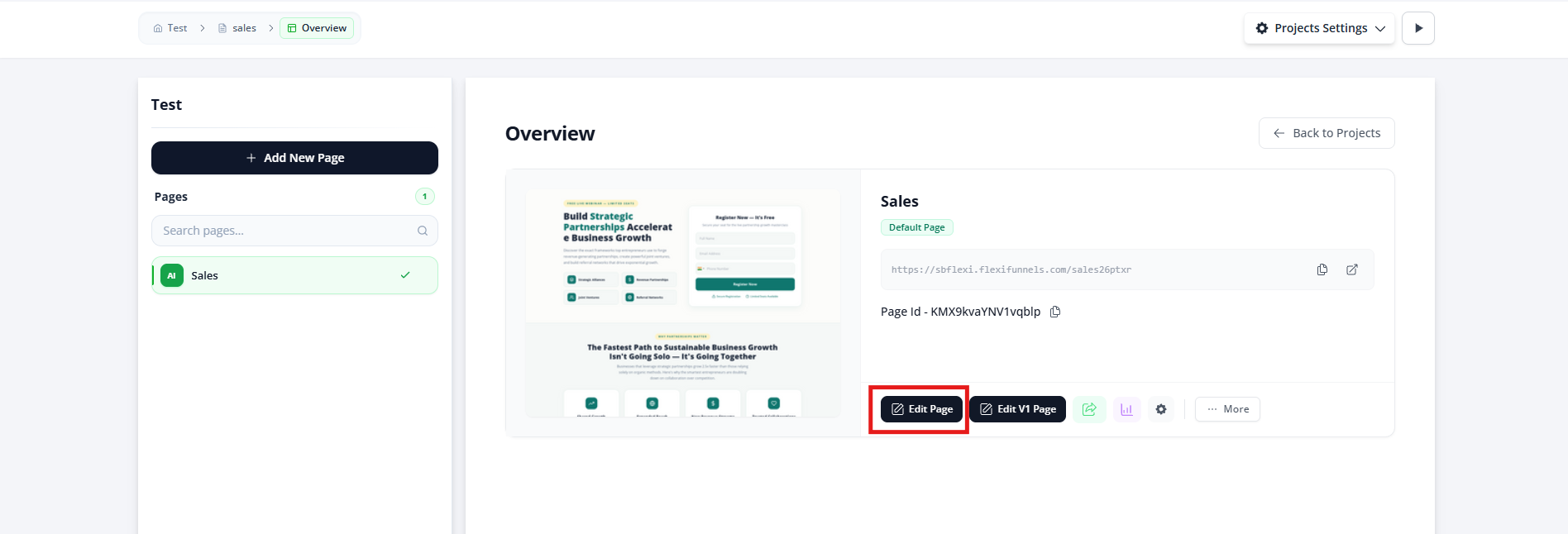
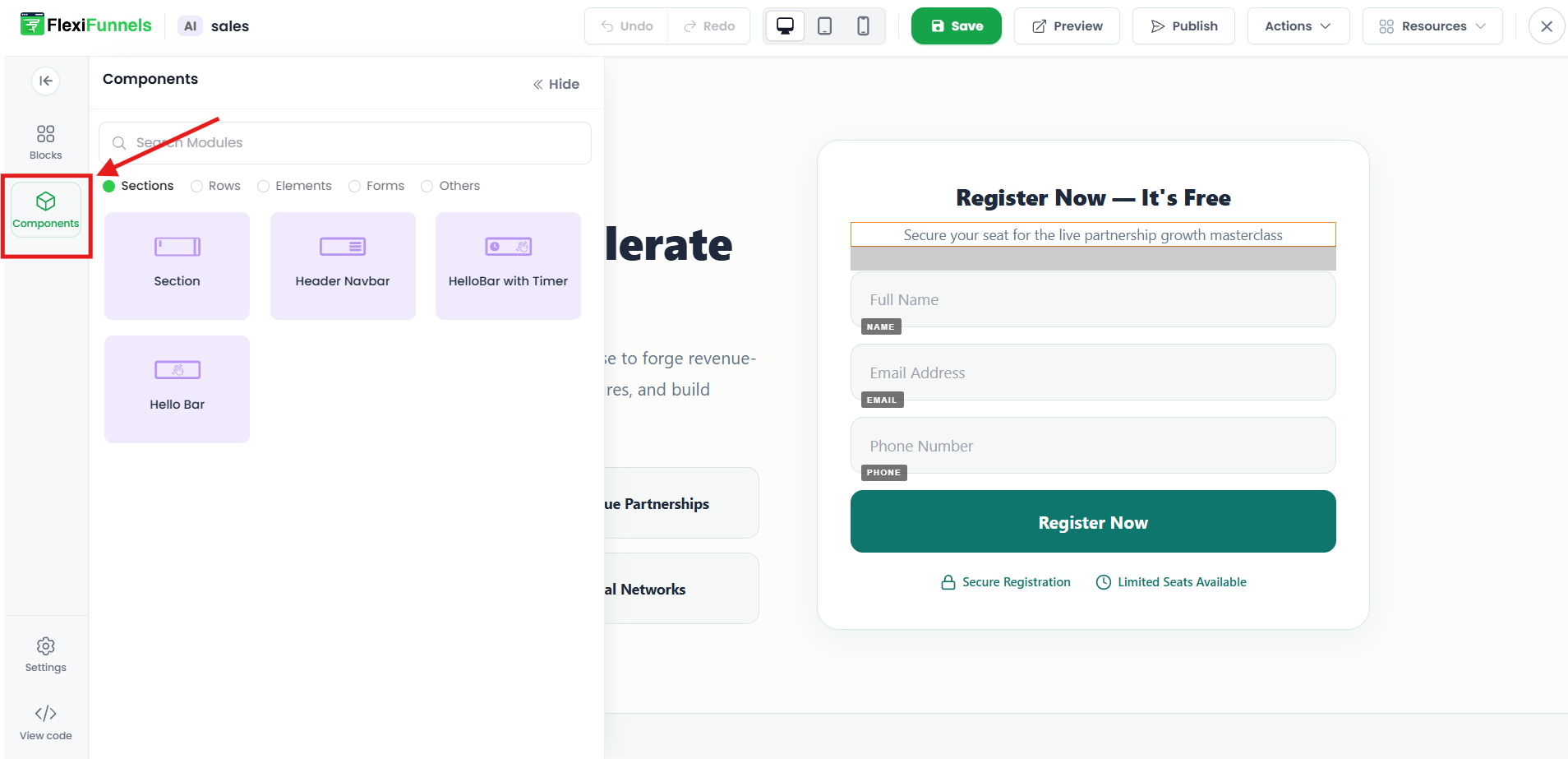
Step 2 — Open Components
Go to the Components tab, where all the elements live.
Step 3 — Add the Divider element
Under Elements, find the Divider and drag it into a column on your page.

Style Settings — basic settings of the Divider element
Select the divider and open its Style Settings to change how the line looks.

Divider Settings

From here you can set three things:
- Divider Size — the thickness of the line, in pixels. A small number like 1–2px gives a thin, subtle line; a larger number makes a bolder bar. (It's labeled "height," but for a horizontal line that just means how thick it is.)
- Divider Style — the line pattern: Solid, double, dotted, dashed, groove, and more. Solid is the clean everyday choice; dotted or dashed feels lighter and more decorative.
- Divider Color — the line's color. Pick from the color palette or paste an exact hex code (e.g.
#000000) to match your brand.
Common situations & quick fixes
"The Divider element won't drop onto the page." It needs a row with a column to sit in. If your section is empty, add a row first (Plus icon → Components → Rows), then drop the divider into a column.
"I added a divider but I can't see it." A few usual causes: the Divider Size is set very low (or 0), so the line is too thin to notice — bump it up to 2–3px; or the Divider Color is the same (or similar) shade as the background — pick a contrasting color so it shows.
"My divider is too wide / stretches the whole column." A divider spans the full width of the column it sits in. To make it shorter, place it inside a narrower column (e.g. a multi-column row, or a column with side padding) rather than a full-width one.
"I want a curved or wavy separator between sections, not a straight line." That's a different feature — the Shape Divider, found in a section's advanced settings, not this element. See How to add a Shape Divider inside the advanced settings of the section.
"My style change isn't showing." Make sure the divider itself is selected (not the row or column around it) before changing its settings. And remember edits need to be saved and published before they appear on the live page.
Still stuck?
If a divider won't add, display, or style the way you expect after trying the steps above, submit a ticket and tell us which page you're editing and what you're seeing — a screenshot of your divider settings helps us sort it out quickly.
Was this article helpful?
That’s Great!
Thank you for your feedback
Sorry! We couldn't be helpful
Thank you for your feedback
Feedback sent
We appreciate your effort and will try to fix the article