FlexiFunnels uses a drag-and-drop editor, so you can build complete, high-converting pages without any coding. Every page is built from five building blocks that fit together in a simple order.
The big picture (read this first)
Think of building a page like furnishing a house:
- Sections are the rooms — the big horizontal bands of your page.
- Rows divide a room into lanes (columns) so you can place things side by side.
- Elements are the furniture — the actual headings, images, buttons, and so on.
- Forms and Others are special furniture for collecting leads and taking payments.
So everything stacks together in this order:
SECTION  (a band of the page)
  └─ ROW  (splits the band into columns)
       └─ ELEMENT  (heading, image, button, video…)
? The golden rule: you can't drop an element onto a blank page directly. First add a section, then a row inside it, then place your elements inside the row's columns.
Section → Row → Element, every time.
1. Sections
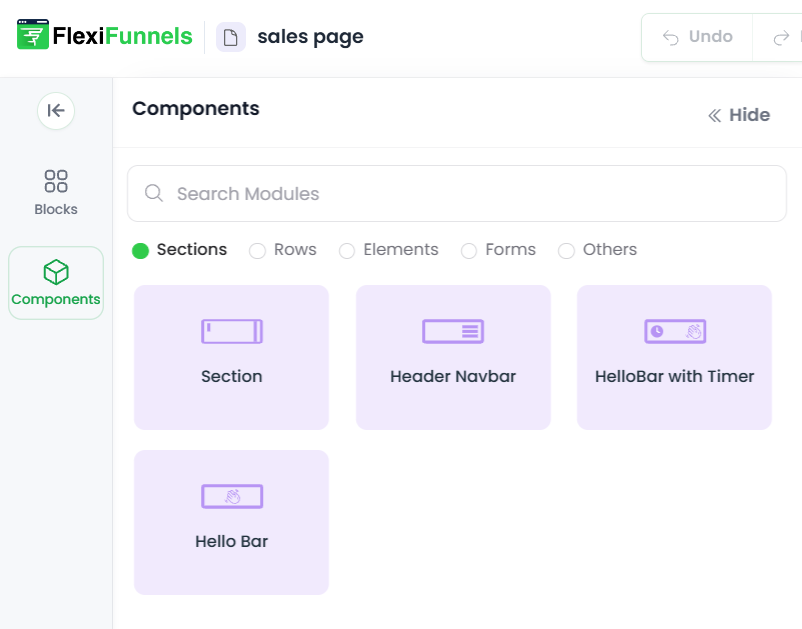
Sections are the foundation of your page — every page begins with one. They give your content a defined area to live in.
You can choose from:
- Standard Section — for general layout areas (most of your page).
- Header Navbar — adds a navigation menu bar at the top.
- Hello Bar with Timer — a slim banner with a countdown, great for urgency and limited-time offers.
- Hello Bar — a slim banner for announcements or a call to action.
2. Rows
Once you have a section, you add rows inside it. Rows decide how your content is split across the page (left to right).
You pick a column layout based on how many things you want side by side. For example, a 2-column row lets you put an image on one side and text on the other.
For example:
A 2-column row allows you to place two elements like an image on one side and text on the other.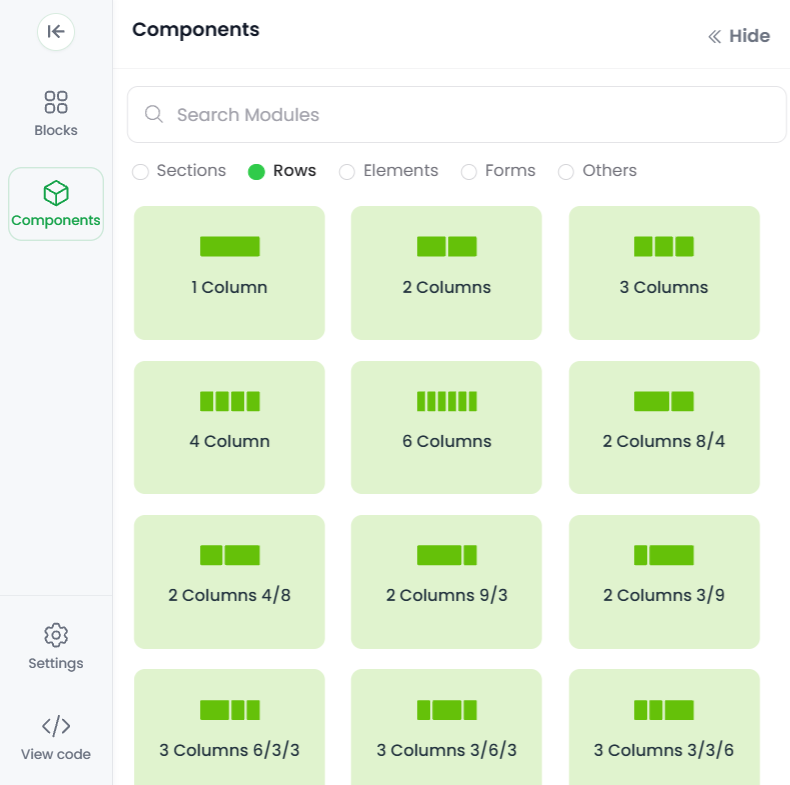
3. Elements
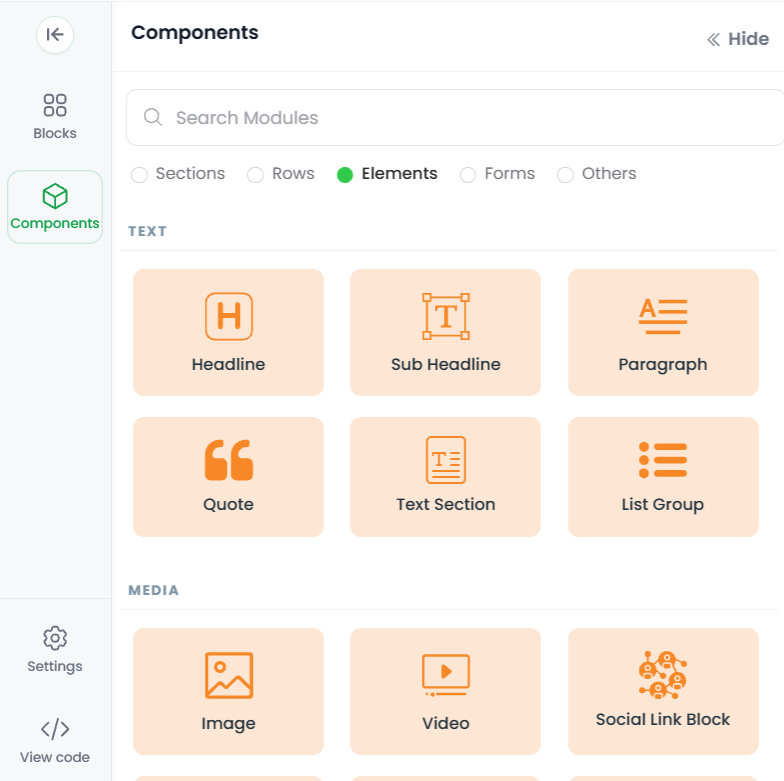
Elements are the actual content you drop into the columns of your rows:
- Headings
- Paragraphs
- Buttons
- Images
- Videos
- Icons
- …and more
Just drag an element into a column and it appears on your page.
4. Forms
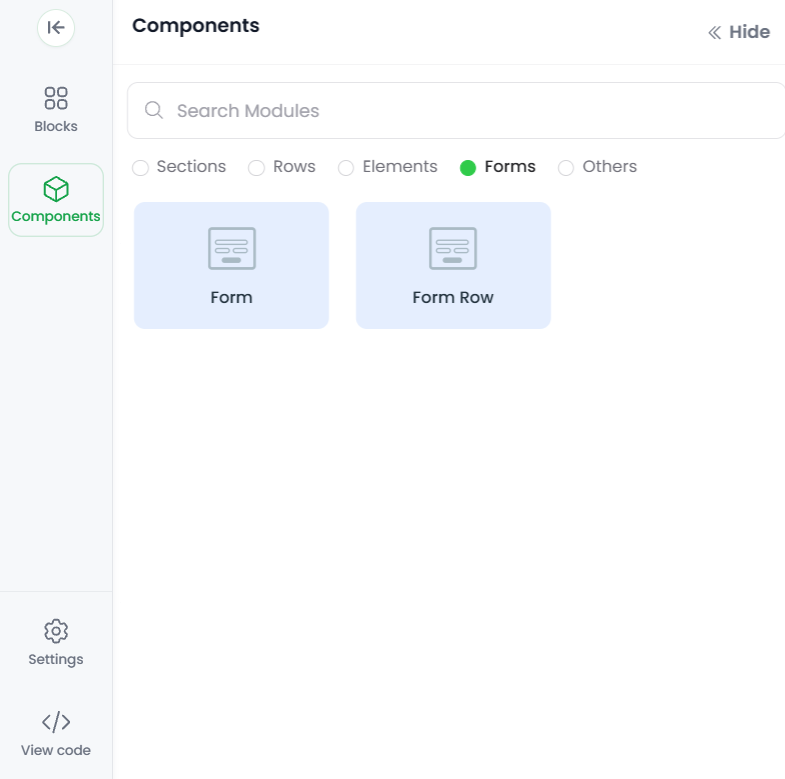
FlexiFunnels gives you ready-made forms to collect leads:
- Vertical Forms — the most common style for landing pages.
- Horizontal Forms — compact, great for hero sections or footers.
Forms can be connected to your CRM or email tool so every submission flows straight into your list.
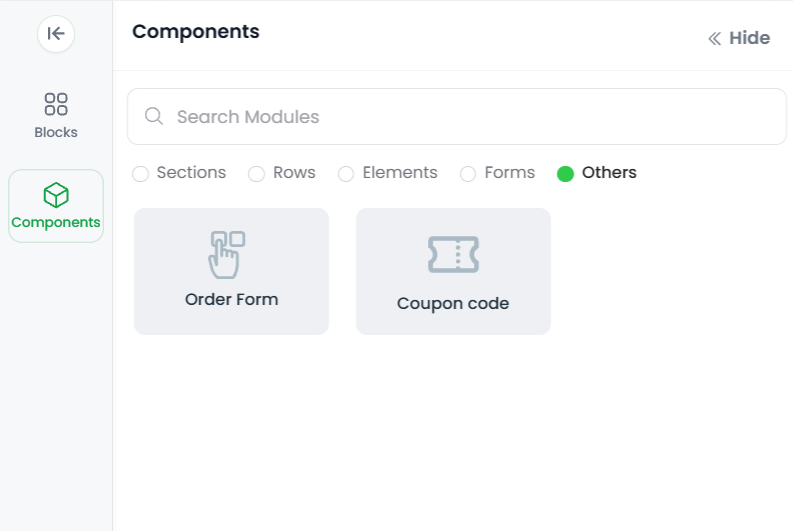
5. Others
These are the components that power a real sales/checkout flow:
- Order Form — collects payment and customer details for your product or service.
- Coupon Code — lets customers apply a discount at checkout.
⚠️ Important: the Order Form must be placed on a Checkout page. If you add it to a regular page, it won't collect payments correctly. (See page types when you create the page.)
How it all comes together
By layering Sections → Rows → Elements → Forms → Others, you can build any kind of page in FlexiFunnels — a lead-generation page, a sales page, a thank-you page, or a full checkout funnel.
Quick tips & common mistakes
A few things that trip people up — check these and you'll avoid the most common editor issues.
"I can't drop my element onto the page." You're likely missing a row. Elements only go inside a row's column. Add a section first, then a row, then drag your element into it.
"My order form isn't collecting payments." The Order Form only works on a Checkout page. Make sure the page's type is Checkout and that the order form is placed there, not on a standard page.
"My form submissions aren't going anywhere." A form needs to be connected to your CRM or email/autoresponder tool. Open the form's settings and link it to your list, or no leads will be saved.
"My layout looks fine on desktop but broken on mobile." This is usually the column layout. Wide multi-column rows can feel cramped on phones — check the mobile view in the editor and simplify columns where needed.
"My navigation bar or hello bar isn't showing." These are section types, not elements. Add them by inserting the Header Navbar or Hello Bar section, not by looking for them in the elements list.
"I want two things side by side but they're stacking." You need a multi-column row. Add a row with the number of columns you want (e.g. 2 columns), then place one element in each column.
Still stuck after trying the tips above? Submit a ticket telling us what you're trying to build and what's happening instead — a screenshot of your editor helps us spot it quickly.
Was this article helpful?
That’s Great!
Thank you for your feedback
Sorry! We couldn't be helpful
Thank you for your feedback
Feedback sent
We appreciate your effort and will try to fix the article