Sections are the foundation of every page — the big horizontal bands that hold your content. Before you can add anything else (rows, text, images), you need a section. Here's how to add one.
? New to how pages are structured? Sections sit at the top of the order: Section → Row → Element. You add a section first, then build inside it.
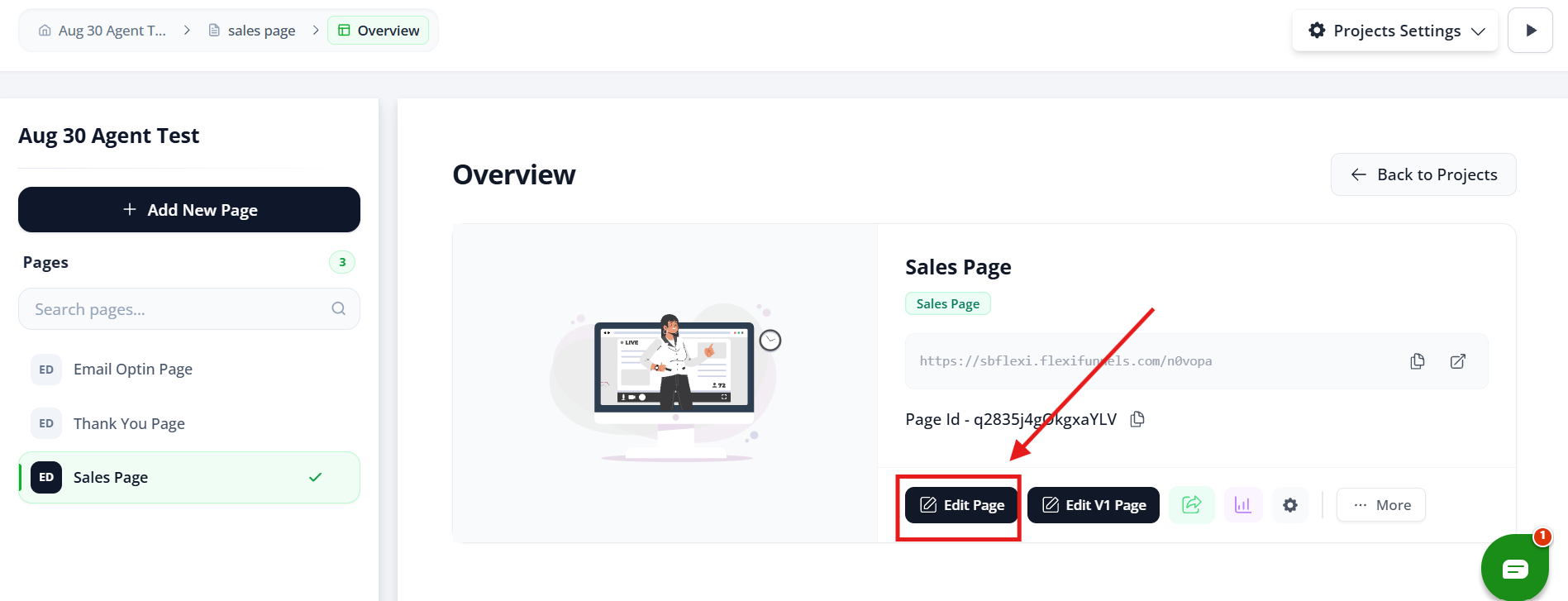
Step 1: Open your page in the Landing Page Editor.
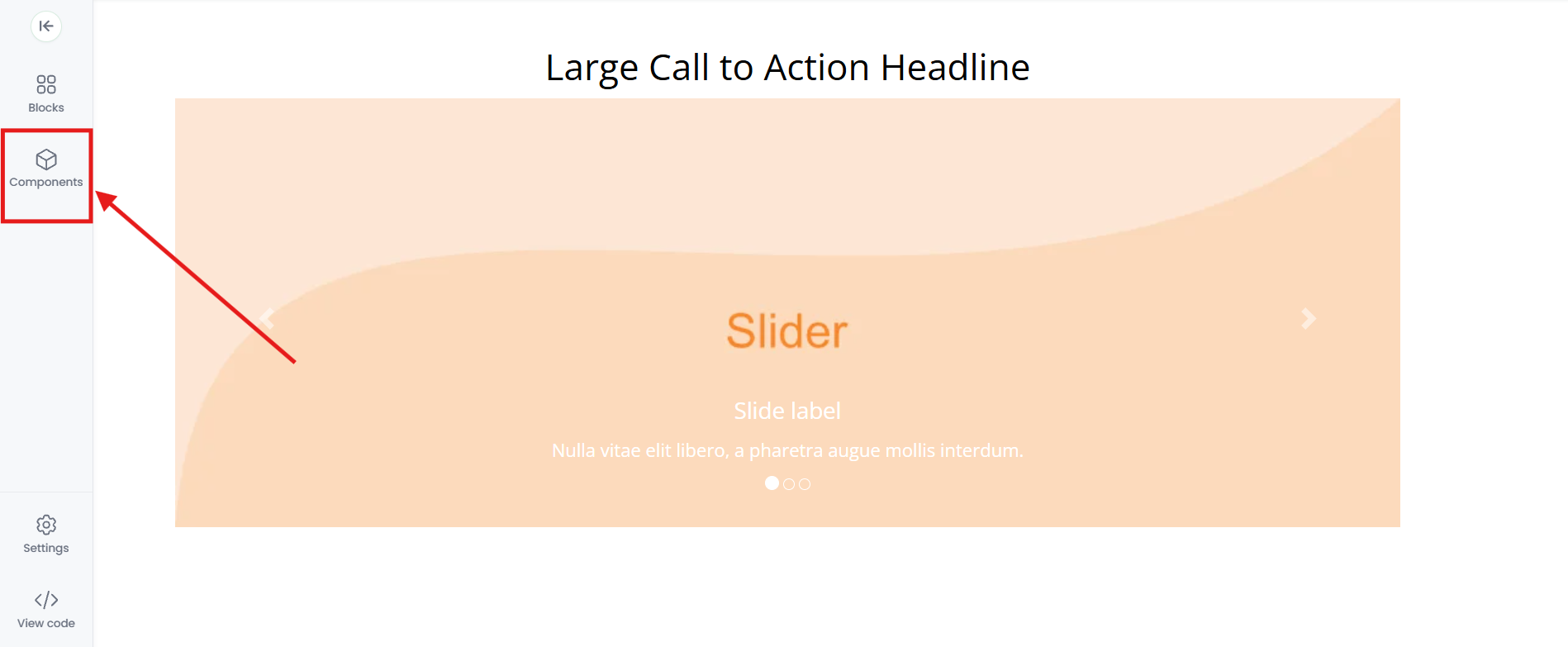
Step 2: Click the Components Option to open the panel. You'll see two tabs: Design Blocks and Components.
Components:
We have given multiple "sections", "rows", "elements" as components and a user can make his own customized landing pages using these components.
Select "Sections" and add sections to the Landing Page editor canvas to start building the Landing Page.
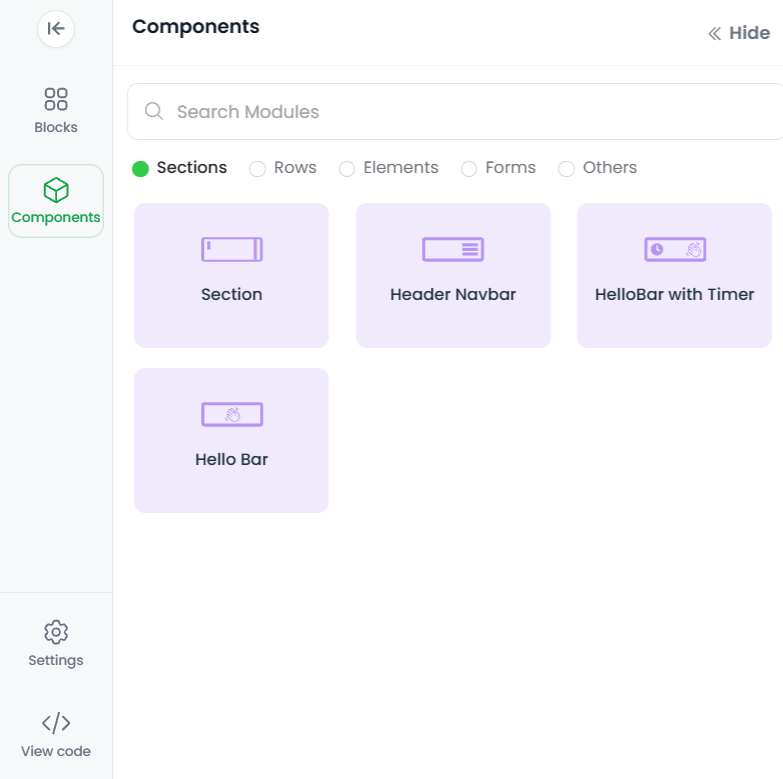
A User can divide his landing pages into different "Sections",
Click on the different layouts available to add them to the Landing page Editor.
A user can simply click on one of these sections and edit in the editor screen.

Here the "section" is added to the landing page editor.
One can also add "Section" by hovering on the existing section added in Flexifunnels Landing Page Editor and clicking on "+add section".

To add a new section below the existing section, Hover on the existing section and click on the +Add section, visible when you hover on the existing section.
? That's it! Your section is added. Repeat to keep building your page top to bottom.
Common situations & quick fixes
Before contacting support, check these — they cover the most common section questions.
I can't find the Plus (+) icon. Make sure you're inside the Landing Page Editor (not the page settings screen). The + icon opens the panel with Design Blocks and Components. Try refreshing the editor if it doesn't appear.
I added a section but it's empty — now what? That's normal. A section is just the container. Next, add a row inside it to create columns, then drag elements (heading, image, button) into those columns.
My new section appeared in the wrong place. Use Method 2 to control placement — hovering over a specific section and clicking + Add Section adds the new one directly below it. You can also drag sections to reorder them.
I want to remove a section. Hover over the section to bring up its options and use the delete/remove control. (Deleting a section also removes everything inside it, so check first.)
Should I use Design Blocks or Components? Use Components when you want to build a layout from scratch (plain sections, rows, elements). Use Design Blocks when you'd rather start from a ready-made designed piece and tweak it.
Still stuck after trying the steps above? Submit a ticket and tell us what you're trying to do in the editor — a screenshot helps us spot it quickly.
Was this article helpful?
That’s Great!
Thank you for your feedback
Sorry! We couldn't be helpful
Thank you for your feedback
Feedback sent
We appreciate your effort and will try to fix the article