A landing page is a single web page built around one goal — capturing a lead, making a sale, or taking a payment. In FlexiFunnels, every landing page lives inside a project (your funnel). This guide shows you how to create one and set it up correctly.
Before you start
- You're logged in to your FlexiFunnels account.
- You know the purpose of the page you're building (collect emails? sell something? take payment?). This decides one of your settings later.
Step 1: Create a new project
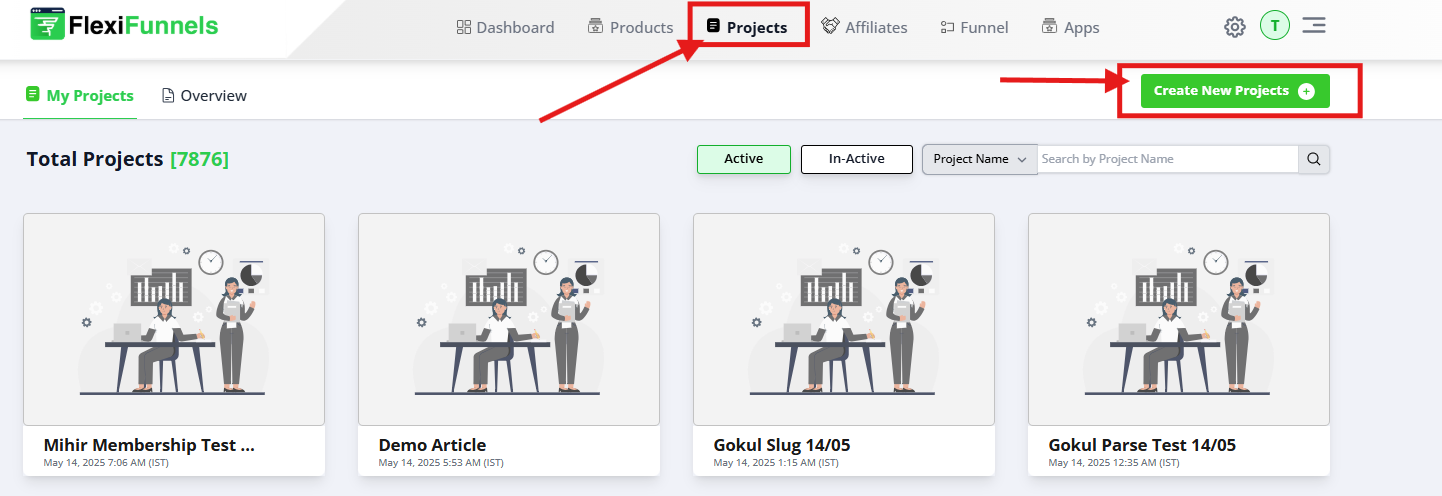
Go to the Projects section of your dashboard.
Click on Create New Project to start building your funnel.
Step 2: Add a New Page
Inside your project, click on the Add New Page button.
This will allow you to create a new landing page within the selected project.

Step 3: Configure Page Settings
When you create the page, you'll fill in a few key settings.
1. Page Name
Enter a name for your page. This is only for you — it helps you stay organized and find the page later. Visitors don't see it.
Example: "Free Guide Opt-in" or "Course Sales Page."
2. Path (Slug)
The slug is the end part of your page's web address (the bit after your domain).
- Example: if your domain is
flexifunnels.comand your slug iscourse, your page URL becomesflexifunnels.com/course.
Slug rules to follow:
- Use lowercase letters.
- No spaces — use a hyphen instead (e.g.
free-guide, notfree guide). - Avoid special characters (
!,@,?, etc.). - Each slug must be unique — two pages on the same domain can't share the same slug.
3. Page Type
You'll choose one of four types. This tells FlexiFunnels what the page is for, which helps it track the page correctly in your reports and apply the right behavior. Pick the one that matches your page's purpose:
- Lead — for opt-in pages that collect emails or contact details.
- Sales — for pages that present and sell your product or offer.
- Checkout — for pages where customers enter payment details and pay.
- Default — for any general page that doesn't fit the three above (a thank-you page, an about page, etc.).
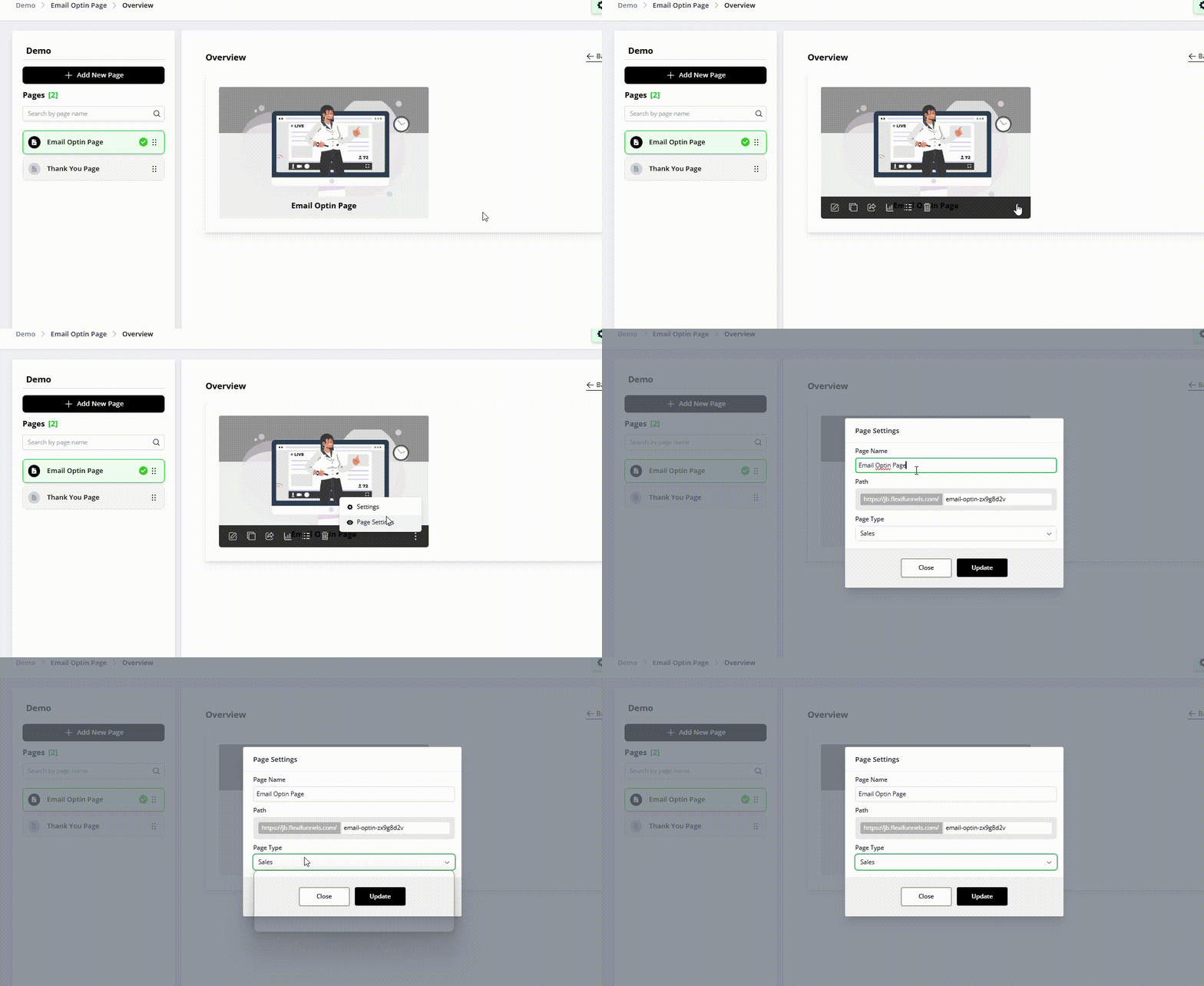
When you're done, click Save to create your page.
? That's it! Your landing page is created and ready to design in the editor.
Common situations & quick fixes
Before contacting support, check these — they cover the most common page-setup issues.
It won't let me save my slug / says the slug is taken. Each slug must be unique on your domain. If another page already uses it, pick a different one. Also check for spaces or special characters — use lowercase and hyphens only (e.g. summer-sale).
I picked the wrong page type. No problem — you can edit the page settings later and change the type. Choose the type that matches the page's real job (Lead for opt-ins, Sales for selling, Checkout for payment, Default for everything else).
My page isn't showing up at its URL / shows an error. A new page needs to be published before it goes live, and its project usually needs a connected domain. Make sure you've published the page and that your domain is connected, then open the URL again.
I can't find the "Add New Page" button. Make sure you've opened a project first — pages are created inside a project, not from the main dashboard. Create or open a project, then look for Add New Page.
My page URL has the wrong path. The URL is built from your domain + slug. To change the address, edit the Path (Slug) in the page settings. Remember that changing it after sharing the old link means the old link won't work anymore.
I want to update settings after creating the page. You can edit page settings anytime — see How to Edit Page Settings of Your Landing Page for related options like SEO.
Still stuck after trying the steps above? Submit a ticket with your project name, the page slug you're using, and what you see on screen — a screenshot helps us solve it faster.
Was this article helpful?
That’s Great!
Thank you for your feedback
Sorry! We couldn't be helpful
Thank you for your feedback
Feedback sent
We appreciate your effort and will try to fix the article