What Is a Shape Divider?
A Shape Divider is a decorative visual element that creates a smooth transition between two sections.
Think of it like a river between two lands—instead of a straight border, you get a flowing, organic shape that separates sections beautifully.
Common uses:
- Curve from white to blue section
- Wave pattern between hero and features
- Diagonal slash separating content areas
- Arrow pointing down to next section
Why Use Shape Dividers?
Visual Appeal: ✓ More interesting than plain borders
✓ Modern, professional look
✓ Breaks up monotony
✓ Creates visual interest
User Experience: ✓ Guides visitors down the page
✓ Signals new section/content
✓ Makes page feel more engaging
✓ Improves aesthetic quality
Design Impact: ✓ Adds personality to page
✓ Makes landing pages look premium
✓ Differentiates from boring templates
✓ Increases perceived value
Step-by-Step: Add Shape Divider
Step 1: Select Your Section
- In the page editor, click on the section where you want to add a divider
- The section highlights when selected
- Make sure you're clicking the section itself, not content inside
Tip: Dividers appear at the TOP or BOTTOM of a section (between it and adjacent section)
Step 2: Open Section Settings
- With section selected, look for a gear icon ⚙️ or "Settings" button
- Click it
- Settings panel opens on the right side
Step 3: Find Advanced Settings
- In the settings panel, look for tabs or sections
- Find "Advanced" or "Advanced Settings"
- Click it to expand advanced options
Step 4: Find Shape Divider Options
- In Advanced settings, look for "Shape Divider" section
- You'll see several settings:
- Shape Divider Type
- Shape Divider Color
- Shape Divider Position
- Flip Divider
- Invert Divider
Step 5: Select Shape Type
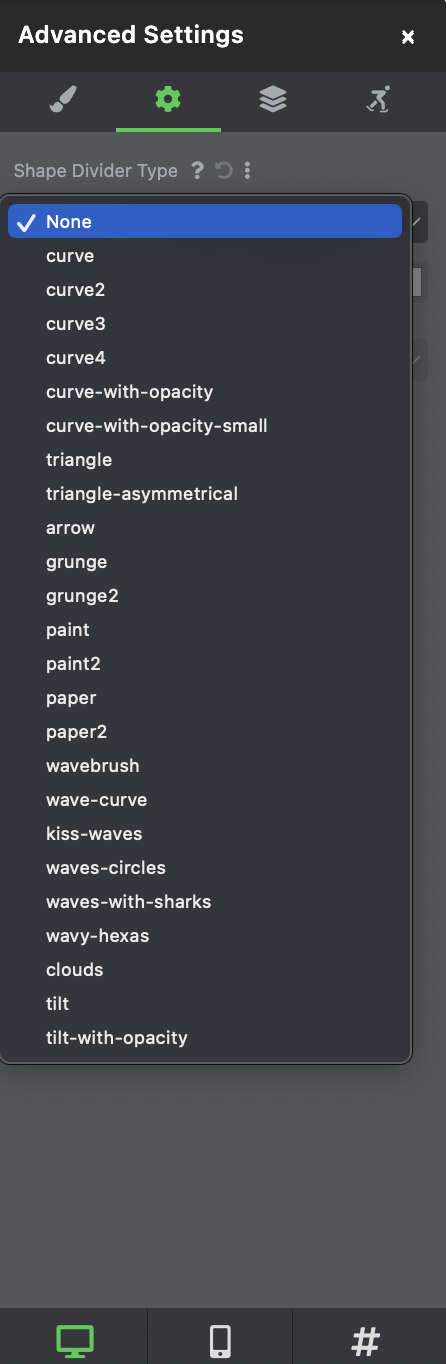
- Click on "Shape Divider Type" dropdown
- You'll see options: Curve, Waves, Arrow, Diagonal, Triangle, etc.
- Click the one you want
Step 6: Choose Position
- Find "Shape Divider Position" setting
- Choose: Top or Bottom
What this means:
- Top → Divider appears at TOP of section (between this section and section above)
- Bottom → Divider appears at BOTTOM of section (between this section and section below)
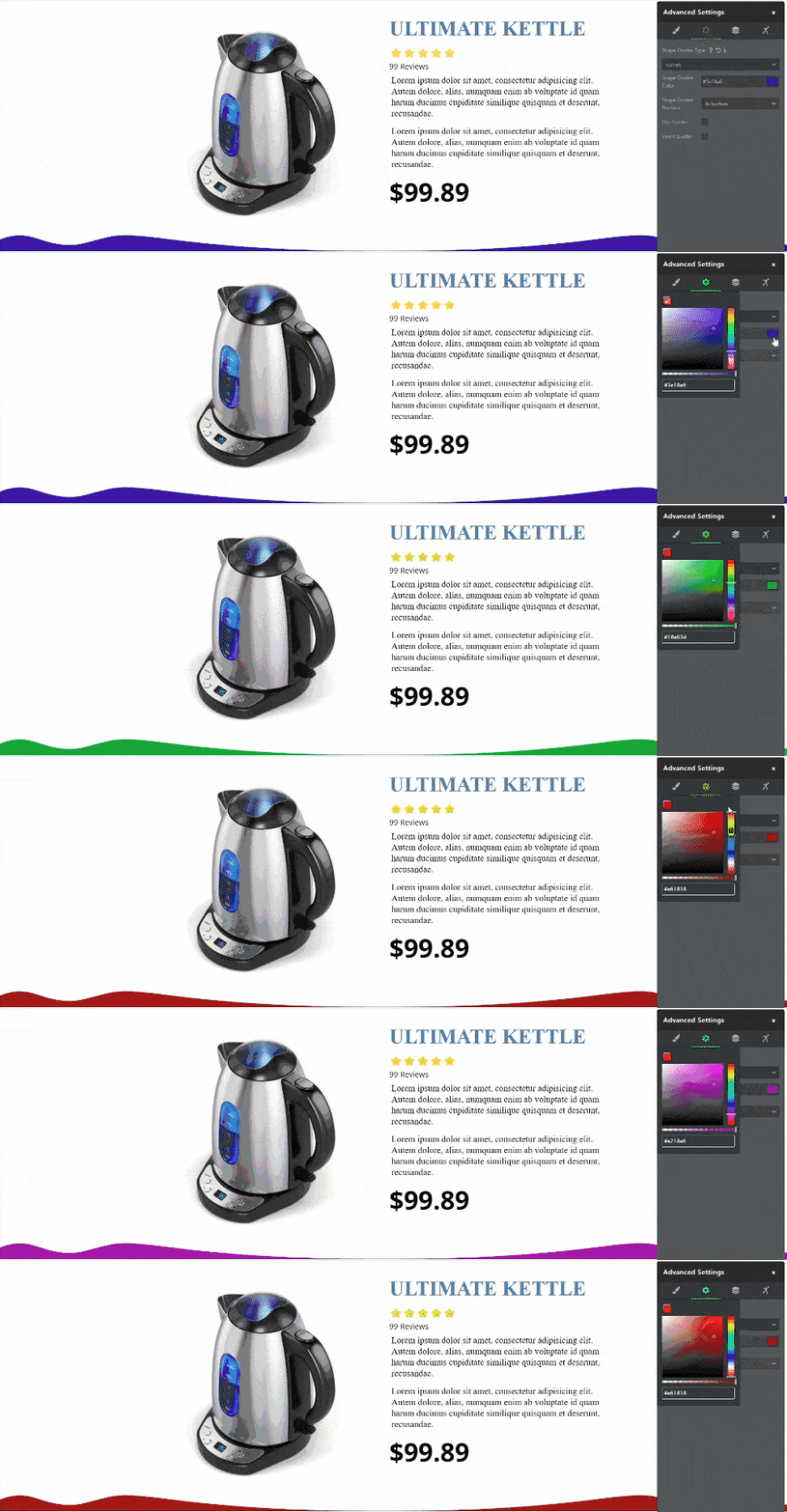
Step 7: Choose Divider Color
- Find "Shape Divider Color" setting
- Click to open color picker
- Choose a color that matches your design
Color selection tips: ✓ Match the section background color below (creates seamless look)
✓ Contrast with section above (creates visual separation)
✓ Use brand colors (maintains consistency)
✓ Keep it simple (1-2 colors max)

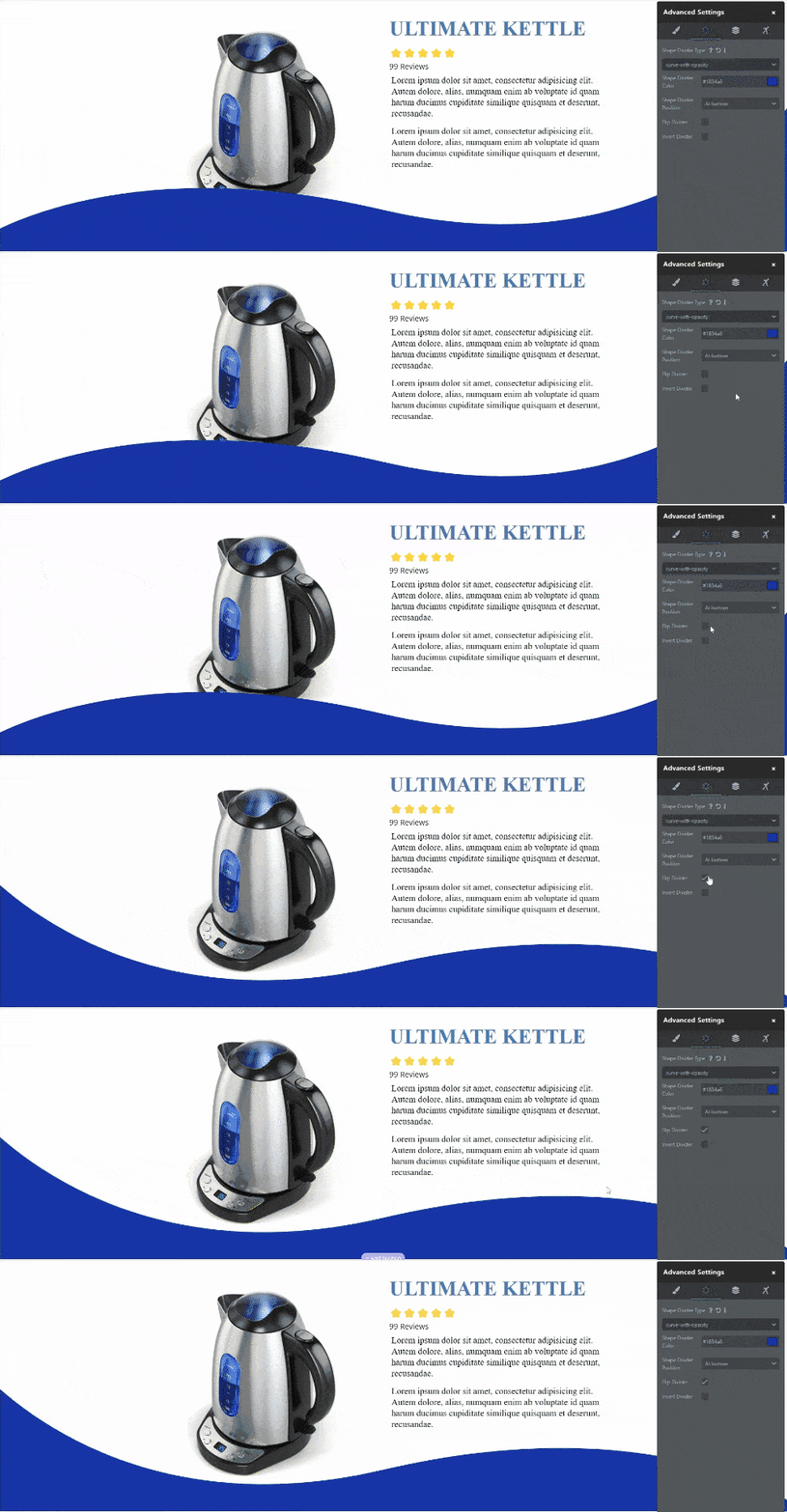
Step 8: Flip Divider (Optional)
What it does: Flips the divider horizontally (left-right)
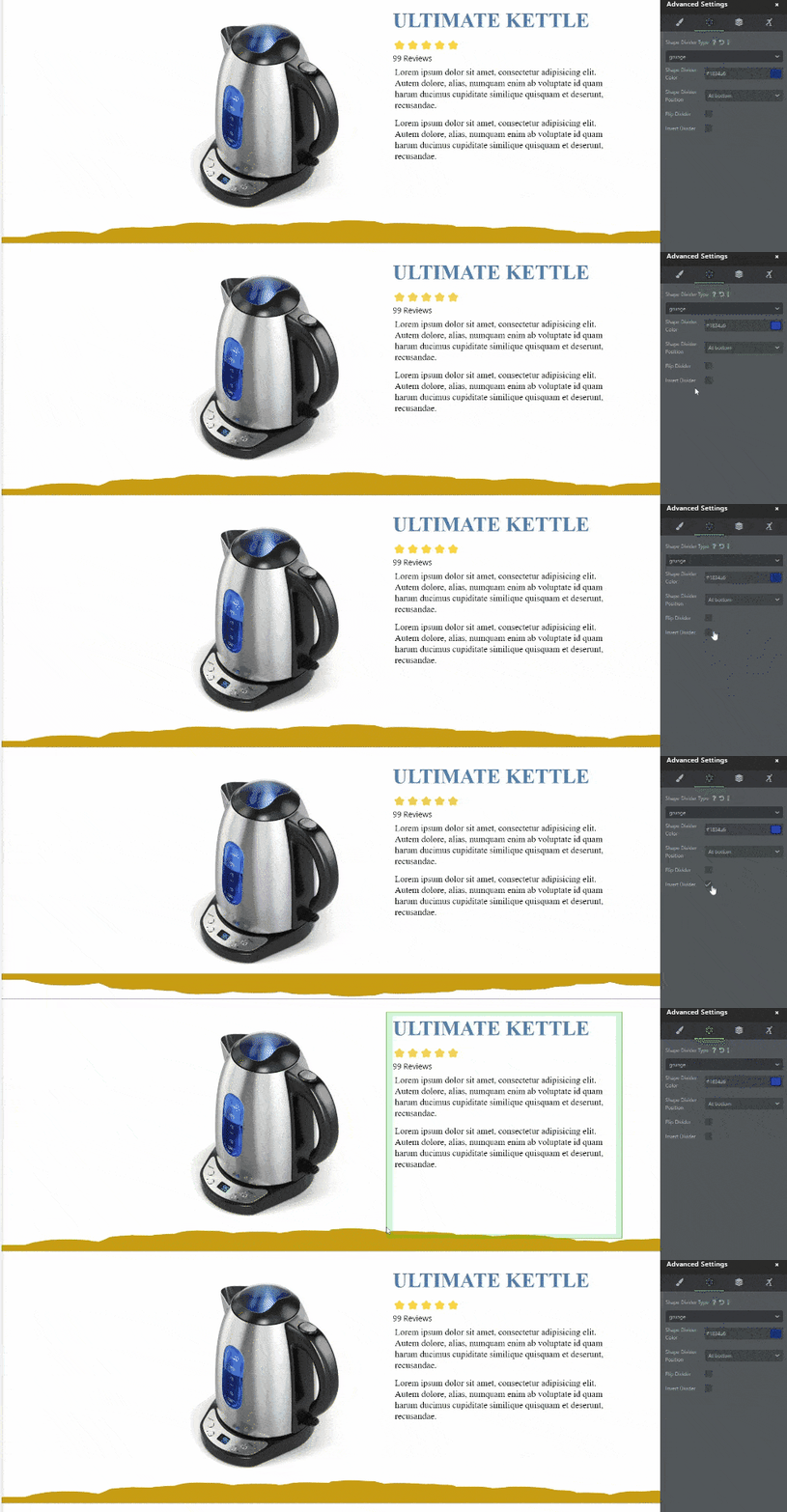
Step 9: Invert Divider (Optional)
What it does: Flips the divider vertically (upside-down)
Step 10: Save & Publish
- Click "Save" or click outside settings panel
- Changes apply immediately
- Publish your page to see live
✓ Shape divider is now added!
Common Situations & Quick Fixes
Situation 1: "I Added a Divider, But I Can't See It"
What's happening: Divider is added but invisible.
Diagnostic steps:
- Check divider color
- Divider might be same color as background
- Change divider color to contrast
- Example: If section is blue, make divider white or darker blue
- Check position
- Is divider set to Top or Bottom?
- Bottom dividers only appear if there's a section below
- Top dividers only appear if there's a section above
- Check if section has content
- Divider is at edge of section
- Make sure section is visible/has content
- Verify settings saved
- Did you click Save?
- Are you looking at published page (not editor)?
- Clear cache
- Clear browser cache
- Open in incognito mode
- Test again
Situation 2: "Flip vs Invert—What's the Difference?"
What's happening: You're confused about Flip and Invert.
Answer:
Flip: Left-Right mirror
Normal Wave: ╱╲╱╲╱╲
Flipped: ╲╱╲╱╲╱
Invert: Up-Down flip
Normal Wave: ╱╲╱╲╱╲ (curves up)
Inverted: ╲╱╲╱╲╱ (curves down)
How to decide:
- Try Normal first
- If it doesn't look right, try Flip (left-right)
- If still not right, try Invert (up-down)
- Use both if needed
- Pick what looks best
Situation 3: "My Divider Color Looks Different on Mobile"
What's happening: Divider color appears different on phone vs desktop.
Diagnostic steps:
- Browser rendering
- Different browsers render colors differently
- This is normal
- Device color accuracy
- Phone display might have different color profile
- Computer monitors and phones show colors differently
- This is expected
- Test on actual device
- Test on the actual phone/tablet you're targeting
- Make sure color is acceptable
Usually not a problem: Minor color differences are acceptable and expected.
Situation 4: "Which Divider Type Should I Use?"
What's happening: You're unsure which divider type fits your design.
Decision tree:
Is your brand/page playful and modern? → YES: Use Waves or Arrow
Is your brand/page professional/elegant? → YES: Use Curve
Is your brand/page bold/edgy? → YES: Use Diagonal or Triangle
Is your page sales/conversion focused? → YES: Use Arrow (directs attention)
Unsure? → START: Use Curve (safe, professional choice) → TRY: Waves (trendy, modern alternative)
Situation 5: "Can I Use Multiple Divider Types on Same Page?"
Answer: Yes, absolutely!
Best approach:
- Use variety for visual interest
- Don't use same divider on every section
- Mix types (Wave + Arrow + Curve) for rhythm
- Keep color scheme consistent
Example:
Section 1 → Wave divider (Blue)
Section 2 → Arrow divider (Dark blue)
Section 3 → Curve divider (White)
Section 4
Creates visual rhythm and interest
Page feels professionally designed
Was this article helpful?
That’s Great!
Thank you for your feedback
Sorry! We couldn't be helpful
Thank you for your feedback
Feedback sent
We appreciate your effort and will try to fix the article