What Is Spacing?
Spacing controls the space around and inside your content elements.
Think of it like arranging furniture in a room:
- Margin = Space between furniture (distance from other items)
- Padding = Space inside the furniture (comfort/interior space)
Why Spacing Matters
Visual Design:
✓ Prevents cramped, cluttered look
✓ Creates visual hierarchy
✓ Guides user attention
✓ Makes page feel organized
Readability:
✓ Text is easier to read with breathing room
✓ Buttons are easier to tap (not crowded)
✓ Content doesn't feel overwhelming
Professional Appearance:
✓ Proper spacing = premium design
✓ Poor spacing = cheap, amateur look
✓ Spacing shows attention to detail
User Experience:
✓ Easier to scan (clear separation)
✓ Reduces cognitive load
✓ Improves flow and navigation
Step-by-Step: Add Spacing
Step 1: Select Your Element
- Click the element you want to add spacing to
- It highlights when selected
- Works for: buttons, sections, text, images, boxes, etc.
Step 2: Open Settings
- With element selected, look for gear icon ⚙️ or "Settings" button
- Click it
- Settings panel opens on right
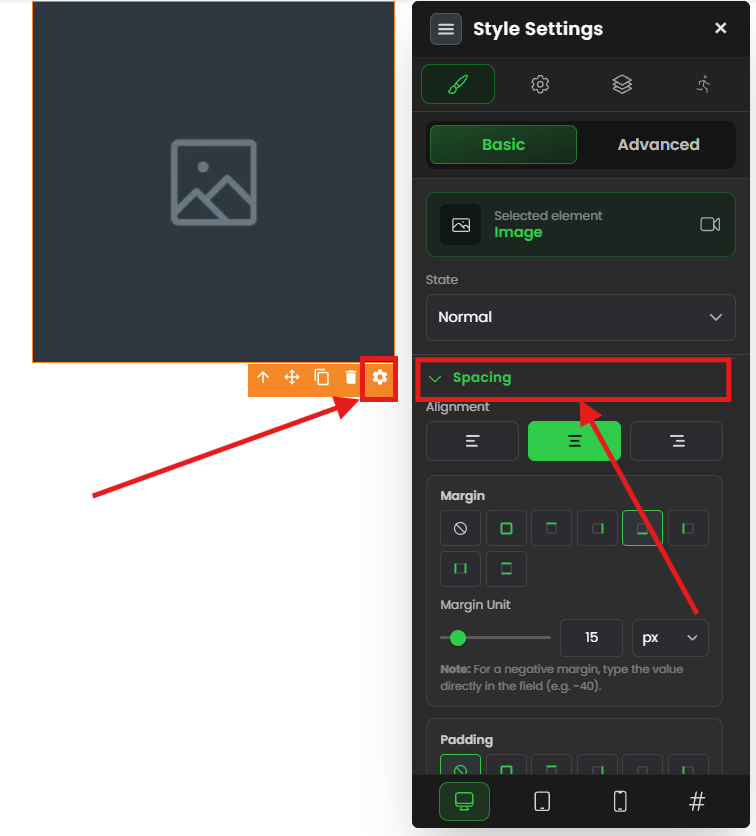
Step 3: Find Spacing Settings
- In settings panel, look for "Spacing" or "Layout" section
- Click to expand
- You'll see options for:
- Alignment
- Margin
- Padding
Step 4: Set ALIGNMENT (Optional)
If you want to position the element:
- Find "Alignment" option
- Choose: Left, Center, or Right
- Preview updates live
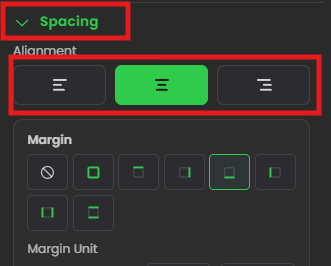
Step 5: Set MARGIN (Space Outside)
If you want space around element:
Method A: Uniform Margin (All Sides Same)
- Find "Margin" field
- Enter one value (example: 20px)
- All four sides get same margin
- Quick and simple
Method B: Individual Sides
- Find margin options for:
- Top Margin → Space above
- Right Margin → Space to right
- Bottom Margin → Space below
- Left Margin → Space to left
- Enter different values for each
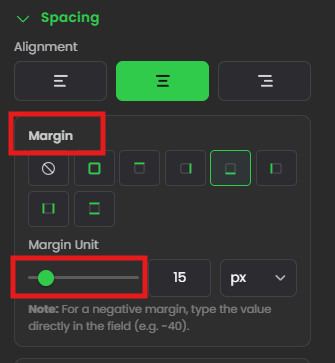
Step 6: Set PADDING (Space Inside)
If you want internal spacing:
Method A: Uniform Padding (All Sides Same)
- Find "Padding" field
- Enter one value (example: 20px)
- All four sides get same padding
- Quick and simple
Method B: Individual Sides
- Find padding options for:
- Top Padding → Space inside top
- Right Padding → Space inside right
- Bottom Padding → Space inside bottom
- Left Padding → Space inside left
- Enter different values for each
Step 7: See Live Preview
- As you change values, preview updates instantly
- See spacing applied in real-time
- Adjust until it looks right
Step 8: Save
- Click outside settings or "Save"
- Spacing is applied
✓ Spacing is now set!
Common Situations & Quick Fixes
Situation 1: "Elements Are Too Close Together"
What's happening: No spacing between elements.
Diagnostic steps:
- Add margin to bottom of first element
- Select first element
- Find "Margin" → "Bottom Margin"
- Set to 20px or more
- See gap appear
- Or add margin to top of second element
- Select second element
- Find "Margin" → "Top Margin"
- Set to 20px or more
- Adjust until spacing looks right
- Increase or decrease value
- Preview updates live
Situation 2: "Text Looks Cramped Inside Button/Box"
What's happening: No internal spacing (padding).
Diagnostic steps:
- Add padding
- Select the button/box
- Find "Padding" field
- Start with 20px
- See internal space appear
- Adjust individual sides if needed
- More padding on top/bottom for height
- More padding on left/right for width
- Balance for comfortable look
- Test on mobile
- Text should still be readable
- Button should be easy to tap (at least 44px tall)
Situation 3: "I Added Margin, but the Element Didn't Move"
What's happening: Margin works differently than expected.
Diagnostic steps:
- Understand margin direction
- Top Margin pushes element DOWN
- Bottom Margin pushes element BELOW it DOWN
- Left Margin pushes element RIGHT
- Right Margin pushes element TO THE RIGHT
- Check if margin is being applied
- Open settings
- Are values showing?
- If zero, nothing happens
- Check neighboring elements
- Margin pushes OTHER elements away
- Not the element itself
- Look at space around element, not element position
Situation 4: "Padding Makes Element Too Big"
What's happening: Padding increases element size.
Diagnostic steps:
- Understand padding expands size
- Padding adds to element dimensions
- 20px padding on all sides = +40px width, +40px height
- This is normal
- Adjust if too big
- Reduce padding value
- Or set only specific sides
- Example:
   No padding: Button is 200px wide
 Add 20px left & right padding: Button becomes 240px wide
   This is correct behavior
Situation 5: "Mobile Spacing Looks Wrong"
What's happening: Desktop spacing is too large on mobile.
Diagnostic steps:
- Switch to mobile view
- Look at how spacing appears on phone-size
- Adjust spacing for mobile
- Mobile mode settings (if available)
- Reduce padding/margin values
- Or leave same if it works
- Test on actual mobile
- Don't just resize browser
- Test on real phone
- Spacing might look different
Was this article helpful?
That’s Great!
Thank you for your feedback
Sorry! We couldn't be helpful
Thank you for your feedback
Feedback sent
We appreciate your effort and will try to fix the article