What Is Autosave?
Autosave automatically saves your work as you edit—you don't have to manually save.
Think of it like Google Docs autosave—your document saves automatically as you type, so you never lose work.
Autosave means:
- Changes saved automatically
- No manual save button needed
- Work protected from loss
- You can edit freely
Why Autosave Matters
Protection:
✓ Never lose unsaved work
✓ Crash protection (work is saved)
✓ Peace of mind while editing
Convenience:
✓ Don't have to remember to save
✓ Work flows without interruptions
✓ Automatic backup of changes
Reliability:
✓ Changes persist if browser closes
✓ Safe to edit without worry
✓ Recovery if something goes wrong
Workflow:
✓ Edit naturally without save anxiety
✓ Focus on content, not saving
✓ Productive editing experience
Step-by-Step: Enable/Disable Autosave
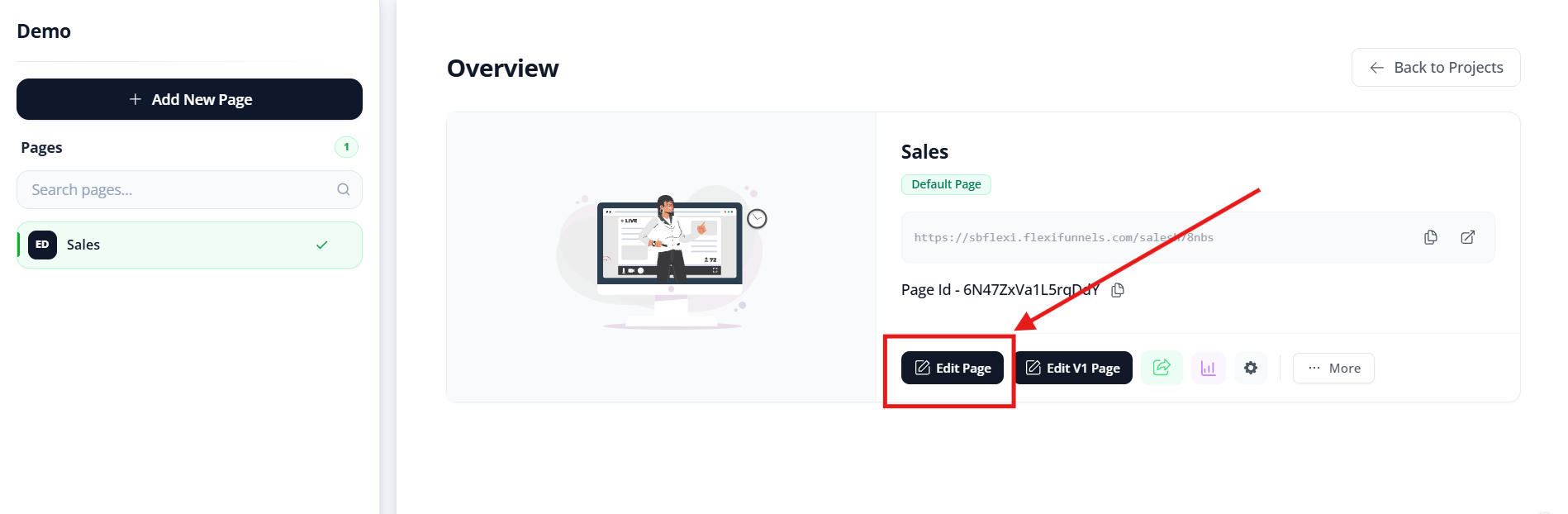
Step 1: Open Your Page Editor
- Log into FlexiFunnels
- Go to your project
- Click "Edit" on your page
- Page editor opens
Step 2: Look for Gear Settings
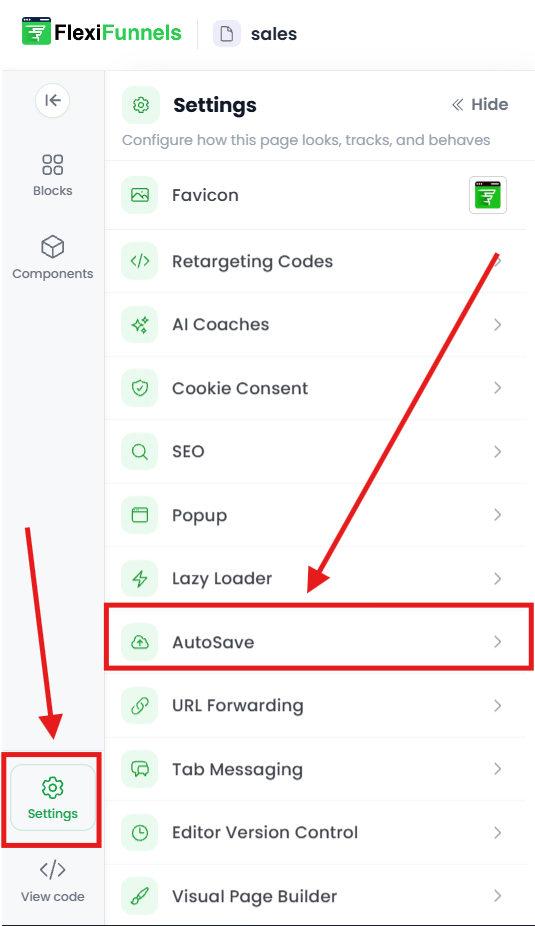
In the editor, find:
- Gear icon ⚙️ (settings)
- Located on left sidebar
- Usually near bottom of sidebar
- Or in top menu area
Where to find:
- Left panel, scroll down
- Or top-right menu
- Look for settings/gear icon
Step 3: Click Gear Settings
- Click the ⚙️ Gear icon
- Settings panel opens
- You see various options
Step 4: Locate Autosave Option
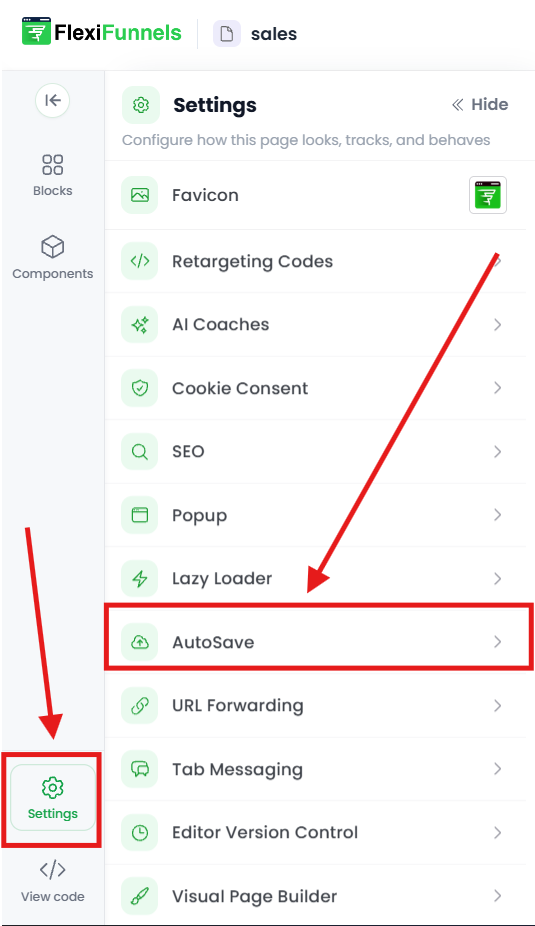
In settings panel, look for:
- "Autosave" toggle or checkbox
- "Enable Autosave" option
- "Auto-Save" setting
- Might say "Automatically save changes"
Step 5: Toggle Autosave
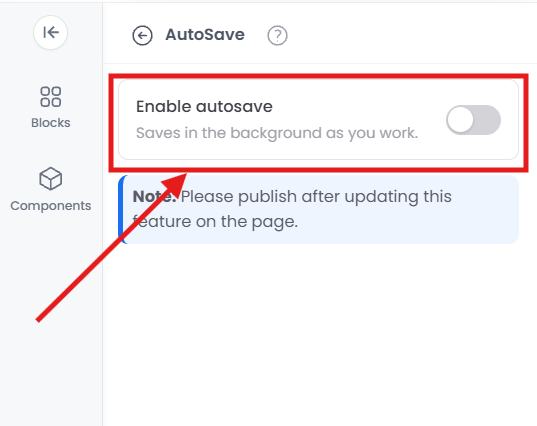
To enable autosave:
- If toggle is OFF (☐), click it
- Toggle switches to ON (☑)
- Autosave is now enabled
To disable autosave:
- If toggle is ON (☑), click it
- Toggle switches to OFF (☐)
- Autosave is now disabled
Step 6: Confirm Setting
- Setting updates immediately
- No "Save" button needed
- Autosave status changes right away
- You're now using your preference
✓ Autosave setting is now configured!
Common Situations & Quick Fixes
Situation 1: "Autosave Isn't Working"
What's happening: Changes not being saved.
Diagnostic steps:
- Check if autosave is enabled
- Go to Gear settings
- Is autosave toggle ON?
- Enable if disabled
- Check if you're the owner
- Are you page owner?
- Or collaborator?
- Collaborators must manually save
- Make enough changes
- Have you made 15+ changes?
- Autosave triggers every 15 changes
- Make some edits to trigger save
- Check internet connection
- Autosave needs internet
- Poor connection might prevent save
- Verify connection is strong
- Try manual save
- Click Save button if available
- Verify save works manually
- Then return to autosave
Situation 2: "I'm a Collaborator, Autosave Not Working"
What's happening: You expect autosave but it's not working.
Important note:
Solution:
Autosave does NOT work for collaborators
Only page owner has autosave
You MUST manually save
- Use Manual Save
- Click Save button
- After every 10-15 edits
- Before leaving editor
- Save before preview
- Make edits
- Click Save
- Then Preview
- Save before closing
- Always save before closing
- Don't rely on autosave
- Manual saves are essential
- Communicate with owner
- Let them know you're editing
- Avoid same sections
- Agree on saving strategy
Situation 3: "Autosave Made Unwanted Saves"
What's happening: You made mistakes and autosave saved them.
Solutions:
- Use Undo
- Press Ctrl+Z (or Cmd+Z)
- Undo last actions
- Go back to working state
- Load previous version
- If available, load old version
- From Version Control
- Recover earlier work
- Manual recovery
- Manually fix mistakes
- Make correct changes
- Save when ready
Situation 4: "Should I Have Autosave On or Off?"
What's happening: Deciding best setting.
Decision:
Enable autosave if: ✓ You're the page owner
✓ You want automatic protection
✓ You prefer not to think about saving
✓ You want peace of mind
✓ You don't want to lose work
Disable autosave if: ✓ You prefer full control
✓ You want to review before saving
✓ You don't trust automatic saves
✓ You want explicit save checkpoints
Recommendation: ENABLE autosave (safer default)
Was this article helpful?
That’s Great!
Thank you for your feedback
Sorry! We couldn't be helpful
Thank you for your feedback
Feedback sent
We appreciate your effort and will try to fix the article