Steps to Use the FlexiFunnels AI Page Builder.
1. Click on “Apps”
Start by clicking on the “Apps” section in your FlexiFunnels dashboard.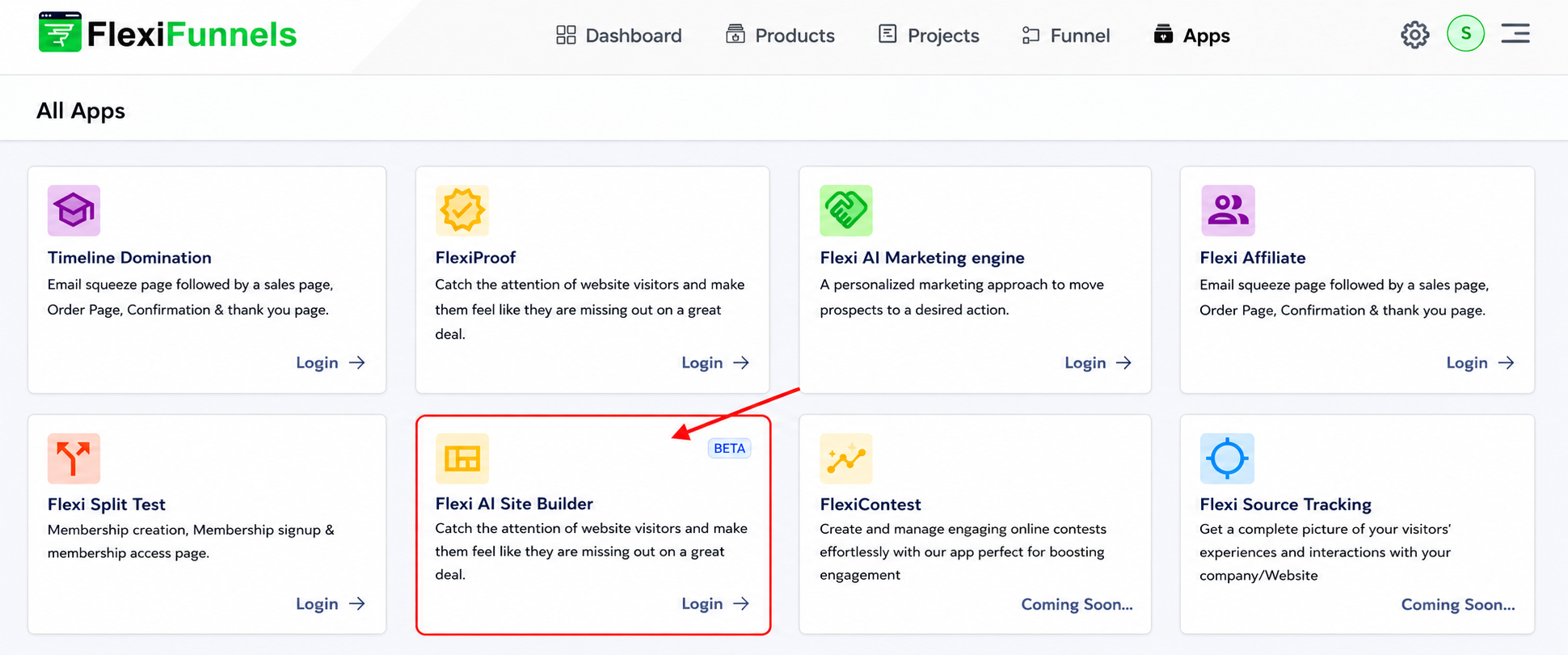
2. Open FlexiAI Site Builder
A new page will open. Look for the “FlexiAI Site Builder” option and click on it.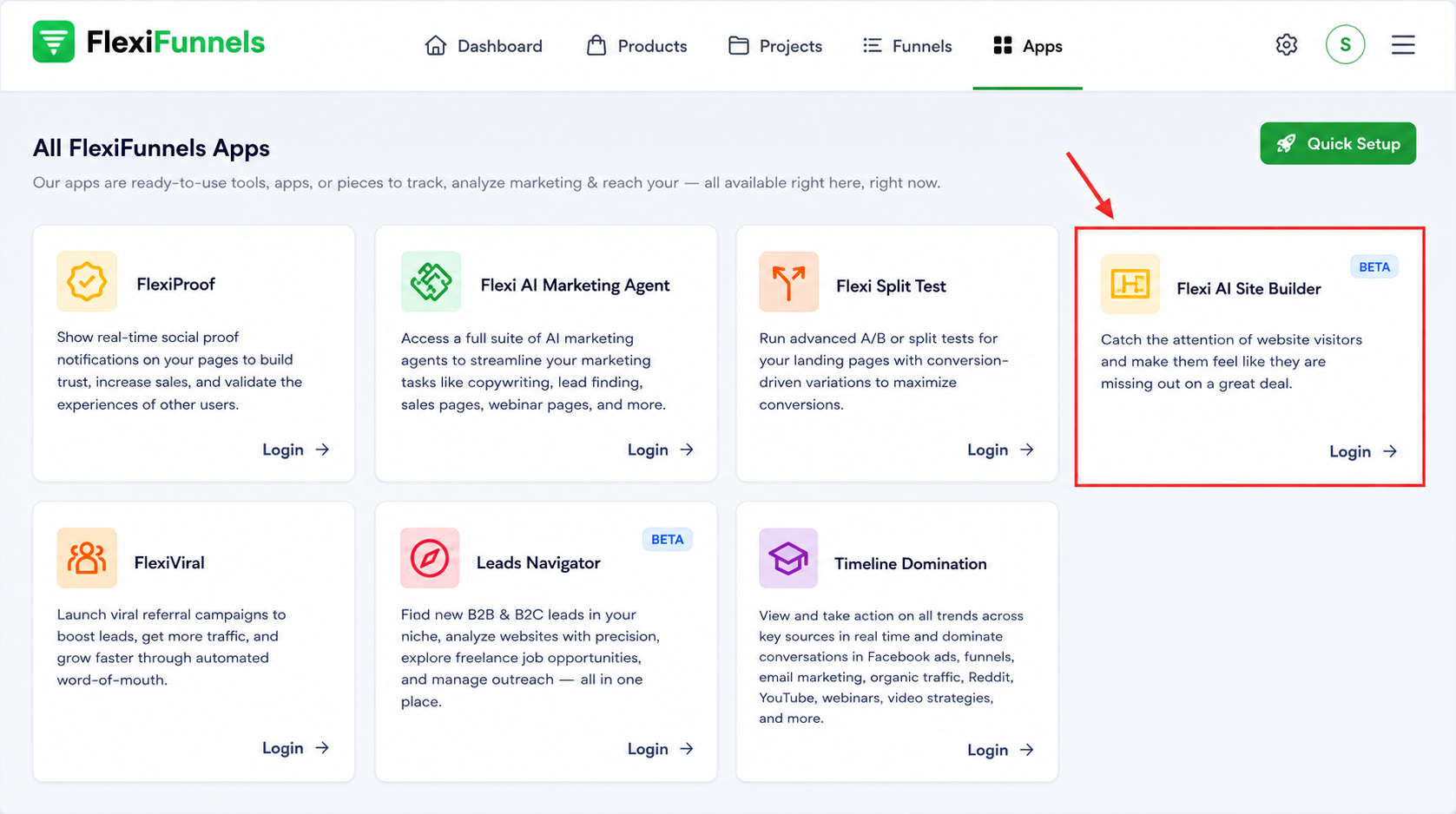
3. Log In to the Builder
You'll find a login option below. Enter your details to access the AI Page Builder.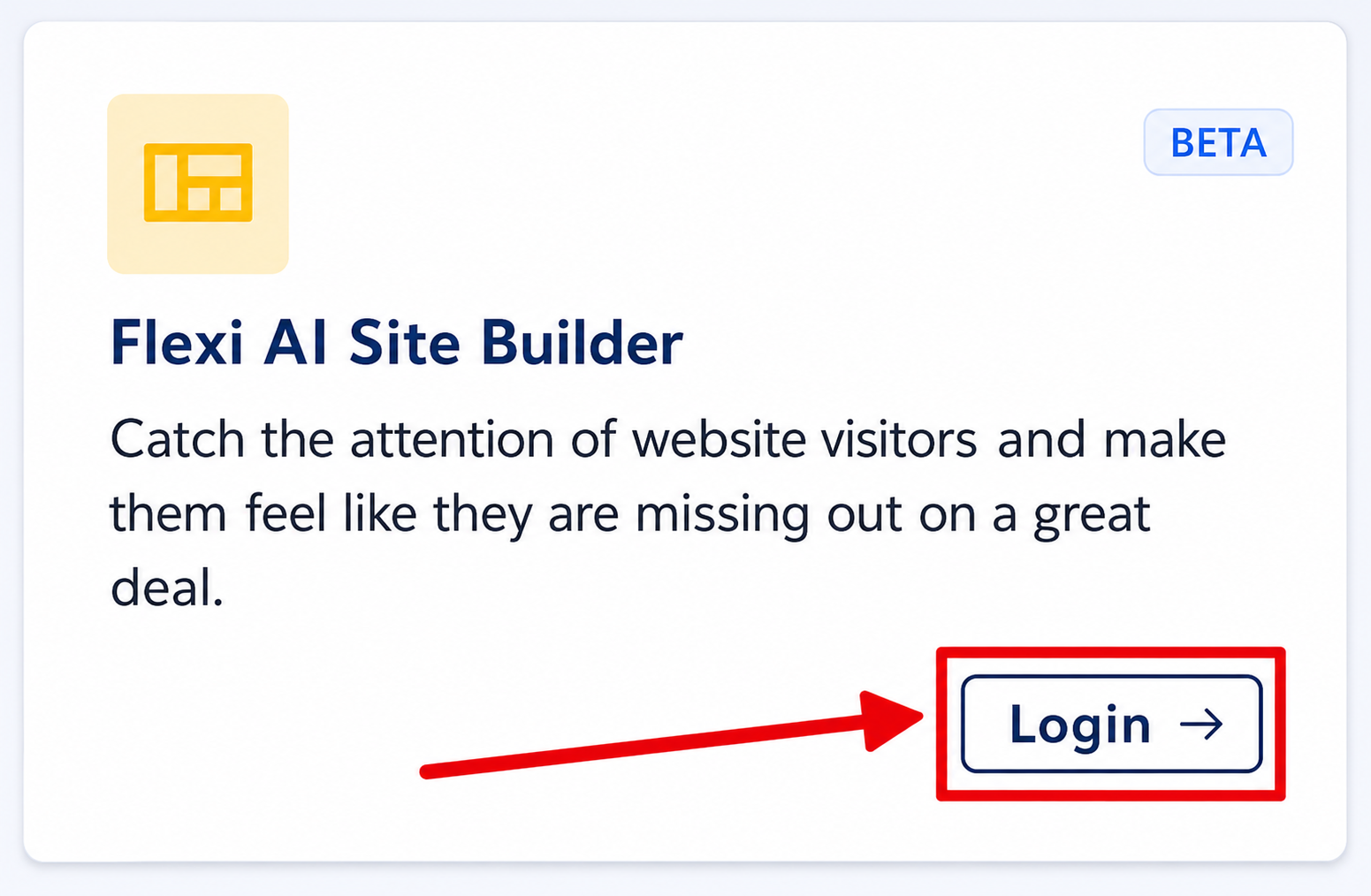
4. Choose a design Type
After logging in, you’ll see three options:
Single Page Website
Sales Page Design
Webinar Registration Page
Select the one that fits your requirement.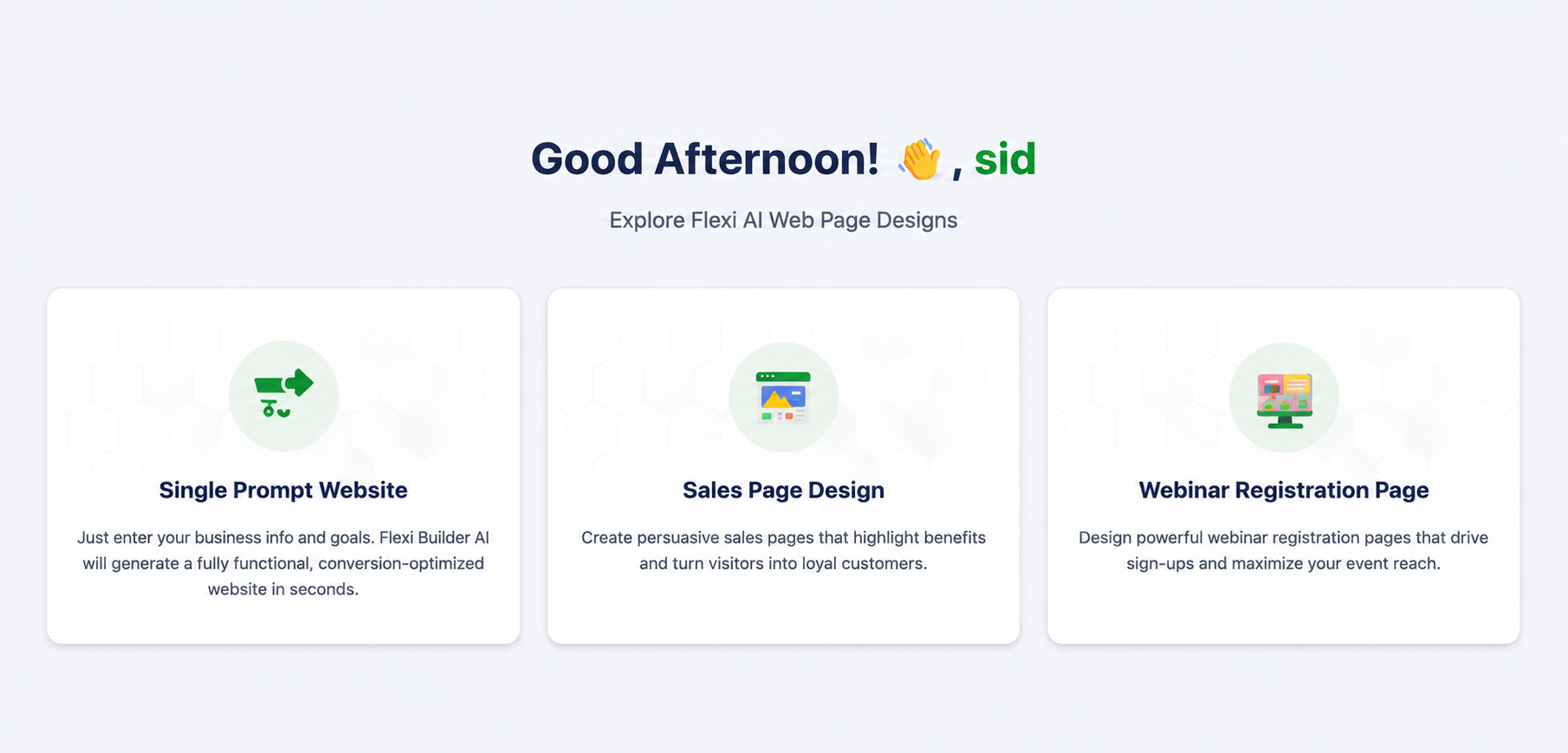
5. Enter Your Prompt
Based on your selected page type, enter a clear prompt describing the kind of page you want.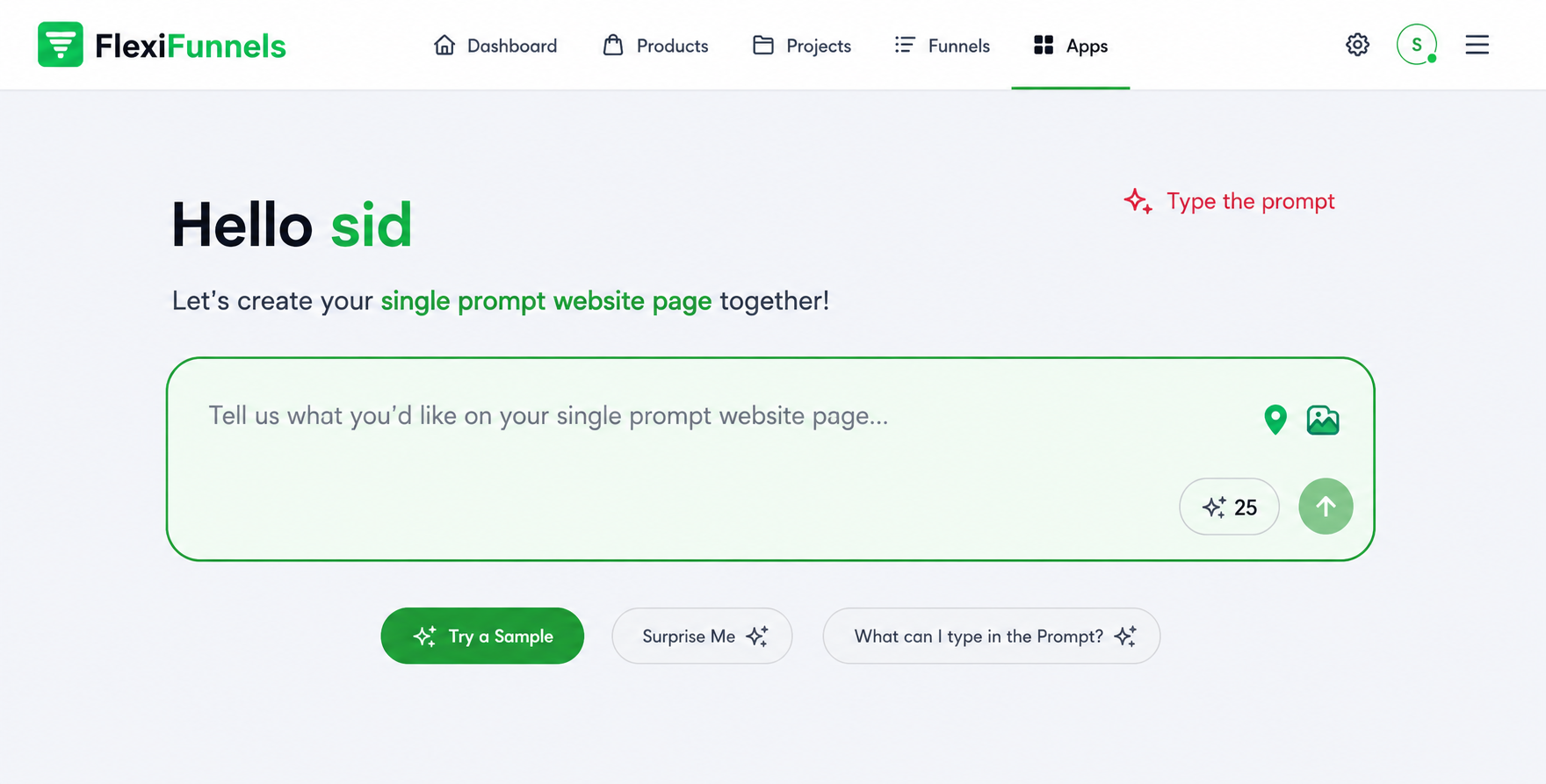
6. Wait for Page Generation
The AI will take around 5–7 minutes to generate your page based on the prompt.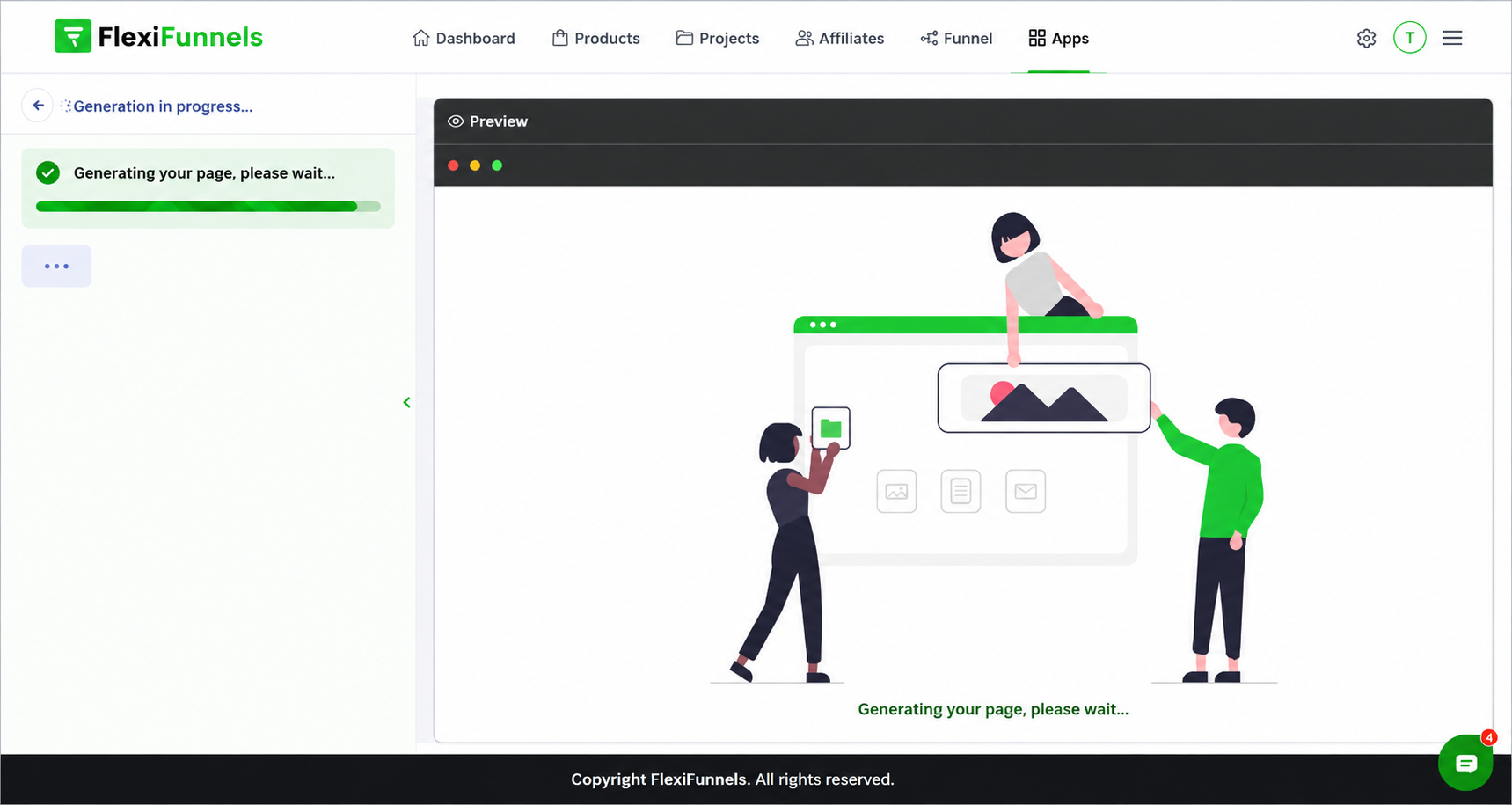
7. Make Edits via Prompts
If you want to make any changes, simply give another prompt describing the updates you'd like. The AI will modify the page accordingly.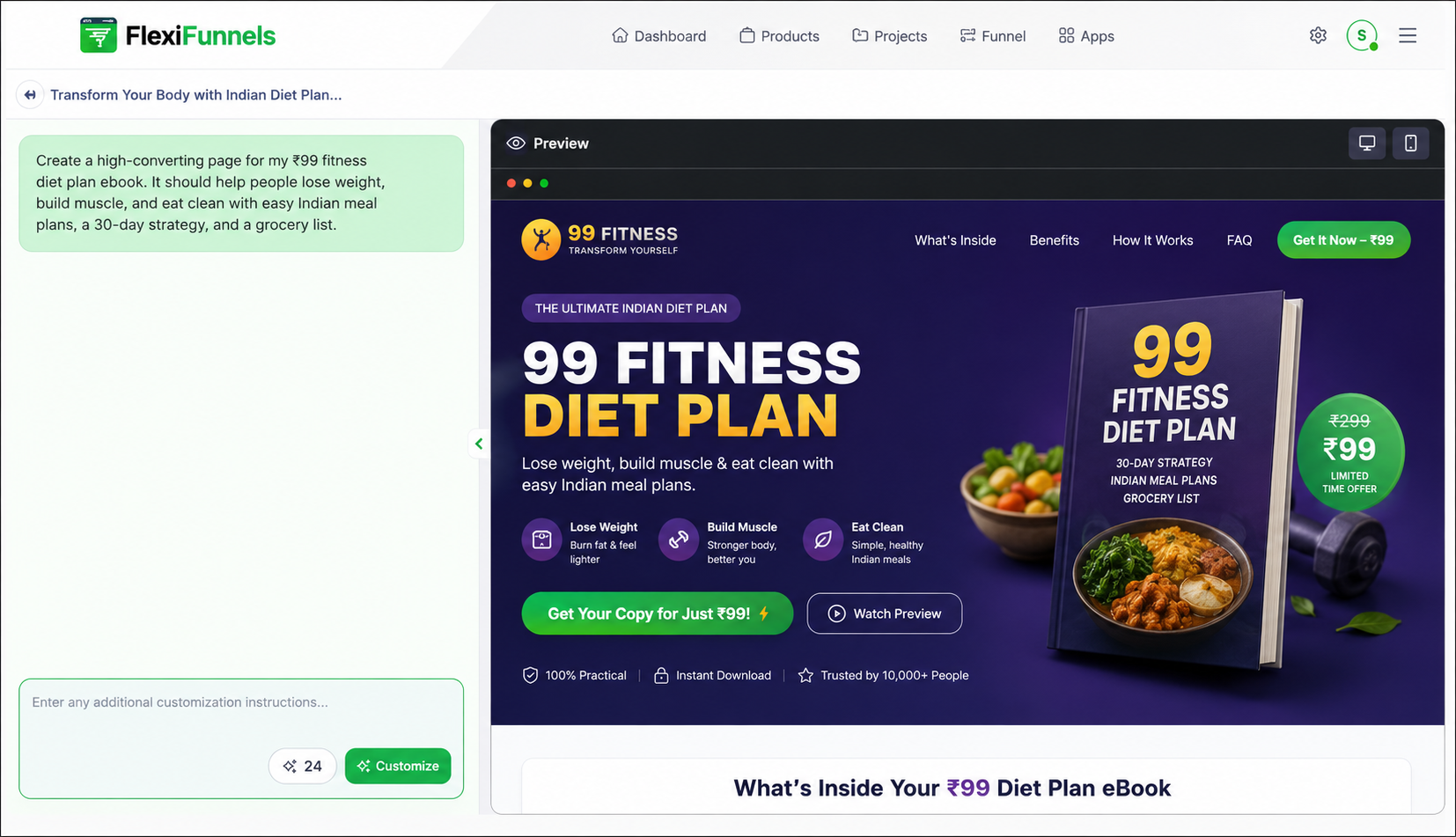
8. Credit Usage and Purchase
Each single prompt uses 1 credit. You can see your credit balance displayed. If needed, click on it to purchase more credits.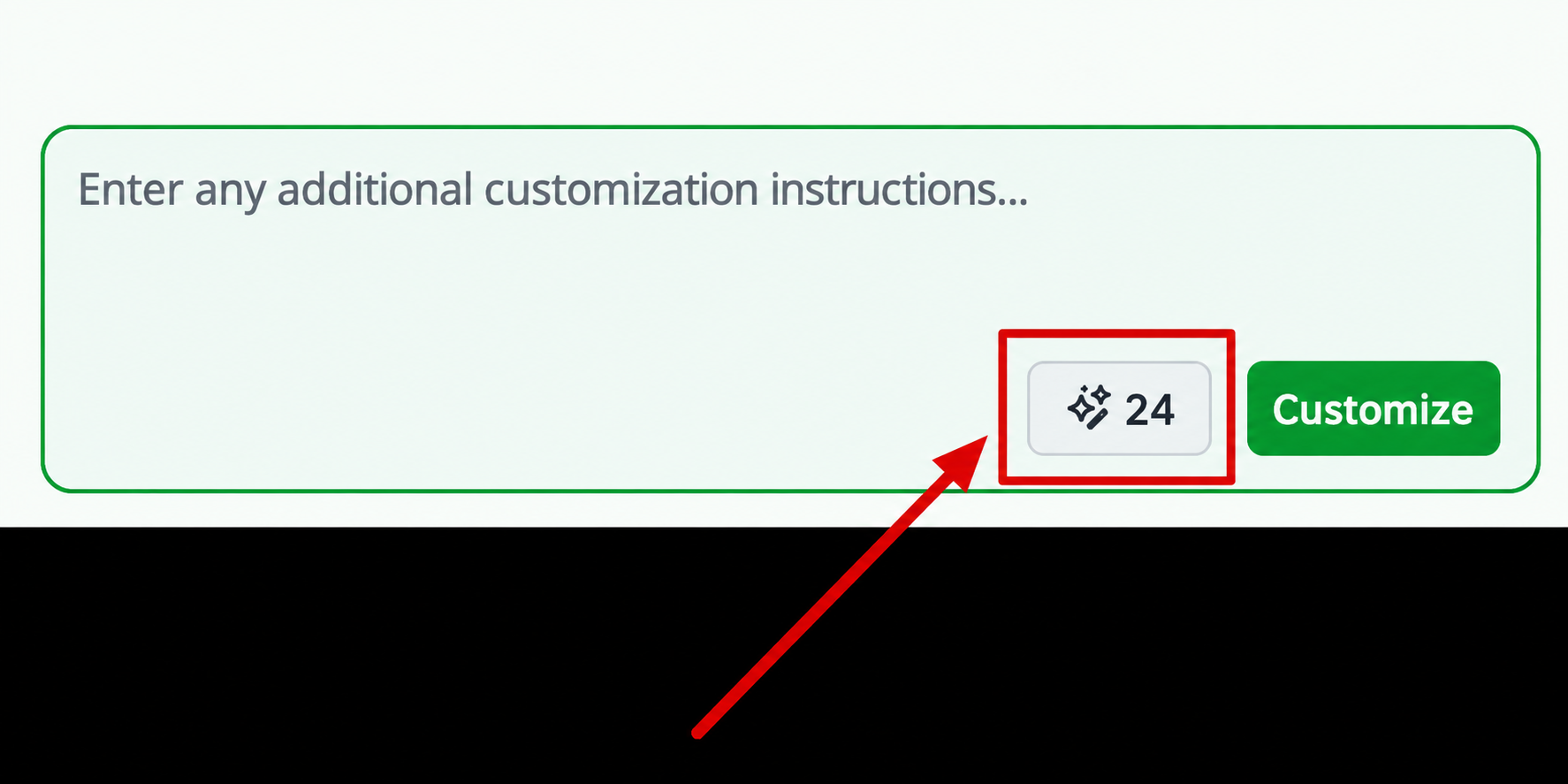
Important videos of the AI page builder.
Part 1 - Foundation Understanding of FlexiFunnels AI Website Builder
Part 2 - Difference between Single Prompt Website and Sales, Webinar Page Design
Part 3 - Website vs Sales Page vs Webinar – One Prompt Change
Part 4 Customize Feature to Redesign some Sections, Layouts or even Full Page
Part 5 - Output Single Prompt Any Website versus Sales Page
Part 6 - Customize Feature Output
Part 7 - No Code Editing of AI-Built Pages
Part 8 - AI No Code Editing of Buttons and adding Product & Funnel to a Page
Part 9 - AI Page Publishing on the Internet
Part 10 - Published Page, Project Setting, How to Change URL
Part 11- How to Publish an AI Page on a Domain
Part 12 - Support Help for how to connect a Domain or any issue
Part 13 - AI No-Code Forms, Connect to Sheets, Webhooks, & More (Part 1)
Part 14 - AI No-Code Forms, Connect to Sheets, Webhooks, & More (Part 2)
Part 15 - Correct Prompting for AI-Based Websites
Part 16 - Is this the END of Learning Copywriting and Conversion Optimization
Part 17 - Critical Markers in Sales Page and Webinar Page Design Features
Part 18 - How to use Customization Settings in FlexiFunnels AI Website Building
Part 19 - Game Changer: Drag & Drop Editing of Pages Made with AI (Advanced Editor)
Part 20: Design Next Level Pages With This Flexi AI Feature
Common Scenarios & Recommended Actions
1. Credit Deducted but Page Was Not Generated
If your credit has been deducted but the page was not successfully generated, please contact our support team immediately through Live Chat or email us at help@flexifunnels.com.
What happens next?
Our team will verify the issue.
The deducted credit will be refunded to your account.
You can then regenerate the page using the refunded credit.
2. Credits Purchased but Balance Not Updated
If you have successfully purchased credits but your balance has not been updated, please try the following troubleshooting steps:
Self-Help Steps
Refresh the page.
Log out and log back into your account.
Wait a few minutes to allow payment confirmation to complete.
If the credits still do not appear after some time, please email help@flexifunnels.com with:
A screenshot of the payment confirmation
Your registered account details
Our team will investigate and update your balance accordingly.
3. AI-Generated Sections Are Missing or Not Editable
If certain sections generated by AI are not visible on the editor, not editable, or do not appear on the live page:
Required Action
Record a short screen recording demonstrating the issue.
Contact Live Chat Support or email help@flexifunnels.com.
Please include:
The page URL or page details
A brief description of the issue
The screen recording
Our support team will create a ticket and escalate the matter to the development team for further investigation.
4. AI-Generated Page Design Appears Broken in the Editor
If the generated page layout, styling, or design appears broken inside the editor:
Required Action
Record a screen recording of the issue.
Contact Live Chat Support or email help@flexifunnels.com with the page details.
Our team will review the issue and escalate it to the development team if required.
5. Unwanted Text or Code Added by AI and Cannot Be Removed
If the AI has generated unwanted text, code, or elements that cannot be manually edited or removed within the editor:
Required Action
Record a screen recording showing the issue.
Contact Live Chat Support or email help@flexifunnels.com.
Please provide:
The affected page details
A brief explanation of the issue
The screen recording
Our team will review the case and coordinate with the development team to resolve the problem.
Was this article helpful?
That’s Great!
Thank you for your feedback
Sorry! We couldn't be helpful
Thank you for your feedback
Feedback sent
We appreciate your effort and will try to fix the article