What Is Editor Version Control?
Version Control tracks all changes to your page and lets you restore previous versions anytime.
Think of it like saving multiple drafts of a document—if you don't like the new version, go back to the old one.
Version control means:
- Every publish creates a version
- You can see all past versions
- You can restore any old version
- Never lose important work
Why Version Control Matters
Confidence:
✓ Edit without fear
✓ Easy rollback if needed
✓ Experiment safely
Accident Prevention:
✓ Accidentally deleted content?
✓ Made changes you regret?
✓ Restore previous version instantly
Time Saving:
✓ Don't rebuild from scratch
✓ Restore working version in seconds
✓ Much faster than manual recovery
Quality Control:
✓ Compare versions
✓ Revert bad changes
✓ Keep best performing version
Step-by-Step: Access Version Control
Step 1: Log Into FlexiFunnels
- Log into your account
- You're in dashboard
Step 2: Open Your Project
- Go to your project
- Find the page you want to manage versions for
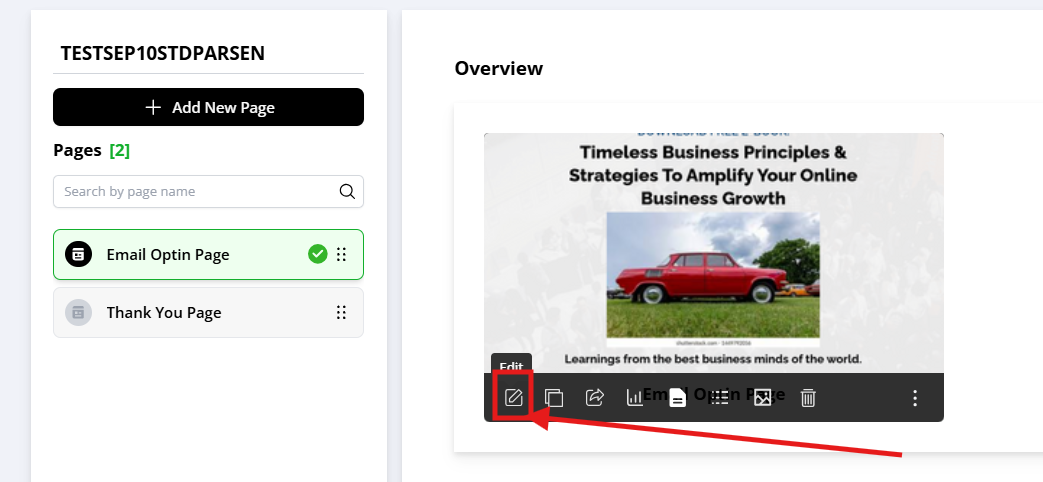
Step 3: Open the Editor
- Click "Edit" on the page
- Page editor opens
- You're in the editor
Step 4: Look for Version Control
In the editor, find:
- Gear icon ⚙️ (settings)
- Menu button (three lines or dots)
- Revision History option
- Version Control button
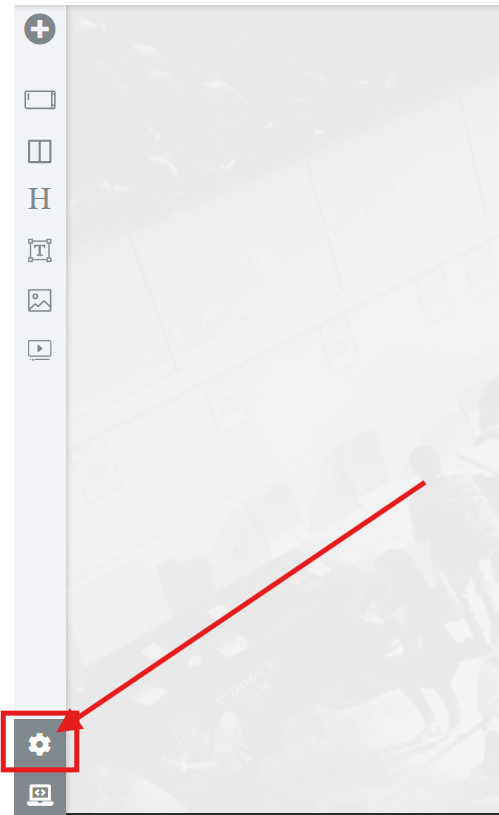
Step 5: Click on Version Control
- Click "Gear Settings" or settings icon
- Or click "Version Control" directly
- Or find "Revision History"
- Version control panel opens
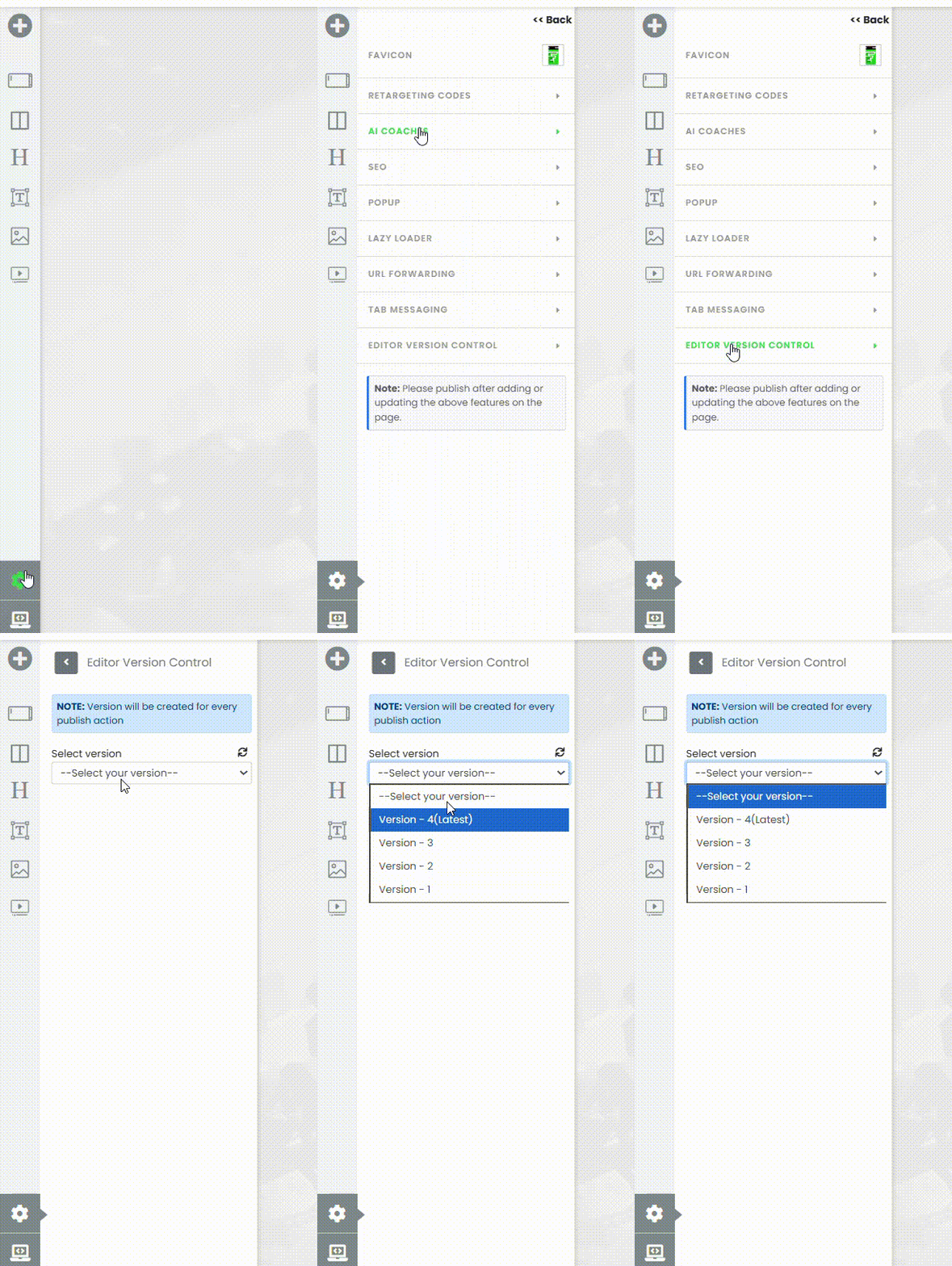
Step 6: View Version History
You see a list of versions:
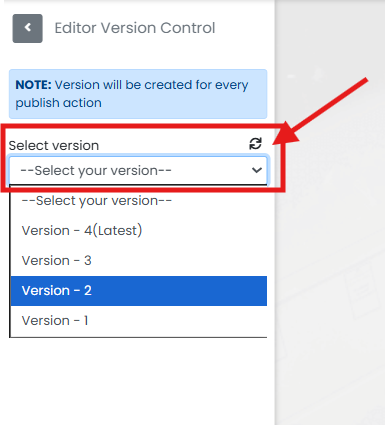
Step-by-Step: Load a Previous Version
Step 1: Open Version Control
Follow Steps 1-6 above to open version control panel
Step 2: Browse Versions
- Look through version list
- Find the version you want to restore
- Check dates and times
- Remember what changed in each version
How to choose:
Want to go back to working version?
→ Choose version before changes
Want to undo last edit?
→ Choose version before most recent
Want to see what was in place on specific date?
→ Look for version with that date
Step 3: Select the Version
- Click on the version you want
- Or select it from dropdown
- Version is now selected
Step 4: Preview Version (Optional)
- Some systems show version preview
- See what content was in that version
- Make sure it's the right one before loading
- Then click to continue
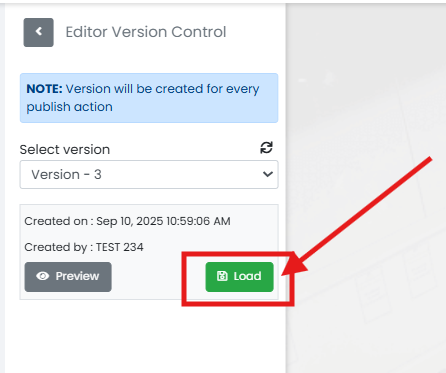
Step 5: Load the Version
- Click "Load" button
- Or "Restore" button
- Or "Load This Version"
- Confirmation dialog appears
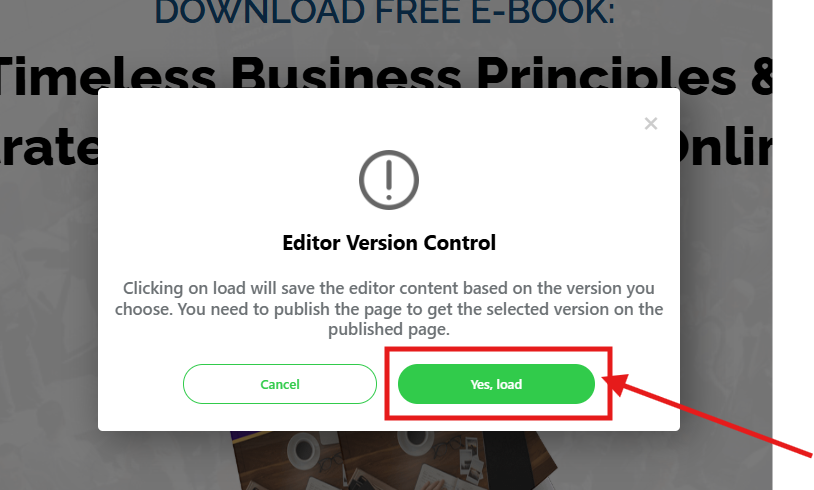
Step 6: Confirm Restoration
Dialog asks: "Are you sure? This will load [Version X]"
Two options:
- Yes, Load — Confirm, load the version
- Cancel — Don't load, keep current version
Click "Yes, Load" to proceed
Step 7: Editor Updates with Old Version
- Editor refreshes
- Shows content from that version
- Page now displays the restored version
- Still in draft (not published yet)
Step 8: Review the Restored Content
- Look at the page
- Make sure it's what you expected
- Check all elements and content
- Verify design is correct
Step 9: Publish if Satisfied
Two options:
Option A: Publish Immediately
- Click "Publish"
- Old version is now live
- New version created (your restored version)
Option B: Make Changes First
- Edit the restored content
- Make additional changes if needed
- Then click "Publish" when ready
- All changes published as new version
Common Situations & Quick Fixes
Situation 1: "I Loaded Wrong Version"
What's happening: Loaded a version, realized it's not the right one.
Steps to fix:
- Don't publish yet(critical!)
- Don't publish wrong version
- Just go back to version control
- Load correct version
- Go to Version Control
- Load the right version
- Editor updates
- Publish correct version
- Now publish the right one
- Correct version is live
Result: Fixed without going live with wrong version
Situation 2: "Version I Want Is Not in List"
What's happening: Can't find the version you need.
Diagnostic steps:
- Check date
- Is the version older than your plan's history?
- Plans keep last 10-30 versions or 30-90 days
- Very old versions are deleted automatically
- Check if published
- Did you publish that change?
- Only published changes become versions
- Draft edits don't create versions
- Ask when version was made
- If looking for client version
- Ask them when they published it
- Look for that date in version list
- Contact support
- If version should exist but doesn't
- Support might be able to help
- Or suggest rebuilding from available versions
Situation 3: "I Restored Version But Changes Are Gone"
What's happening: Loaded old version, lost recent edits.
Explanation:
This is expected!
When you load old version:
- Old version replaces current content
- Recent changes are gone
- That's the point of restoring
To get recent changes back:
- Load a newer version
- Or press Ctrl+Z to undo the load
- Or don't publish the restored version
Situation 4: "I Published Old Version by Mistake"
What's happening: Loaded and published wrong version.
Steps to fix:
- Don't panic
- You can fix this with version control
- Nothing is permanently lost
- Open editor again
- Go back to editor
- Open Version Control again
- Load correct version
- Find the version you wanted
- Load it
- Publish
- Now publish the correct one
- Correct version is live now
Result: Fixed in a few steps
Was this article helpful?
That’s Great!
Thank you for your feedback
Sorry! We couldn't be helpful
Thank you for your feedback
Feedback sent
We appreciate your effort and will try to fix the article