What is Parse Code, and why use it?
Parse Code is FlexiFunnels' way of connecting your form to any email autoresponder — even one that FlexiFunnels doesn't have a direct, built-in integration for.
Here's the idea: every email tool (Aweber, GetResponse, etc.) can generate a chunk of HTML form code — basically a ready-made signup form written in code. Instead of using their ugly form on your page, you paste that code into FlexiFunnels, click Parse Code, and FlexiFunnels reads ("parses") the code to figure out where the data should be sent. Your beautiful FlexiFunnels form then quietly delivers every lead straight into your email software.
Why does this matter?
- Works with virtually any email tool — if your autoresponder can spit out HTML form code, you can connect it.
- You keep your design — visitors see your styled FlexiFunnels form, not the autoresponder's default one.
- Leads flow automatically — no manual exporting or copying contacts between tools.
What does "parse" mean? To parse means to read and understand. When you click "Parse Code," FlexiFunnels reads through the pasted HTML, finds the important parts (where data goes, what fields exist), and wires your form up to match.
What's an "autoresponder"? It's your email marketing software — the tool that stores your contact list and sends automatic emails (like welcome sequences). Aweber, GetResponse, and Mailchimp are common examples.
Step-by-Step Guide:
Step 1: Get the HTML form code from your autoresponder
Every email tool has its own path to this code, but the goal is the same: generate a signup form and grab its raw HTML version.
Example with Aweber:
- Log in to your Aweber account.
- Go to "Sign Up Forms" in the left sidebar.
- Click "Create a Signup Form" → select "For My Website".
- Build the form (the design doesn't matter — FlexiFunnels only needs the wiring, not the looks).
- At the last step, select the Raw HTML Version.
- Copy the entire HTML code — every line, from start to finish.
⚠️ Copy ALL of it. A partial copy is the #1 cause of parse failures. Select everything in the code box (Ctrl+A / Cmd+A inside the box helps), then copy.
Step 2: Create a Project and Landing Page in FlexiFunnels
If you already have a page ready, skip to Step 3.
- Click "Projects" from the dashboard.
- Click "+ Create New".
- Name your project and click "+ADD Project".
- Choose a Landing Page Template Category and pick a template.
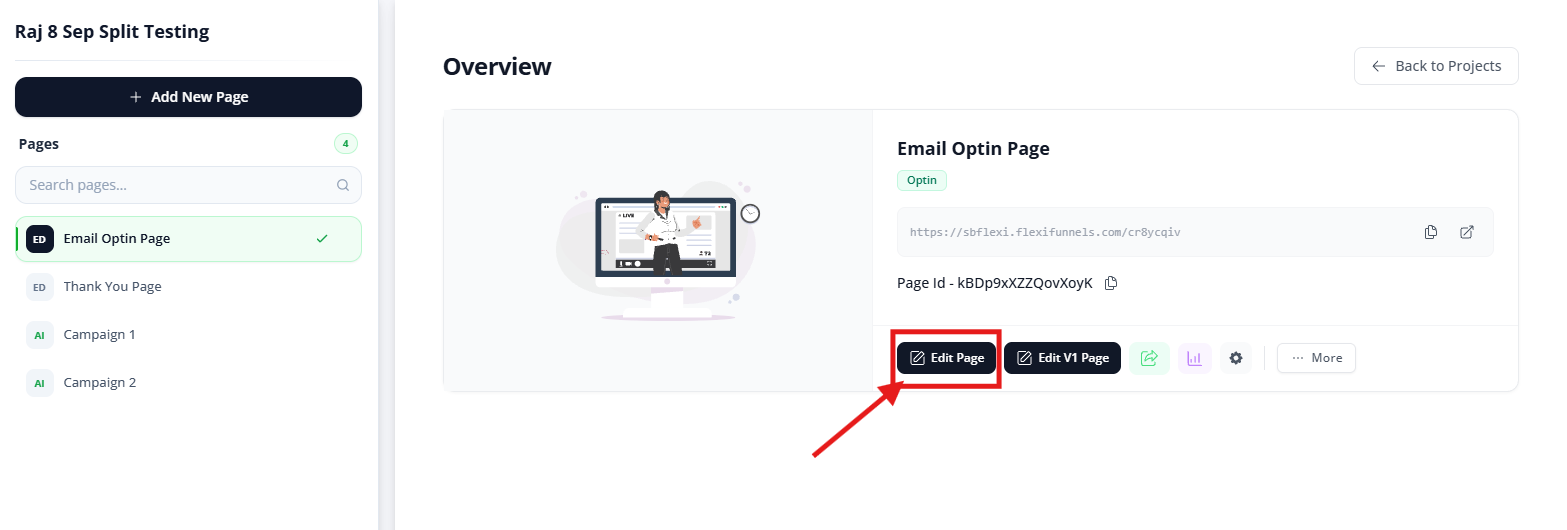
Step 3: Add a Form to your landing page
- Click "Edit Page" to open the editor.
- On the sidebar, click the "Components" button and select "Forms" under Components.
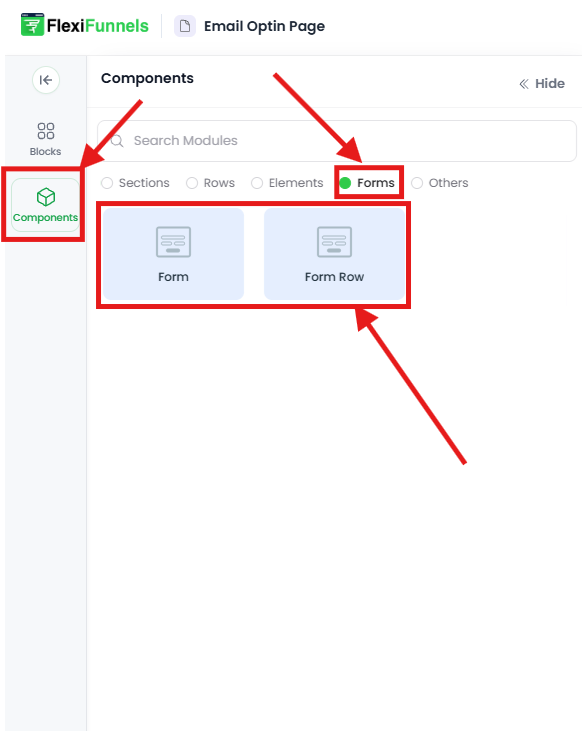
- Drag and drop the form element onto your page.
Quick reminder: every FlexiFunnels page follows the Section → Row → Element structure — the form drops into a Row.
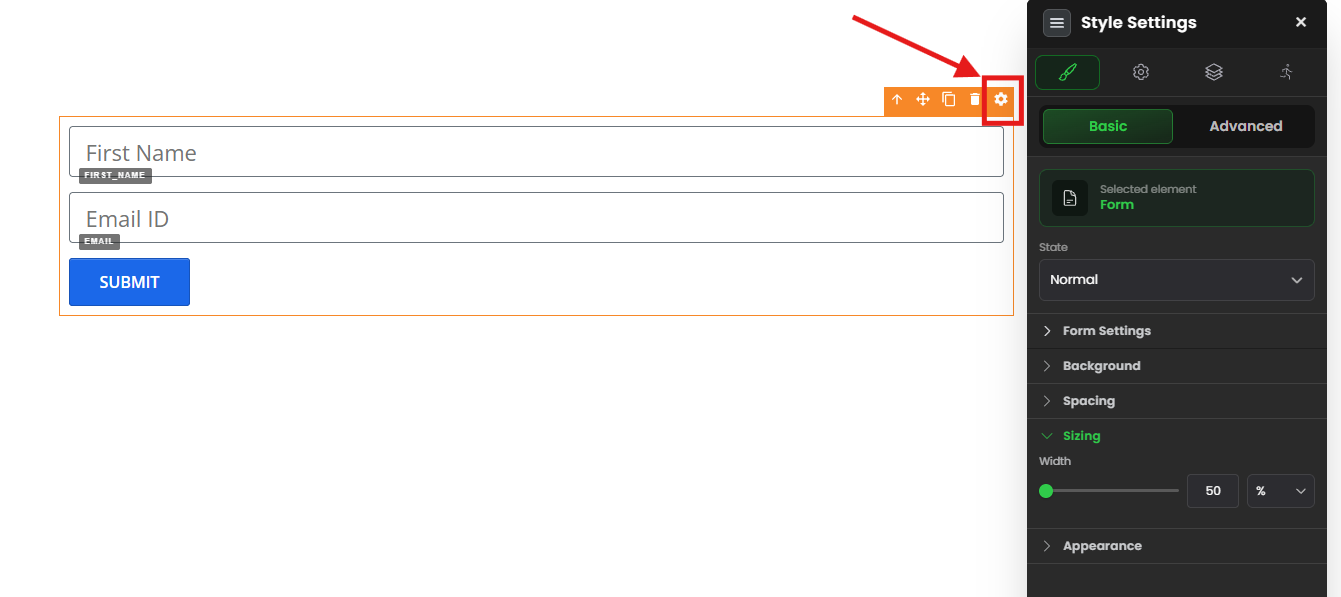
Step 4: Connect the HTML code to the form (the key step)
- Click the form's gear icon to open its settings.
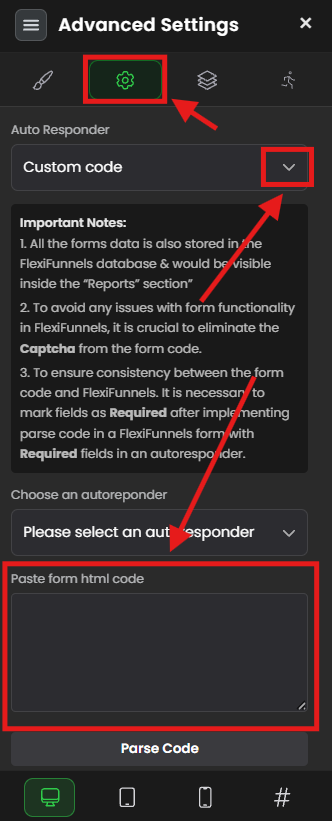
- Go to Advanced Settings.
- From the integration dropdown, select "Custom Code".
- Paste the full HTML code you copied in Step 1.
- Click "Parse Code".
- Once parsed successfully, your form is connected — FlexiFunnels now knows exactly where to send each lead.
Step 5: Publish and test
- Click "Publish" at the top of the editor.
- Open the published page (the live URL, not the editor).
- Submit a test lead yourself — enter a real email you control.
- Check your autoresponder: the test contact should appear in your list within a few minutes.
If your test entry shows up in your email software — congratulations, the integration is live. ?
Common situations & quick fixes
Check these before contacting support.
"Parse Code gives an error / nothing happens when I click it." → Almost always an incomplete or altered code paste. Go back to your autoresponder, re-copy the entire Raw HTML (every line), delete what's in the FlexiFunnels box, paste fresh, and parse again. Don't edit or "clean up" the code — paste it exactly as given.
"I parsed the code, but leads aren't reaching my autoresponder." → Work through these in order:
- Did you test on the published page? Form submissions don't fire inside the editor. Publish first, then test the live URL.
- Did you re-publish after parsing? Any change needs a fresh publish.
- Check the right list. Log into your autoresponder and confirm you're looking at the list/audience that the form code belongs to.
- Does the form require confirmation? Some tools (like Aweber) use double opt-in — the lead must click a confirmation email before appearing as "active." Check your pending/unconfirmed contacts too.
"My form fields don't match the autoresponder's fields." → The parsed code only knows about fields that existed in the autoresponder's form. If you need extra fields (like phone number), add them to the form in your autoresponder first, regenerate the HTML code, and re-parse the new code in FlexiFunnels.
"I copied the JavaScript/embed version and it won't parse." → Parse Code needs the Raw HTML version, not the JavaScript snippet or embed widget code. Go back and specifically choose the HTML/raw option in your autoresponder.
"I updated my form in the autoresponder but FlexiFunnels still uses the old setup." → Parsing is a one-time snapshot. After changing the form in your email tool, copy the new HTML code and re-parse it in FlexiFunnels, then re-publish.
"My autoresponder isn't listed in FlexiFunnels' integrations — can I still connect it?" → Yes — that's exactly what Parse Code is for. As long as your tool can generate HTML form code, this method connects it.
"After submitting, visitors see the autoresponder's default thank-you page." → Many HTML form codes include a redirect set inside the autoresponder. Edit the form's settings in your email tool to set your preferred thank-you page URL, then re-copy and re-parse the code.
Need more help?
If your integration still isn't working after the steps above, submit a ticket and include:
- Which autoresponder you're connecting (e.g., Aweber, GetResponse)
- The page URL where the form sits
- Whether Parse Code completed without errors
- Whether a test submission on the published page reached your email tool
- A screenshot of your form's Advanced Settings
Was this article helpful?
That’s Great!
Thank you for your feedback
Sorry! We couldn't be helpful
Thank you for your feedback
Feedback sent
We appreciate your effort and will try to fix the article