The Grid element gives you a tidy, evenly-spaced layout of cells — think of a gallery of images, a wall of client logos, a set of feature boxes, or a row of "what's included" cards. Instead of building each box and lining them up by hand, the grid drops in a clean, uniform structure you can fill with content. This guide shows you how to add one.
Grid vs. Rows/Columns — quick distinction. Both arrange content into columns, but they're used differently:
- Rows/Columns are your page's main structure (you've seen these in Adding Rows).
- The Grid element is a fast way to drop in a uniform multi-cell block — like a 3-across gallery — in one move, rather than building each row yourself. Reach for a grid when you want several matching items laid out neatly together.
Note on adding it first: Like any element, the Grid needs a row with a column to sit in.
Step-by-step guide
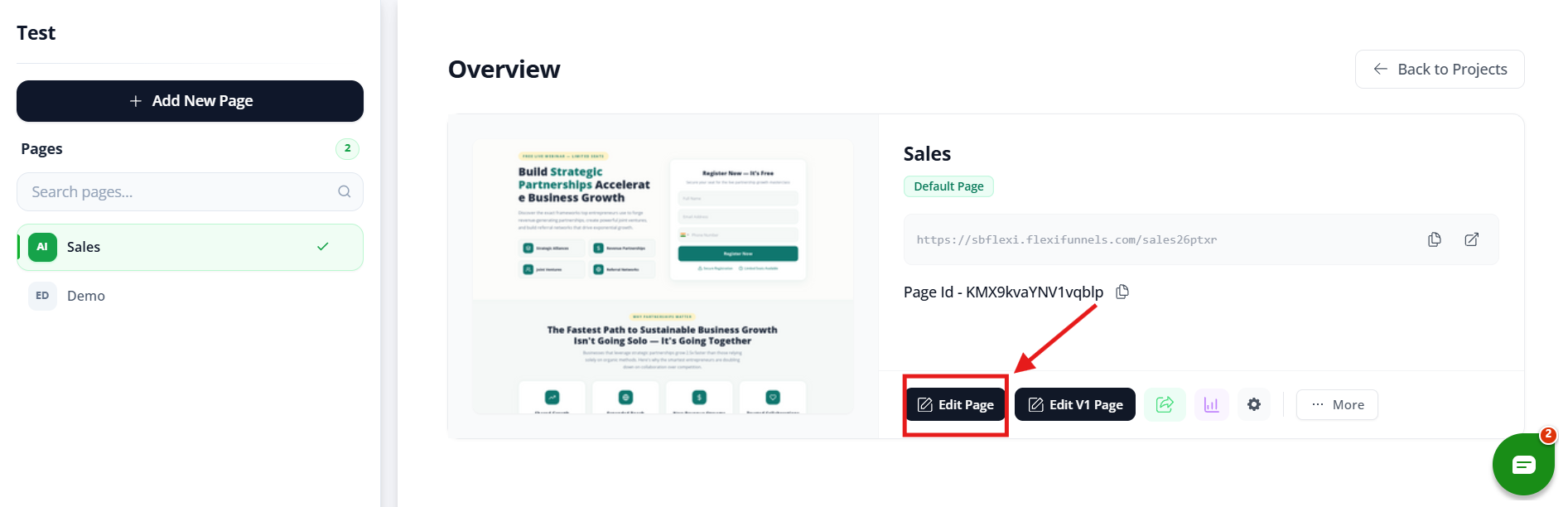
Step 1 — Open the editor
Open the page where you want the grid in the Landing Page Editor.
Step 2 — Go to Components → Elements
In the panel, open the Components tab, then click the Elements category.
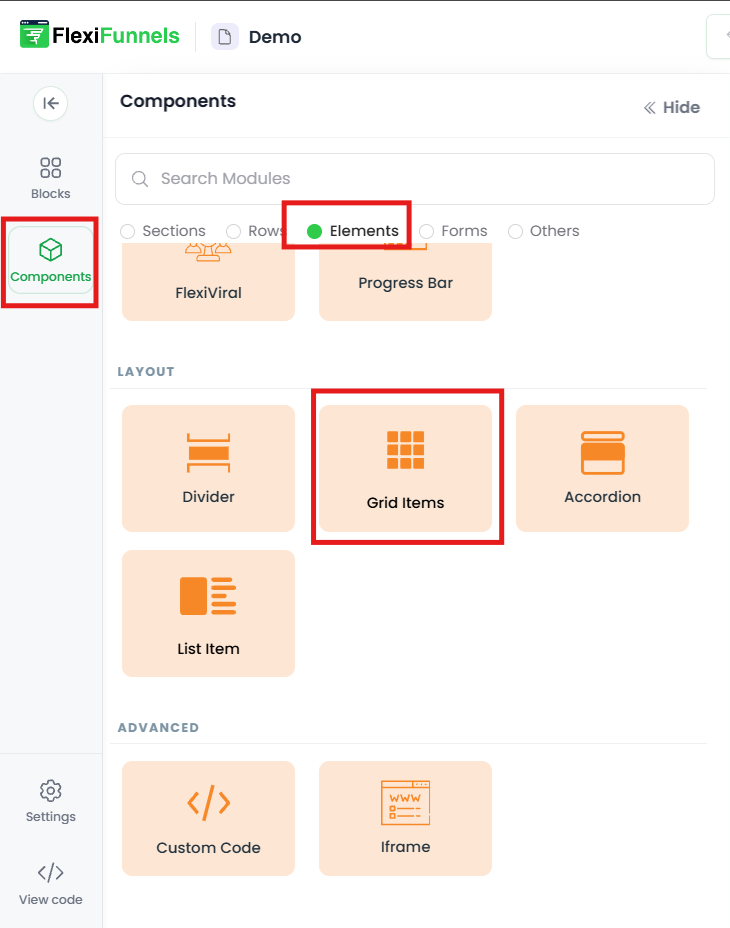
Step 4 — Add the Grid element
Find the Grid option in the Elements list and drag and drop the grid block onto your page where you want it.
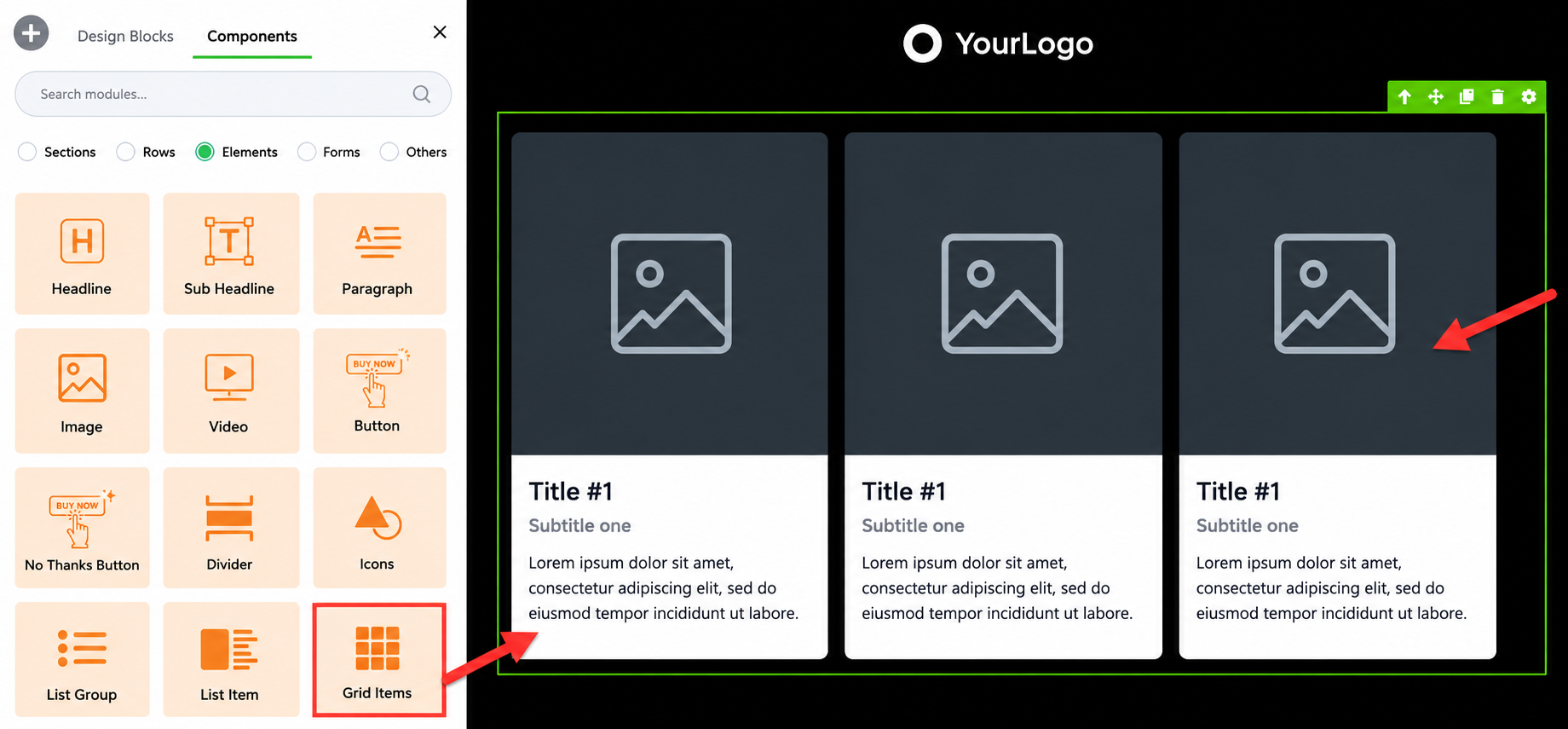 After you've added it
Once the grid is on your page, click into its cells to add your content (images, text, icons, etc.), and open the grid's settings (gear) to adjust its layout and spacing so everything lines up the way you want. Build one cell the way you like it, then keep the rest consistent for a clean, professional look.
Common situations & quick fixes
"The Grid element won't drop onto the page." It needs a row with a column to sit in. If your section is empty, add a row first (the "+" icon → Components → Rows), then drop the grid into a column.
"Should I use a Grid or just Rows and Columns?" Use Rows/Columns for your page's overall structure. Use the Grid element when you want a set of matching items (gallery, logos, feature boxes) laid out evenly in one block without building each row by hand.
"My grid items look uneven or misaligned." Keep the content in each cell similar in size (e.g. images of the same dimensions), and use the grid's settings to set consistent spacing. Mismatched image sizes are the usual cause of a grid looking "off."
"My grid looks great on desktop but cramped on mobile." Switch to Mobile View in the editor and check the grid there — on small screens grid cells typically stack or shrink, and you can fine-tune sizing for mobile without affecting the desktop layout.
"I can't add content into the grid." Click directly into a grid cell first, then add your element (image, text, etc.) into that cell — just like dropping an element into a column.
"My changes aren't showing on the live page." Edits need to be saved and published before visitors see them. After editing, save and re-publish if the page is already live.
Still stuck?
If the grid won't add or lay out the way you expect after trying the steps above, submit a ticket and tell us which page you're editing and what you're seeing — a screenshot of your editor helps us sort it out quickly.
Was this article helpful?
That’s Great!
Thank you for your feedback
Sorry! We couldn't be helpful
Thank you for your feedback
Feedback sent
We appreciate your effort and will try to fix the article