Elements are the actual content of your page — your headlines, paragraphs, buttons, images, videos, and more. If sections and rows are the structure, elements are the things visitors actually see and read. This is usually the most fun part of building, because it's where your page starts to look real.
This guide shows you both ways to add an element and what to do if one won't drop where you want it.
Where elements fit in
FlexiFunnels builds every page in the same simple order:
Section → Row → Element
- A Section is a big horizontal band of the page.
- A Row sits inside a section and splits it into columns.
- An Element is the content you place inside a column.
Elements are the last layer — the furniture that goes into the room. That's the one rule worth remembering: an element needs a row with a column to land in. If you have a section but no row yet, add a row first (see Adding Rows in the Landing Page Editor), then drop your element into one of its columns.
The common types of elements you'll reach for most: Headline and Paragraph (text), Button (your call-to-action), Image and Video, Icon, and more advanced ones like forms and iFrames. You don't need to learn them all at once — start with a headline, some text, and a button, and you've got the bones of a page.
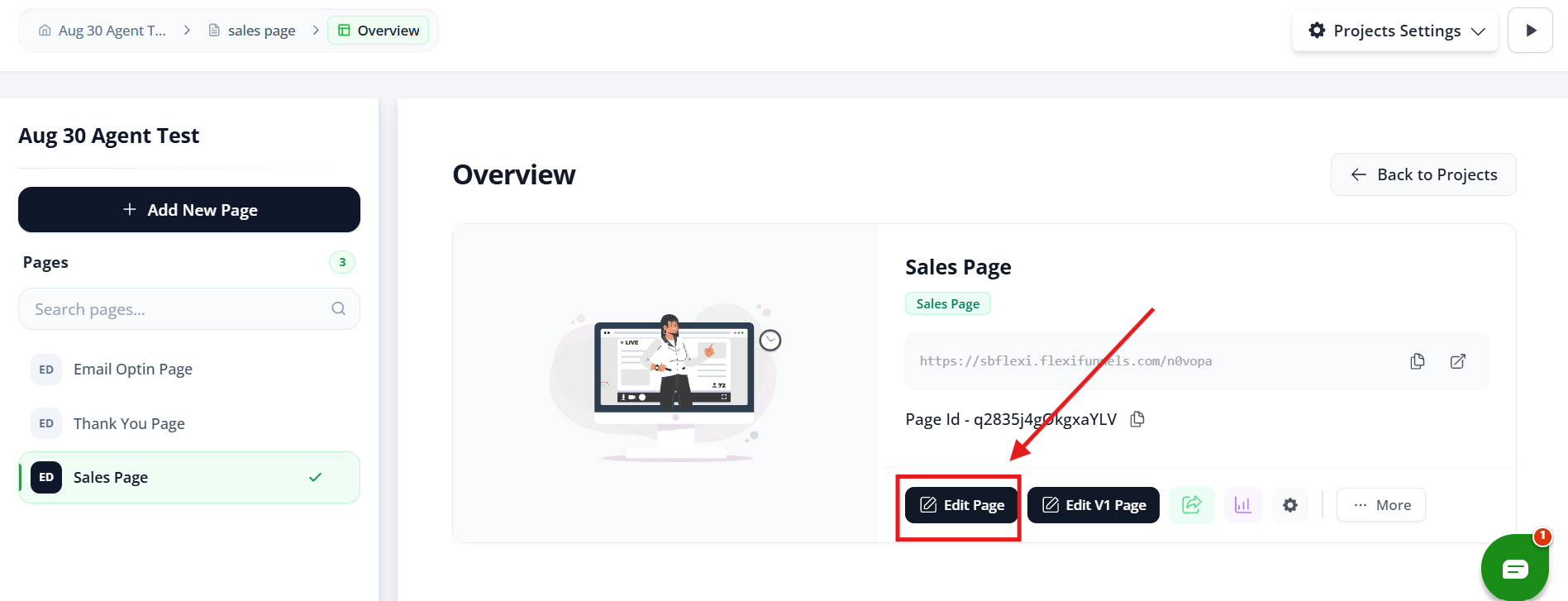
Step 1 — Open the Landing Page Editor
Open the page you want to build in the editor.
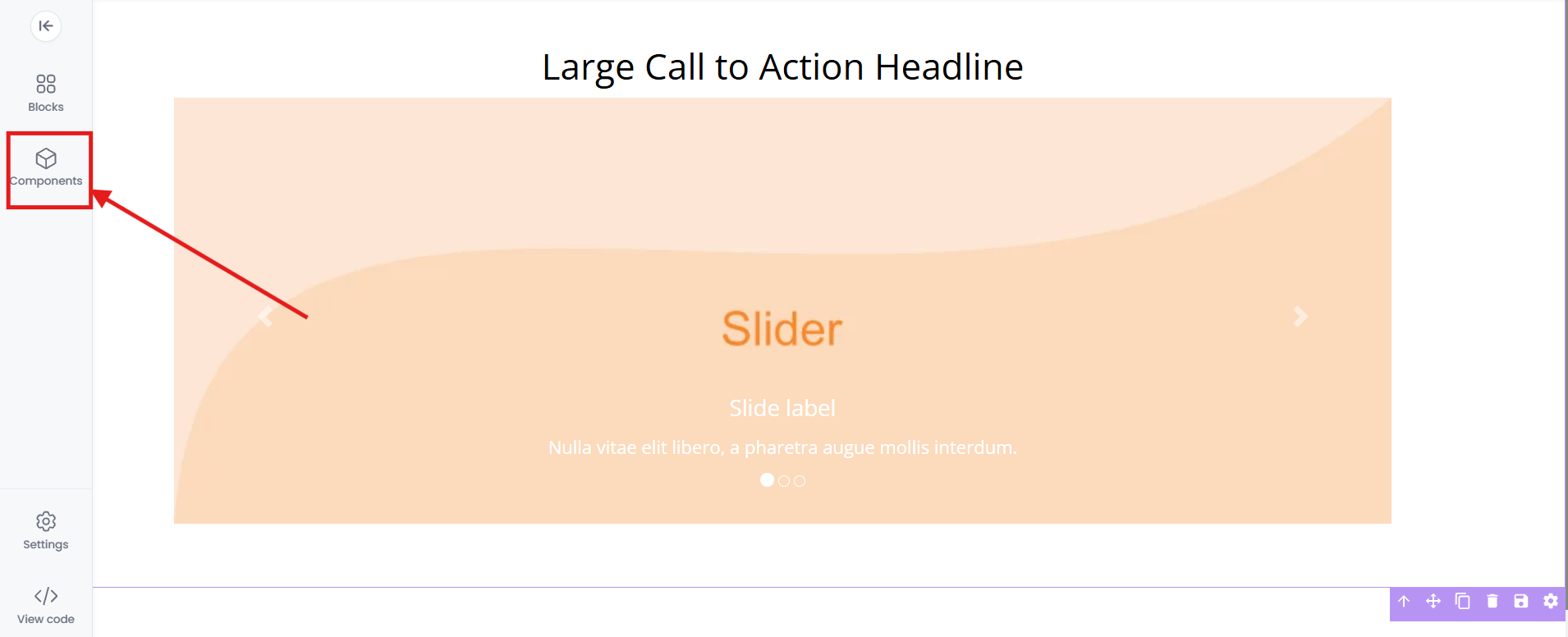
Step 2 — Click on the Components Option
On the left side of the editor, click the Components Option.
Step 3 — Click "Components," then open Elements
In the Components tab, select Elements. You'll see the full list of element types available for building your page.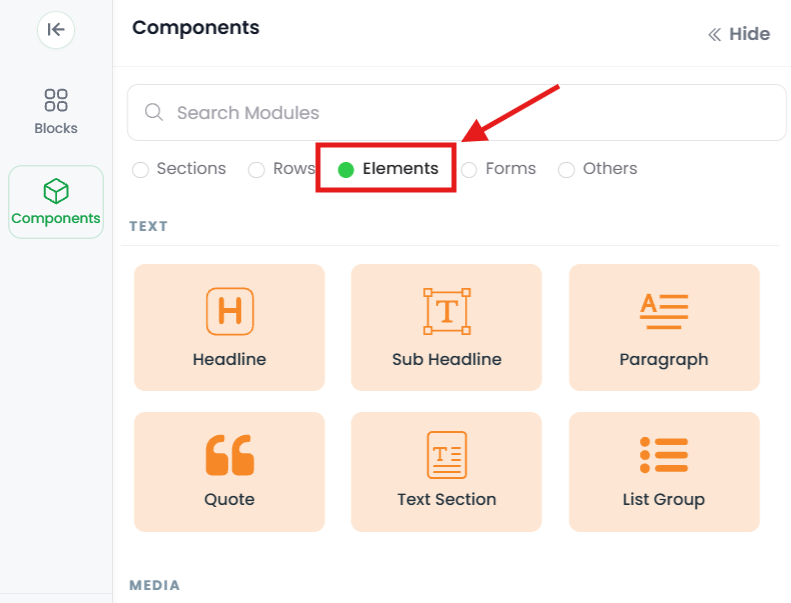
Step 4 — Click (or drag) the element you want
Click the element you'd like to add, and it drops onto your page — or drag it to the exact column where you want it. You can add elements anywhere on the page that has a column ready to hold them.
In the example below, a Headline element has been added to the page.

Step 5 — Click the element to edit it
Once it's on the page, click the element to type your text, swap the image, change the button label, and adjust its style. Each element has its own settings — explore them as you go.

When you already have an element on the page, you don't need to reopen the Components panel each time. Just:
- Hover over an existing element.
- Click the +Add Element button that appears.
This adds a new element directly below the one you hovered over — perfect when you're stacking content in a column and want each new piece right where you're working.
Common situations & quick fixes
"I clicked Elements but it won't drop onto the page." An element needs a row with a column to land in. If your section is empty, there's nowhere for the element to sit. Add a row first (Plus icon → Components → Rows), then drop your element into one of its columns.
"I can't find the Plus (+) icon." It's on the left side of the editor. If you don't see it, you're probably not inside the page editor yet — open the specific page you want to edit (not just the project list) and the toolbar will appear.
"My element landed in the wrong spot." You don't have to delete it. Drag the element into the correct column, or use the hover +Add Element shortcut to place new ones exactly where you want them.
"Two elements are stacking instead of sitting side by side." Side-by-side content needs a multi-column row, with one element in each column. If both elements are in the same column, they'll stack vertically. Add a 2-column row and place one element in each side (see Adding Rows in the Landing Page Editor).
"I added a Button but clicking it doesn't do anything." A button needs a destination. Open the button's settings and set its action — link to another page, scroll to a section, open a popup, etc. A button with no action assigned won't take visitors anywhere.
"The +Add Element button won't appear on hover." The hover shortcut only works over an existing element. If the column is empty, use Method 1 (Plus icon → Components → Elements) to add the first element, then the hover shortcut becomes available.
"I deleted an element by mistake." Re-add it from the Components panel and use the editor's undo where available before saving. Note that deleting a whole row or section also removes every element inside it — so check what you're deleting.
"My changes aren't showing on the live page." Edits in the editor need to be saved/published to appear on your live page. After editing, save your work, and if the page is already live, re-publish so visitors see the update.
Still stuck?
If an element won't add or edit the way you expect after trying the steps above, submit a ticket and tell us which page you're editing and what you're seeing — a screenshot of your editor helps us help you faster.
Was this article helpful?
That’s Great!
Thank you for your feedback
Sorry! We couldn't be helpful
Thank you for your feedback
Feedback sent
We appreciate your effort and will try to fix the article