What Are Page Settings?
Page Settings are the organizational and configuration options for each landing page in your funnel.
Think of them like filing metadata—they help you:
- Name your page clearly (so you find it later)
- Organize your funnel (group related pages)
- Set up the URL (where visitors go)
- Categorize the page (what is its purpose?)
Why Page Settings Matter
Good page settings help you:
✓ Find pages quickly — "Webinar Signup Jan 2025" is easier to find than "Page 5"
✓ Manage funnels — When you have 20+ pages, organization is critical
✓ Track performance — Know which page type performs best
✓ Route visitors correctly — Different page types behave differently
✓ Maintain consistency — Team members understand page structure
Bad page settings cause:
✗ Lost pages (can't find them)
✗ Broken funnels (confused visitors)
✗ Wasted time (searching through chaos)
✗ Mistakes (using wrong URL)
Page Settings Overview
You can customize 3 main settings:
- Page Name — What you call the page
- Page Path (URL) — Where visitors access it
- Page Type — What the page does (Sales, Lead, Checkout, etc.)
Step-by-Step: Edit Page Settings
Step 1: Locate Your Page
- Go to your Projects section
- Find the project containing the page
- You should see a list of pages in that project
Step 2: Access Page Settings
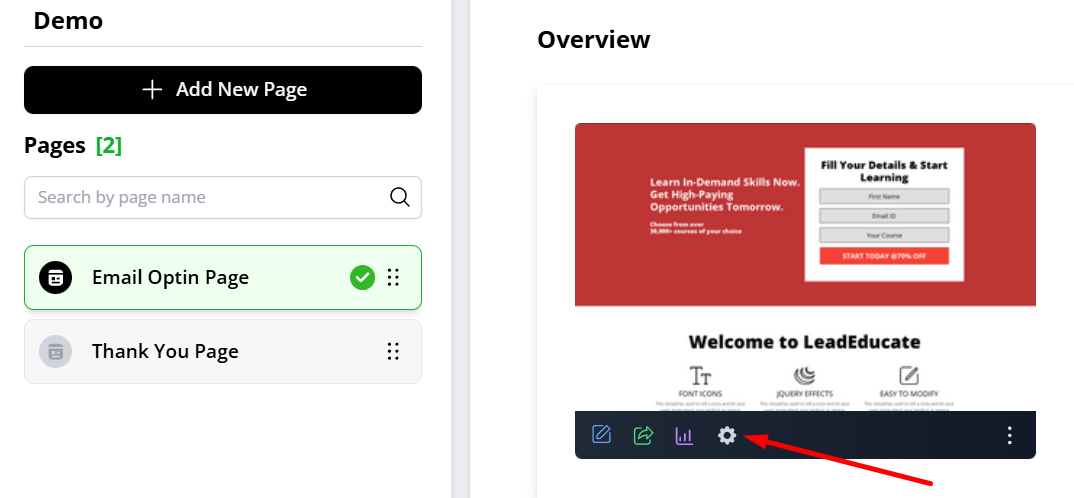
- Hover your cursor over the page name
- A menu appears with options
- Click on the gear icon (⚙️) or "Settings"
Step 3: Edit Page Name
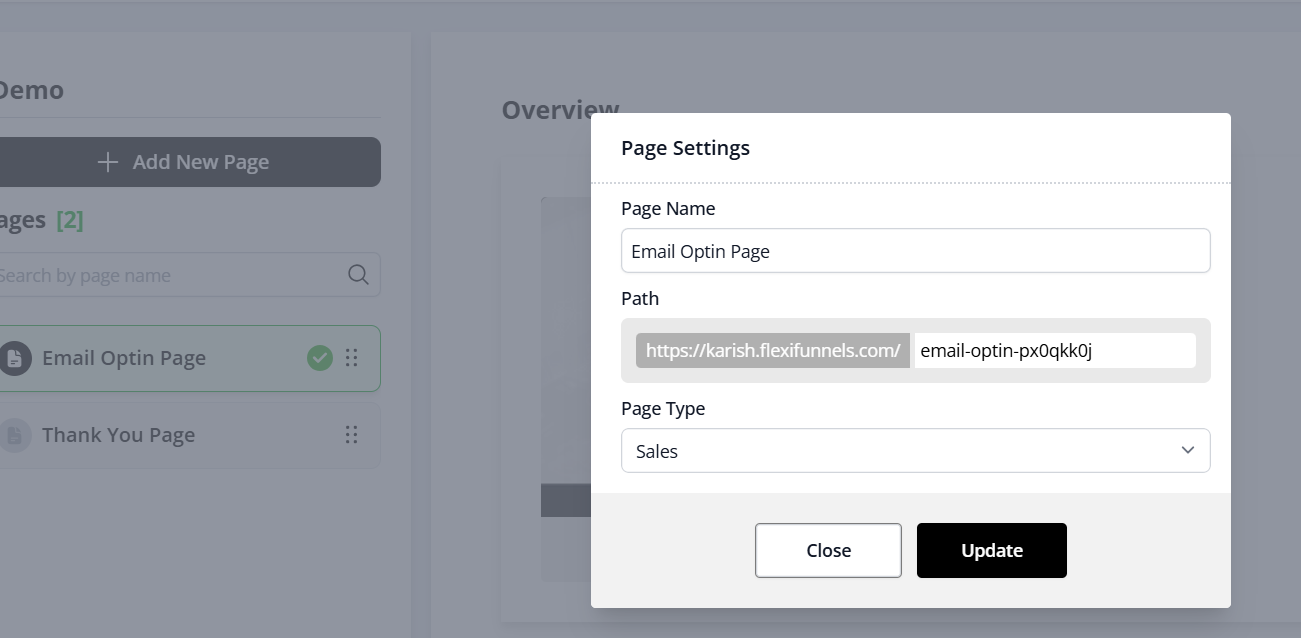
- Find the "Page Name" field
- Clear the existing name
- Type your new name
- Example: "Webinar Signup - January 2025"
Step 4: Edit Page Path
- Find the "Page Path" or "URL" field
- Clear the existing path
- Type your new path (without the domain)
- Examples:
/thank-you,/webinar-signup,/checkout
Note: Don't include https://yoursite.com — just the /path part.
Step 5: Choose Page Type
- Find the "Page Type" dropdown
- Click it
- Choose one:
- Sales (selling something)
- Lead (capturing leads)
- Checkout (payment page)
- Default (general-purpose)
Step 6: Save Changes
- Click the "Update" or "Save" button
- A confirmation message appears
- Your settings are now updated
✓ Done!
Choosing the Right Page Type
Use this decision tree:
Is the primary goal to make a sale?
- Yes → Sales
- No → Continue
Is the primary goal to collect contact info?
- Yes → Lead
- No → Continue
Is this a payment/checkout page?
- Yes → Checkout
- No → Continue
No clear category?
- → Default
Common Situations & Quick Fixes
Situation 1: "I Changed the Page Path, Will It Break My Links?"
What's happening: You're worried old links won't work.
Good news: It depends on whether you set up redirects.
Diagnostic steps:
- Did you just change it in FlexiFunnels?
- If yes, old links might not work immediately
- You may need to set up a 301 redirect from old URL to new URL
- Ask your tech team or support to set up redirects
- Have you shared the old link widely?
- If yes, set up a redirect so old links still work
- Redirect: Old URL → New URL (visitors go to new one)
- Is this a new page you haven't shared yet?
- If yes, you're fine — change it freely
Best practice: If pages are already published and shared, use redirects instead of changing the path.
Situation 2: "Page Type Changed, But My Page Still Looks the Same"
What's happening: You changed the type but nothing visible changed.
This is normal! Page type is mostly for:
- Organization
- Reporting
- FlexiFunnels' internal tracking
Changing page type doesn't change:
- Page design
- Page layout
- Content
- Functionality
It only changes how FlexiFunnels categorizes it for analytics.
Situation 3: "I Want to Rename My Page, But I'm Worried About Breaking Things"
What's happening: You think renaming will break something.
Good news: Renaming the page name is safe!
What's safe to change:
- ✓ Page Name (internal name) — no impact on visitors
- ✓ Page Type (category) — no impact on visitors
What affects visitors:
- ✗ Page Path (URL) — changing this changes the link (set up redirects)
Best practice:
- Rename freely (safe)
- Change URL carefully (set up redirects)
- Change page type as needed (just for organization)
Situation 4: "Which Page Type Should I Choose?"
What's happening: You're unsure which category fits your page.
Diagnostic steps:
- What's your primary goal for this page?
- Make a sale → Sales
- Collect contact info → Lead
- Process payment → Checkout
- None of the above → Default
- If unsure, ask: "Does this page make money directly?"
- Yes → Sales
- No → Is it a lead generator? → Lead
- No → Is it payment? → Checkout
- No → Default
Situation 5: "Can I Have Multiple Pages with the Same Path?"
What's happening: You want to reuse a URL.
Answer: No. Each page must have a unique path.
Why? When someone goes to /thank-you, FlexiFunnels needs to know which page to show. If two pages have the same path, it won't know which one to display.
Solution: Give each page a unique path:
/thank-you-webinar(for webinar signups)/thank-you-purchase(for purchases)/thank-you-consultation(for consultation requests)
Was this article helpful?
That’s Great!
Thank you for your feedback
Sorry! We couldn't be helpful
Thank you for your feedback
Feedback sent
We appreciate your effort and will try to fix the article