What Are Anchor Links?
Anchor Links let visitors jump to different sections on the same page by clicking a header menu item.
Think of it like: A table of contents. Click "Features" and jump to the Features section without scrolling.
Visual example:
Visitor lands on page
↓
Sees header menu: [Home] [Features] [Pricing] [FAQ] [Contact]
↓
Clicks "Features" in menu
↓
Page instantly scrolls to Features section
↓
No page reload (same page)
Why Use Anchor Links?
User Experience:
✓ Visitors jump to relevant sections instantly
✓ Better navigation (visitors don't scroll endlessly)
✓ Feels more professional (like real websites)
✓ Mobile-friendly (no page load delay)
Conversions:
✓ Visitors find what they want faster
✓ Less friction (quick access)
✓ Reduces bounce rates (keep people on page)
Technical: ✓ No extra pages needed (one long page with sections)
✓ Fast (no server requests)
✓ Works on mobile and desktop
How Anchor Links Work
3 components:
- Section — The target (where to jump to)
- CSS ID — Unique identifier for that section
- Menu Link — The clickable header menu item
The flow:
Header Menu Item (Features)
↓
Has anchor link: #features-section
↓
Points to Section with ID: features-section
↓
Visitor clicks menu
↓
Page jumps to that section
Step-by-Step: Create Anchor Links
Part 1: Find or Set Section IDs
Step 1A: Open Your Landing Page
- Log into FlexiFunnels
- Go to your project
- Open the landing page in the editor
Step 1B: Identify Sections
- Look at your page
- Identify sections you want to link to
- Common sections: Features, Pricing, FAQ, Contact, etc.
Step 1C: Select Your First Section
- Click on the section you want to link to (e.g., Features section)
- The section highlights
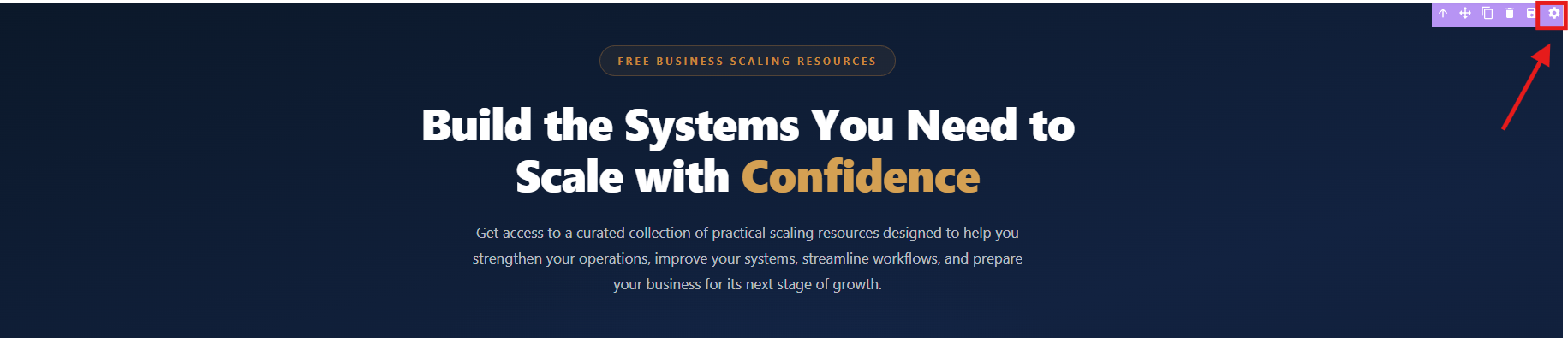
Step 1D: Open Section Settings
- With the section selected, look for a gear icon ⚙️ or "Settings" button
- Click it
- A settings panel opens on the right
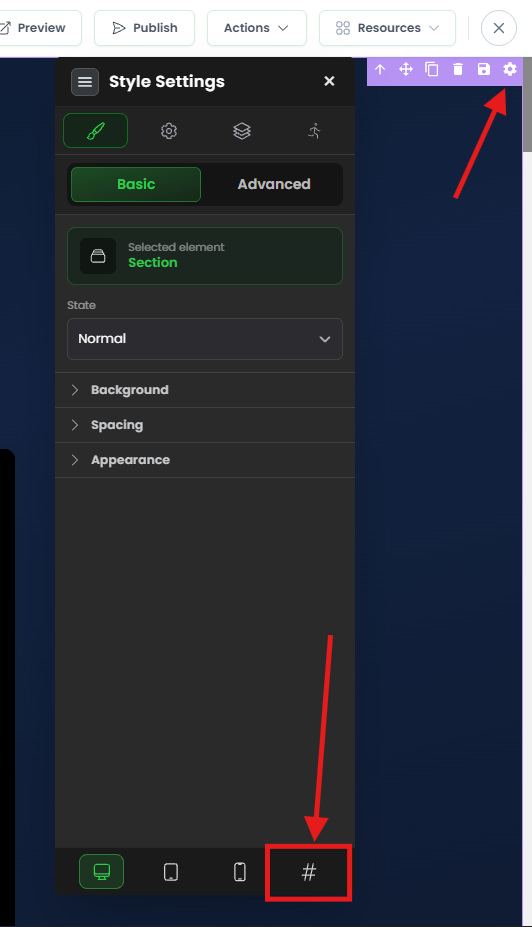
Step 1E: Find CSS ID Field
- In the settings panel, look for "CSS ID", "ID", or "Section ID"
- This is the unique identifier for this section
You'll see something like:
CSS ID: i1yag
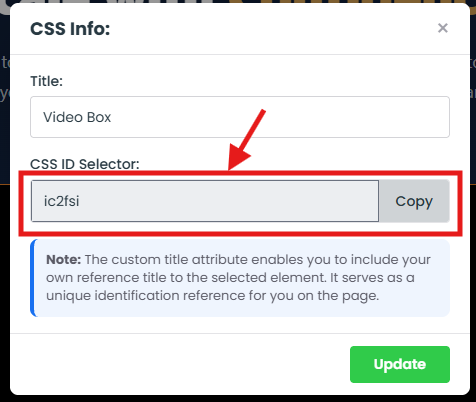
Step 1F: Copy the CSS ID (or Create One)
If an ID already exists:
- Copy it:
i1yag(without the#)
If the ID field is blank:
- Click in the field
- Create a descriptive ID (lowercase, no spaces)
- Examples:
features-section,pricing-plans,contact-form - Click outside to save
- Copy it
ID naming tips: ✓ Use lowercase (required)
✓ Use hyphens for spaces (features-section, not features section)
✓ Be descriptive (pricing-section, not section1)
✓ Keep it short
Step 1G: Repeat for Other Sections
- Do Steps 1C-1F for other sections you want to link to
- Examples: Features section, Pricing section, FAQ section, Contact section
- Write down all the IDs:
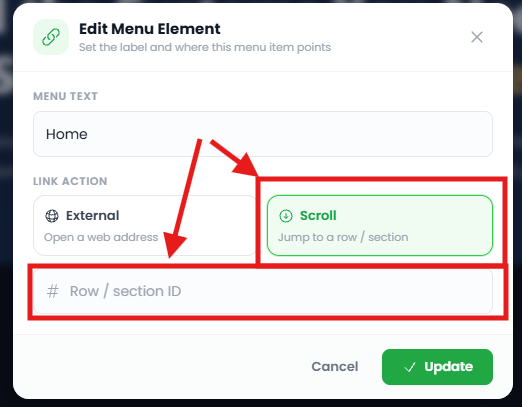
Part 2: Add Anchor Links to Header Menu
Step 2A: Select Your Header/Navigation
- In the page editor, click on the header/navigation section at the top
- This is usually your logo + menu area
Step 2B: Edit Header Menu
- Look for the menu items (Home, Features, Pricing, etc.)
- Click on one of the menu items to edit it
- Example: Click on "Features" menu item
Step 2C: Open Menu Item Settings
- With menu item selected, look for "Settings" or a gear icon
- Click it
- Settings panel appears
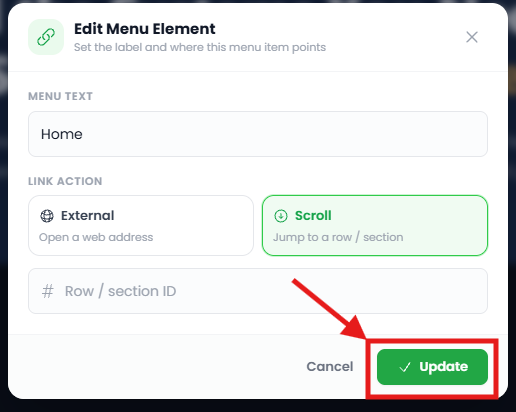
Step 2D: Find Link Field
- Look for a field labeled "Link", "URL", or "Destination"
- This is where you'll paste the anchor link
Step 2E: Enter Anchor Link
- Click in the link field
- Type the CSS ID with a
#in front - Example:
#features-section
Step 2F: Save Menu Item
- Click "Save" or click outside the field
- The menu item is now linked
Step 2G: Repeat for Other Menu Items
- Do Steps 2B-2F for each menu item
- Link each menu item to its corresponding section
Step 3: Publish and Test
Step 3A: Publish Your Page
- Click "Publish" button
- Page goes live
Step 3B: Test the Links
- Go to your live page
- Click each menu item
- Expected: Page instantly jumps to that section
Step 3C: Test on Mobile
- Open page on mobile
- Click menu items
- Should work the same way
✓ Anchor links are working!
Common Situations & Quick Fixes
Situation 1: "I Copied the CSS ID but Menu Link Isn't Working"
What's happening: Menu doesn't jump to section when clicked.
Diagnostic steps:
- Verify CSS ID exists
- Go back to the section
- Open section settings
- Does the CSS ID field have a value?
- If blank, create one
- Check link format
- In header menu, what did you enter?
- Should be:
#features-section(with the#) - Common mistake: Forgetting the
# - Also check: No spaces, lowercase
- Verify ID matches
- Section ID:
features-section - Menu link:
#features-section - They should match exactly
- Case sensitive (Features ≠ features)
- Section ID:
- Test on published page only
- Don't test in editor preview
- Go to actual live page
- Test there
- Clear browser cache
- Clear cookies and cache
- Open in incognito/private mode
- Test again
- Check if section is hidden
- Is the section visible on the page?
- Hidden sections can't be jumped to
- Make sure section is visible/published
Situation 2: "The Page Jumps But Not to the Exact Right Spot"
What's happening: Menu works, but jumps to wrong position on section.
Diagnostic steps:
- Check section positioning
- The link jumps to the TOP of the section
- If section has padding or margins, it might seem off
- This is normal behavior
- Adjust expectations
- Page jumps to where section starts
- If header is sticky (stays at top), section content appears below header
- This is correct behavior
- Add offset (advanced)
- If you need fine-tuning, this requires custom CSS
- Contact FlexiFunnels support for this
Situation 3: "How Do I Create a Nice Smooth Scroll Effect?"
What's happening: You want animated scrolling (instead of instant jump).
Diagnostic steps:
- Good news:FlexiFunnels may have this built-in
- Some versions have smooth scroll enabled by default
- Check page settings for "Smooth scroll" option
- If available, toggle it ON
- If not available:
- This requires CSS coding
- Add to General Code settings (Head section):
- Test it
- Click menu item
- Page should smoothly scroll (not instant jump)
Situation 4: "I Want a Link to Jump to External Page Section"
What's happening: You want a menu link on one page to jump to a section on a different page.
This is more complex.
Option 1: Not recommended
- Anchor links work best on same page
- Linking to other pages usually just goes to top
Option 2: Better approach
- Use standard links to other pages
- On the other page, use anchor links within that page
- Each page manages its own anchor links
Situation 5: "CSS ID Has Special Characters, What Should I Do?"
What's happening: Existing CSS ID looks weird (like i1yag).
Answer: That's fine! FlexiFunnels auto-generates IDs.
Options:
Keep the auto-generated ID:
- It works fine
- Use as-is:
#i1yag
Create a custom ID:
- Click the ID field
- Replace with custom name
- Example:
#features-section(more readable) - Save
- Use the new ID in menu links
Best practice: Use readable custom IDs when possible (easier to manage).
Was this article helpful?
That’s Great!
Thank you for your feedback
Sorry! We couldn't be helpful
Thank you for your feedback
Feedback sent
We appreciate your effort and will try to fix the article