What is a hyperlink, and why use it?
A hyperlink is clickable text that sends visitors somewhere when they tap it — another page, an external website, a file, or even a section of your own page. The blue underlined words you click all over the web are hyperlinks.
Why use them? Because they turn ordinary text into a doorway. Instead of writing out a long web address for people to copy, you attach the link behind a word or phrase. Common uses:
- "Click here to register" → links to your signup page.
- "Read our terms" → links to a policy page.
- "Visit our store" → links to an external shop.
What does "URL" mean? A URL is just the full web address of a page — like
https://flexifunnels.com. It's the destination your hyperlink sends people to.
Quick reminder on where elements live: Every FlexiFunnels page follows the Section → Row → Element structure. You add hyperlinks inside text-based elements (Text, Headline, etc.) sitting in a Row.
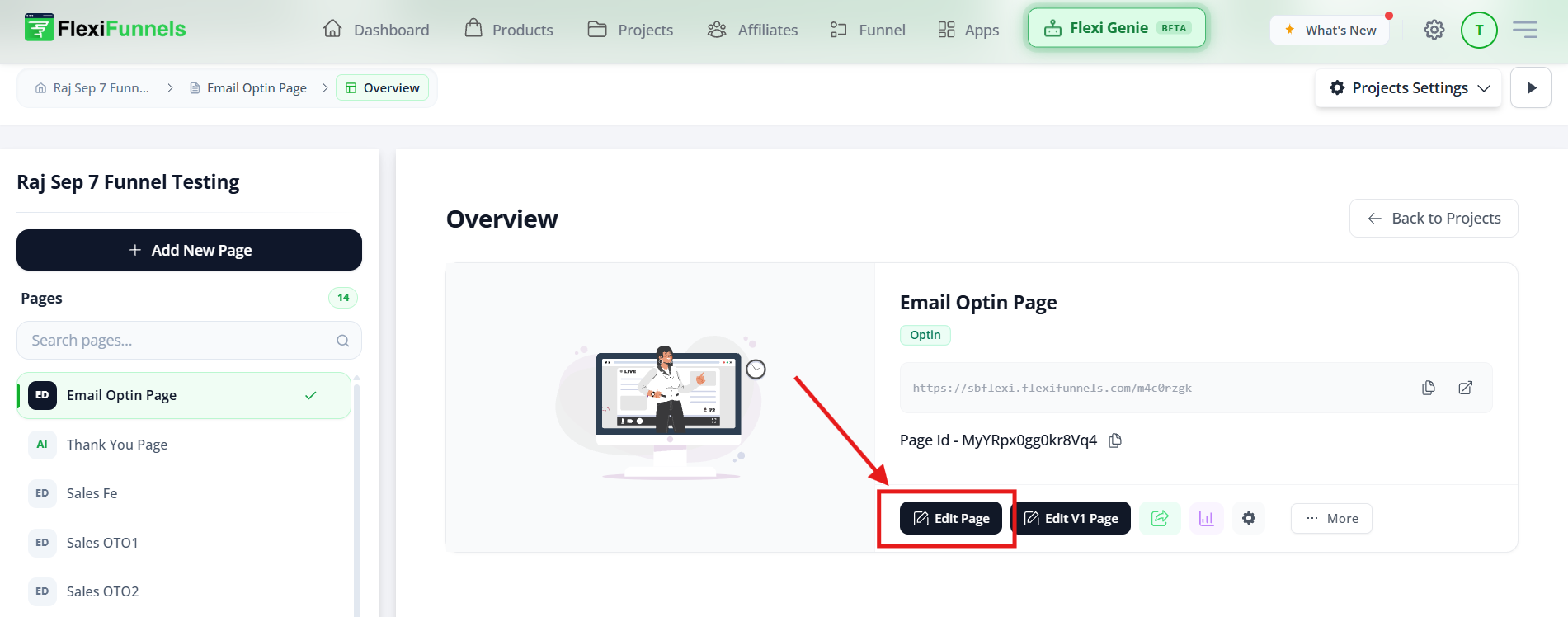
Step 1: Open your editor
Launch your Landing Page Editor and go to the page where you want the link.
Step 2: Add your text
Type or paste the words you want to turn into a clickable link (for example, "Register Now").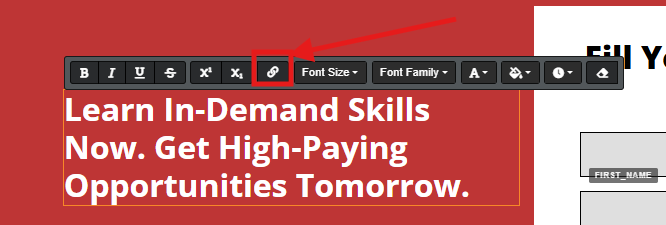
Step 3: Select the text
Double-click or highlight the text. This brings up the inline formatting toolbar above your selection.
? The link applies only to the words you select. To link just "Register Now," highlight exactly those words — no more, no less.
Step 4: Insert the link
- In the inline toolbar, click the link icon.
- Enter the URL you want to link to — the full address starting with
https://. - Save the change.
Your selected text is now a working hyperlink. ✅

Common situations & quick fixes
Check these before contacting support.
"My link doesn't work / clicking does nothing." → Test it on the published page, not the editor — links often don't fire inside the building view. Click Publish, open the live URL, then test the link.
"My link goes to the wrong place or to an error page." → Re-select the text, open the link icon, and check the URL carefully. It must be the complete address starting with https:// — for example https://flexifunnels.com, not flexifunnels.com or www.flexifunnels.com on its own. A missing https:// is the #1 cause of broken links.
"The link opens in the same tab and the visitor leaves my page." → If you're linking to an external site, look for an "open in new tab" option in the link settings so visitors keep your page open behind it. (Keeping people on your funnel matters.)
"I want to link to a section of the same page, not another page." → That's an anchor/jump link, which works differently from a normal URL. Check whether your link settings offer a "section" or "anchor" option rather than pasting a full web address.
"I selected the wrong words by accident." → Undo the change, then carefully highlight only the words you want before clicking the link icon.
"How do I remove a link I added?" → Select the linked text, open the link icon, and clear/remove the URL (or use the unlink option if shown). Save.
"My link works on desktop but not on mobile." → Switch to mobile view in the editor and confirm the linked text is tappable and not overlapping other elements. Test on the published page using your phone.
Need more help?
If your hyperlink still isn't working after the steps above, submit a ticket and include:
- The page URL where you added the link
- The exact text you linked and the URL you entered
- What you expected vs. what's actually happening
- A screenshot of the link settings
Was this article helpful?
That’s Great!
Thank you for your feedback
Sorry! We couldn't be helpful
Thank you for your feedback
Feedback sent
We appreciate your effort and will try to fix the article