The Header Navbar is the menu bar that sits at the top of your page — the row of links like Home, About, Pricing, Contact that lets visitors jump around your site. A clear navbar makes your page feel professional and helps people find what they're looking for instead of leaving.
This guide walks you through adding a navbar, building your menu (and dropdown sub-menus), adding your logo, styling the text, and customizing the mobile menu.
Prefer to watch? Here's the full video walkthrough:
A quick note on where the navbar lives
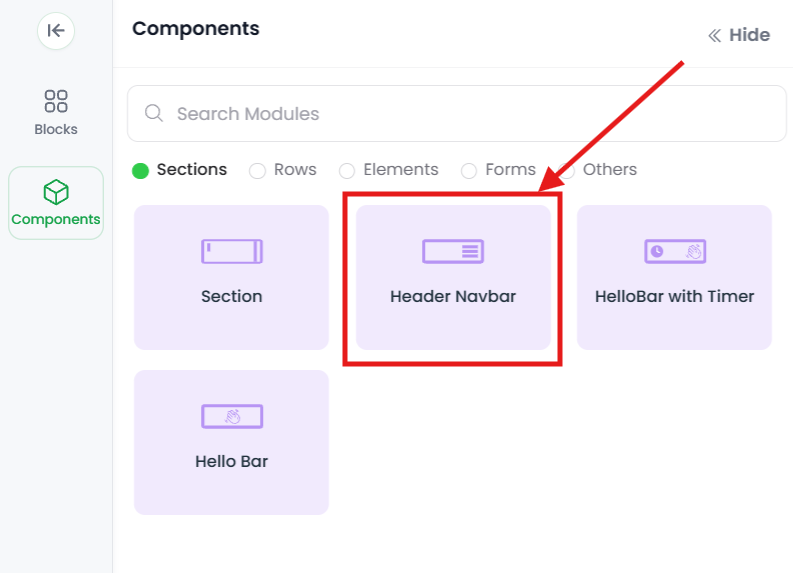
The Header Navbar isn't a regular element you drop into a column — it's one of the section types you add from the Components panel (alongside Standard Section, Hello Bar, etc.). So you add it the same way you'd add any section, and then open its settings to build the menu. That's why this is sometimes called the "Menu Element" — the navbar section is your menu.
A couple of plain definitions before we start, since these words come up a lot:
- Menu item — a top-level link in the bar, like Home or About.
- Sub-menu — the dropdown links that appear under a menu item when a visitor hovers or taps it. For example, under About you might have Our Team and Our Story.
Step 1 — Add a Header Navbar section
In the Landing Page Editor, add a Header Navbar section to your page. (It goes at the very top, since that's where a menu belongs.)
Step 2 — Open the navbar's settings
Click the Header Navbar section to open its settings. This is where you'll add and edit your menu items and sub-menus.
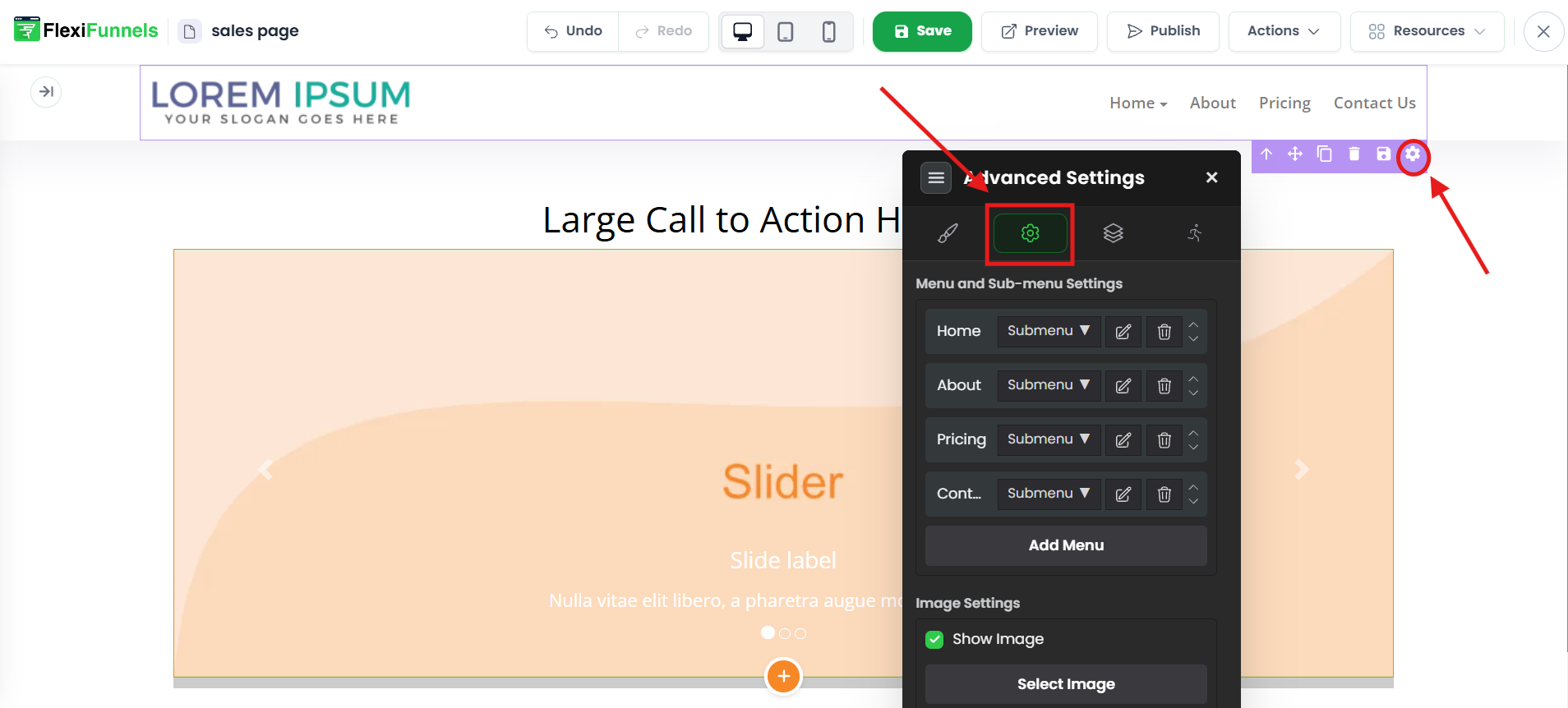
Menu and Sub-Menu Settings
This is where you build the actual menu — adding items, creating dropdowns, naming them, and pointing them at the right pages.
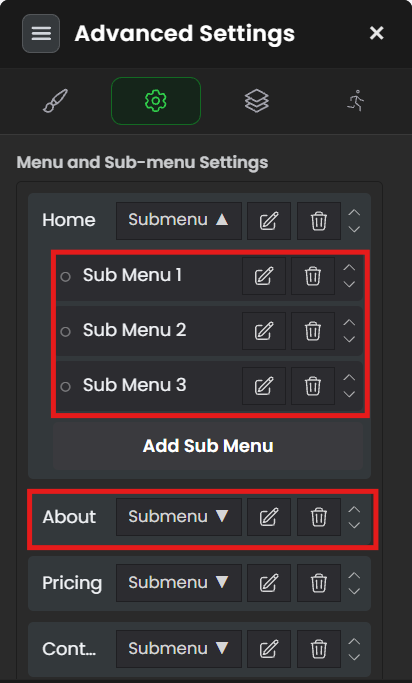
Add Menu — Click Add Menu to add one more top-level item to the bar. Do this for each main link you want (Home, About, Pricing, and so on).
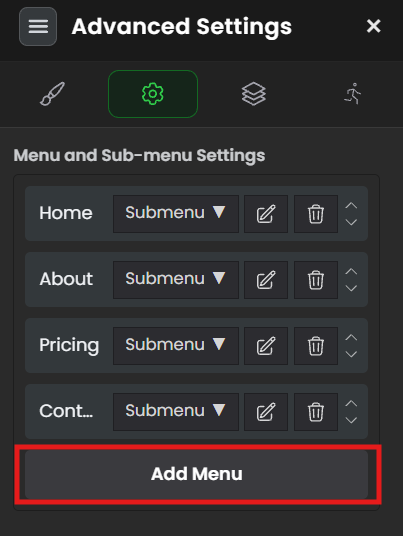
Add Sub-Menu — Click on a menu item, then Add Sub-Menu to create a dropdown link inside that item. Use this when one menu heading should reveal several choices.
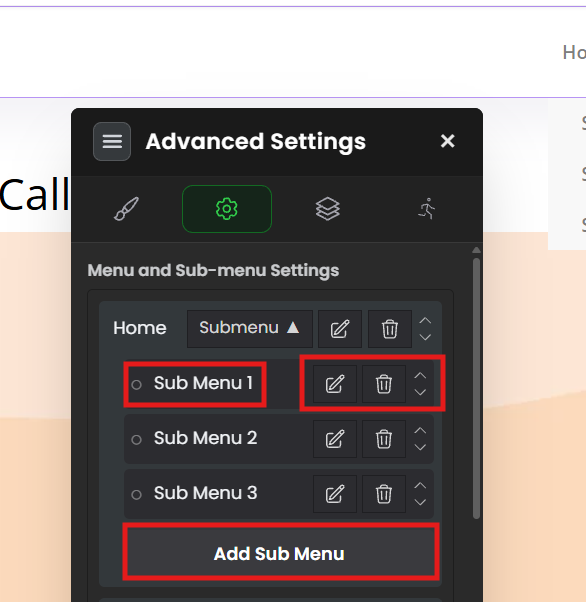
Each click of Add Sub-Menu adds one more sub-item under the selected menu item.
How to Configure Menu and Sub-Menu Items
You can customize each menu or sub-menu item by configuring the following options:
1. Menu/Sub-Menu Text
Use the Add Text option to change the label displayed for the menu or sub-menu item.
Example: Rename “Menu 1” to “Pricing”.
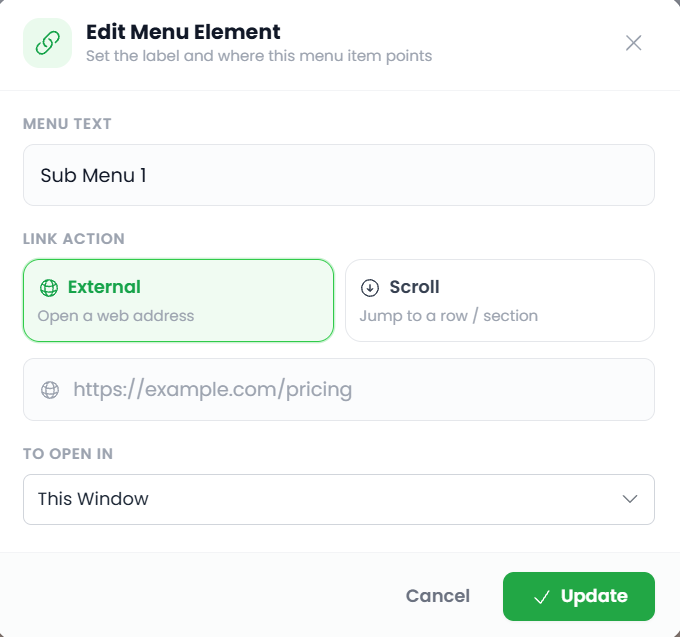
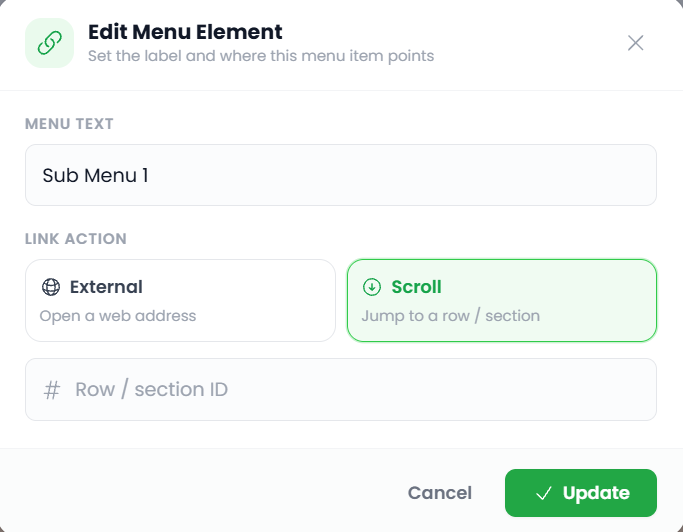
2. External or Scroll
Choose how the menu item should behave when clicked:
External — Redirects the visitor to a specific URL.
Scroll — Scrolls the visitor to a specific section or row on the current page.
3. Add Link
If you select External, enter the complete URL of the page where you want the visitor to be redirected.
Example:https://yourdomain.com/pricing
Tip: Always use the complete URL, including
https://. Avoid entering only a relative path such aspricing.
4. To Open It
Select how the linked page should open:
Same Window — Opens the link in the current browser window. This is recommended for links within your own website.
New Window — Opens the link in a new browser tab. This is generally recommended for external links so visitors can keep the current page open.
5. Section/Row ID
When you select Scroll, you will be asked to enter the Section/Row ID of the section you want the visitor to scroll to.
To find the Section/Row ID:
Open the settings of the required section or row.
Click the # (hashtag) icon.
Copy the displayed ID.
Enter this ID in the Section/Row ID field for your menu or sub-menu item.
Once configured, clicking the menu item will automatically take the visitor to the selected section or row.
Delete — Click the delete (trash) icon next to any item to remove that menu or sub-menu.
Want a menu item to jump to a section on the same page (e.g. "Pricing" scrolls down to your pricing section) instead of opening a different page? That uses a section's CSS ID rather than a normal link — see How to redirect to a particular section after clicking on a header menu.
Image Settings (your logo)
This is where you place your logo in the navbar — most businesses put their logo on the left of the menu bar.
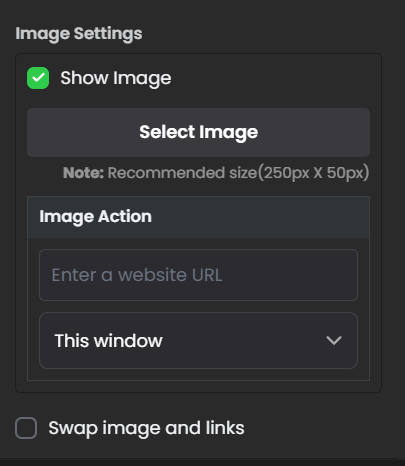
- Show Image — Tick this checkbox to display an image (your logo) in the navbar.
- Select Image — Choose the image to show.
- Image Action — Set the URL the visitor goes to when they click the logo (most people link this to their homepage), and pick which window it opens in.
Menu Style Settings
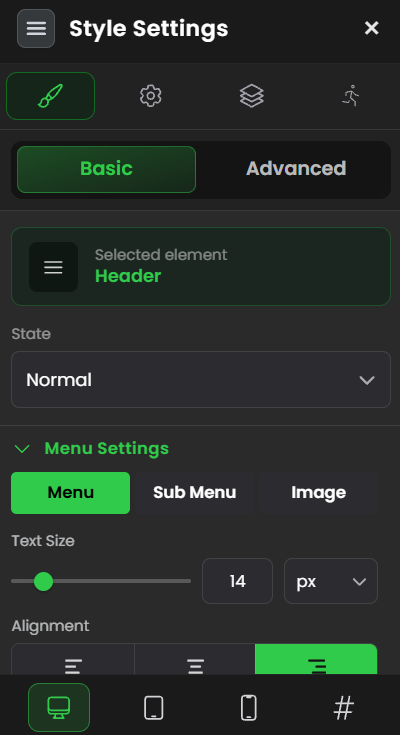
Text size — How big the menu text is.
Font family — The style of font used.
Font weight — How thick the text is (e.g. Bold, Normal, Light).
Text Color — The color of the menu/sub-menu text.
Background Color — The color behind the menu/sub-menu.
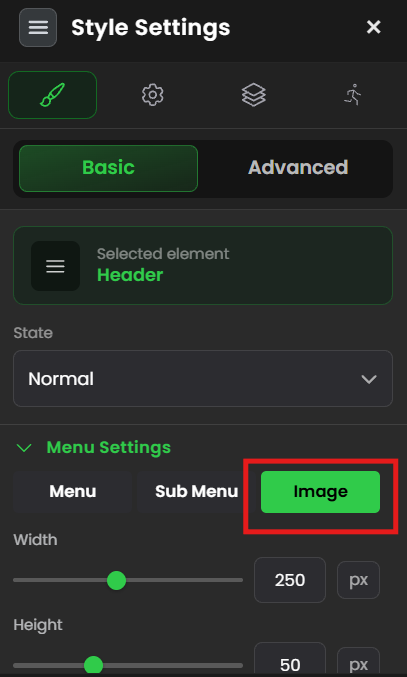
- Image — Adjust the height and width of your logo so it fits the bar nicely without looking stretched.
Hamburger Settings (the mobile menu)
On phones there isn't room for a full row of menu links, so the menu collapses into a small three-line icon in the corner — this icon is called a "hamburger" (the three lines look like a burger in a bun). When a visitor taps it, your menu opens. These settings let you style that icon to match your page.
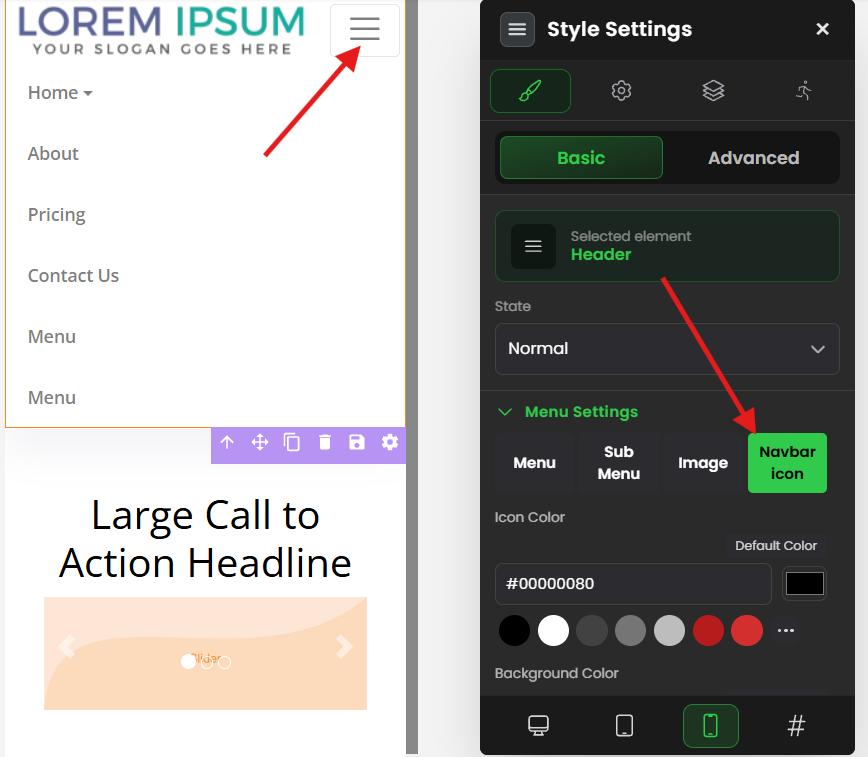
- Icon Color — The color of the three lines inside the hamburger.
- Background Color — The fill color of the box the hamburger sits in.
- Border Color — The color of the outer lines (border) around the hamburger box.
And that's how you design the mobile hamburger menu of your navbar.
Common situations & quick fixes
"I clicked a menu item but nothing happens / it goes nowhere." The item probably has no link set, or the link is incomplete. Open that menu item, use Add Link, and paste the full URL (starting with https://). A label without a link won't take visitors anywhere.
"My menu disappeared on mobile!" It hasn't disappeared — on phones the menu collapses into the hamburger (the three-line icon). Tap it and your menu appears. This is by design so the menu fits a small screen. If the hamburger is hard to see, adjust its Icon/Background/Border colors in Hamburger Settings.
"My dropdown (sub-menu) isn't showing." Make sure you added the sub-menu inside a menu item (select the parent menu item first, then Add Sub-Menu). Sub-menus appear when a visitor hovers (desktop) or taps (mobile) the parent item — they're hidden until then.
"My logo looks stretched, squashed, or too big." Adjust the height and width under Menu Style Settings, and change them together in proportion so the logo keeps its shape. Uploading an image that's already roughly the right size and a transparent PNG usually looks cleanest.
"Clicking a link sends visitors away and they lose my page." For links to other websites, set To Open it to New Window so your page stays open in the original tab. Use Same Window only for links within your own site.
"I want a menu item to scroll to a section on the same page, not open a new page." That's done with a section's CSS ID instead of a URL — see How to redirect to a particular section after clicking on a header menu.
"My changes aren't showing on the live page." Edits in the editor need to be saved and published before visitors see them. After editing the navbar, save, and re-publish if the page is already live.
"The menu looks fine on desktop but cramped on mobile." Switch to Mobile View in the editor and check the navbar there separately — you can fine-tune sizes for mobile without changing your desktop layout.
Still stuck?
If your navbar or menu links won't behave as expected after trying the steps above, submit a ticket and tell us which page you're editing and what's happening — a screenshot of your navbar settings helps us sort it out quickly.
Was this article helpful?
That’s Great!
Thank you for your feedback
Sorry! We couldn't be helpful
Thank you for your feedback
Feedback sent
We appreciate your effort and will try to fix the article