What Are Background Settings?
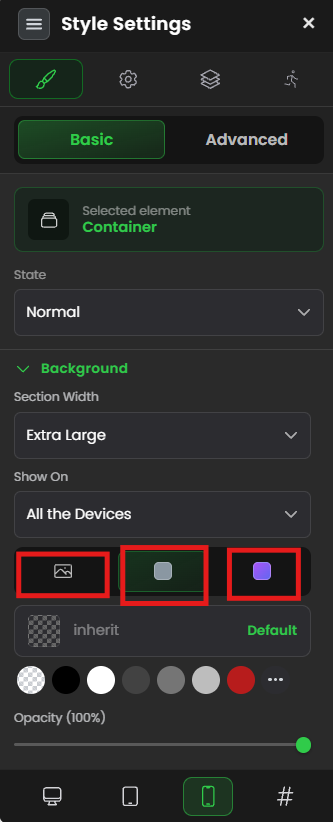
Background Settings control what appears behind your content (sections, elements, etc.).
Think of it like wallpaper on your wall—you can use:
- An image (photo, pattern)
- A solid color (blue, white, etc.)
- A gradient (fade from one color to another)
What backgrounds affect:
- Sections (large content areas)
- Rows (horizontal containers)
- Elements (buttons, cards, etc.)
- Pages (entire page background)
Why Use Backgrounds?
Visual Design:
✓ Adds visual interest
✓ Creates hierarchy (what's important?)
✓ Separates sections visually
✓ Reinforces brand identity
User Experience:
✓ Guides attention (dark vs light backgrounds)
✓ Improves readability (contrast)
✓ Makes page more engaging
✓ Creates professional appearance
Conversions:
✓ High-contrast backgrounds improve readability
✓ Brand colors increase trust
✓ Professional design increases perceived value
Three Background Types
TYPE 1: SOLID COLOR
What it is: Single flat color
Examples:
- White (
#FFFFFF) - Brand blue (
#0066FF) - Dark gray (
#333333)
When to use:
✓ Simple, clean designs
✓ High contrast for text
✓ Brand color sections
✓ Most common choice
Pros: Simple, fast, readable
Cons: Can look boring if overused
TYPE 2: IMAGE
What it is: Photo or pattern as background
Examples:
- Product photo
- Texture pattern
- Hero image
- Subtle pattern overlay
When to use:
✓ Hero sections (main visual impact)
✓ Brand imagery
✓ Product showcase
✓ Premium designs
Pros: Engaging, visual impact
Cons: Can slow page load, text readability issues
TYPE 3: GRADIENT
What it is: Smooth fade between two or more colors
Examples:
- Blue to purple (vertical fade)
- Left white to right blue (horizontal fade)
- Light to dark (diagonal fade)
When to use:
✓ Modern designs
✓ Visual interest without images
✓ Subtle transitions
✓ Contemporary look
Pros: Modern, flexible, fast
Cons: Can clash if colors don't work together
Step-by-Step: Add a Background
Step 1: Select Your Section/Element
- In page editor, click the section or element you want to add background to
- It highlights when selected
Step 2: Open Settings
- With element selected, look for gear icon ⚙️ or "Settings" button
- Click it
- Settings panel opens on right
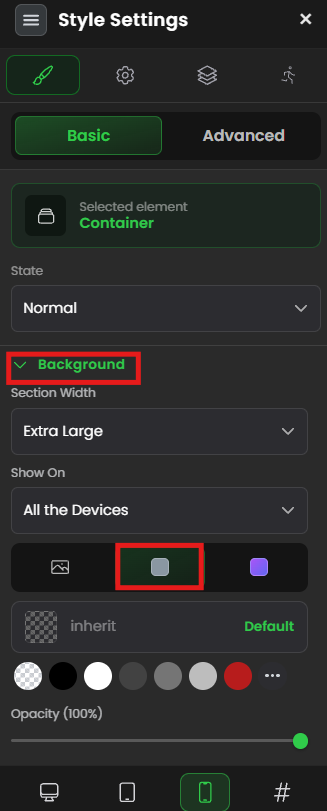
Step 3: Find Background Settings
- In settings panel, look for "Background" or "Style" section
- Click to expand it
- You see three tabs/options:
- Image
- Color
- Gradient
Step 4: Choose Background Type
Pick one of the three options below.
Option 1: SOLID COLOR BACKGROUND
Step 1: Click "Color" Tab
- In Background settings, click "Color"
- A color picker appears
Step 2: Choose Your Color
Method A: Click Color Picker
- Click the color square
- Color wheel appears
- Click to select color
- See preview update live
Method B: Enter Hex Code
- Find "Hex Code" field
- Enter hex code (example:
#0066FFfor blue) - Color updates
Finding hex codes:
- Google "color picker" → search for colors
- Use Figma/Canva built-in color picker
- Copy hex code → paste in FlexiFunnels
Step 3: Adjust Opacity (Optional)
- Find "Opacity" or "Alpha" slider
- Slide to make color more transparent
- 100% = fully opaque (solid)
- 50% = semi-transparent
- 0% = invisible
Step 4: Save
- Click outside settings or "Save"
- Background color applies to section
✓ Color background is set!
Option 2: IMAGE BACKGROUND
Step 1: Click "Image" Tab
- In Background settings, click "Image"
- Upload or image selection options appear
Step 2: Upload Your Image
- Click "Upload Image" or "Choose Image"
- Select image from computer
- Image uploads and previews
Image size recommendations:
- At least 1200px wide (for desktop)
- Optimized for web (compressed)
- Not larger than 2MB (faster load)
Step 3: Set Background Repeat
What it does: Control if image repeats
Options:
No Repeat (Recommended)
- Image appears once
- Use when image covers full area
- Most common choice
Repeat X (Horizontal only)
- Image repeats left-to-right
- Use for horizontal patterns
Repeat Y (Vertical only)
- Image repeats top-to-bottom
- Use for vertical patterns
Repeat (Both directions)
- Image repeats both ways
- Use for tiling patterns
How to choose:Does your image cover the entire section?
→ YES: Use "No Repeat"
Does your image need to tile horizontally?
→ YES: Use "Repeat X"
Does your image need to tile vertically?
→ YES: Use "Repeat Y"
Unsure?
→ START: Use "No Repeat"
Step 4: Set Background Position
What it does: Where image aligns within section
Options (9 positions):Top Left | Top Center | Top Right
Center Left | Center Center | Center Right
Bottom Left | Bottom Center | Bottom Right
Common choices:
- Center Center (image centered, most common)
- Top Center (hero image, full width)
- Center Right (image on right side)
- Center Left (image on left side)
How to choose:Where should image be positioned?
→ Center: Use "Center Center"
→ Top: Use "Top Center"
→ Right: Use "Center Right"
→ Left: Use "Center Left"
Step 5: Set Background Attachment
What it does: How image behaves when scrolling
Options:
Scroll (Default)
- Image scrolls with content
- Normal behavior
- Most common choice
Fixed (Parallax effect)
- Image stays fixed while content scrolls over it
- Creates depth effect
- Modern, premium feel
Local
- Similar to Scroll
- Less common
How to choose:Want normal scrolling?
→ Use "Scroll" (default)
Want parallax/depth effect?
→ Use "Fixed" (modern, engaging)
Parallax example:User scrolls down
Image stays in place
Content scrolls over image
Creates illusion of depth
Looks professional and modern
Step 6: Set Background Size
What it does: How image scales to fit area
Options:
Fill 100% Width
- Image covers 100% of width
- Height auto-adjusts
- Image may crop on sides
Fill 100% Width & Height
- Image covers both width and height
- Image stretches to fit
- May distort image
Auto (Recommended)
- Best automatic fit
- Keeps aspect ratio
- Usually looks best
Cover
- Image covers entire area
- Maintains aspect ratio
- Edges may crop
Contain
- Entire image fits in area
- Maintains aspect ratio
- May have empty space
How to choose:
→ Use "Auto" (safest choice)
Want image to fill entire area?
→ Use "Cover"
Want entire image visible?
→ Use "Contain"
Want full width stretch?
→ Use "Fill 100% Width"
Step 7: Save
- Click outside settings or "Save"
- Image background applies
✓ Image background is set!
Option 3: GRADIENT BACKGROUND
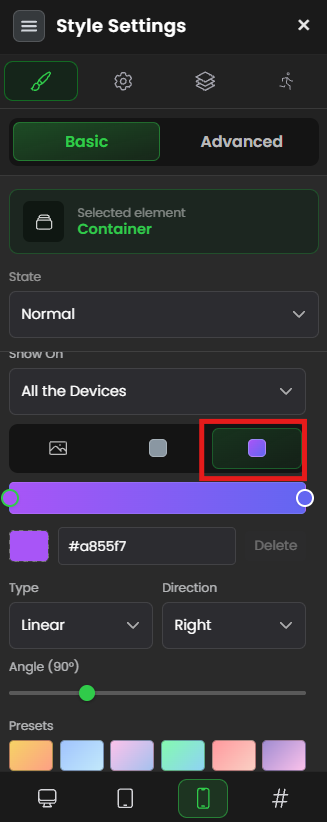
Step 1: Click "Gradient" Tab
- In Background settings, click "Gradient"
- Gradient options appear
Step 2: Select Gradient Type
Linear Gradient (Most common)
- Color fades in one direction
- Examples: Top to bottom, left to right
Radial Gradient
- Color fades from center outward
- Creates circular effect
How to choose:
→ Use "Linear Gradient"
Want circular/center fade?
→ Use "Radial Gradient"
Step 3: Choose Direction
Linear Gradient directions:
To Right (horizontal fade right)
To Bottom Right (diagonal fade)
To Top Right (diagonal fade)
Etc.
How to choose:
Fade from top to bottom?
 → "To Bottom"

Fade from left to right?
 → "To Right"

Fade corner to corner?
  → "To Bottom Right" or similar
Step 4: Select Colors
Color 1 (Start):
- Click color picker
- Choose first color
- Example: White
Color 2 (End):
- Click color picker
- Choose second color
- Example: Blue
Step 5: Adjust Color Stops (Optional)
What it is: Where colors change in gradient
- Drag sliders to change transition point
- 0% = start, 100% = end
- Adjust for desired effect
Example:0%: White (left)
50%: Light blue (middle)
100%: Dark blue (right)
Step 6: Save
- Click outside settings or "Save"
- Gradient background applies
✓ Gradient background is set!
Common Situations & Quick Fixes
Situation 1: "Image Background Looks Blurry or Stretched"
What's happening: Image doesn't fit properly.
Diagnostic steps:
- Check image size
- Image too small? Appears blurry when stretched
- Use larger image (at least 1200px wide)
- Check background size setting
- Set to "Cover" or "Auto"
- Not "Fill 100% Width & Height" (stretches, distorts)
- Check image quality
- Low-quality image appears blurry
- Use high-quality, compressed image
- Optimize for web before uploading
- Test with different image
- Try another image
- See if issue is with that specific image
Situation 2: "Text is Hard to Read on Image Background"
What's happening: Low contrast between text and image.
Diagnostic steps:
- Add color overlay
- Add semi-transparent color on top of image
- Makes text more readable
- Use "Opacity" setting to adjust
- Change text color
- Make text white or darker
- Increase contrast
- Use text shadow
- Add shadow to text
- Makes text pop off background
- Add background to text element
- Put text in container with solid background
- Text reads clearly
Situation 3: "Gradient Looks Wrong—Colors Don't Work Together"
What's happening: Color combination is poor.
Diagnostic steps:
- Use color harmony
- Similar colors (analogous): Blue → Purple → Pink
- Opposite colors (complementary): Blue ↔ Orange
- Light to dark variations: Light blue → Dark blue
- Test color combinations
- Use color picker sites (coolors.co, colorhexa.com)
- Preview combinations
- Try preset gradients
- Many tools have preset gradient options
- Use as starting point
Situation 4: "Parallax Effect (Fixed Attachment) Looks Janky"
What's happening: Parallax effect doesn't look smooth.
Diagnostic steps:
- Check image size
- Large image needed for parallax
- At least 2000px tall
- Use "Cover" size
- Parallax works best with "Cover"
- Image stays sharp and fills area
- Test on published page
- Parallax may not work in editor preview
- Publish and test on live page
- Check browser compatibility
- Parallax works on most browsers
- Some older browsers may not support it
Situation 5: "Background Image Isn't Showing"
What's happening: Image uploaded but not visible.
Diagnostic steps:
- Check image is uploaded
- Go back to background settings
- Is image listed there?
- Check background size
- Set to "Cover" or "Auto"
- Not "Contain" (might not fill area)
- Check opacity
- Is opacity at 100%?
- Set to 100% if transparent
- Check for color overlay
- Is there a solid color on top?
- Might be hiding image
- Remove or make transparent
- Test on published page
- Images may not show in editor preview
- Publish and test on live page
Was this article helpful?
That’s Great!
Thank you for your feedback
Sorry! We couldn't be helpful
Thank you for your feedback
Feedback sent
We appreciate your effort and will try to fix the article