What is the Progress Bar element, and why use it?
A Progress Bar is a horizontal bar that fills up to show "how far along" something is — like the loading bar you see when a download is running. You set how full it is, from empty to completely filled.
Why use it on a landing page? It's a visual cue that nudges people psychologically. Common uses:
- Showing scarcity — "73% of spots claimed" makes an offer feel like it's running out.
- Course or program progress — "You're 40% through the module."
- Goal trackers — "We've raised 80% of our funding target."
- Visual emphasis — a simple, eye-catching way to represent any percentage.
Note: This is a display bar — you set the fill level yourself. It shows a number you choose; it doesn't automatically track real-time data.
Quick reminder on where elements live: Every FlexiFunnels page follows the Section → Row → Element structure. The Progress Bar drops into a Row like any other element.
Quick Video:
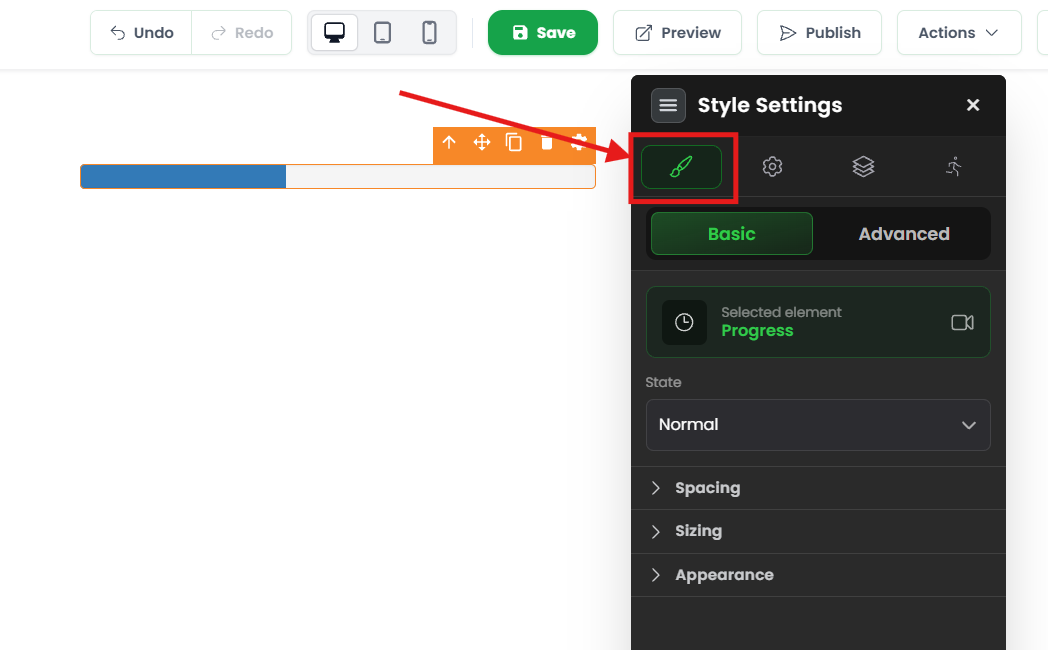
Part 1: Style Settings — sizing the bar
These control the bar's basic appearance.
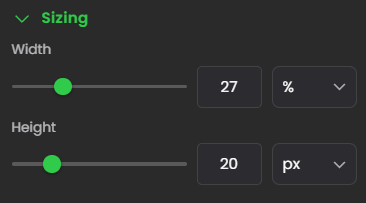
Sizing — Drag the green slider to set the width of the bar (how long it stretches across its space). This is just the size of the bar itself, not how full it is.
Part 2: Advanced Settings — making the bar work
This is where you set how full the bar is and how it looks. Open the Advanced Settings tab.
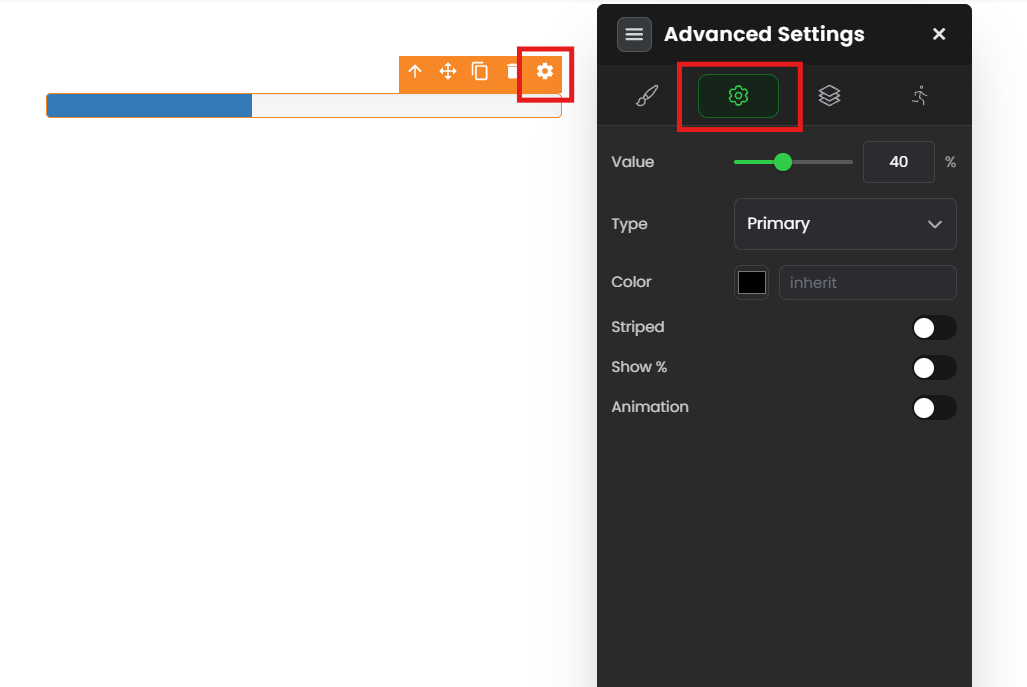
- Value — How full the bar is, as a percentage. Value = 40 means the bar is filled 40% of the way. This is the main setting — it's the "how far along" number.
- Type (Theme color)— The color of the filled portion, each with a built-in meaning:
- Success — green (positive, "good to go")
- Danger — red (urgent, warning)
- Info — blue (neutral information)
- Warning — orange (caution)
- Striped — Tick this to add diagonal stripes across the bar for a textured look.
- Show % — Tick this to print the percentage number right on the bar (so it reads "40%" instead of just a filled portion).
- Animation — Tick this to make the bar move — the stripes shimmer or the bar fills in with motion, drawing the eye.
? Tip: Striped + Animation together gives the classic "active loading" look — the stripes appear to flow. Use it when you want the bar to feel alive and attention-grabbing.
Common situations & quick fixes
Check these before contacting support.
"My bar isn't filling to the right amount." → Check the Value setting in Advanced Settings. The number you enter is the fill percentage — Value 40 = 40% full. Set it to the level you want.
"The percentage number isn't showing on the bar." → Tick the Show % checkbox in Advanced Settings. Without it, the bar fills but displays no number.
"My animation/stripes aren't moving." → Two things: (1) make sure both Striped and Animation are ticked for the flowing effect, and (2) check the published page, not the editor — animation often only plays on the live page. Reload and clear your cache if needed.
"The bar is the wrong color for my message." → Change the Type to match your intent — green (Success), red (Danger), blue (Info), or orange (Warning). Pick the one that fits the feeling you want to create.
"My bar is too wide or too narrow." → Adjust Sizing under Style Settings using the green slider.
"I want the bar fuller/emptier but it won't change." → The fill level is controlled by Value, not by dragging anything on the bar. Open Advanced Settings and type the percentage you want.
"It looks fine on desktop but off on mobile." → Switch to mobile view in the editor and adjust the Sizing so the bar fits a narrow screen without overflowing.
Need more help?
If your progress bar still isn't behaving after the steps above, submit a ticket and include:
- The page URL where the bar appears
- The Value you set and what fill level you expected
- Which settings you've ticked (Striped / Show % / Animation)
- A screenshot of your Advanced Settings
Was this article helpful?
That’s Great!
Thank you for your feedback
Sorry! We couldn't be helpful
Thank you for your feedback
Feedback sent
We appreciate your effort and will try to fix the article