Text is what carries your message — your big promise, the supporting lines, and the details underneath. FlexiFunnels gives you three text elements to work with: Headline, Subheadline, and Paragraph. This guide shows you how to add them, how to type your own words in, and how to style them so your page reads clearly.
Prefer to watch? Here's the video walkthrough:
Which one should I use?
These three aren't just "big, medium, and small text" — each has a job. Picking the right one keeps your page readable and properly structured:
- Headline — the big, attention-grabbing main title of a section (your strongest promise, e.g. "Lose 10kg Without Giving Up Your Favourite Foods"). Use it sparingly — usually one main headline per section.
- Subheadline — a supporting line that sits under a headline and adds context (e.g. "A simple 15-minute-a-day plan for busy parents"). It's smaller than the headline but stands out more than body text.
- Paragraph — your regular body text: the sentences that explain, describe, and persuade. This is where the bulk of your words go.
A simple rule of thumb: one headline to hook them, a subheadline to clarify, and paragraphs to fill in the details.
Step 1 — Open the editor
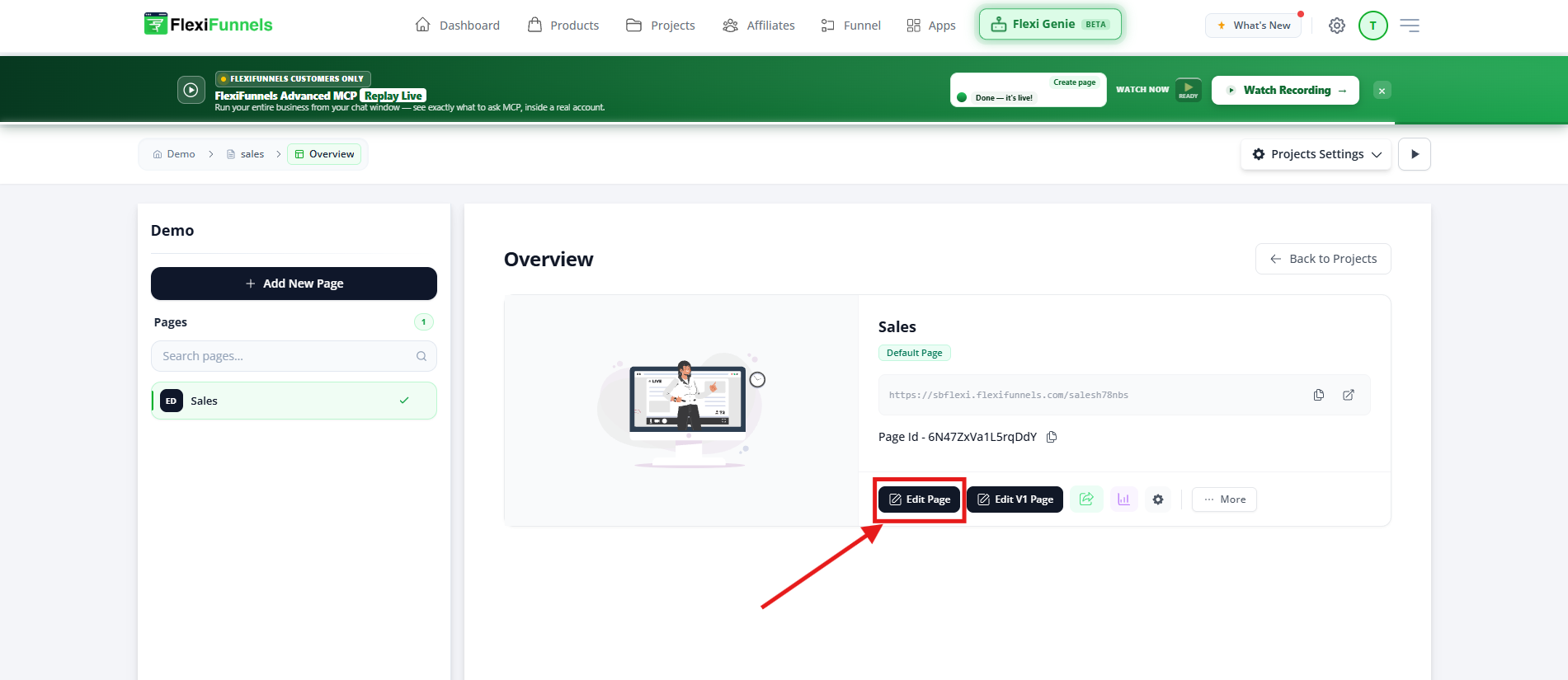
Open the page you want to work on in the Landing Page Editor.
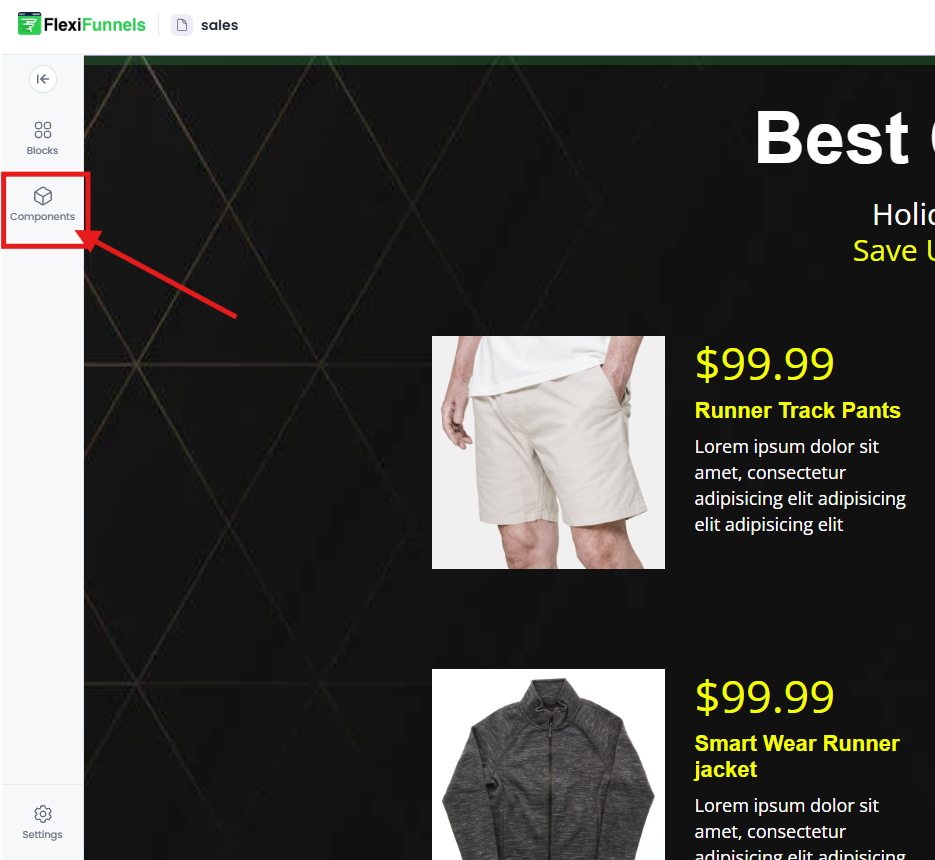
Navigate to Components
Once in the editor, go to the Components section. Here, you’ll find various text elements like Headline, Subheadline, and Paragraph.
Step 2 — Open Components and find the text elements
Click the Plus (+) icon and go to the Components tab. Under it you'll find the text elements: Headline, Subheadline, and Paragraph.

Step 3 — Drag and drop the element you want
Drag the element (Headline, Subheadline, or Paragraph) into a column on your page.
Remember the layout order: a text element needs a row with a column to land in. If your section is empty, add a row first (see Adding Rows in the Landing Page Editor), then drop your text into one of its columns.
Step 4 — Type your own words in
To replace the placeholder text with your own, double-click the text element and start typing. While the text is selected, a small inline toolbar lets you do quick formatting — bold, italic, or turn specific words into a link. (For linking text in particular, see Text – Hyperlink Settings.)
Customizing text with Personal (Style) Settings
For deeper styling — fonts, colors, spacing, borders — use Personal Settings.
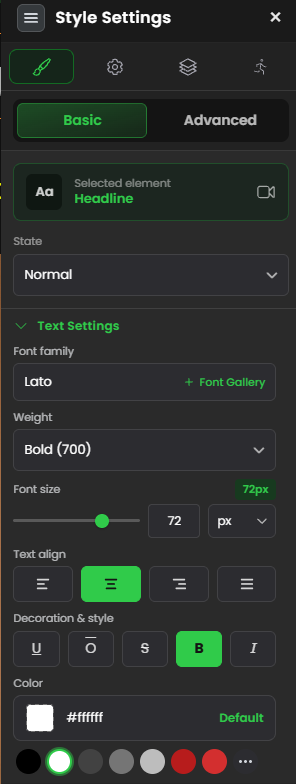
Select the text element, then click Personal Settings to open the Style Settings panel. You'll find four sections:
- Text — the core look of your words: font size, alignment (left / center / right), font family, weight, and other formatting.
- Background — set the text color, and a background color behind the text if you want one (e.g. a highlighted line).
- Spacing — control the breathing room around the text using margin (space outside the element) and padding (space inside it). This is how you stop text from feeling cramped against other elements.
- Effect — add visual touches like a border, and set its width, style (e.g. solid), and color.
Common situations & quick fixes
"The text element won't drop onto the page." Text needs a row with a column to sit in. If your section is empty, add a row first (Plus icon → Components → Rows), then drop the text into a column.
"I added the text but can't change the wording." Double-click the element to edit it, then type your own text over the placeholder. A single click usually just selects it for styling — double-click puts you in edit mode.
"I'm not sure whether to use a Headline or a Paragraph." Use a Headline for the one big title of a section, a Subheadline for the supporting line beneath it, and Paragraphs for the actual body text. Don't make every line a headline — it loses impact and makes the page harder to read.
"My text looks great on desktop but too big or too small on mobile." Switch to Mobile View in the editor, select the text, and adjust its size there. You can set a different mobile size without changing the desktop version (see the Mobile & Desktop Optimization Guide).
"My text is crammed up against the element next to it." Open Style Settings → Spacing and add margin (space outside) or padding (space inside) to give it room. A little spacing makes a page far easier to read.
"I want to bold or link only a few words, not the whole block." Double-click into the text, select just those words, and use the inline toolbar to bold them or add a link — rather than changing the whole element's style.
"My changes aren't showing on the live page." Edits need to be saved and published before visitors see them. After editing, save and re-publish if the page is already live.
Still stuck?
If a text element won't add, edit, or style the way you expect after trying the steps above, submit a ticket and tell us which page you're editing and what you're seeing — a screenshot of your editor helps us help you faster.
Was this article helpful?
That’s Great!
Thank you for your feedback
Sorry! We couldn't be helpful
Thank you for your feedback
Feedback sent
We appreciate your effort and will try to fix the article