Overview
Integrating Mailchimp with FlexiFunnels allows you to automatically collect leads, add contacts to your Mailchimp audience, apply tags, and trigger email automation whenever someone submits a form or purchases a product.
There are two ways to connect Mailchimp with FlexiFunnels:
- Standard OAuth Integration (Recommended) – Connect your Mailchimp account securely by authorizing FlexiFunnels.
- Custom HTML Form Integration – Embed a Mailchimp signup form using its HTML code.
The Standard Integration is the recommended option because it offers better automation, audience management, and product rule support.
Before You Begin
Before connecting Mailchimp, make sure you have:
- An active Mailchimp account.
- Administrator access to your Mailchimp account.
- Access to your FlexiFunnels Dashboard.
- At least one Audience created in Mailchimp (recommended).
Method 1: Connect Mailchimp Using the Standard Integration (Recommended)
Step 1: Open Autoresponder Integrations
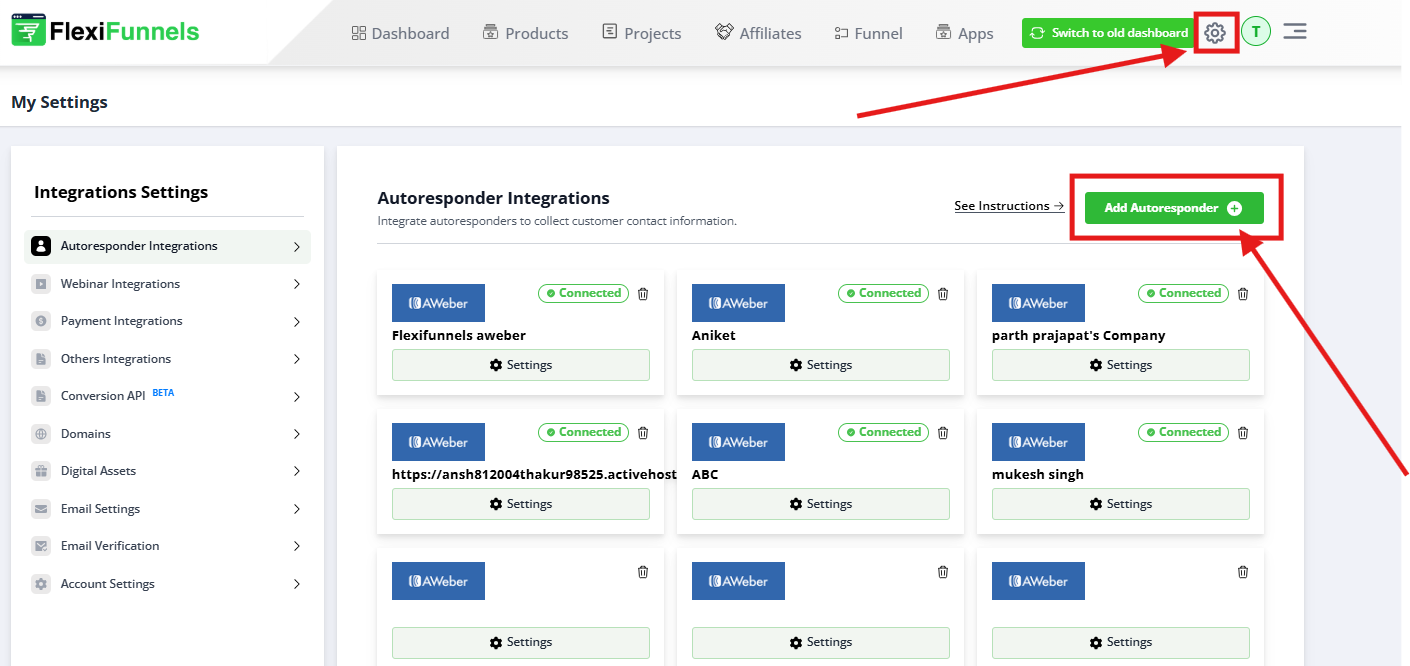
- Log in to your FlexiFunnels account.
- Click Settings.
- Navigate to Autoresponder Integrations.
- Click + Add Autoresponder.
A list of supported autoresponders will appear.
Step 2: Select Mailchimp
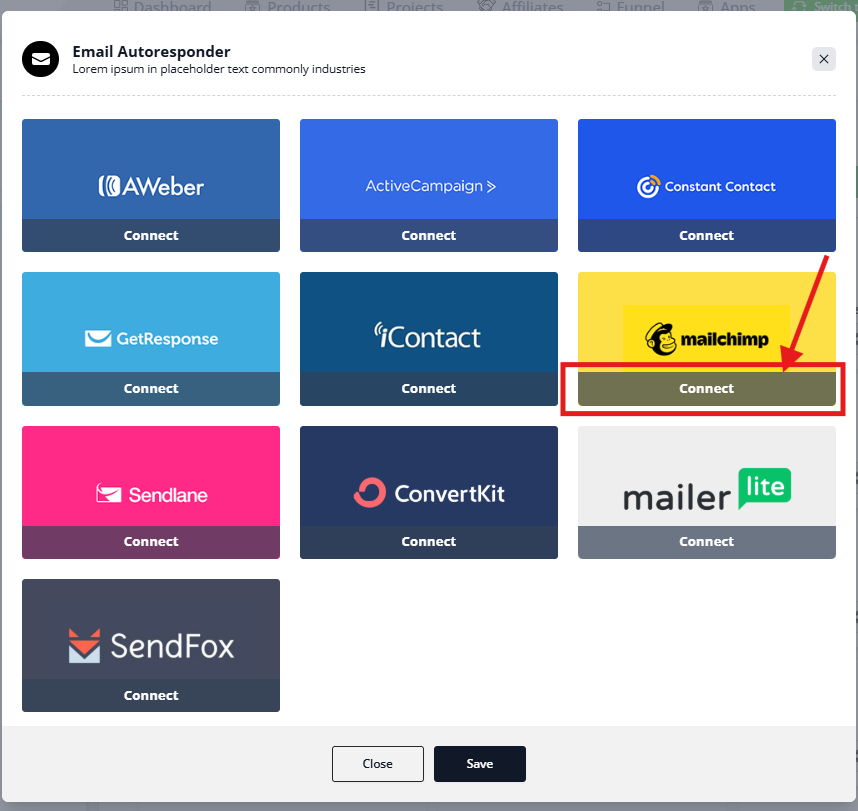
Locate Mailchimp and click Connect.
Step 3: Enter an Account Name
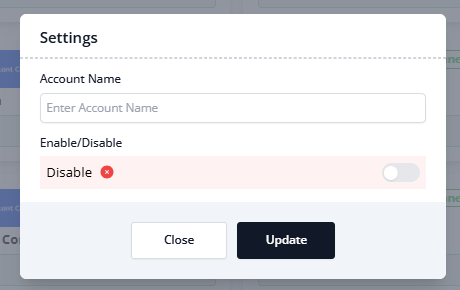
Provide an account name to identify this integration inside FlexiFunnels.
Examples:
- Main Mailchimp
- Marketing Account
- Newsletter Audience
Note: This name is only for your reference inside FlexiFunnels.
Click Connect.
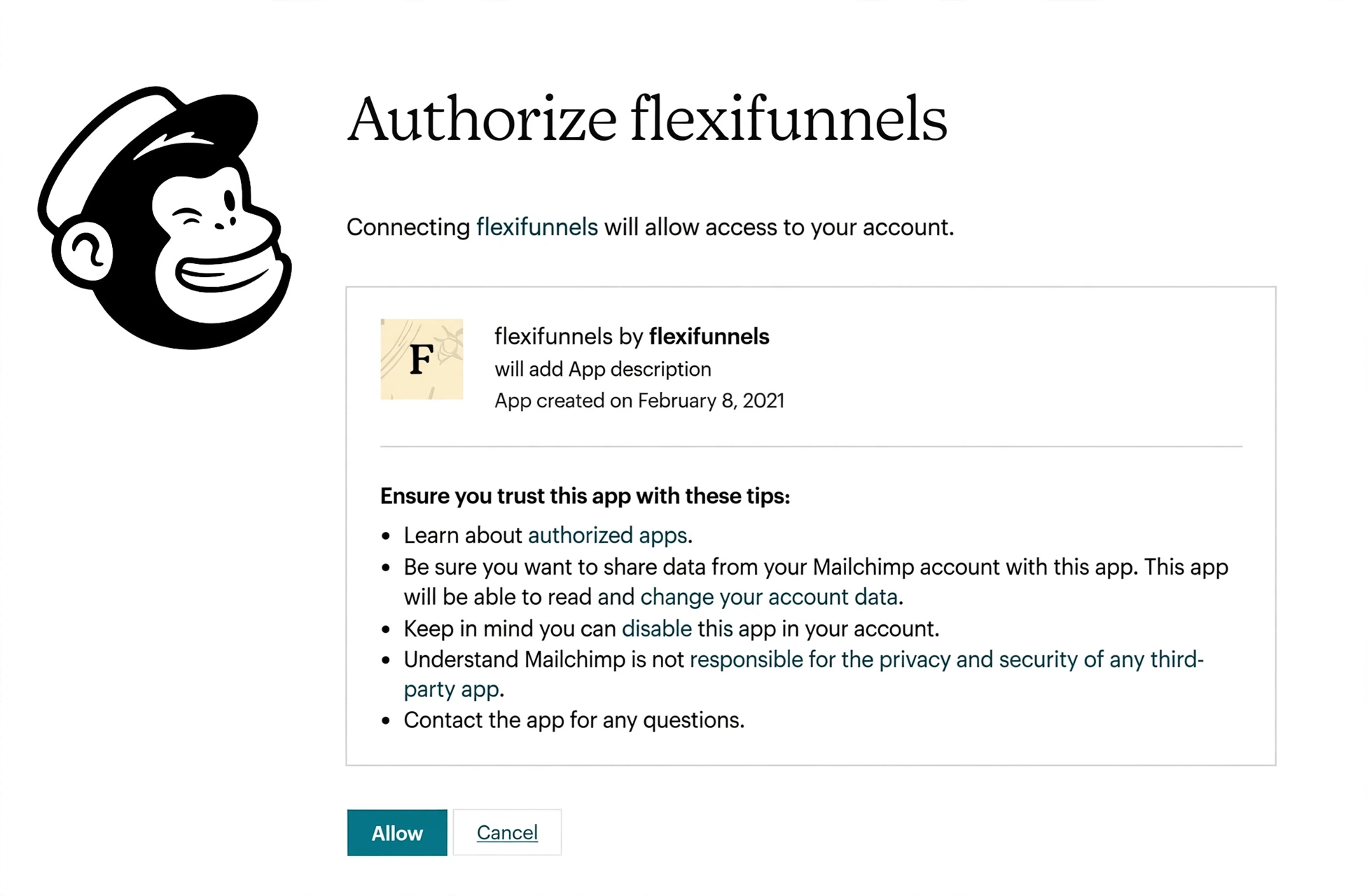
Step 4: Authorize FlexiFunnels
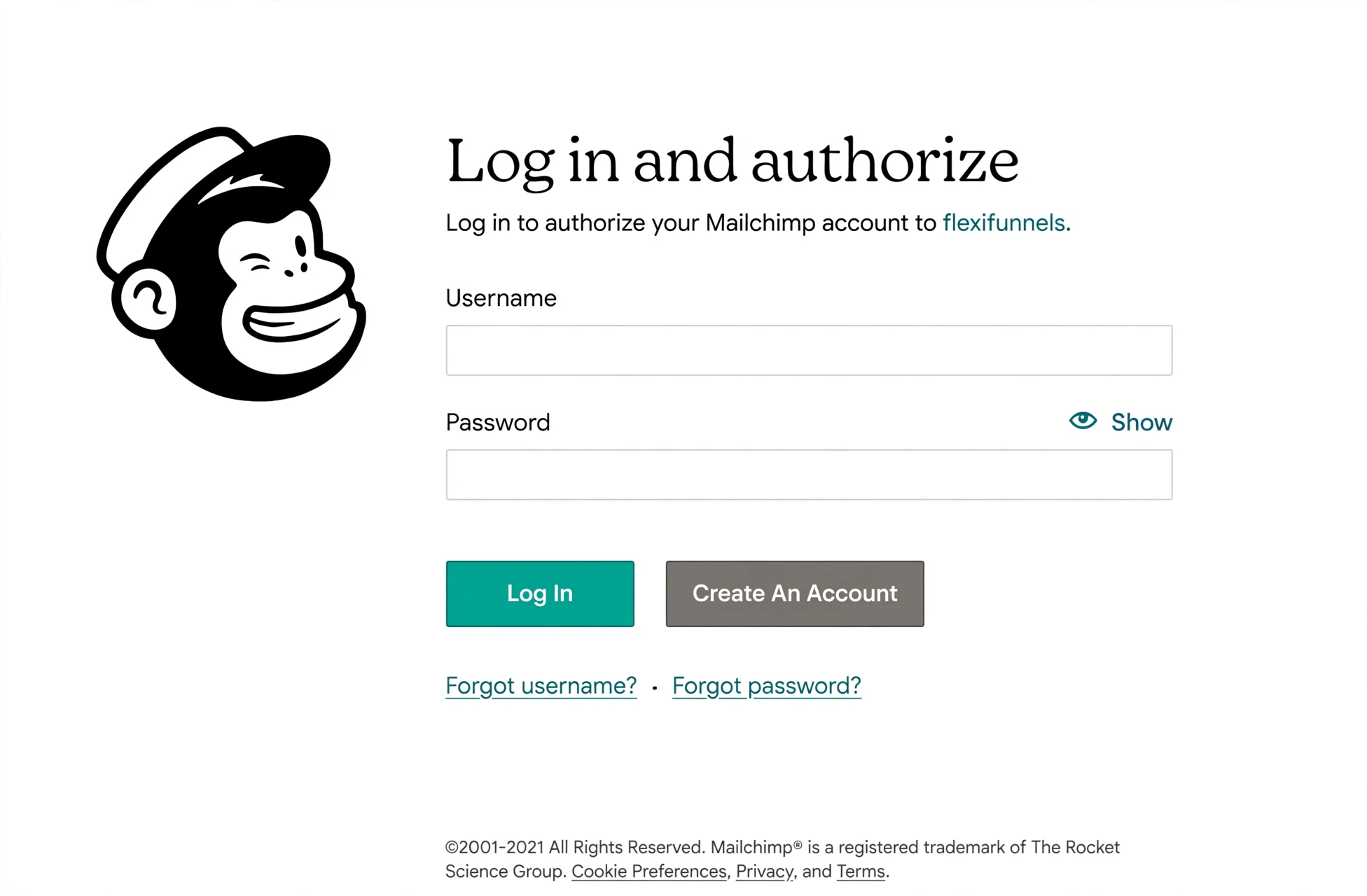
You'll be redirected to the Mailchimp login page.
- Sign in to your Mailchimp account.
- Review the requested permissions.
- Click Allow.
After successful authorization, you'll automatically return to FlexiFunnels.
Step 5: Verify the Integration
After returning to FlexiFunnels:
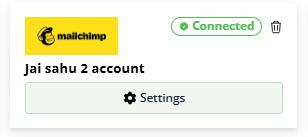
- Your connected Mailchimp account will appear under Autoresponder Integrations.
- The account name you entered will be displayed.
Your Mailchimp account is now successfully connected.
Add Mailchimp to a Product
You can automatically add customers to a Mailchimp audience whenever they purchase a product.
1. Navigate to the Products Tab
- Click on the "Products" tab located in the top menu bar.

2. Select Your Product
- From the list of products, select the product you want to set up rules for.
- Click on the product name to open its settings.
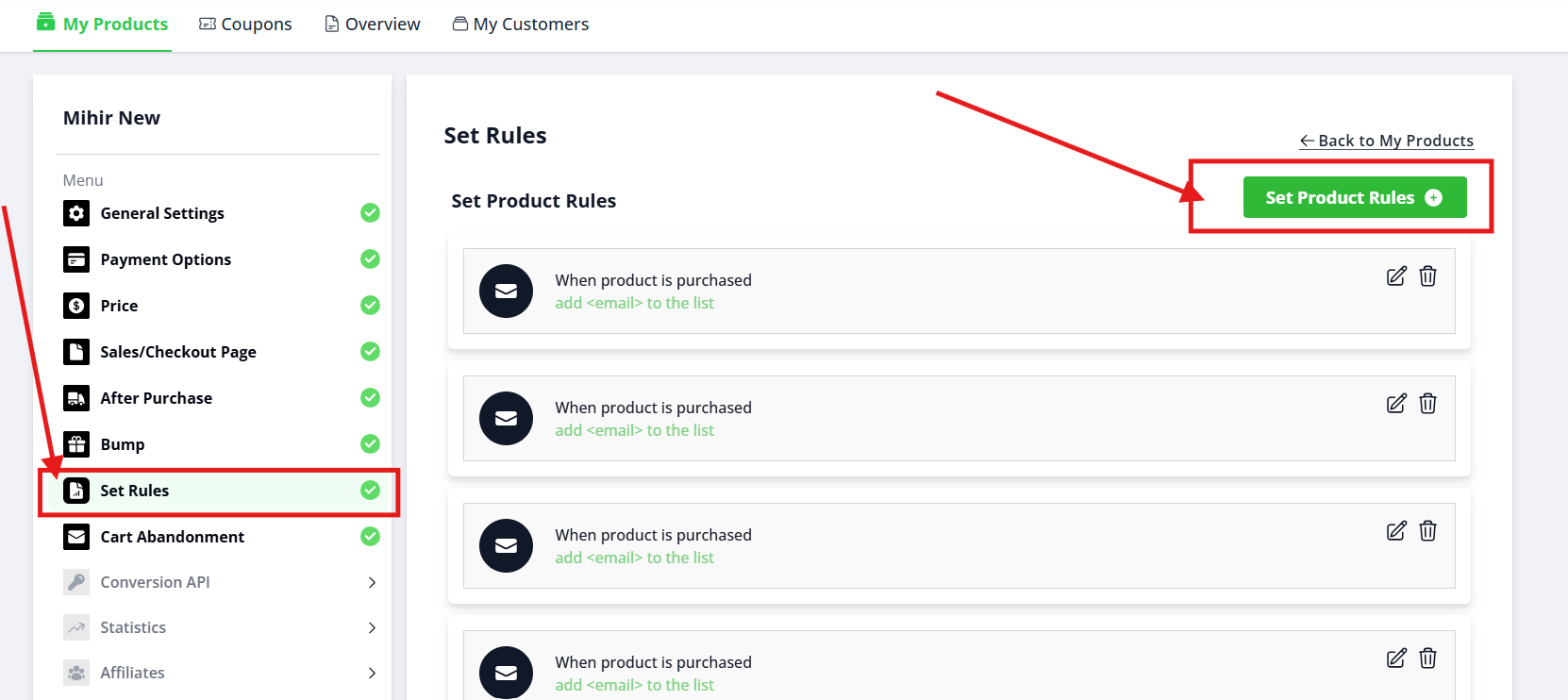
3. Open the Set Rules Option
- In the product settings menu on the left side, click on the "Set Rules" option.
- This will open a new dialog box for setting rules for your product.
4. Select Autoresponder
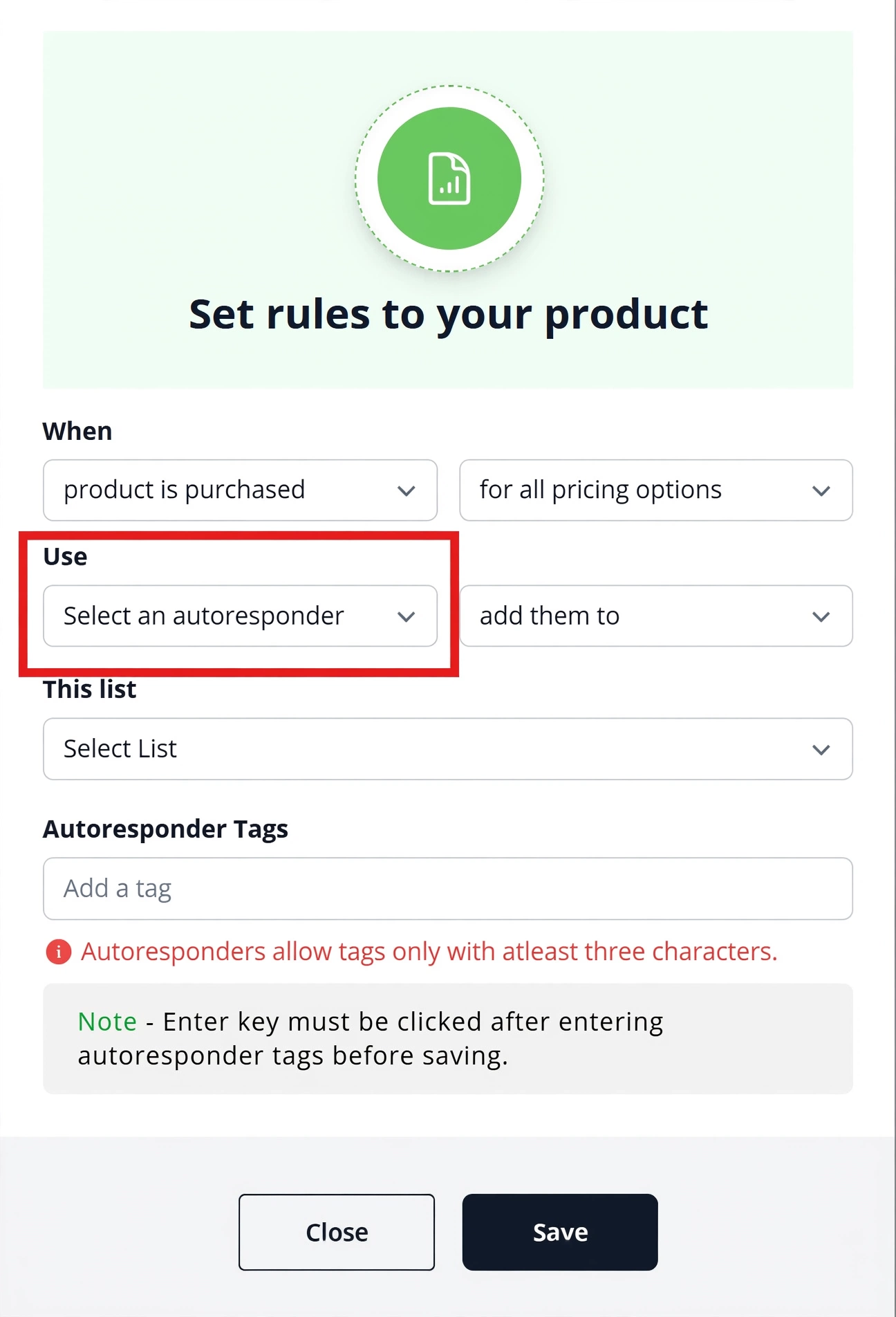
- If you want to add the members to an autoresponder, select an autoresponder from the "Select an autoresponder" dropdown menu.
5. Add to a List (If Continuing with Autoresponders Selection)
- Choose a list from the "Add them to this list" dropdown menu where you want to add the members.
- This step ensures that members who abandon their cart are added to the correct list for easy management.
6. Set Autoresponder Tags (If Continuing with Autoresponders Selection)
- In the "Autoresponder Tags" field, you can add tags to organize your members.
- Note that autoresponder tags must be at least three characters long.
7. Save Your Settings (If Continuing with Autoresponders Selection)
- Once you have configured all the necessary settings, click the blue "Save" button at the bottom of the dialog box.
In Flexifunnels, one can collect leads using two options.
1 - By integrating an Email Autoresponder Software with FlexiFunnels.
2 - By using Custom coded form generated in a Users Email Autoresponder Software.
Let's cover the first option, in which we will explain how one can integrate an Email autoresponder software in FlexiFunnels
STEP 1 - Connect your Email Autoresponder with FlexiFunnels Account by going above process step by step. (Standard Integration)
STEP 2 - Once you have connected your email autoresponder with FlexiFunnels.
Now connect a “form” element in a landing page with an email autoresponder.
In order to connect a “form” element with Autoresponder, one needs to create a landing page inside a project.

Click on the “+create new project” button.
Click on "Projects” displayed on the FlexiFunnels Dashboard Screen.
Click on the "+create new" button displayed on the Projects Screen.

Then type your "Project name" and click on the "+ADD project" button
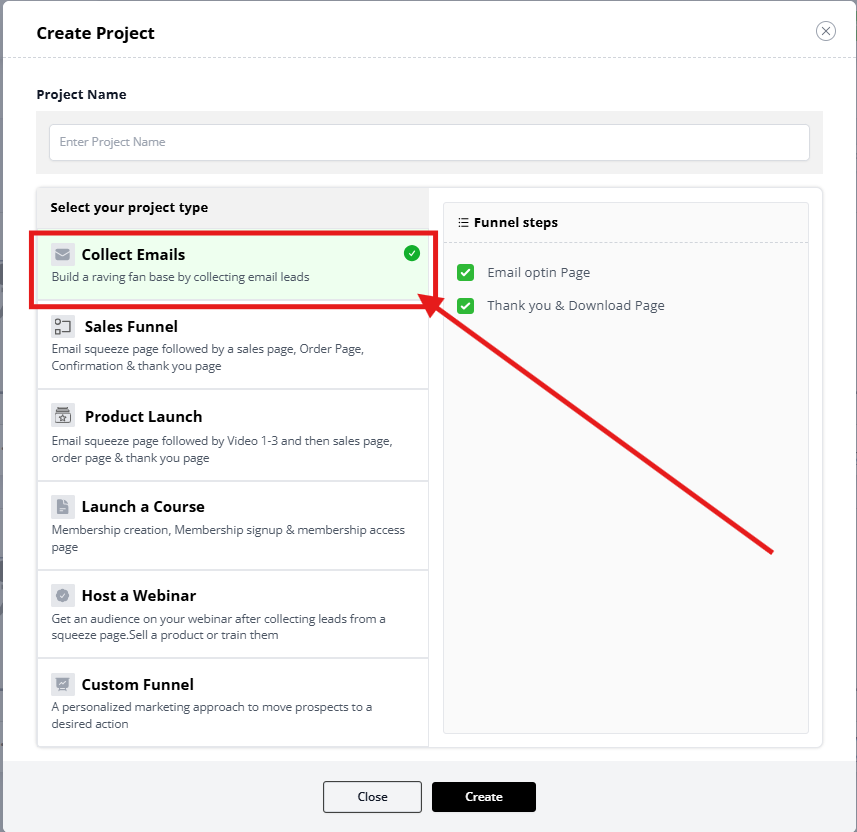
After completing these steps.
Select the Landing Page category
We have Different Landing Page Template Categories and Different Templates in Each Category
Select Your Landing Page Category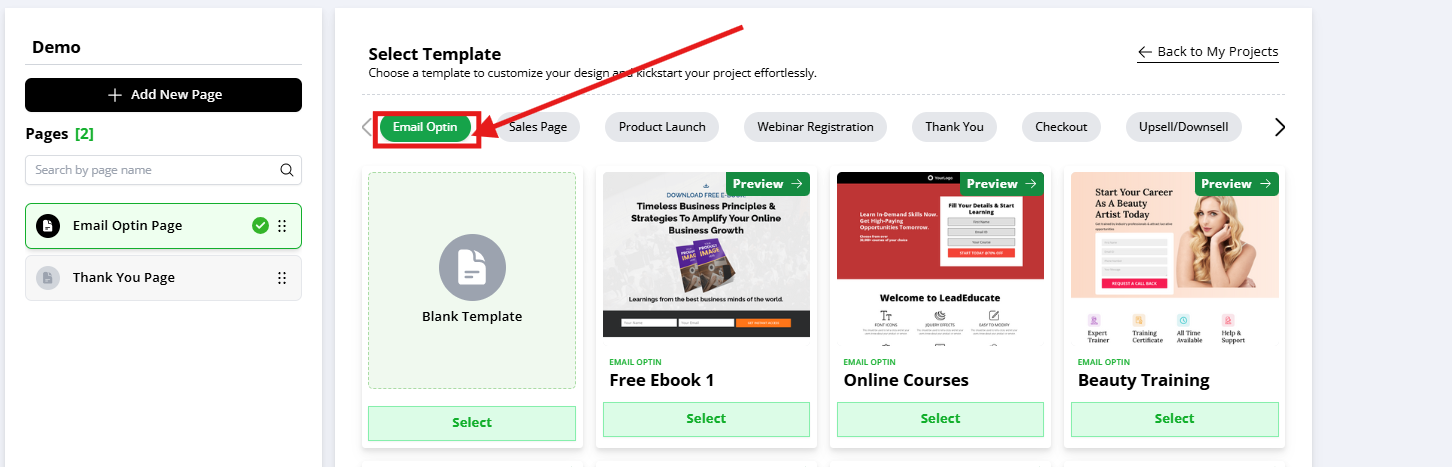
Then select the preferred template for your landing page
After selecting the Preferred Landing Page Template
The Screen will look like this
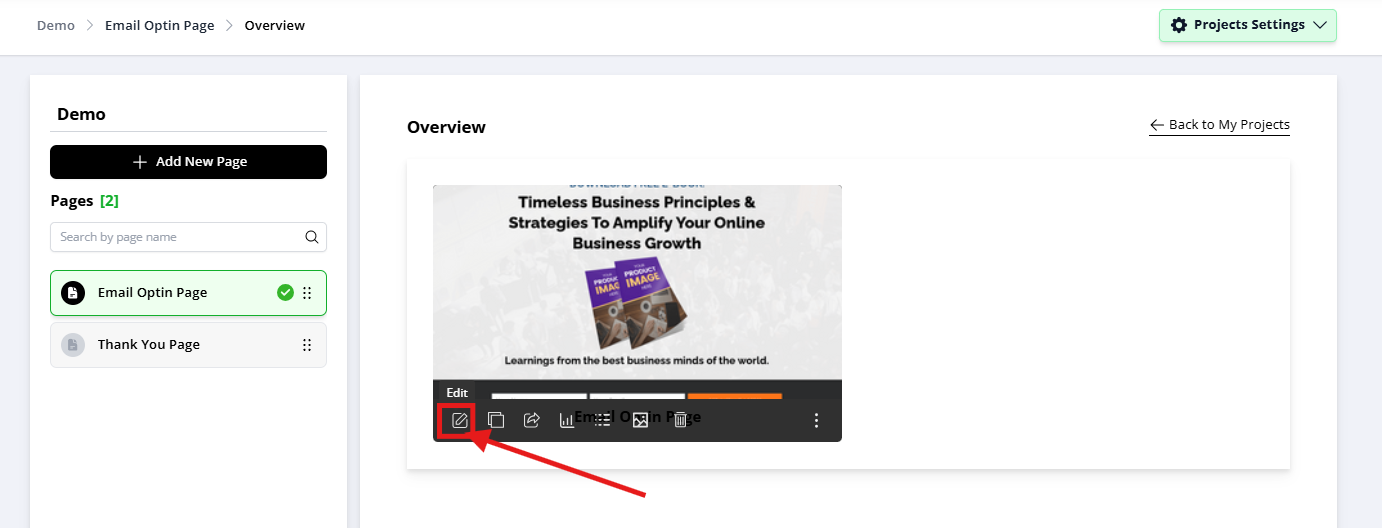
You have successfully created a Project in FlexiFunnels with a Landing Page.
Now, Click on the "Edit Page" Button.
Click on the sidebar “plus” button and select the “forms” option under components to add forms inside the FlexiFunnels Page Editor.
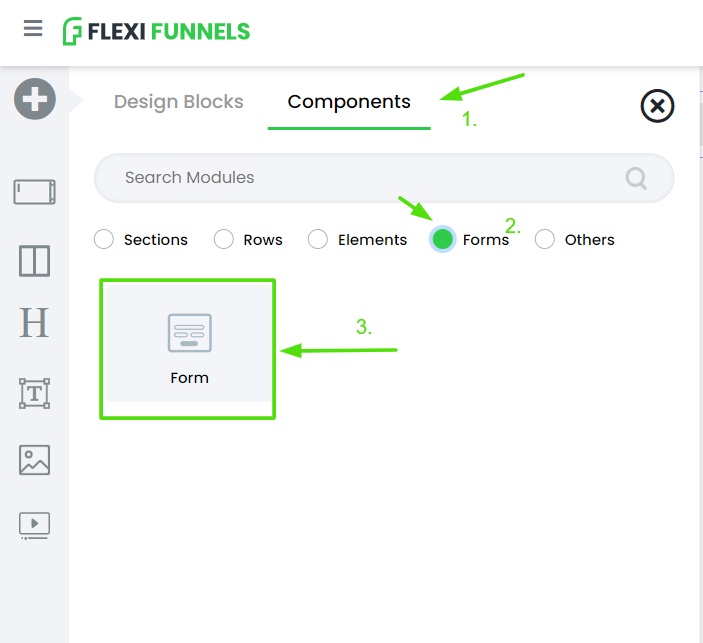
Once a “form” element is imported into the FlexiFunnels editor, click on the “form” element gear icon settings to open the form element gear settings
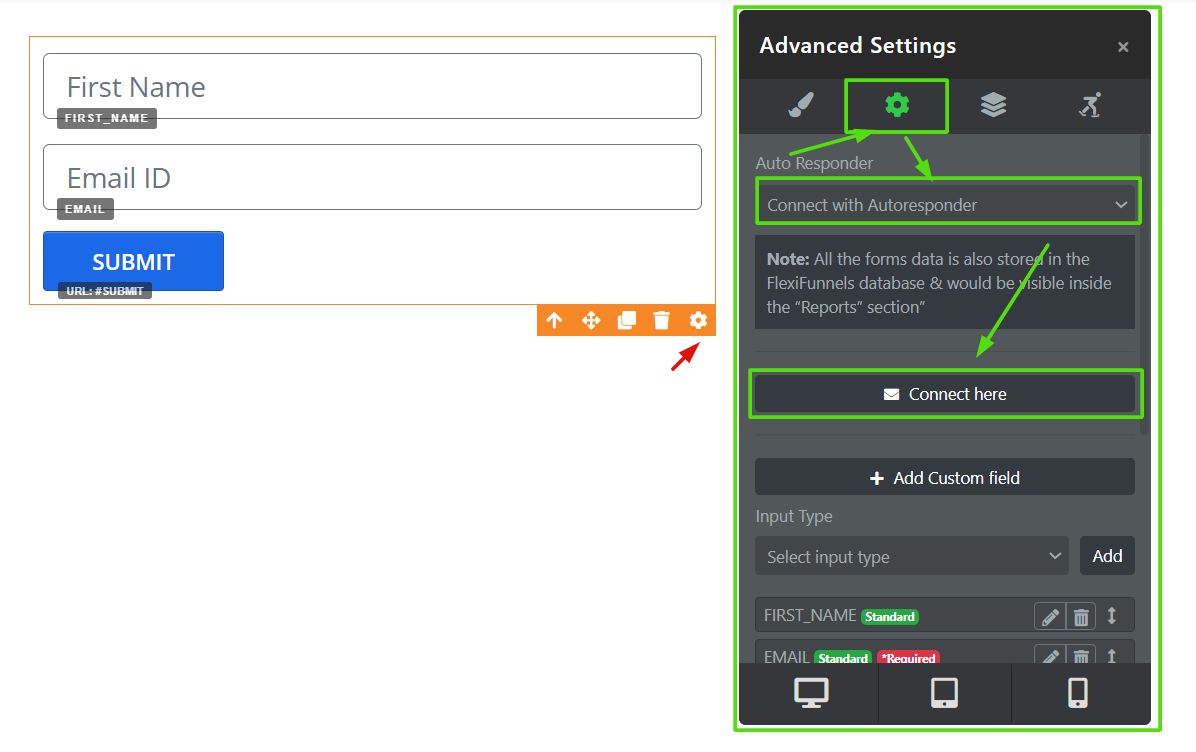
After opening the “Form” element gear settings, click on Advanced Settings, as shown in the image above.
Then select the “Connect with autoresponder” option from the Dropdown.
Then click on the “connect here” button
After clicking on the “connect here” button, select your autoresponder connected in the FlexiFunnels autoresponder settings
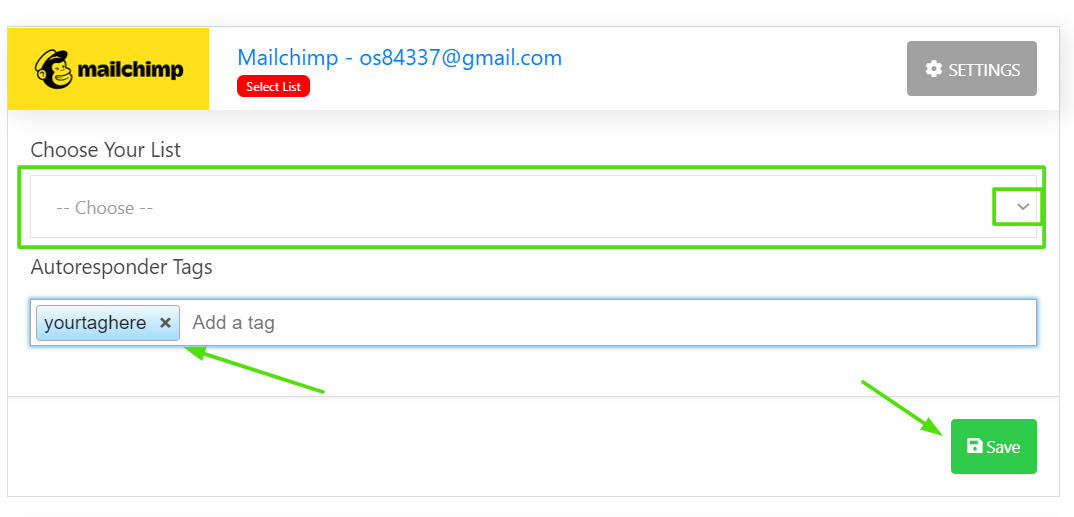
Choose your email list from the dropdown. (optional)
And write down the tag to be passed in the autoresponder tags field. (optional)
One can pass multiple tags here.
Click on the “save” button.
When successfully connected, it will show “active.”
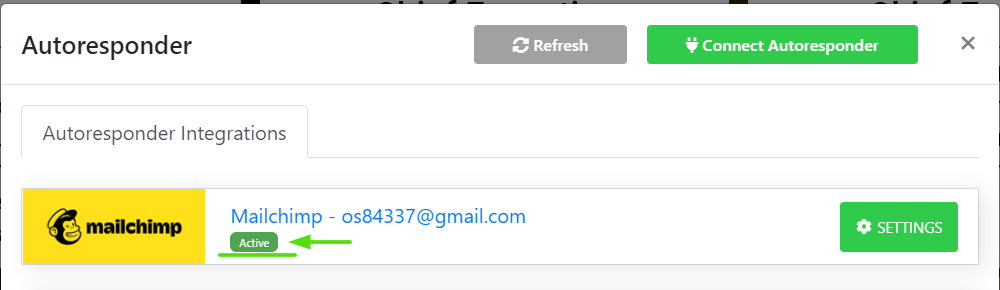
Here, your autoresponder is connected with the FlexiFunnels “form” element.
Now, you can publish the landing page, using the “publish” button at the top, and start collecting leads.
The leads submitted on the published page will be directly reflected in your email autoresponder software connected with the “form” element.
Second Method to collect leads from Flexifunnels(Custom Form Code)
Here we will be taking an example of Mailchimp Email Autoresponder Software.
Login to your Mailchimp account Dashboard, and click on Signup Forms from the dashboard panel.
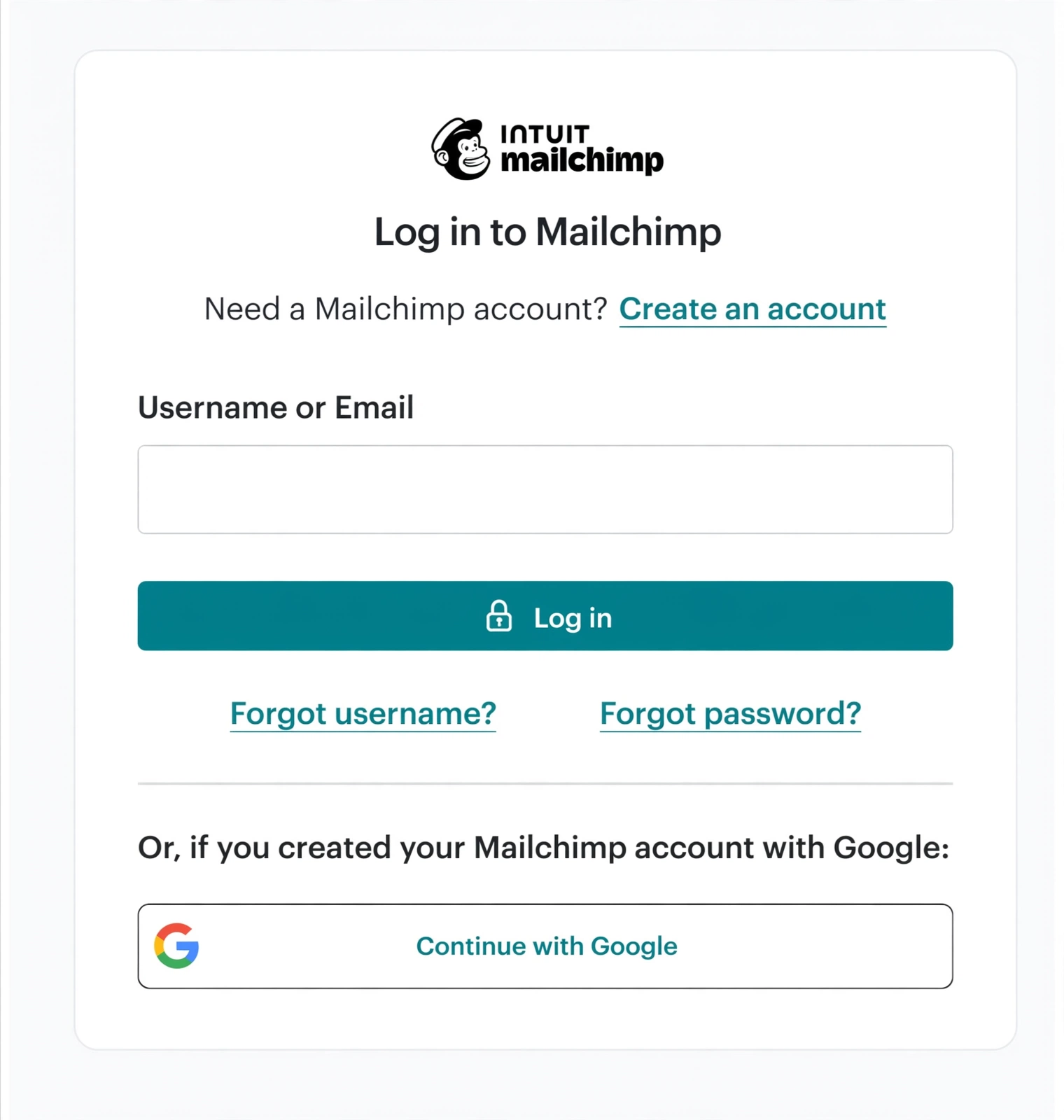
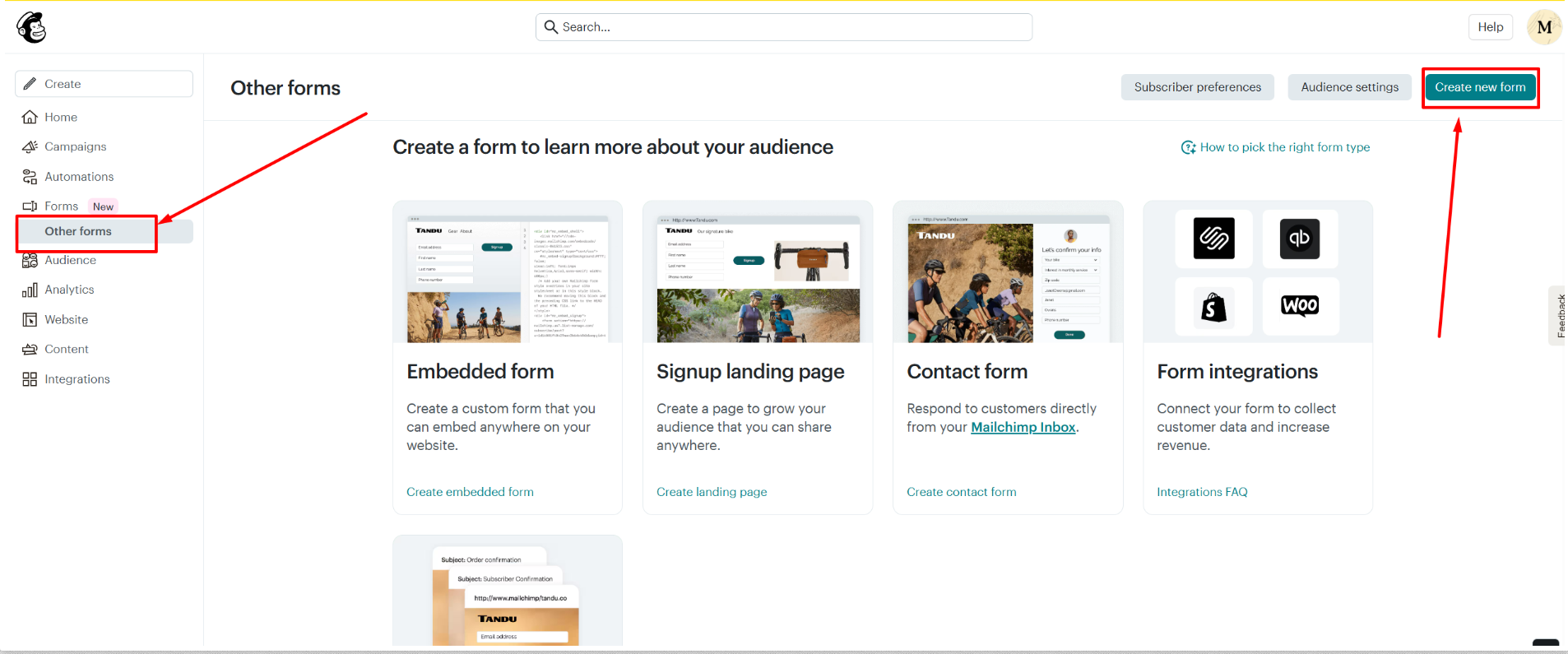
Please select “Other Forms”, and then click on “Create New Form.”
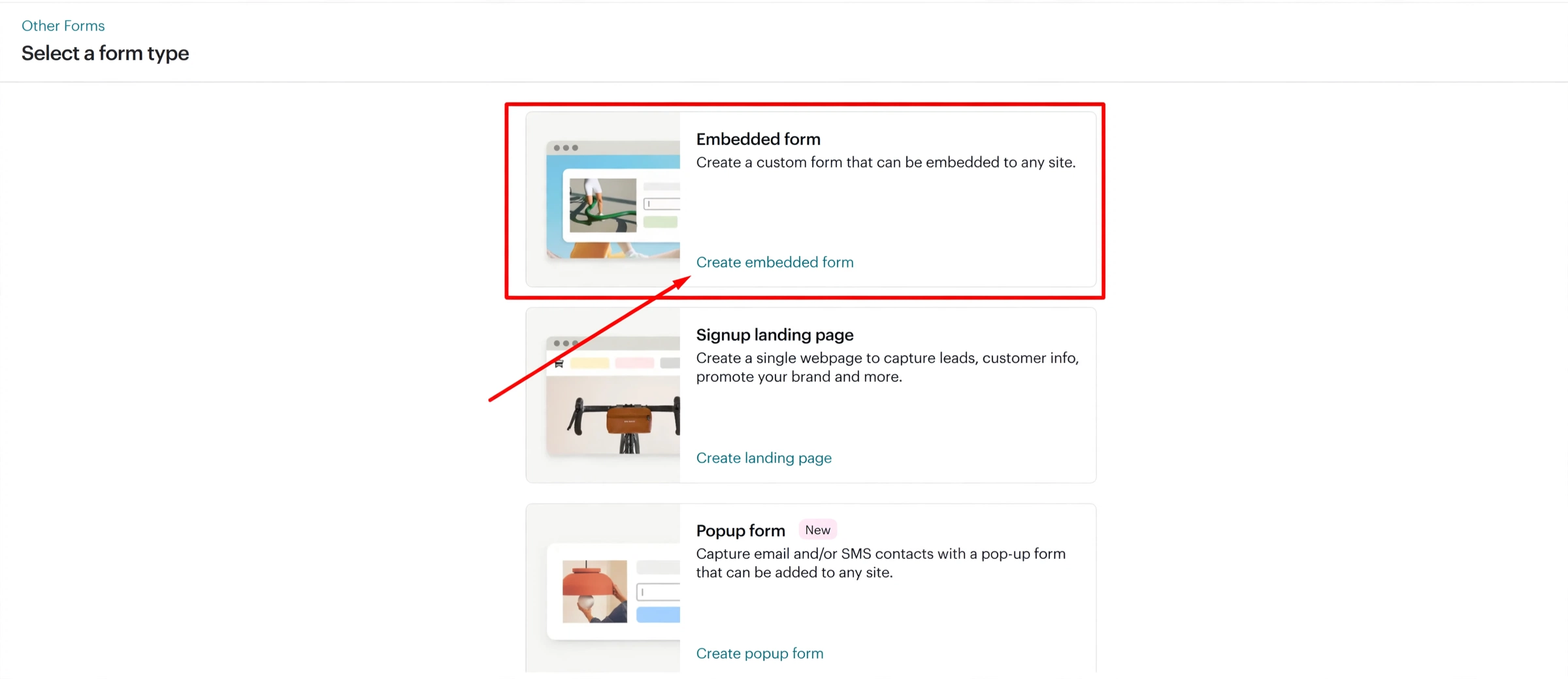
Click on the “Create Embedded Form” Button for the Custom Form Code option.
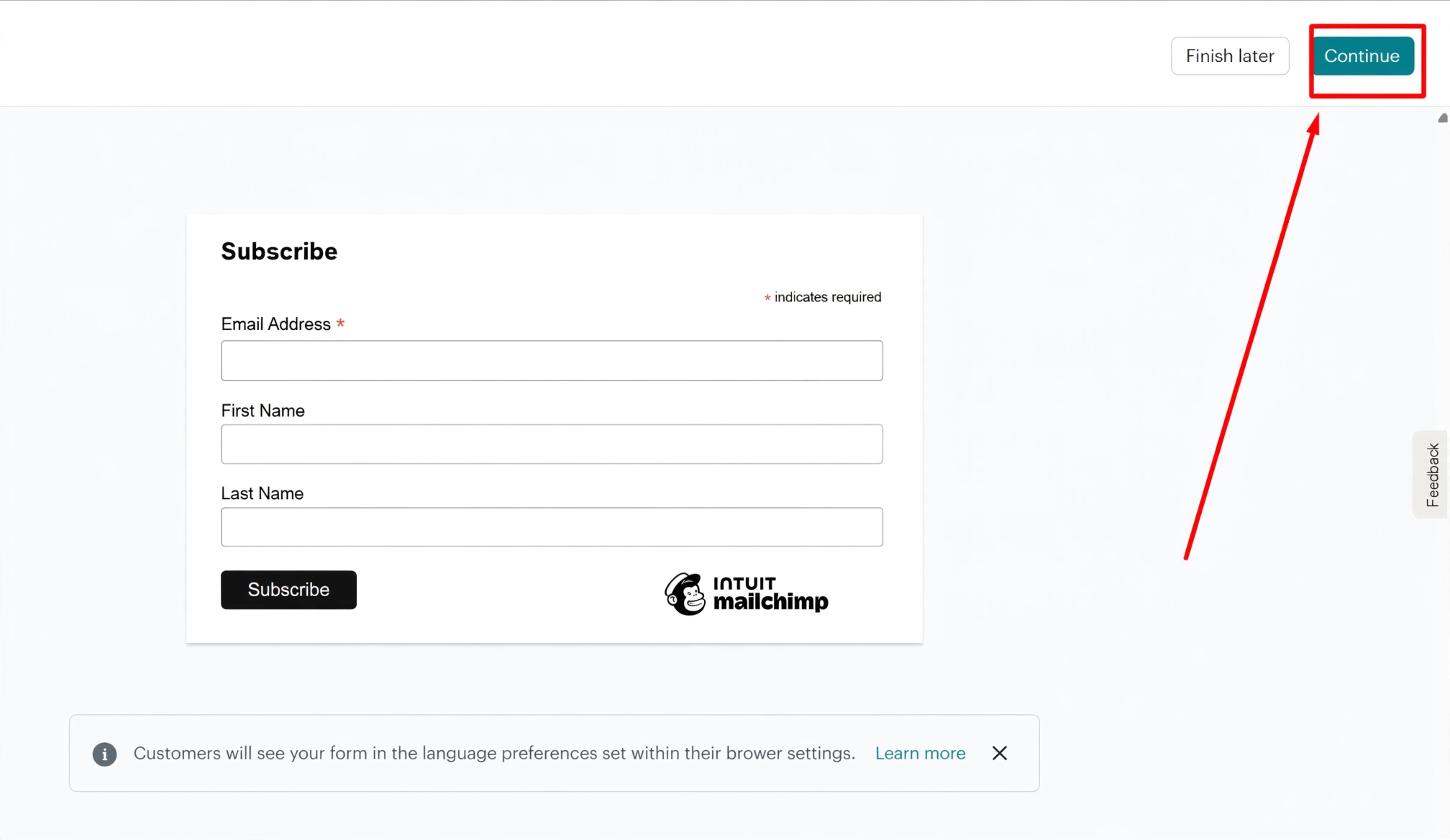
On the last step of the form, click on "Continue Option" and copy the HTML code.
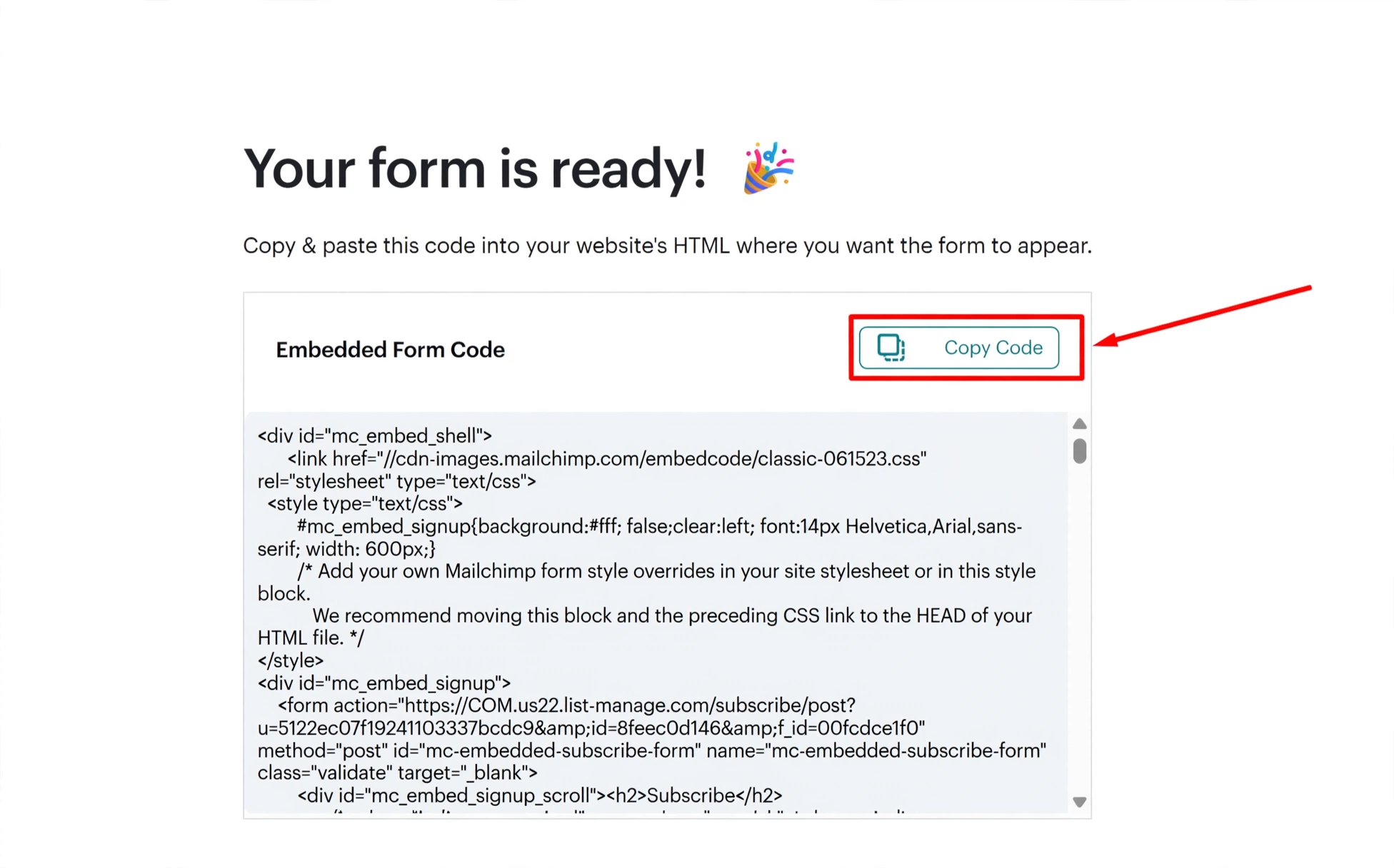
Now, once you have generated HTML Form code from your email autoresponder, connect a “form” element in a landing Page with the copied HTML Form code.
In order to connect a “form” element with HTML Form code, one needs to create a landing page inside a project.

Click on "Projects” displayed on the FlexiFunnels Dashboard Screen.
Click on the "+create new" button displayed on the Projects Screen.

Then type your "Project name" and click on the "+ADD project" button
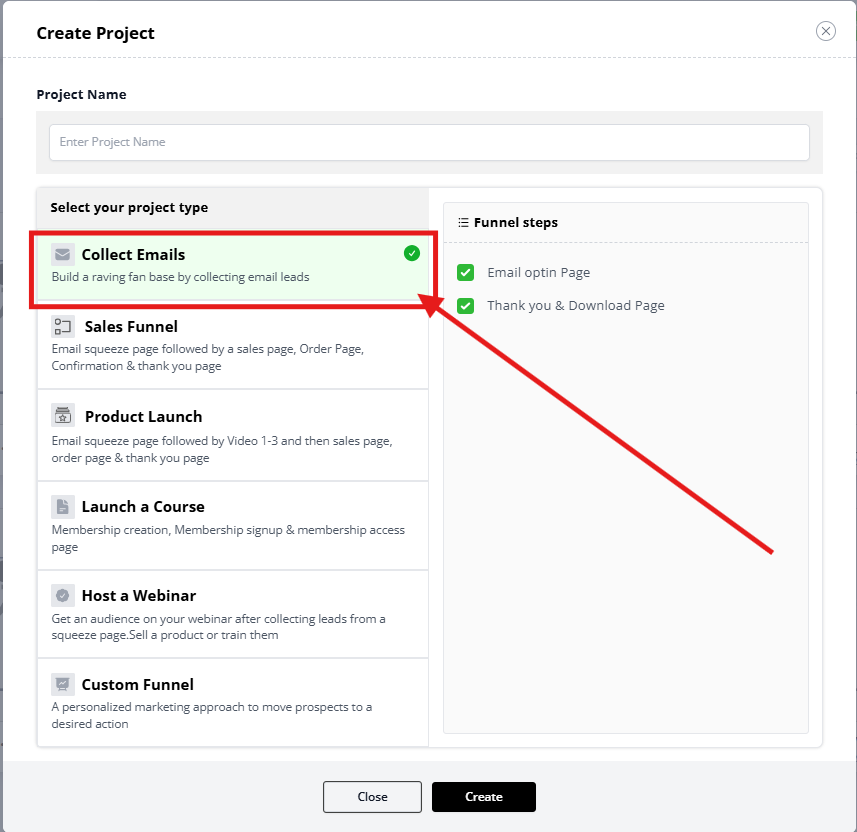
After completing these steps.
Select the Landing Page category
We have Different Landing Page Template Categories and Different Templates in Each category.
Select Your Landing Page Category
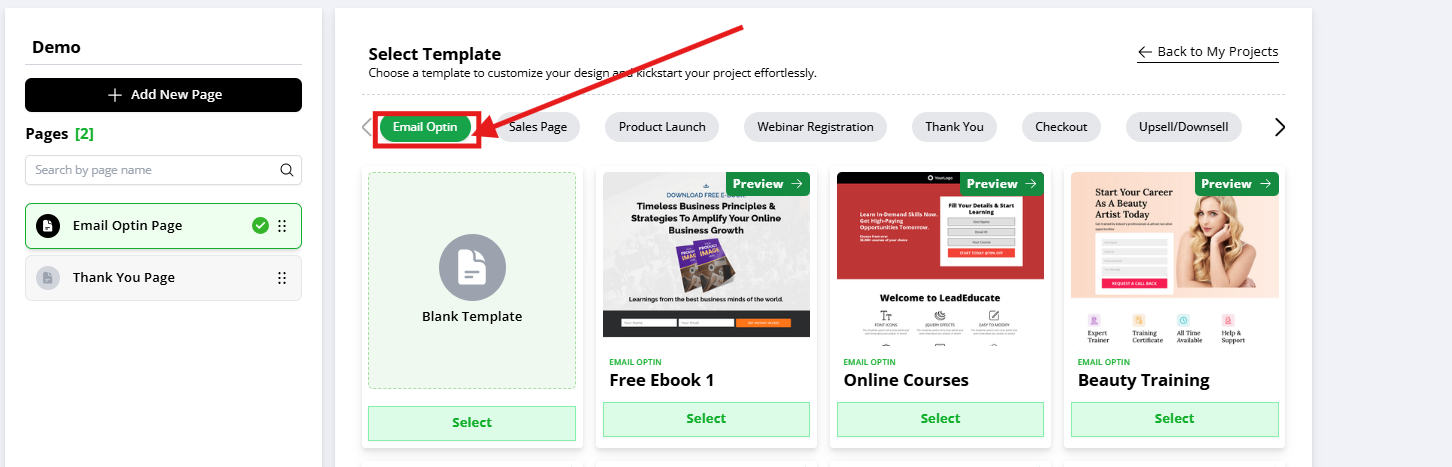
Then select the preferred template for your landing page
After selecting the Preferred Landing Page Template
The Screen will look like this
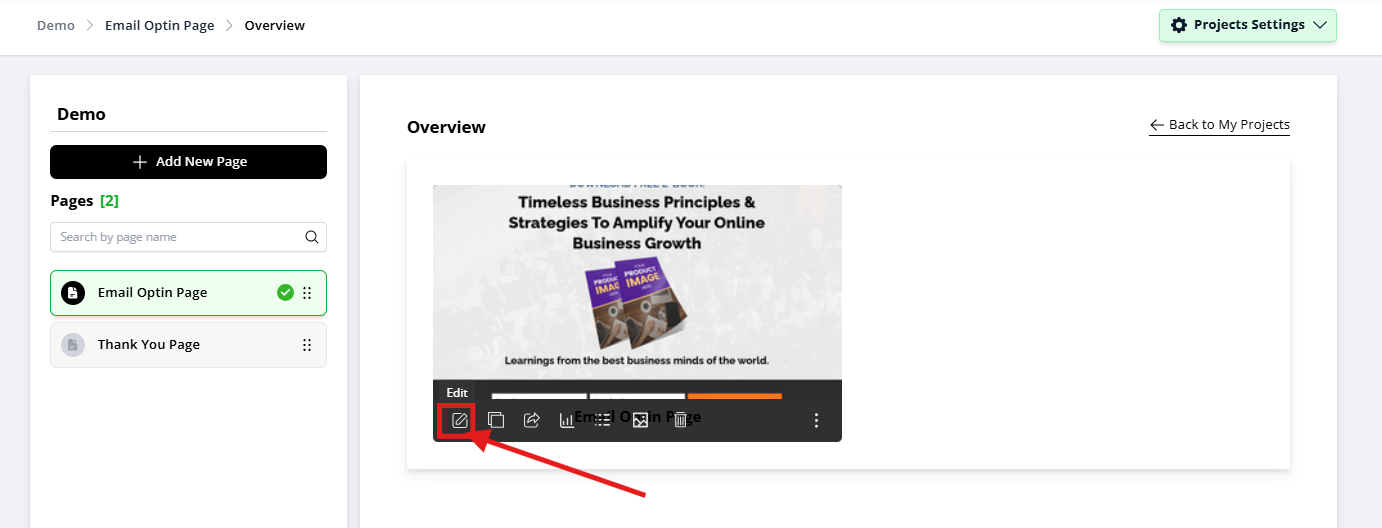
You have successfully created a Project in Flexifunnels With a Landing Page.
Now, Click on the "Edit Page" Button.
Click on the sidebar “plus” button and select the “forms” option under components to add forms inside the Flexifunnels Page Editor.
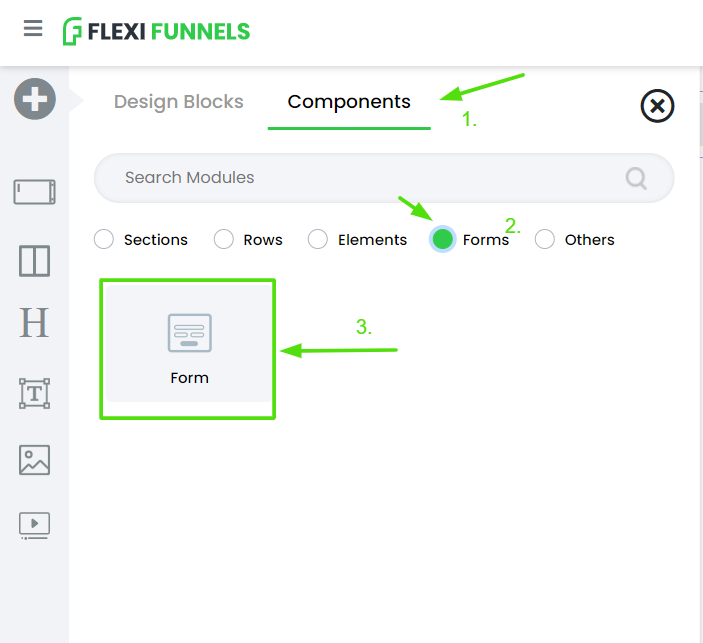
Once a “form” element is imported into the FlexiFunnels editor, click on the “form” element gear icon settings to open the form element gear settings
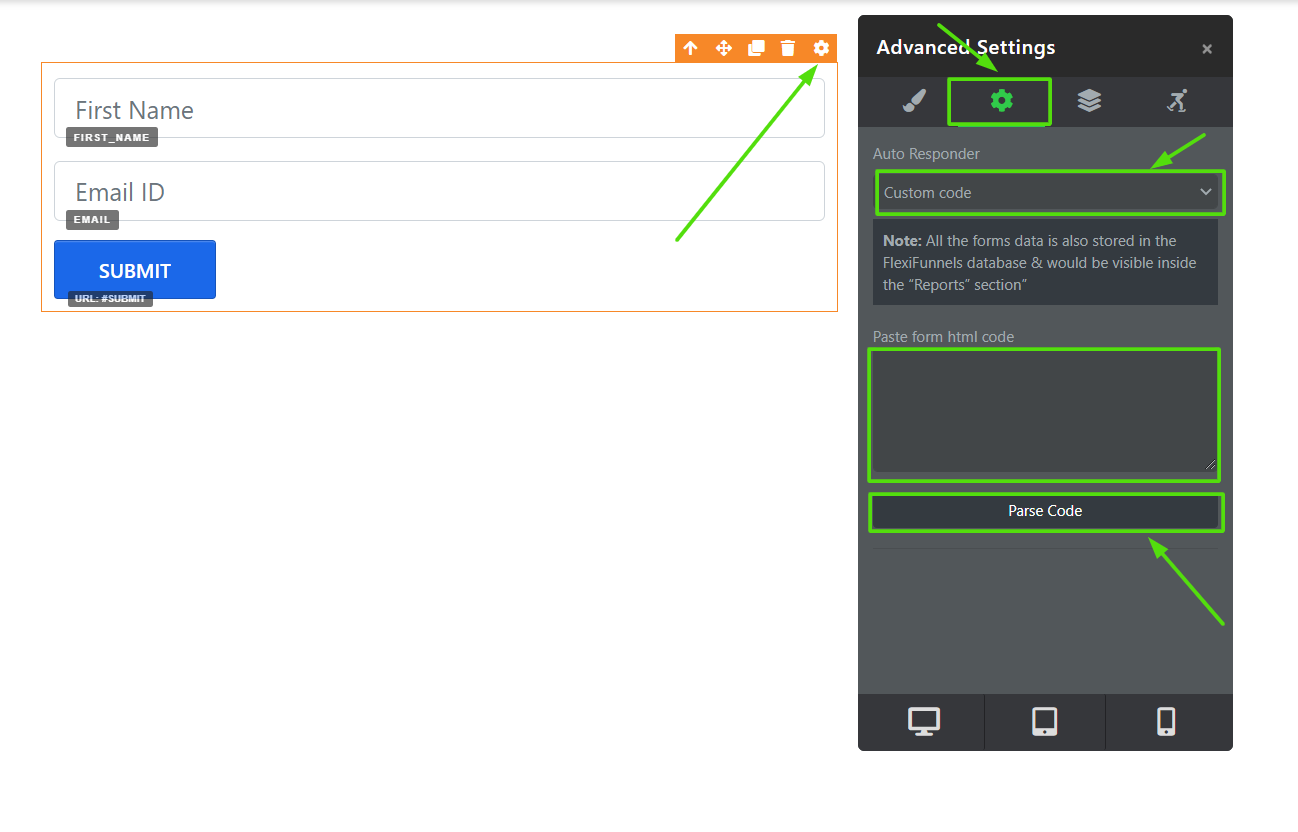
After opening the “Form” element gear settings, click on Advanced Settings, as shown in the image above.
Then select the “Custom Code” option from the dropdown.
Then paste the copied HTML Form code in the Paste the HTML form code space and click on the “parse code” button.
After clicking on the “parse code” button, the copied form code will now be integrated with the “form” element.
Now you can publish the landing page, using the “publish” button at the top, and start collecting leads.
The leads submitted on the published page will be directly reflected in your email autoresponder software connected with the “form” element using the HTML Form code option.
Know how to connect a specific autoresponder in detail:-
Active Campaign - https://help.flexifunnels.com/support/solutions/articles/36000308410-active-campaign-autoresponder-integration
Constant Contact - https://help.flexifunnels.com/support/solutions/articles/36000308412-constant-contact-autoresponder-integration
Getresponse - https://help.flexifunnels.com/support/solutions/articles/36000308517-get-response-integration
Icontact - https://help.flexifunnels.com/support/solutions/articles/36000308518-icontact-autoresponder-integration
Which Integration Method Should You Use?
| Method | Recommended For |
|---|---|
| Standard Integration | Most users, automation, audiences, tagging, and product rules |
| Embedded HTML Form | Existing Mailchimp forms or advanced custom workflows |
For most users, the Standard Integration is the recommended option because it provides deeper integration with FlexiFunnels and simplifies automation.
Common Scenarios
My Mailchimp account isn't connecting.
Check the following:
- You're signing in with the correct Mailchimp account.
- You clicked Allow during the authorization process.
- Your browser isn't blocking redirects or pop-ups.
- You're using an updated browser such as Google Chrome or Microsoft Edge.
My contacts aren't appearing in Mailchimp.
Verify that:
- The landing page has been published.
- The form is connected to Mailchimp.
- The correct audience has been selected.
- You're submitting the live page rather than testing inside the editor.
Tags aren't being added.
Check that:
- Tags contain at least 3 characters.
- The tags were saved after configuration.
- The correct Mailchimp account is connected.
Customers aren't being added after purchasing.
Verify that:
- Product Rules have been configured.
- The correct Mailchimp account is selected.
- The correct audience is selected.
- The product has been saved after updating the rules.
The authorization page isn't opening.
Try the following:
- Refresh the page.
- Clear your browser cache.
- Disable browser extensions that block pop-ups or redirects.
- Try using an Incognito/Private browser window.
Best Practices
- Use the Standard Integration whenever possible.
- Create separate audiences or use tags to organize leads and customers.
- Test your form integration before publishing your funnel.
- Perform a test purchase to verify Product Rule automation.
- Use descriptive tags to trigger Mailchimp automations and customer journeys.
Before Contacting Support
Before reaching out to our support team, please verify the following:
- ✅ Your Mailchimp account is connected successfully.
- ✅ You granted the required permissions during authorization.
- ✅ The correct audience has been selected.
- ✅ Product Rules or Form Settings have been configured correctly.
- ✅ The landing page has been published.
- ✅ You've tested the integration using a live form submission or test purchase.
If the issue still persists, please provide:
- A screenshot of your Mailchimp integration in FlexiFunnels.
- A screenshot of the Product Rules or Form Settings.
- The audience you're using.
- Any authorization or error message displayed.
- A brief description of the issue and the troubleshooting steps you've already completed.
Was this article helpful?
That’s Great!
Thank you for your feedback
Sorry! We couldn't be helpful
Thank you for your feedback
Feedback sent
We appreciate your effort and will try to fix the article