The Flexi AI Marketing Agents tool writes marketing content for you — things like ad hooks, email copy, page headlines, and video scripts. You tell it who your customers are and what you're selling, and it writes the words for you.
This guide walks you through it one click at a time. No tech skills needed.
Before you start
You only need two things:
- You're logged in to your FlexiFunnels account.
- You know the basics of who your customer is and what you're selling. (Don't worry — the tool asks you simple questions to figure this out.)
Step 1: Open the "Apps" section
Inside your FlexiFunnels dashboard, click "Apps."
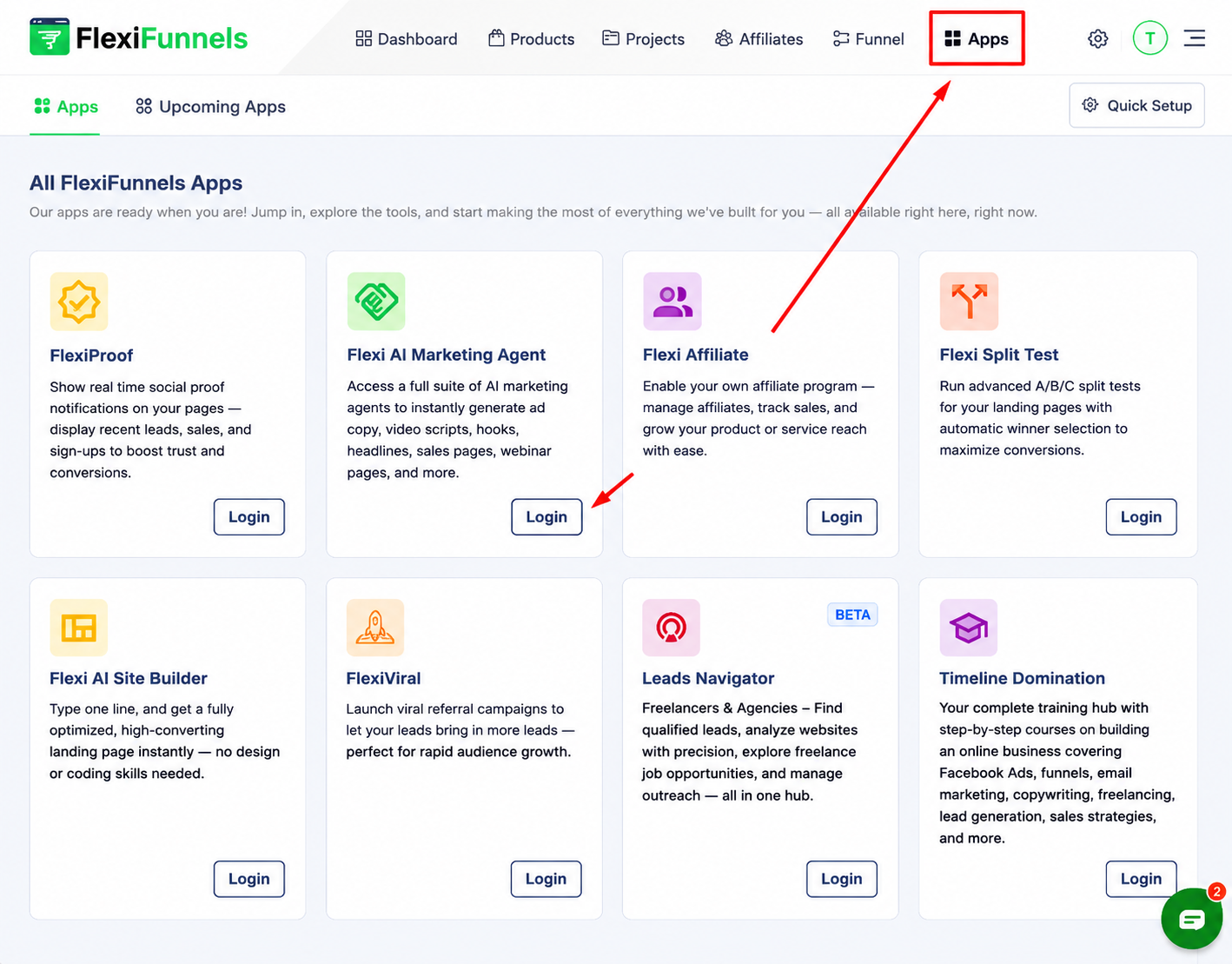
Step 2: Open "Flexi AI Marketing Agents"
In the Apps list, click "Flexi AI Marketing Agents."
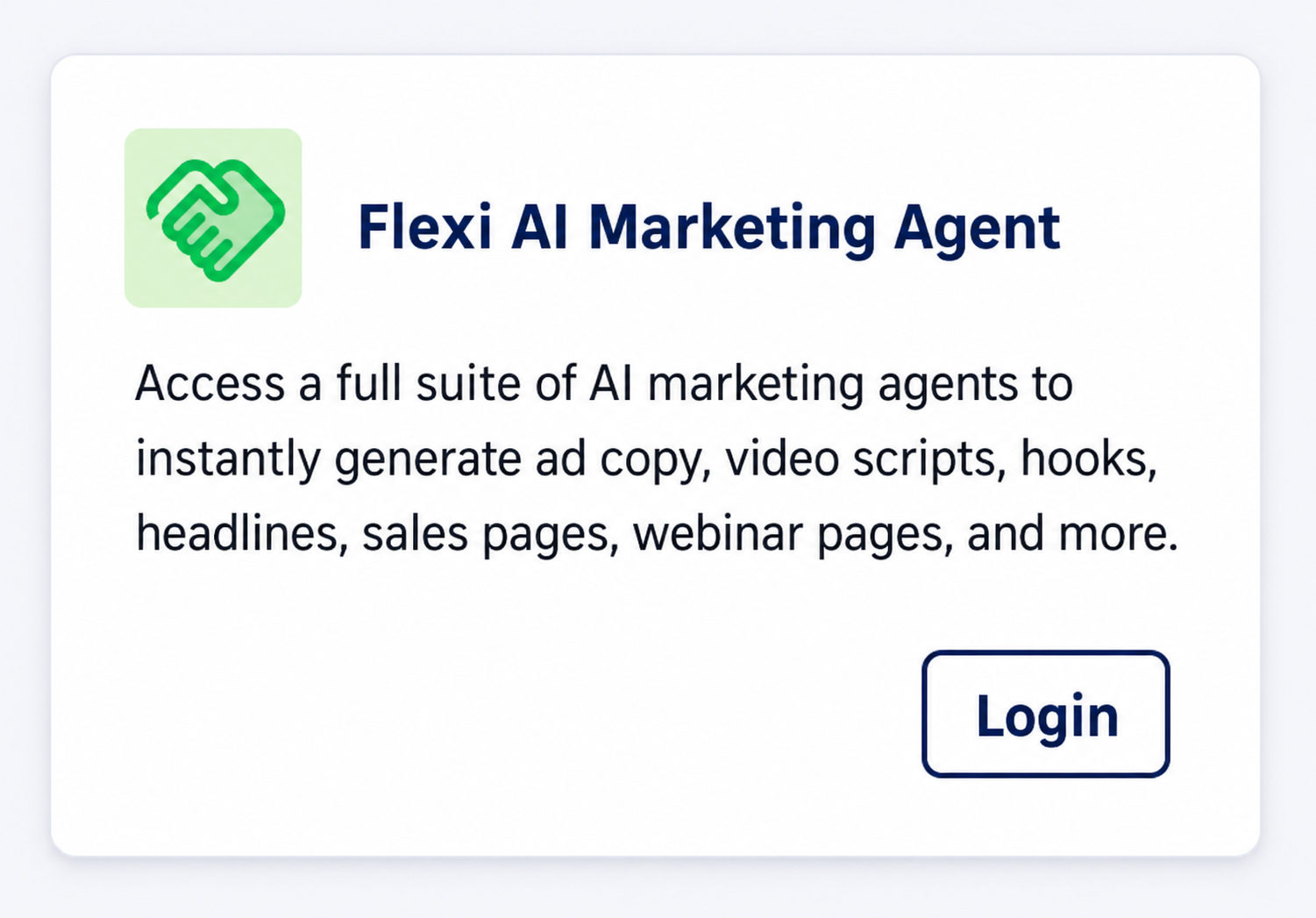
Step 3: Log in to the tool
A login button will appear. Click it to open the tool.
? This is a one-time step. The tool opens in its own window.
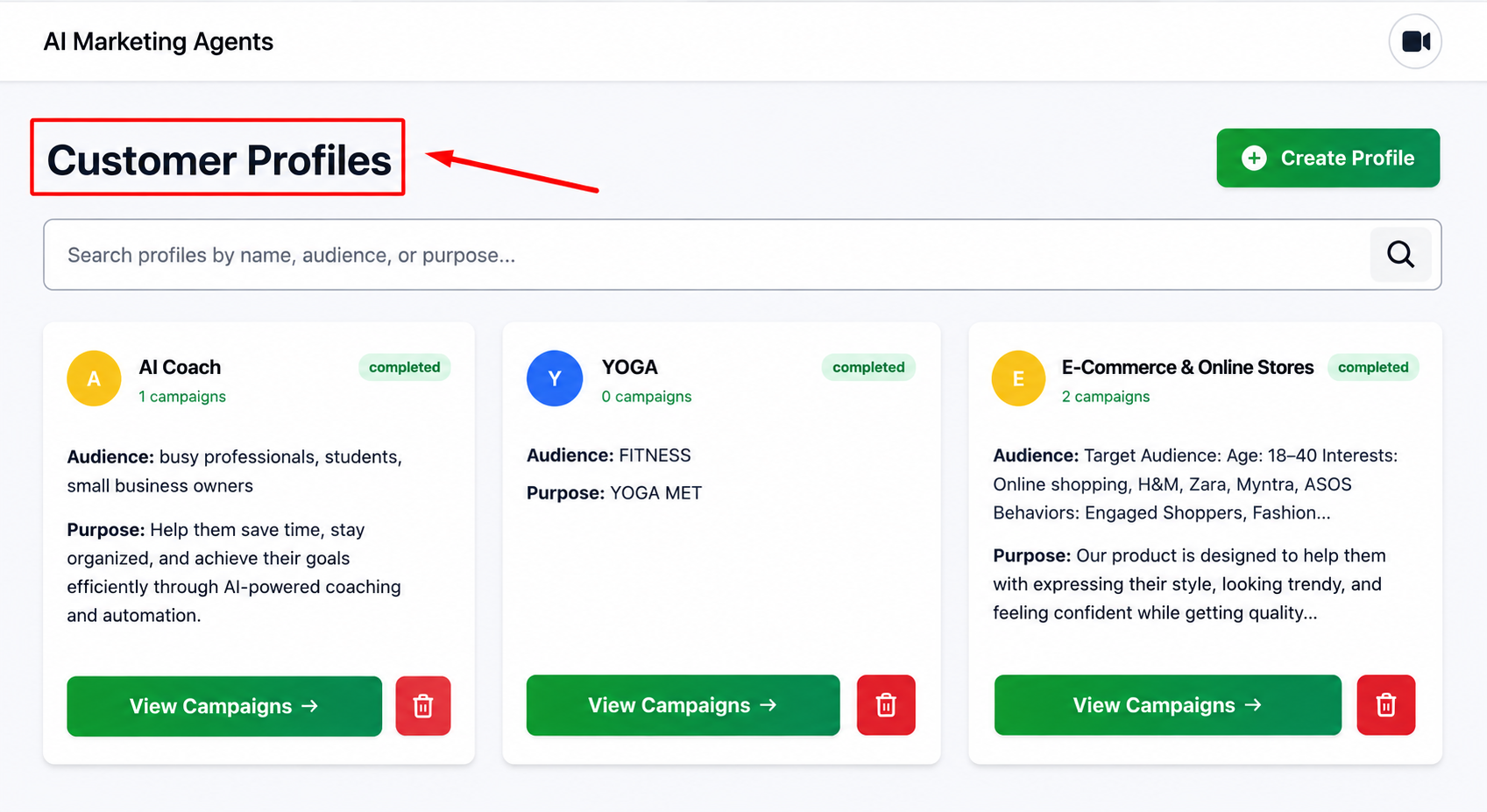
Step 4: Go to the Customer Profile
After you log in, you'll land on the Customer Profile screen. This is the home base for the tool.
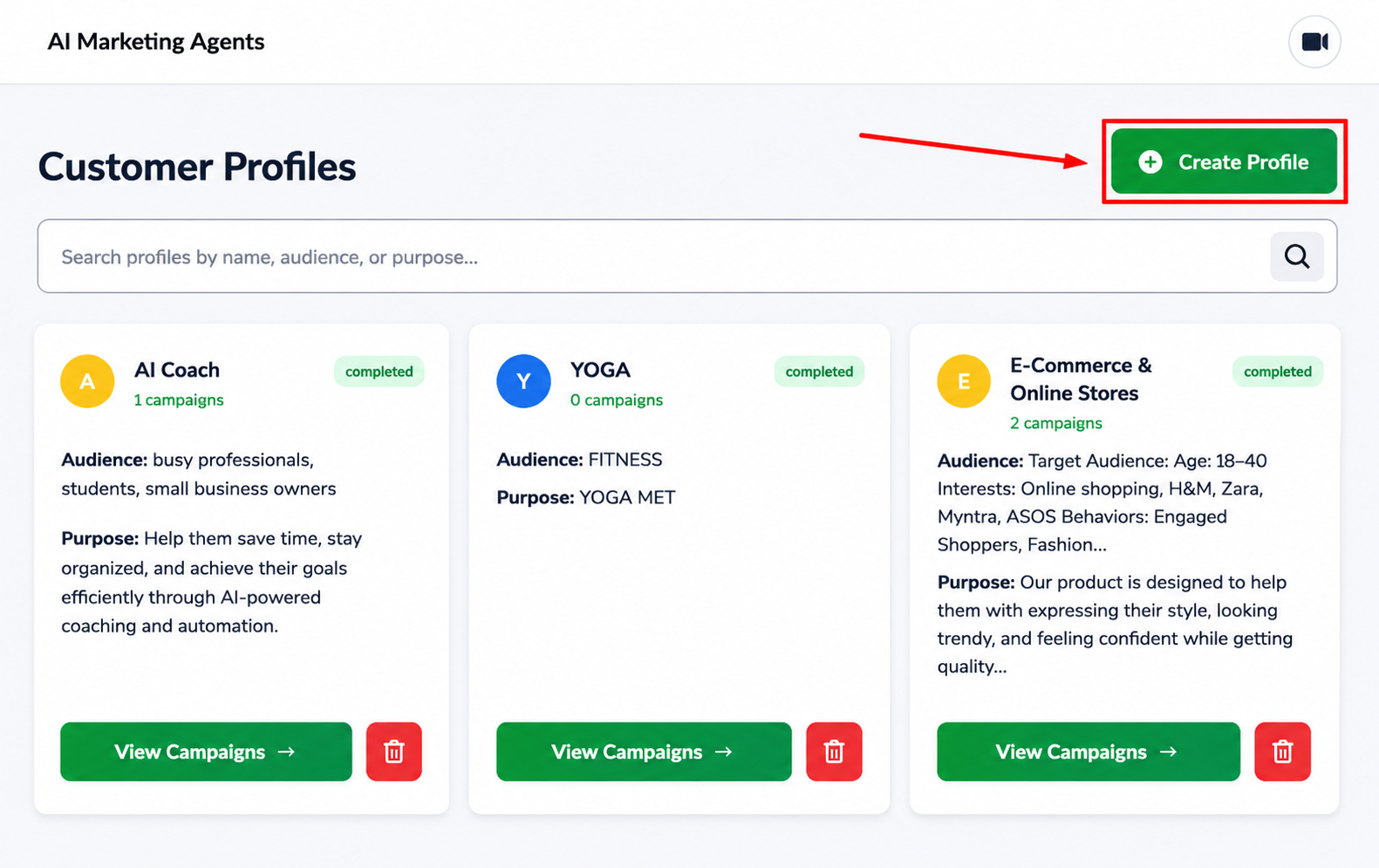
Step 5: Click "Create Profile"
Click the "Create Profile" button to start a new customer profile.
Step 6: Fill in the Customer Profile
A customer profile is just you telling the AI who you're talking to. The better you fill this in, the better the content it writes.
Fill in these boxes:
- Profile Name — any name so you can find it later (e.g. "Yoga Course Buyers").
- Who is your target audience? — the people you want to reach (e.g. "busy moms aged 30–45 who want to lose weight").
- What is your product designed to help them with? — the result your customer wants (e.g. "lose 5 kg in 8 weeks without going to a gym").
- What are the key pain points of your customer? — the problems or frustrations they have today (e.g. "no time, tried other diets that failed, low energy").
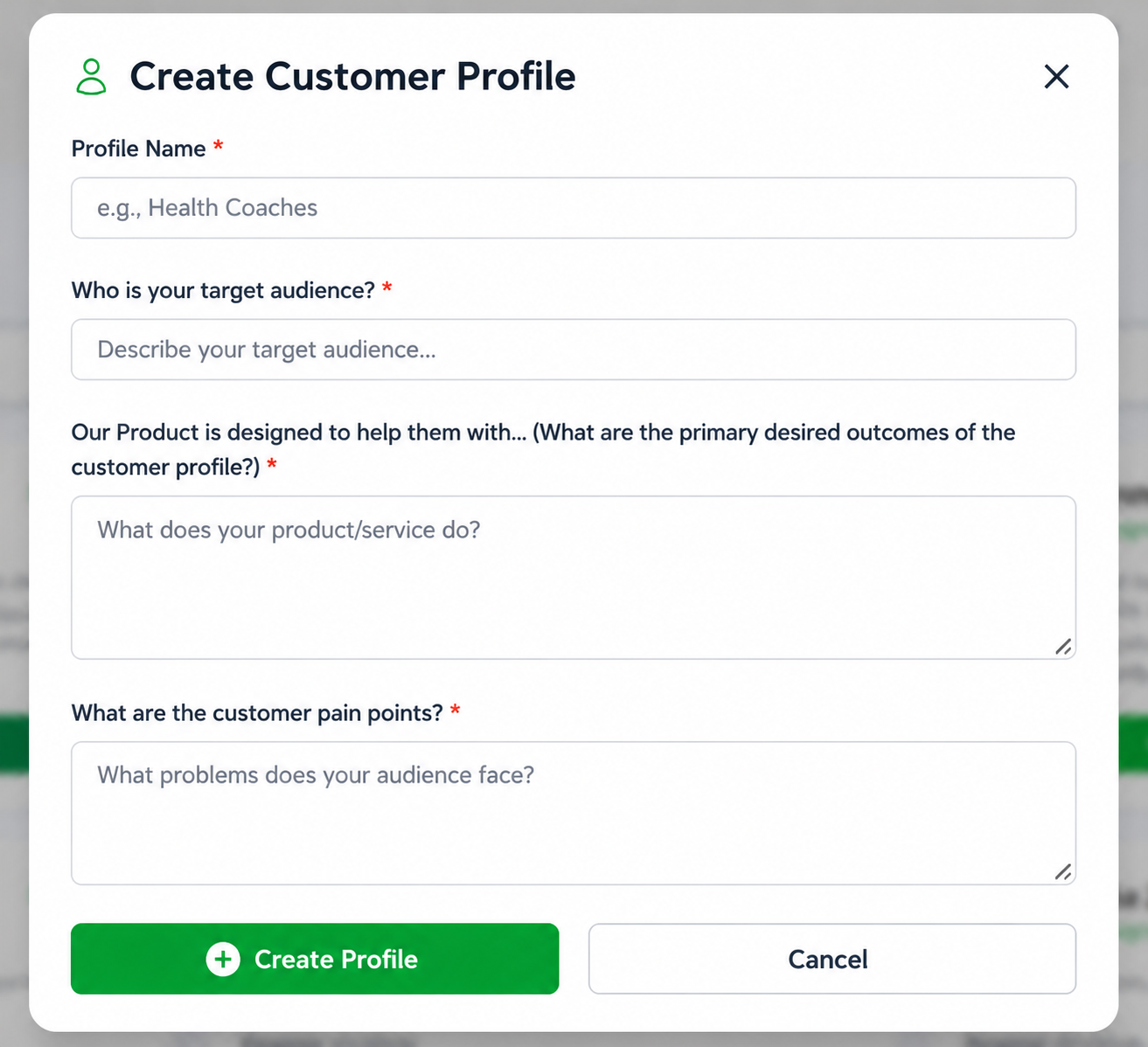
? Tip: Write these in plain, everyday words — exactly how your customer would describe their own problem. That's what makes the AI's writing sound human.
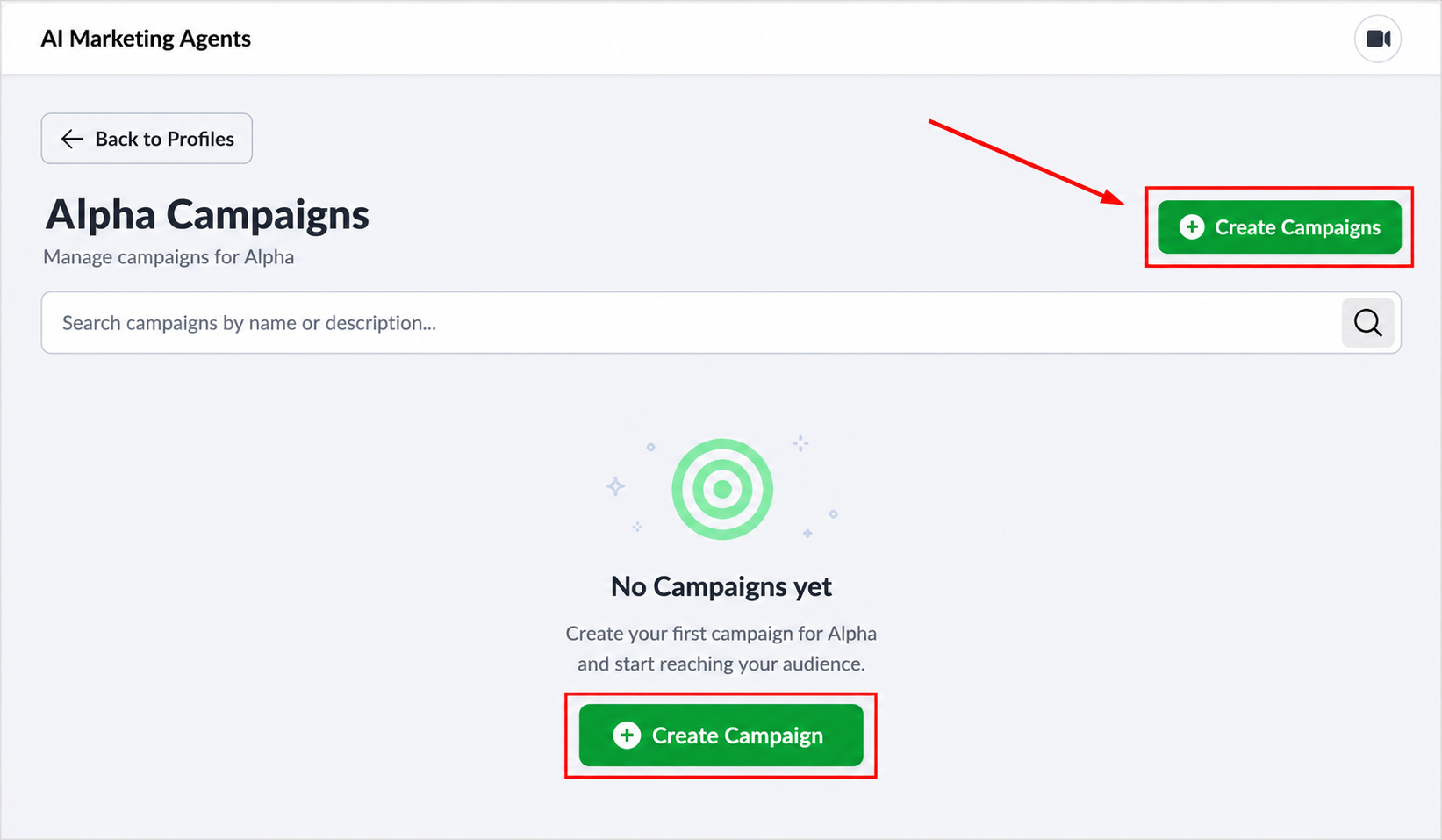
Step 7: Create a Campaign
A campaign is one marketing project (for example, "June Webinar" or "Summer Sale Emails").
Fill in:
- Campaign Name — a name so you can find it later.
- Description — a line or two about what this campaign is for.
- Tasks — tick the types of content you want help with (ad hooks, email copy, headlines, video scripts, and more).
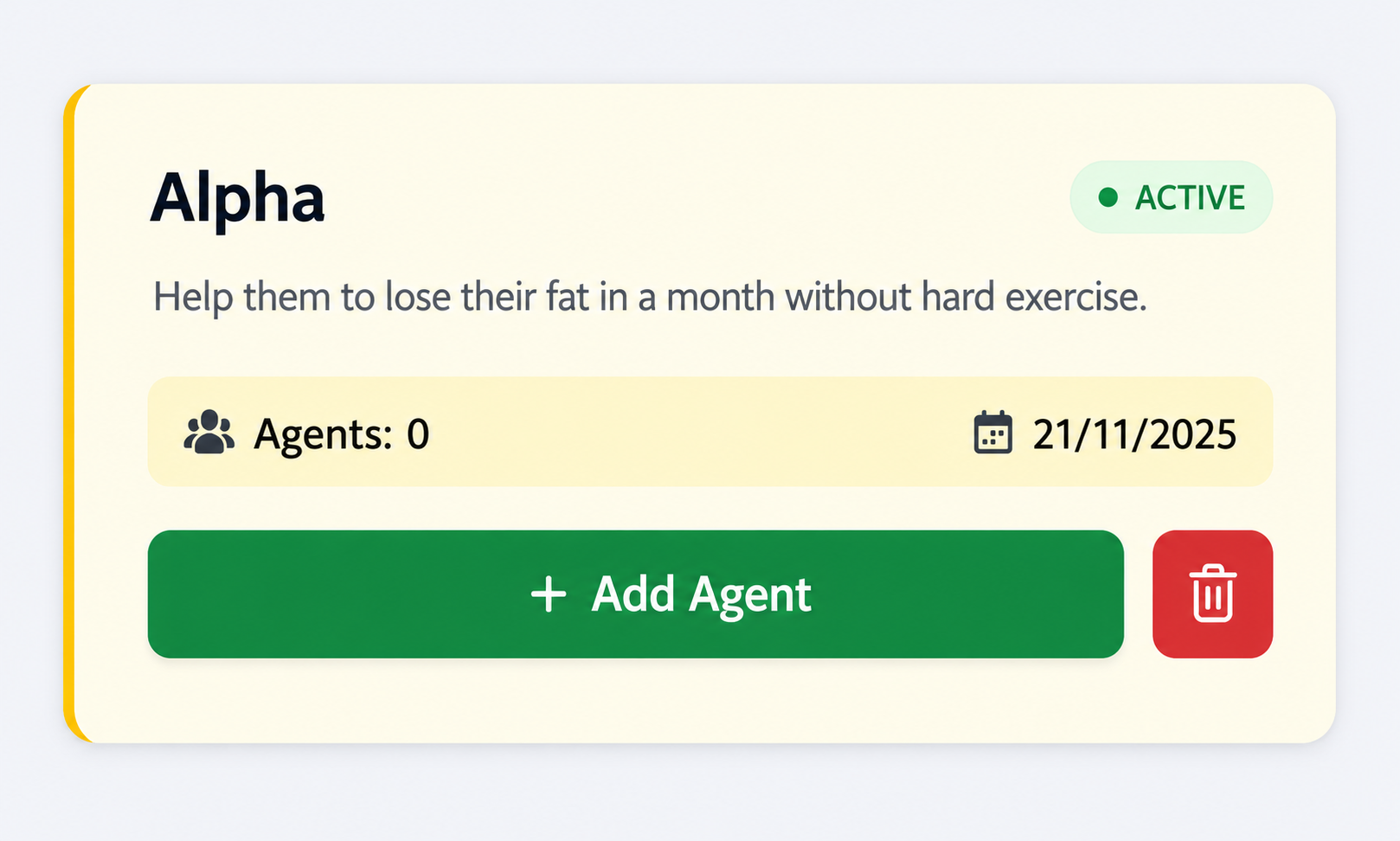
Step 8: Add an Agent
Once your campaign is created, you'll see the "Add Agent" option. An agent is the AI helper that does one job for you.
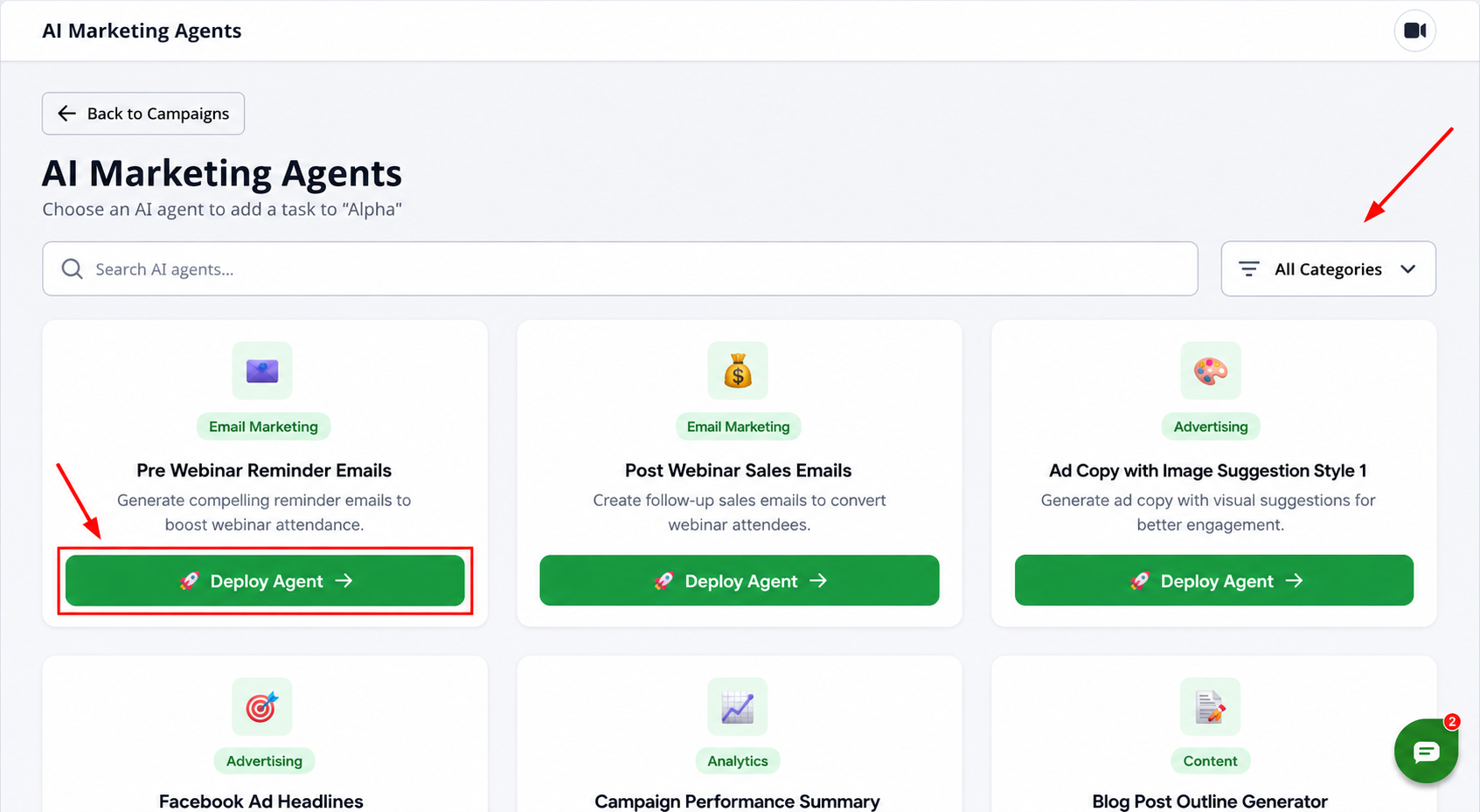
Step 9: Click "Deploy Agent"
Click "Deploy Agent" to start generating content.
You'll now choose the category of content you want for your selected tasks — like ad hooks, email copies, page headlines, video scripts, and more.
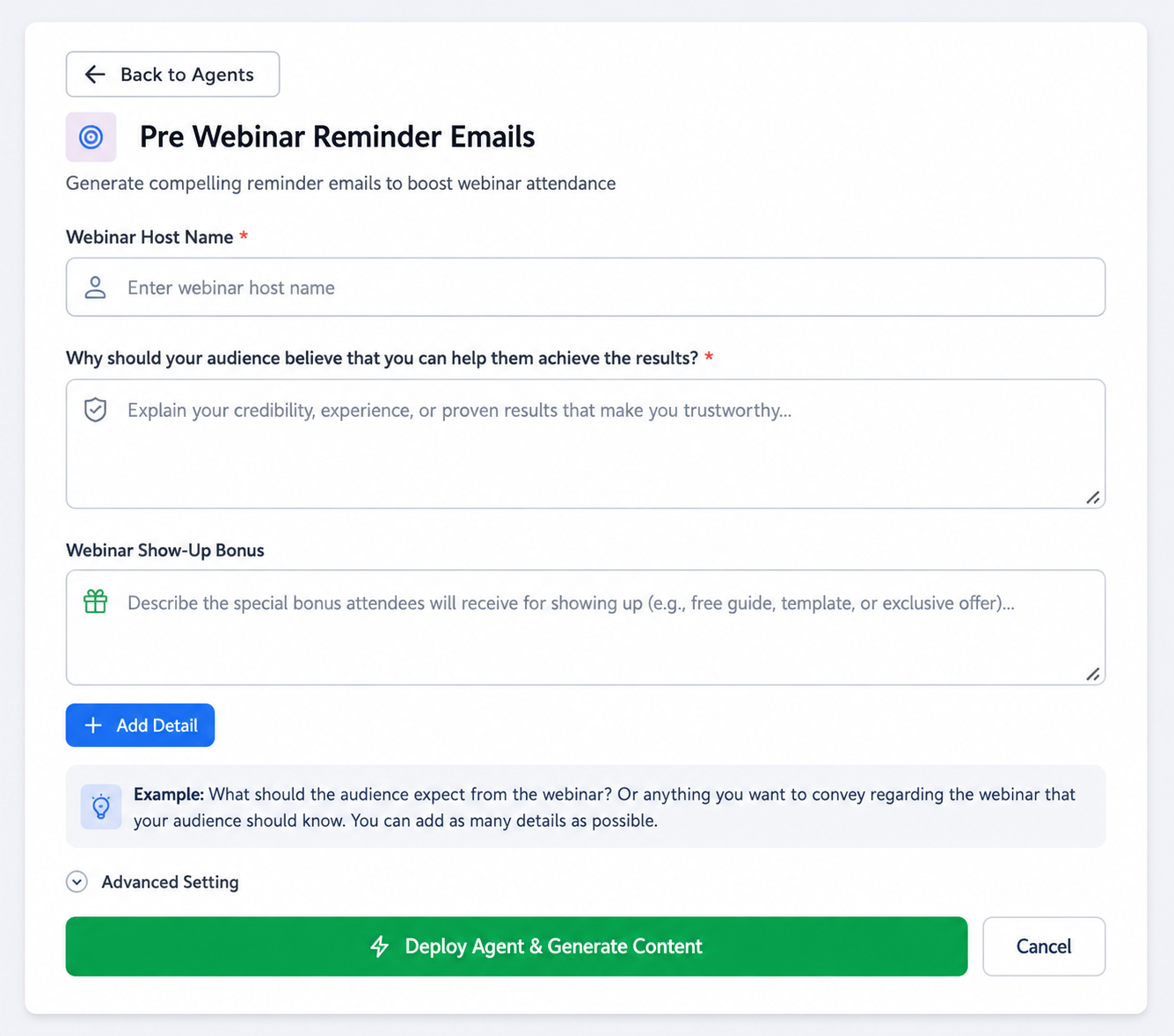
Step 10: Answer the agent's questions
Now the agent asks you a few short questions so it can write content that fits you.
⚠️ Important: The questions you see here change depending on the task you picked in Step 7. The example below is what you'll see for a webinar agent. If you picked emails or ad copy instead, you'll see different questions — just answer whatever it shows.
For a webinar agent, you'll fill in:
- Webinar Host Name — the name of the person presenting.
- Why should your audience believe you? — your proof or experience, so people trust you (e.g. "helped 2,000 students," "10 years of experience").
- Webinar Show-Up Bonus — a free gift for people who actually attend live, so more people show up.
Step 11: Get your Output
Once you've filled in the details, the tool gives you your Output — the finished, AI-written content for the tasks you chose.
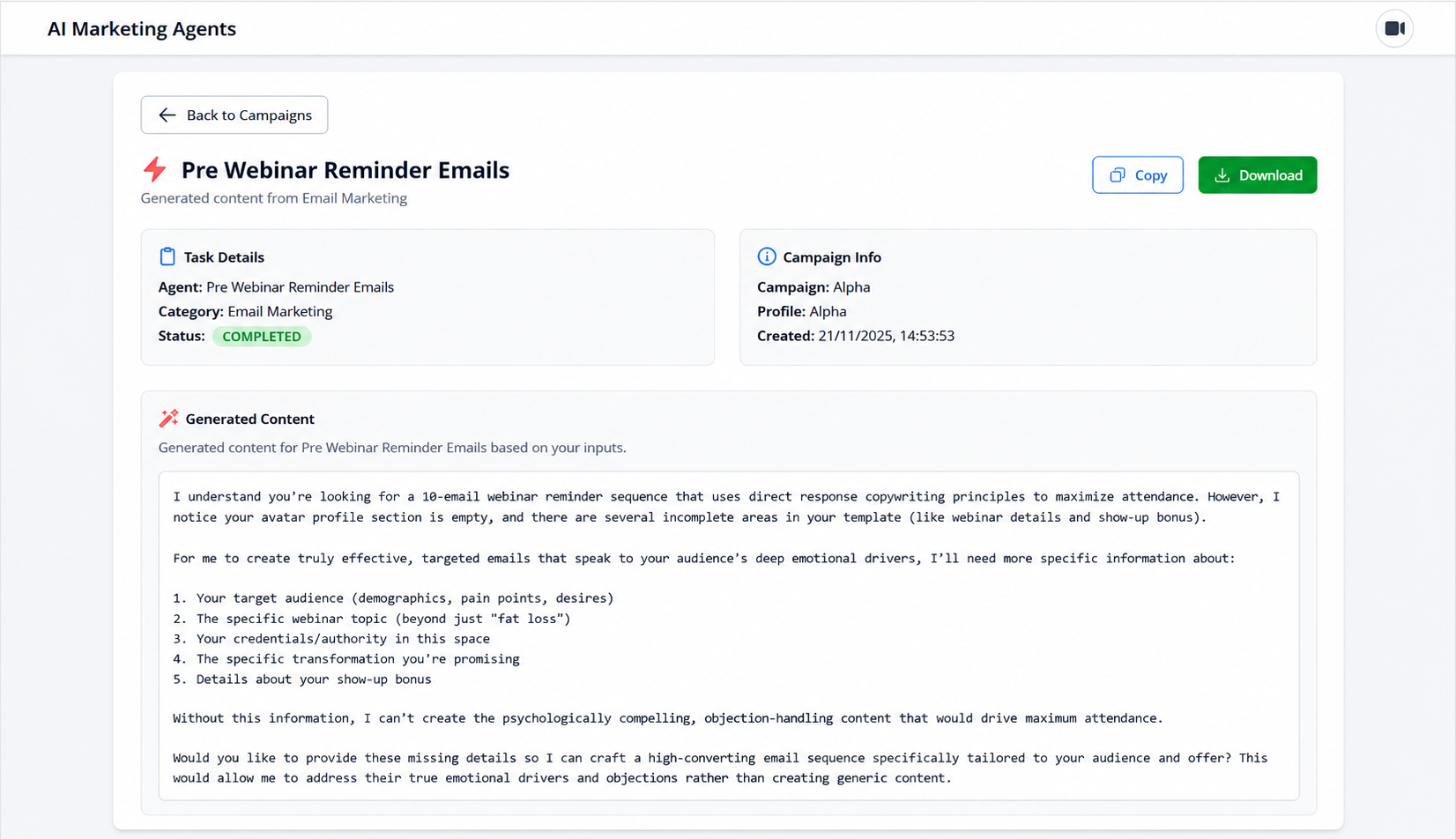
From here you can:
- Copy the content and paste it into your page, email, or ad.
- Generate again if you'd like a different version to compare.
- Edit the words to add your own personal touch.
? That's it — you've used the FlexiFunnels Marketing Agents!
Common Issues & Troubleshooting Guide
Before contacting support, review the common scenarios below. Most issues can be resolved quickly by following the recommended troubleshooting steps.
1. Unable to Find "Flexi AI Marketing Agents" in the Apps Section
Possible Cause
The page may not have loaded correctly, or your account may not have access to the tool.
Recommended Solution
Refresh the page and try again.
Verify that you are inside the Apps section and not under Projects or Settings.
If you are using a Team or Sub-User account, contact the primary account owner and ask them to confirm that access to Flexi AI Marketing Agents has been granted to your user profile.
2. Login Is Not Working or Repeatedly Requests Authentication
Possible Cause
Browser cache, session conflicts, or authentication issues can prevent successful access.
Recommended Solution
Ensure that you are logged in to your primary FlexiFunnels account before opening the application.
Use the latest version of Google Chrome for the best experience.
Avoid using Private/Incognito browsing mode.
Clear your browser cache and cookies, then log in again.
If the issue persists, try accessing the platform from a different browser.
3. "Create Profile" or "Deploy Agent" Button Is Not Responding
Possible Cause
One or more required fields may be incomplete.
Recommended Solution
Review all form sections carefully.
Ensure that every mandatory field contains valid information.
Complete any missing inputs and try again.
The button will remain disabled until all required information has been provided.
4. Content Generation Is Blank or No Output Is Produced
Possible Cause
Generation may fail due to connectivity issues or incomplete campaign configuration.
Recommended Solution
Verify that your internet connection is stable.
Click Generate again.
Confirm that at least one task has been selected during the campaign setup process.
If no task is selected, the AI agent will not have sufficient instructions to generate content.
5. Generated Content Does Not Match the Intended Audience
Possible Cause
The quality of the output depends on the accuracy and specificity of the Customer Profile information provided.
Recommended Solution
Review your Customer Profile settings.
Add more detailed information about your target audience, challenges, goals, and pain points.
Save the updated profile and regenerate the content.
More specific inputs generally result in more accurate and relevant outputs.
6. Content Generation Is Taking Longer Than Expected
Possible Cause
Temporary processing delays or multiple generation requests may increase response times.
Recommended Solution
Allow the generation process to complete without repeatedly clicking the button.
Avoid submitting multiple requests simultaneously.
If the process appears stalled for an extended period, refresh the page and try again.
7. Need a Different Tone, Style, or Version of the Content
Recommended Solution
Click Generate again to create an alternative version.
Edit the generated content manually to better align with your requirements.
The same AI Agent can be used multiple times to produce different variations of content.
This flexibility allows you to test and refine messaging until it matches your desired style and objectives.
Was this article helpful?
That’s Great!
Thank you for your feedback
Sorry! We couldn't be helpful
Thank you for your feedback
Feedback sent
We appreciate your effort and will try to fix the article