Overview
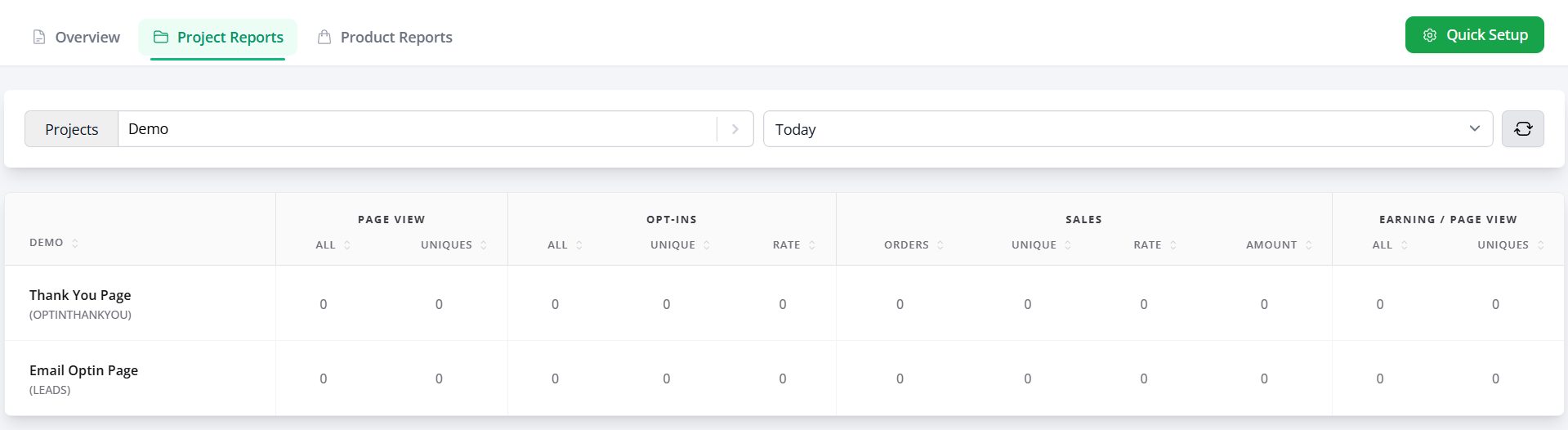
The Project Reports tab in FlexiFunnels provides a page-by-page view of performance for each funnel project. Use it to compare page traffic, opt-ins, sales, revenue, and earnings so you can identify drop-off points and improve underperforming funnel stages.
Before You Begin
- Sign in to your FlexiFunnels account.
- Ensure that your funnel project contains the pages you want to analyze.
- Confirm that pages use the correct page types for accurate tracking.
Step 1: Select a Project
Open the Project Reports section and select the specific Project you want to analyze. For example, you may select a project such as WithoutCoupon_withbump. Selecting a project limits the report to the pages and activity associated with that funnel.
Step 2: Select a Time Period
Choose the reporting period for the selected project. You can review performance for:
- Today
- Yesterday
- This Week
The selected period determines which page activity and conversion data appear in the report.
Step 3: Review Page-Level Metrics
Each page in the selected project, such as Checkout 1 or Sales1, appears as a separate row. Review the following metrics for each page.
Page Views
- All: The total number of times the page was viewed.
- Uniques: The number of distinct users who viewed the page.
Opt-Ins
- All and Unique: The total and unique number of opt-ins recorded on the page.
- Rate: The percentage of page views that resulted in an opt-in.
Sales
- Count and Unique: The total number of purchases and the number of unique buyers.
- Rate: The sales conversion rate for the page.
- Value: The total revenue generated from the page.
Earnings per Page View
This metric shows how much revenue the page generates per page view. Reviewing both total and unique values helps you understand the page's revenue efficiency.
Step 4: Analyze the Funnel
Compare the metrics across pages to understand how visitors progress through the funnel. Use the report to:
- Identify pages receiving the most traffic.
- Find traffic drop-offs at sales or checkout pages.
- Monitor page-level opt-in and sales conversion rates.
- Identify underperforming pages that require optimization.
Verify the Configuration
Select the intended project and time period, then confirm that each expected funnel page appears in the report. Check that page views, opt-ins, sales, and revenue values change when you select a different project or timeframe.
Common Scenarios
- Funnel performance review: Compare every page in a project to understand the complete customer journey.
- Checkout drop-off analysis: Compare sales-page traffic with checkout views and completed sales.
- Opt-in optimization: Identify pages with high traffic but low opt-in rates.
- Revenue analysis: Find pages that generate the highest revenue and earnings per view.
Best Practices
- Use the same time period when comparing different projects.
- Compare unique views with total views to understand repeat visits.
- Review opt-in rates on every lead-capture page.
- Compare checkout views with sales to identify purchase-stage friction.
- Monitor earnings per page view when prioritizing optimization work.
- Review project reports regularly rather than relying only on total sales.
Before Contacting Support
- Confirm that the correct project is selected.
- Verify the selected time period.
- Confirm that the expected pages are included in the project.
- Check that each page uses the correct tracking type.
- Refresh the report and review the page metrics again.
Expected Outcome
The Project Reports tab displays a page-wise breakdown of views, unique visitors, opt-ins, sales, revenue, and earnings for the selected project and timeframe. You can use this information to identify funnel drop-offs and make targeted optimization decisions.
Was this article helpful?
That’s Great!
Thank you for your feedback
Sorry! We couldn't be helpful
Thank you for your feedback
Feedback sent
We appreciate your effort and will try to fix the article