Overview
Lead reports help you measure the performance of your lead-generation activities and understand how effectively your pages convert visitors into customers. This guide explains the key lead-report metrics, available filters, customer search options, and page-type configuration required for accurate reporting.
Before You Begin
- Ensure that you can sign in to your FlexiFunnels account.
- Confirm that lead capture pages or opt-in forms are configured in your project.
- Make sure the correct page type is assigned to each page that captures leads.
Step 1: Open Lead Reports
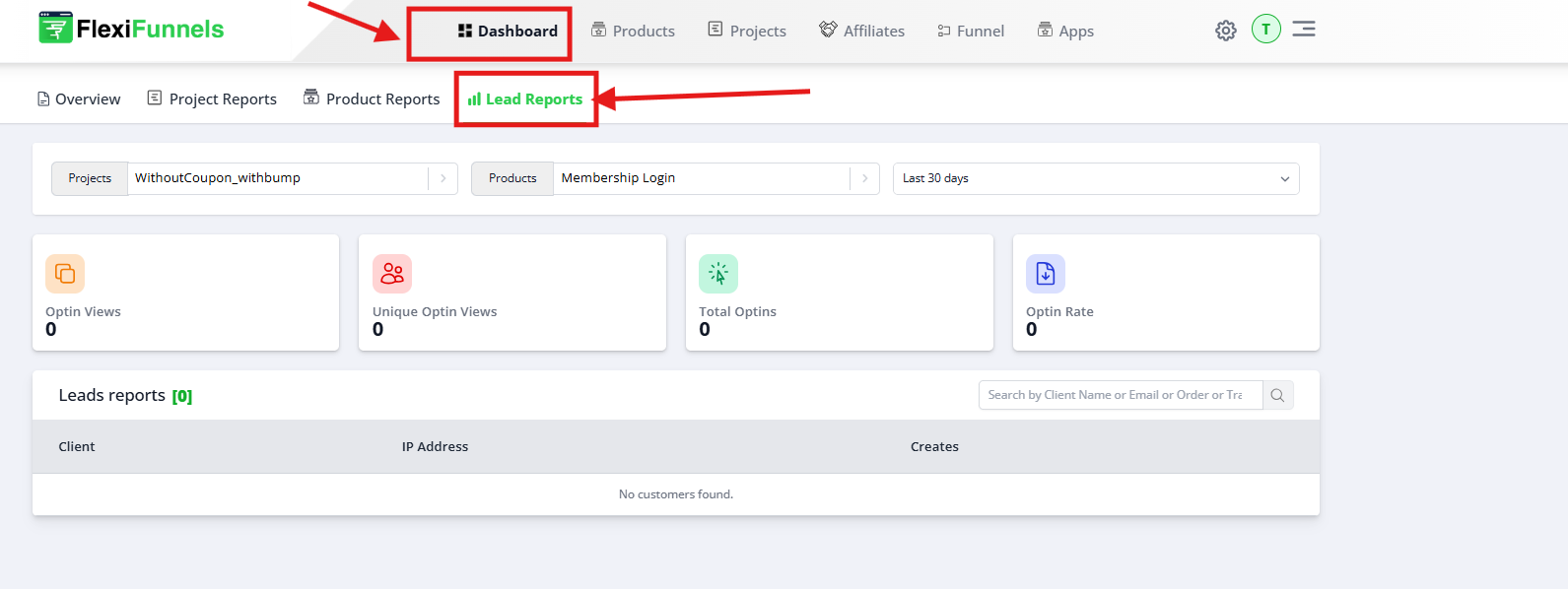
Open the Lead Reports area in FlexiFunnels to review visitor activity, opt-ins, conversion performance, and customer information.
Key Parameters in Lead Reports
- Opt-in Views: The total number of times an opt-in form has been viewed. This indicates how many times visitors encountered your lead-capture form.
- Unique Opt-in Views: The number of distinct users who viewed the opt-in form. This helps measure the unique reach of the form.
- Total Opt-ins: The total number of users who completed and submitted the opt-in form. This represents the number of leads generated.
- Opt-in Rate: The percentage of form views that resulted in submissions. It is calculated as (Total Opt-ins / Opt-in Views) × 100. A higher rate generally indicates more effective lead capture.
Filtering Options
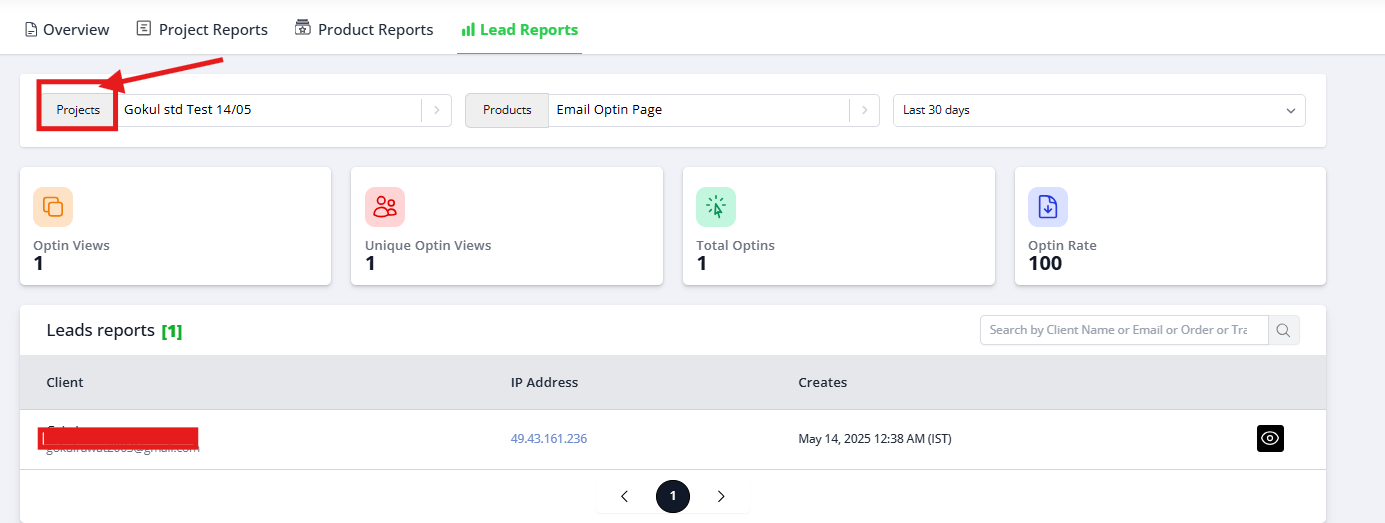
Use the available filters to narrow the report and analyze a specific campaign, page, or reporting period.
- Project Selection: Select the project for which you want to view lead data. This is useful when you manage multiple campaigns or initiatives.
- Page Selection: Select the specific page from which the lead data was collected. Use this to compare landing pages and opt-in forms.
- Date Range: Choose the period you want to analyze. This allows you to compare performance across different dates.
Search Customer Data
Use the search field to find customers or leads by name or email address. This is helpful when you need to review the activity or submission details of a specific contact.
Configure the Correct Page Type
Assign the Leads page type to pages designed to capture leads or opt-ins.
- Purpose: Use this page type for pages that contain lead-capture or opt-in forms.
- Examples: Landing pages with opt-in forms and registration pages.
- Tracking: FlexiFunnels uses this classification to track total leads and opt-in rates.
Verify the Configuration
Select the correct project, page, and date range, then confirm that the report displays the expected data. Compare opt-in views, unique views, total opt-ins, and opt-in rate to verify that the report is tracking the intended page.
Search for a known customer by name or email to confirm that individual lead records are available.
Common Scenarios
- Campaign analysis: Select a project and date range to evaluate lead-generation performance.
- Landing-page comparison: Select individual pages to compare opt-in rates.
- Customer lookup: Search by name or email to review a specific lead.
- Conversion optimization: Compare views and opt-ins to identify pages that need improvement.
Best Practices
- Assign the correct page type before collecting lead data.
- Use consistent date ranges when comparing reports.
- Review both total and unique views to understand overall reach.
- Monitor opt-in rate instead of relying only on total submissions.
- Analyze individual pages to identify the strongest lead sources.
- Use customer search when investigating a specific submission.
- Review reports regularly to identify changes in campaign performance.
Before Contacting Support
- Confirm that the correct project is selected.
- Verify that the correct page is selected.
- Check the selected date range.
- Confirm that the page is assigned the Leads page type.
- Refresh the report and repeat the customer search.
Expected Outcome
The Lead Reports section displays accurate opt-in views, unique views, total opt-ins, and opt-in rates for the selected project, page, and date range. You can also find individual customers by name or email and use the results to improve your lead-generation strategy.
Was this article helpful?
That’s Great!
Thank you for your feedback
Sorry! We couldn't be helpful
Thank you for your feedback
Feedback sent
We appreciate your effort and will try to fix the article