What is a Bundle?
A Bundle is a group of video lessons that students get access to after purchasing a specific product. Bundles let you control exactly what content unlocks for each pricing tier — without linking a bundle to your product, students will pay but get no content.
Before You Start
- You must have already uploaded your video lessons into the Membership Project (Bundles only group existing content — they don't create new lessons)
- You'll need a corresponding Membership Product set up to link the bundle to later
Steps to Create a Bundle
Step 1: Open Your Membership Project
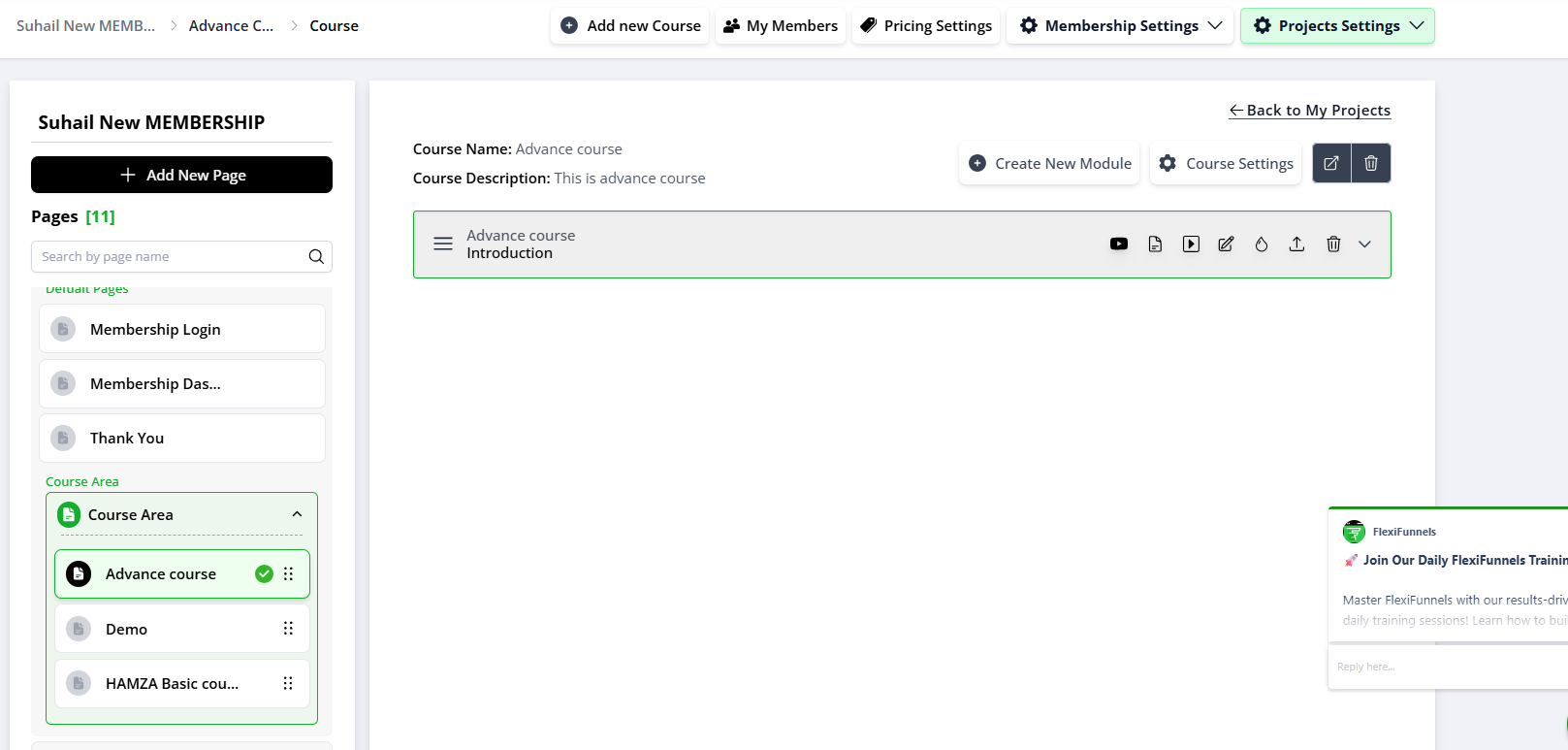
Go to your dashboard and open the Membership Project where you want to create the bundle.
Step 2: Go to Pricing Settings
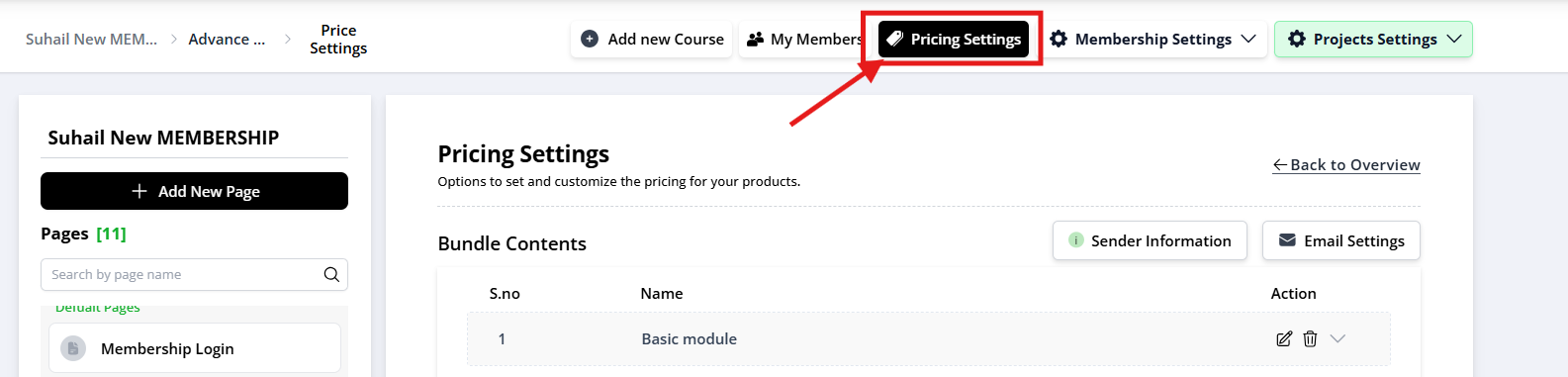
Inside your Membership Project, navigate to the Pricing Settings tab from the left-hand menu.
Step 3: Click on "Add Bundle"
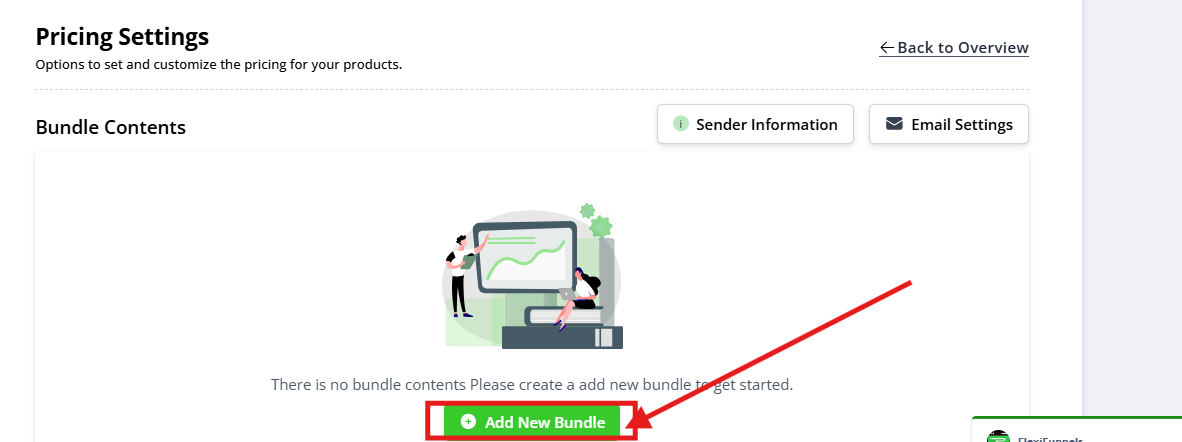
In the Pricing Settings section, you'll find the option to “Add Bundle”.
Click on it to start creating a new bundle.
Step 4: Create the Bundle
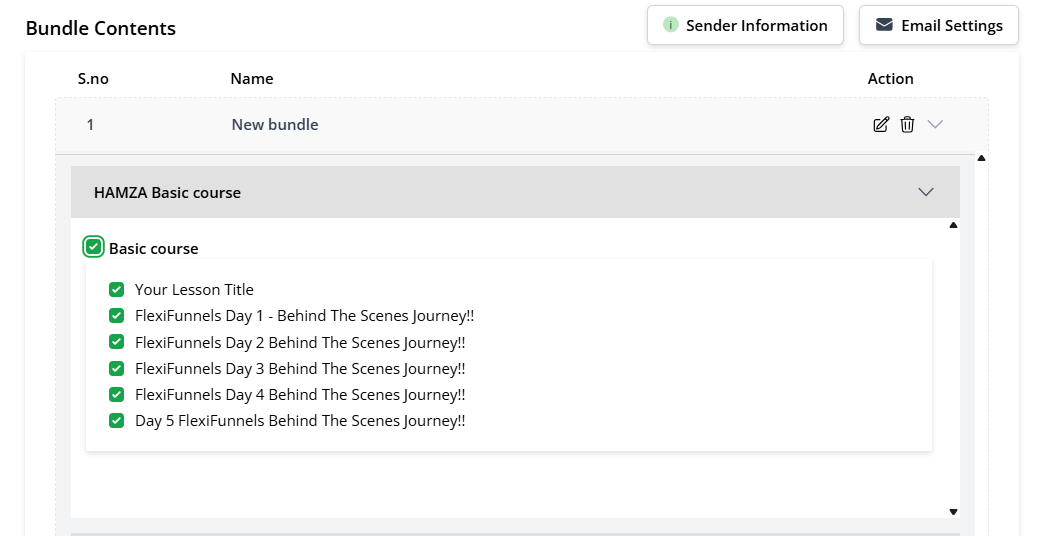
Give your bundle a name (e.g., "Complete Digital Marketing Course").
Inside the bundle, add the video lessons you have already uploaded in the Membership Project.
You can arrange the lessons in the desired order and group them into modules or sections if needed.
Step 5: Use the Bundle in Product Setup
Once your bundle is created, you need to connect it to your Membership Product.
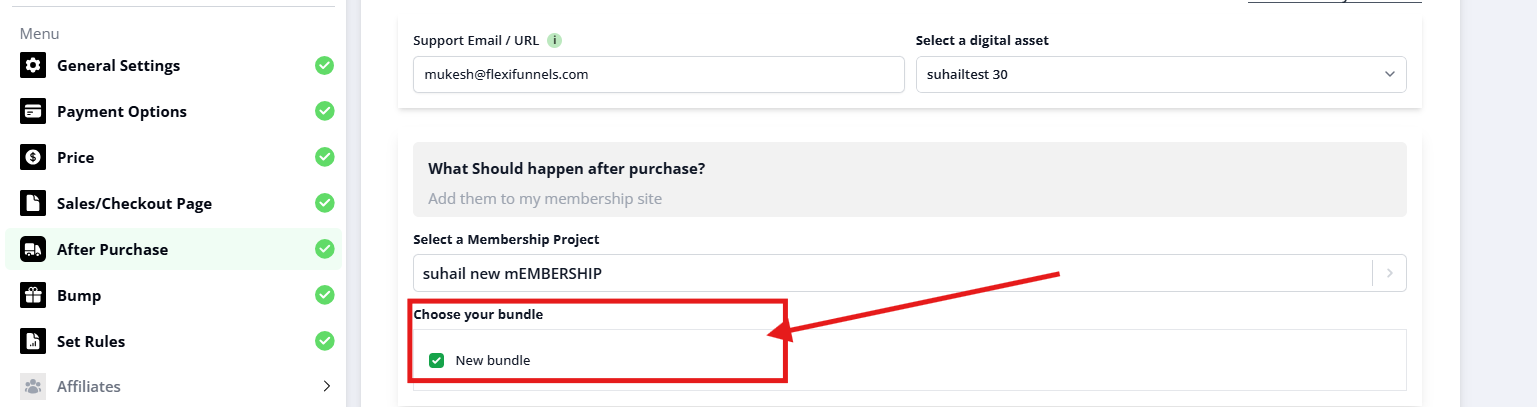
Go to the Product tab → open the respective Membership Product.
Under the “After Purchase” settings:
Select “Choose Membership Project”.
Then, select the Bundle you just created.
Save the changes.
? Final Tip:
Without linking the correct bundle, students won’t get access to the actual course content—even after purchasing the product. So, this is a must-do step for a successful course launch.
Real-World Scenario: Multiple Tiers
Goal: Sell two pricing options for the same course.
| Bundle Name | Includes | Linked Product | Price |
|---|---|---|---|
| Full Access | Module 1, 2, 3, 4 | "Complete Course" | $97 |
| Starter | Module 1 only | "Starter Course" | $27 |
Setup:
- Create Bundle "Full Access" → select all 4 modules → Save
- Create Bundle "Starter" → select only Module 1 → Save
- Link "Full Access" bundle to the $97 product
- Link "Starter" bundle to the $27 product
Result: A customer who buys the $27 product only gets Module 1. A customer who buys the $97 product gets everything.
Common Issues & Fixes
| Problem | Likely Cause | Fix |
|---|---|---|
| Student purchased but sees no content | Bundle was never linked to the product in "After Purchase" settings | Go to Product → After Purchase → confirm a bundle is selected and saved |
| Student sees content from the wrong tier | Wrong bundle linked to the product | Double-check which bundle is attached to which product |
| New lessons don't appear for existing bundle owners | Lessons were uploaded after the bundle was created and weren't added to it | Edit the bundle and manually add the new lesson/module |
| Bundle shows empty / no lessons | Lessons weren't selected during bundle creation | Edit the bundle and check the boxes for the lessons you want included |
Was this article helpful?
That’s Great!
Thank you for your feedback
Sorry! We couldn't be helpful
Thank you for your feedback
Feedback sent
We appreciate your effort and will try to fix the article