What You're About to Build (The Simple Version)
Think of your course structure like a bookshelf:
YOUR COURSE (the bookshelf)
├─ MODULE 1: Foundations (the first book)
│  ├─ Lesson 1: Introduction (Chapter 1)
│  ├─ Lesson 2: Core Concepts (Chapter 2)
│  └─ Lesson 3: Practice Exercise (Chapter 3)
├─ MODULE 2: Intermediate (the second book)
│  ├─ Lesson 1: Building Skills (Chapter 1)
│  ├─ Lesson 2: Real-World Application (Chapter 2)
│  └─ Lesson 3: Case Study (Chapter 3)
└─ MODULE 3: Advanced (the third book)
   ├─ Lesson 1: Expert Strategies (Chapter 1)
   └─ Lesson 2: Q&A (Chapter 2)
This guide walks you through building this structure.
Key Concepts (Before You Start)
What's a Module?
A module is a major section of your course (like a book chapter or course unit).
Examples:
- "Module 1: Email Fundamentals"
- "Week 2: Advanced Copywriting"
- "Section 3: Automation Strategies"
Module = grouping concept — helps students organize their learning journey.
What's a Lesson?
A lesson is a single teaching unit within a module (like a section in a chapter).
Examples:
- "Lesson 1: Setting Up Your Email Account"
- "Lesson 2: Writing Compelling Subject Lines"
- "Lesson 3: Testing & Optimization"
Lesson = individual video + description + resources
Why Structure Matters
BAD STRUCTURE:
  50 videos with no organization
  Result: Students feel lost, don't know where to start ❌

GOOD STRUCTURE:
  3 modules, 15 lessons total, clear progression
  Result: Students see clear path from beginner to expert ✅
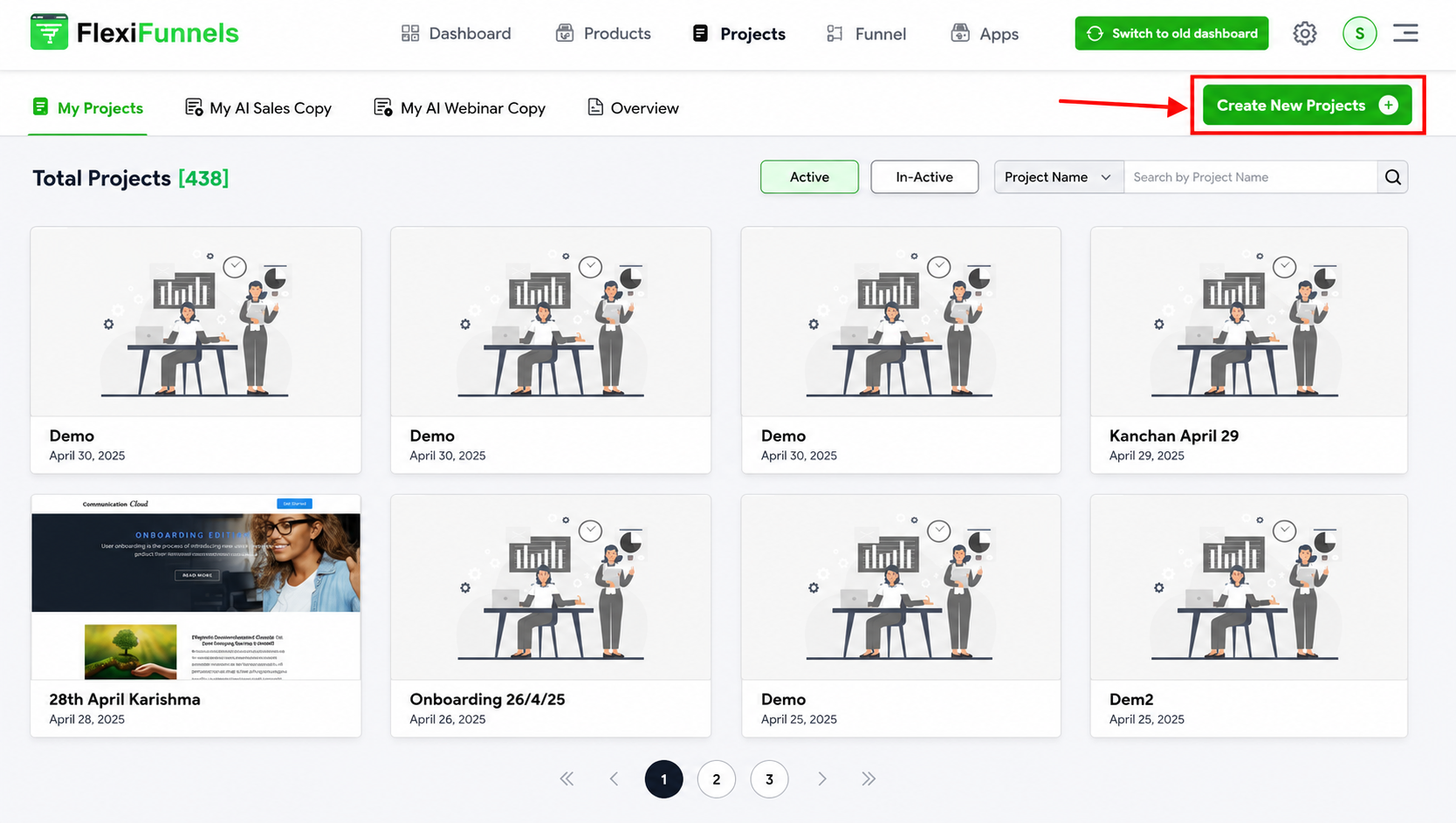
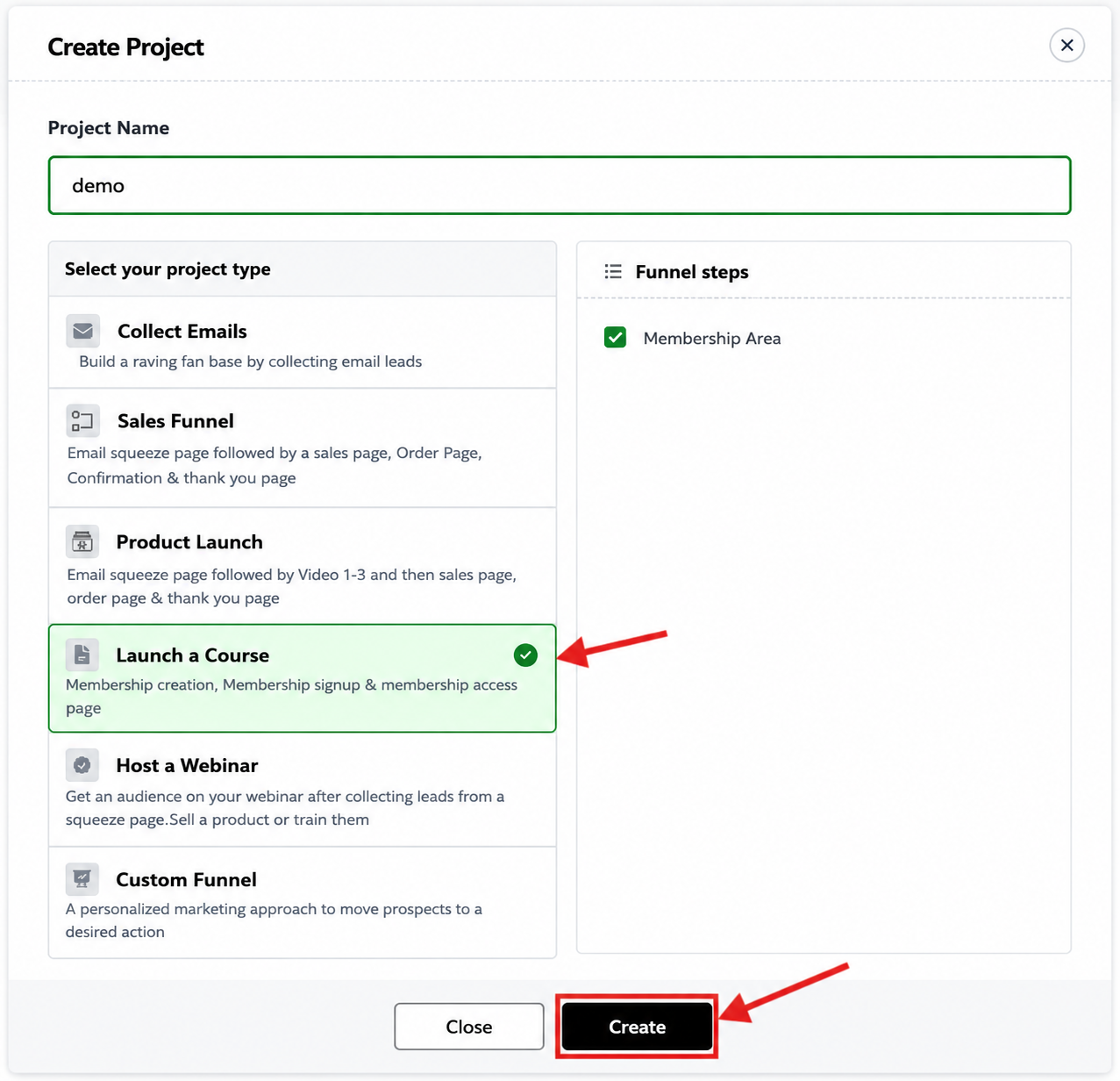
Step 1: Open Your Membership Project
- Log into FlexiFunnels
- Click Projects in the left sidebar
Step 2: Find the "My Learning" or "My Course Area"
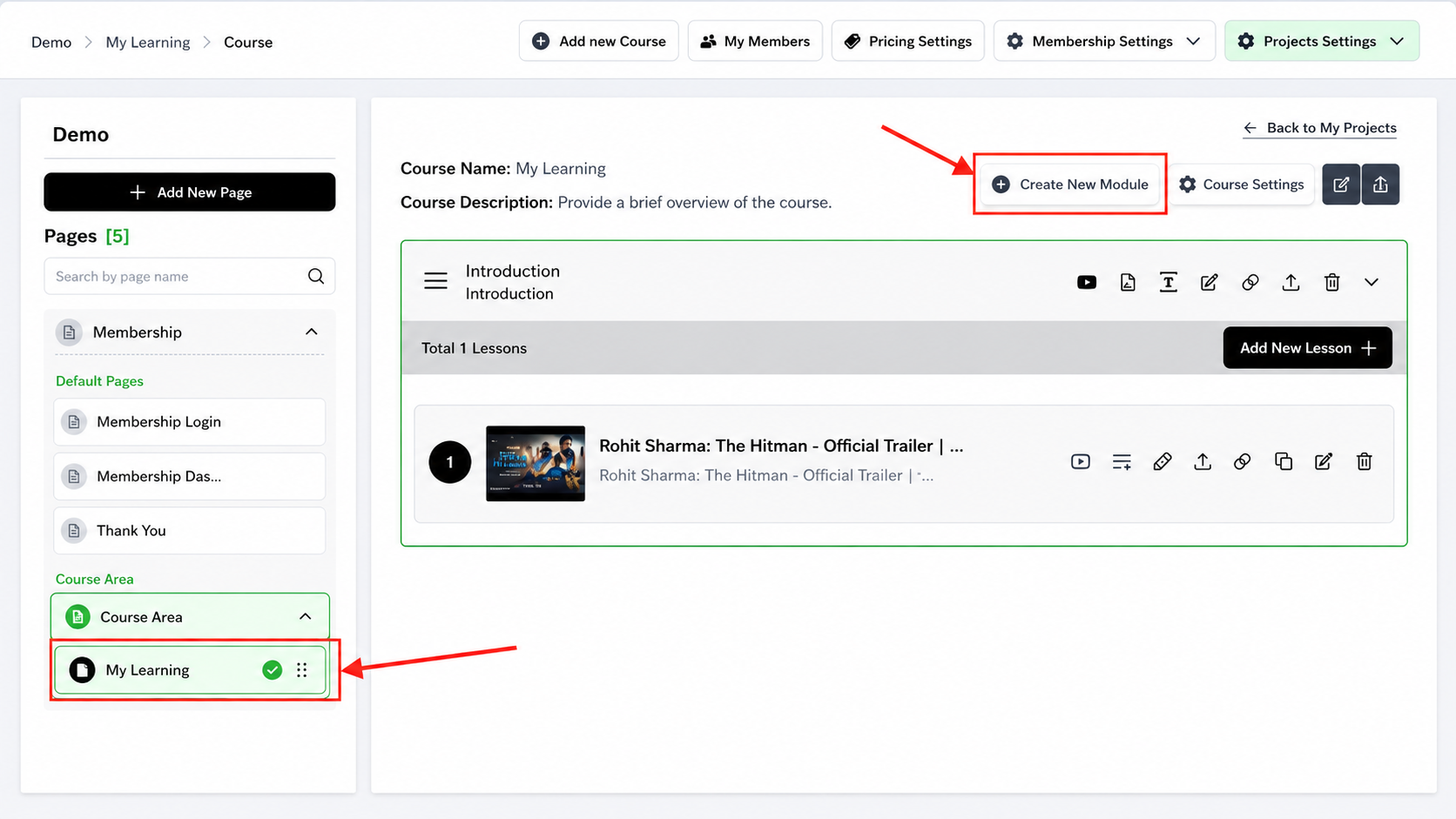
Inside your project, you'll see several tabs at the top:
- Overview
- Pages
- My Learning ← Click here
- Settings
- Members
Click My Learning to access your course content area.
What you'll see:
- Empty list (if new project)
- Or existing modules (if you started building)
- + Add Module button
Step 3: Understand Module Naming & Organization
Before creating modules, plan how you'll structure your course.
Module Naming Convention
Good module names:
Module 1: Email Fundamentals
Module 2: Advanced Copywriting
Module 3: Automation & Scaling
Bad module names:
Content 1
Things You Need to Know
Stuff
Use this format:
Module [NUMBER]: [TOPIC NAME]

Number: Sequential (1, 2, 3, not random)
Topic: Clear, descriptive (what will students learn?)
How Many Modules Should You Have?
Recommended:
- Minimum: 1 module (small course)
- Typical: 2–4 modules (standard course)
- Maximum: 6–8 modules (comprehensive program)
Why?
- 1 module feels incomplete
- 2–4 modules = good progression from beginner to expert
- 5+ modules = students overwhelmed, completion rates drop
Module Order
Modules are displayed in the order you create them. First module = students start here.
Logical progression:
Module 1: Foundations (basics everyone needs)
Module 2: Building Skills (apply the basics)
Module 3: Advanced (optional, for power users)
Step 4: Create Your First Module
Click "+ Add Module"
In the My Learning section, you'll see a + Add Module button.
Click it.
A form appears with fields for:
- Module Name (e.g., "Module 1: Email Fundamentals")
- Module Description (what students will learn)
- Module Order (1, 2, 3, etc.)

Step 5: Add Your First Lesson to the Module
Click on Your Module
In the My Learning list, click on your module name (e.g., "Module 1: Email Fundamentals").
The module opens and shows:
- Module description
- Empty lesson list
- + Add Lesson or + Create Lesson button

Step 6: Add a Video to Your Lesson
6.1 Find the Video Section
You're back on your lesson page. Look for a section labeled:
- Video
- Add Video
- Video Content
Click + Add Video or Choose Video.

Step 6: Choose How You Want to Add the Video
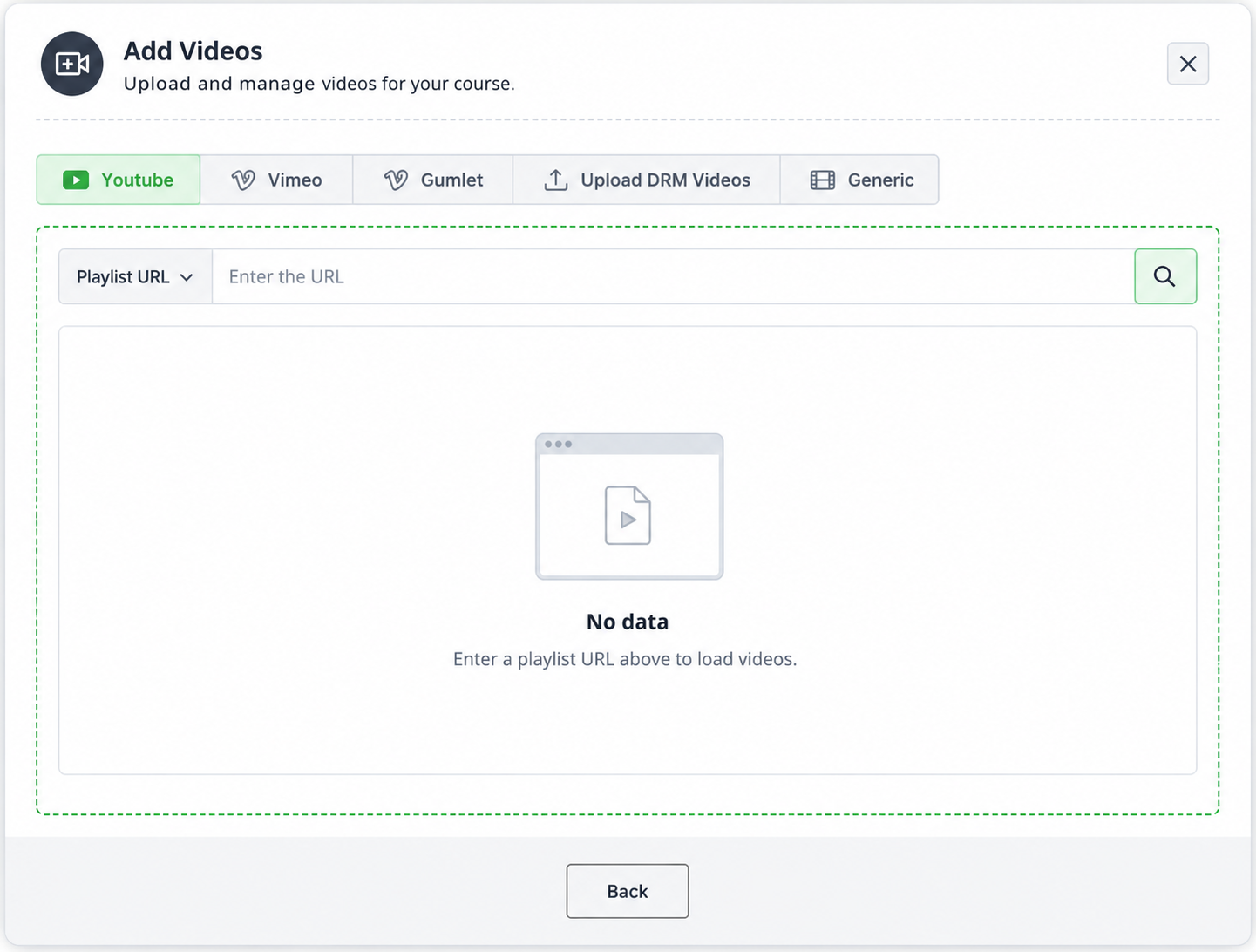
Once you click “Add Video,” you’ll see different ways to bring your video in.
You can choose from these options:
YouTube – If your video is on YouTube, just add the link.
Vimeo – If your video is on Vimeo, paste the link here.
Gumlet – If you use Gumlet, use that link.
Upload (DRM) – You can upload a video from your computer (this keeps it protected).
Generic Link – If you have the video somewhere else, use this option.
Quick Decision Matrix
| Scenario | Choose |
|---|---|
| Video already on YouTube, want simple | YouTube |
| Want professional, private course | Vimeo |
| Want complete control & security | Upload (DRM) |
| Using specialized platform (Wistia, Loom, etc.) | Generic Link |
| Premium course, need best performance | Gumlet |
Step 8: Verify Video Was Added
- After selecting your video source and confirming, you're back on the lesson page
- You should see a video preview or video player showing your video
- Play the video to verify it loads and plays correctly
If video doesn't load:
- Check your URL (copy-paste from correct location)
- Verify video is public (not private/unlisted)
- Try a different video source
- Wait 5 minutes (sometimes processing takes time)
Step 9: Add Lesson Description & Metadata
After your video is added, fill in additional details:
Lesson Description
What students will learn in this lesson (2–3 sentences).
Example:
In this lesson, you'll discover what email marketing is, why it's the highest-ROI channel, and what we'll cover in this course. You'll leave with a clear understanding of your journey from beginner to expert.Duration (Optional)
How long the lesson takes (helps students plan time).
Example: "8 minutes"
Resources (Optional)
Downloadable files, templates, worksheets.
- Click + Add Resource or Attach File
- Upload a PDF, Excel, template, etc.
- Students see it when viewing the lesson
Step 10: Save Your Lesson
After filling in all details, click Save Lesson.
✅ Your lesson is now saved with its video.
Step 11: Add More Lessons to This Module
Repeat Steps 5–10 to add additional lessons to the same module.
Example workflow:
Module 1: Email Fundamentals
├─ Lesson 1: What is Email Marketing? (added ✓)
├─ Lesson 2: Building Your Email List (add now)
├─ Lesson 3: Choosing an Email Service (add next)
└─ Lesson 4: Sending Your First Campaign (add last)
Step 12: Create Additional Modules
Once Module 1 is complete, create Module 2:
- Go back to My Learning (click the tab)
- Click + Add Module
- Fill in Module 2 details
- Click Create Module
- Click on Module 2
- Add lessons (repeat Steps 5–10)
Repeat for Module 3, 4, etc.
Best Practices for Modules & Lessons
Lessons Per Module
Recommended:
Module 1: 3–5 lessons (foundational)
Module 2: 4–6 lessons (intermediate)
Module 3: 3–5 lessons (advanced/optional)

Total per course: 10–16 lessons
Why?
- 1–2 lessons = feels incomplete
- 3–6 lessons = good depth without overwhelm
- 7+ lessons = students get lost, completion drops
Video Length Per Lesson
Ideal:
5–15 minutes = optimal completion rateBreakdown:
- 3–5 min: Quick tip (too brief, feels rushed)
- 5–10 min: Sweet spot (digestible, completion high)
- 10–15 min: Acceptable (still engaging)
- 15–30 min: Pushing it (students lose focus)
- 30+ min: Abandoned (except live workshops)
Lesson Naming
Good lesson names:
Lesson 1: What is Email Marketing?
Lesson 2: Building Your Email List (5 Strategies)
Lesson 3: Choosing an Email Service Provider
Bad lesson names:
Lesson 1
Content
Video 1
Pattern:
Lesson [#]: [SPECIFIC TOPIC]Module Ordering
Modules should follow a logical progression:
Module 1: Foundations (what everyone needs to know)
Module 2: Intermediate (build on foundations)
Module 3: Advanced (optional, for power users)
Never do:
- Random order
- Most difficult first
- Advanced before basics
Optional: Add Drip Feed (Release Lessons on Schedule)
What is drip feed? Lessons unlock on a specific date instead of being immediately available.
Example:
Student purchases on Day 1:
  Module 1 available immediately
  Module 2 available 7 days later
  Module 3 available 14 days later
How to Set Drip Feed on a Lesson
- Click on your lesson to edit it
- Find Drip Feed Settings or Release Settings
- Toggle ON
- Choose:
- Immediate (available now, no drip)
- After X Days (e.g., 7 days after purchase)
- On Specific Date (e.g., Jan 15, 2027)
- Save
When to use drip feed:
- ✅ Keep students engaged (new content each week)
- ✅ Prevent overwhelm (one module at a time)
- ✅ Accountability (cohort-based progression)
When NOT to use:
- ❌ Self-paced courses (students prefer all-at-once)
Optional: Add Captions & Transcripts
Why add captions?
- ✅ Accessibility (deaf/hard of hearing students)
- ✅ SEO (search engines index text)
- ✅ Engagement (students follow along better)
How to Add Captions
If using YouTube: YouTube auto-generates captions (usually free) If using Vimeo: Can auto-generate or upload manually If using Upload (DRM): Upload subtitle file (SRT format)
Testing Your Modules & Lessons
Test Before Going Live
- Login as a student (create a test member)
- View each module
- Does the module appear?
- Is the description correct?
- Are lessons in the right order?
- Click into each lesson
- Does the lesson description appear?
- Does the video load and play?
- Can you skip/pause the video?
- Test on mobile
- Does video resize properly?
- Are buttons clickable?
- Text readable?
Common Issues & Quick Fixes
❌ "Video won't load"
Diagnostic:
- Is the URL correct? (copy-paste again)
- Is the video public? (not private/unlisted on YouTube/Vimeo)
- Is the video still available? (check if it was deleted)
- Try a different video source (YouTube → Vimeo)
❌ "Lesson doesn't appear in the module"
Fix:
- Go to edit the lesson
- Verify the lesson is saved (not in draft)
- Verify it's assigned to the correct module
- Verify the lesson order is set (1, 2, 3, not blank)
- Re-save the lesson
❌ "Module is empty (no lessons showing)"
Fix:
- Go into the module
- Click + Add Lesson
- Create a lesson (repeat Steps 5–10)
- Save the lesson
- Module now shows the lesson
❌ "Video plays but has no sound"
Check:
- Is your video file OK? (play it outside FlexiFunnels)
- Check volume on your computer
- Try another lesson's video (test if it's the video or the player)
- Try different browser or device
Was this article helpful?
That’s Great!
Thank you for your feedback
Sorry! We couldn't be helpful
Thank you for your feedback
Feedback sent
We appreciate your effort and will try to fix the article