Retargeting is how you show ads to people who already visited your page. Think of it like a friendly shop assistant who remembers someone browsed your store — so later, when that person is walking around the internet, they see a little reminder about you.
To make that work, your ad or analytics platform (Facebook/Meta, Google, TikTok, etc.) gives you a small piece of code — often called a pixel or tag. You paste that code into your page, and it quietly reports back who visited. This guide shows you exactly where to paste it, how to make it go live, and how to check that it's actually working.
? What counts as "retargeting code"? Facebook/Meta Pixel, Google Analytics (GA4), Google Tag Manager, Google Ads tags, TikTok Pixel, LinkedIn Insight Tag — any tracking or pixel snippet a platform hands you goes in here.
Step-by-Step Guide
Step 1 — Go to Your Projects
From your FlexiFunnels dashboard, open the “Projects” section, and find the project that contains the landing page you want to track.
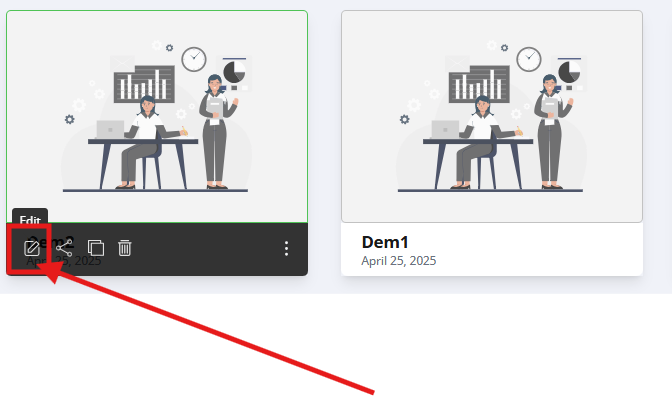
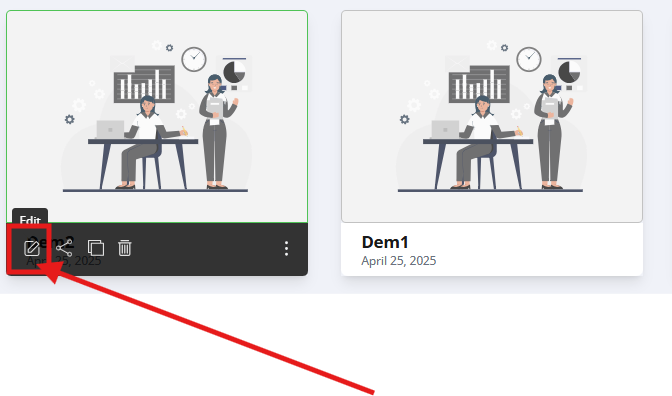
Step 2 — Edit Your Landing Page
- Click “Edit” on the project.
- Find the specific landing page and click its “Edit” option to open the page editor.
Step 3 — Open Page Settings → Retargeting
- Inside the editor, click the Gear Icon (⚙️) at the top — this opens the Page Settings panel.
- Select the “Retargeting” option from the menu.
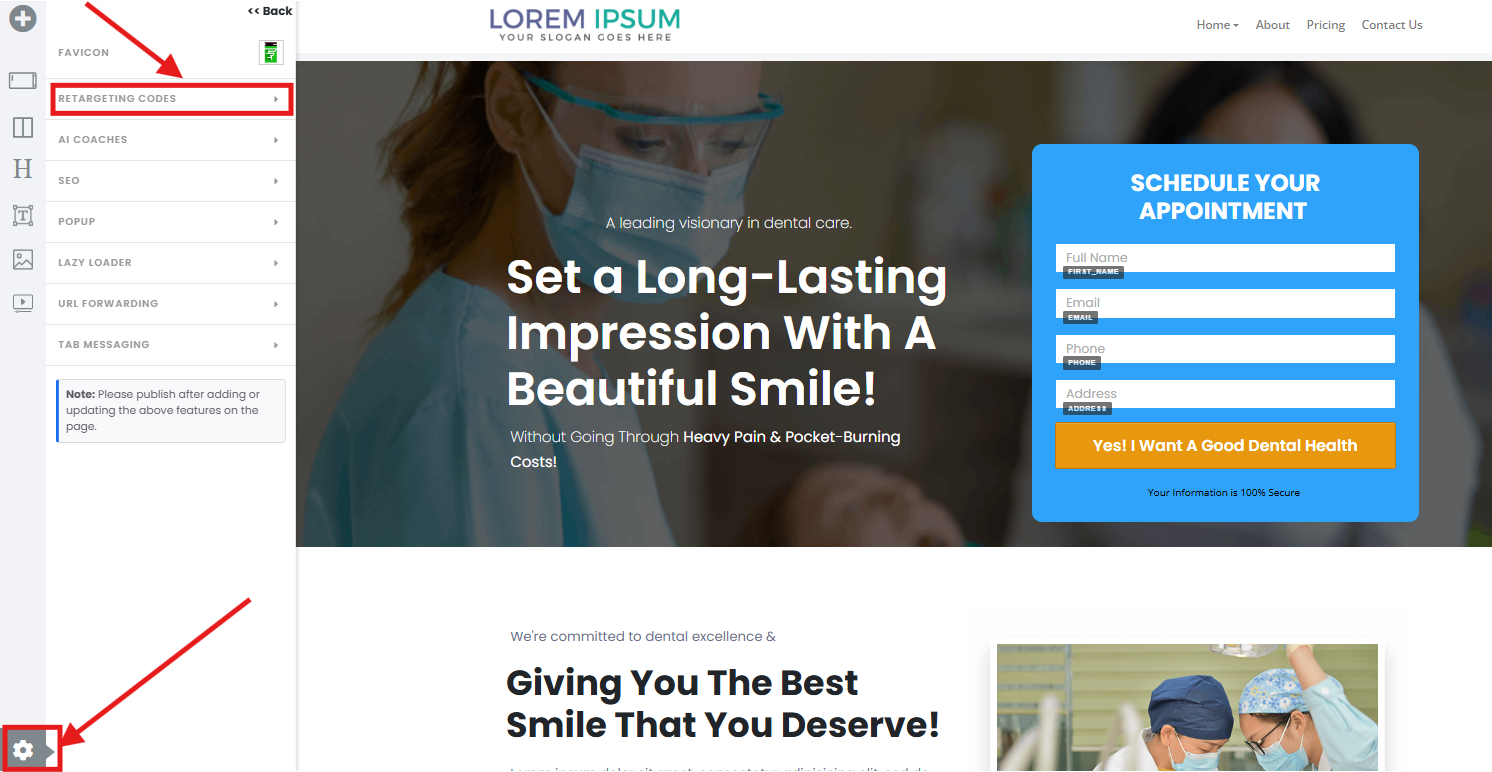
? Note: this is the top gear icon (whole-page settings) — not an element's gear. This code applies to the page, not to one block on it.
Step 4 — Paste Your Code Into the Right Field
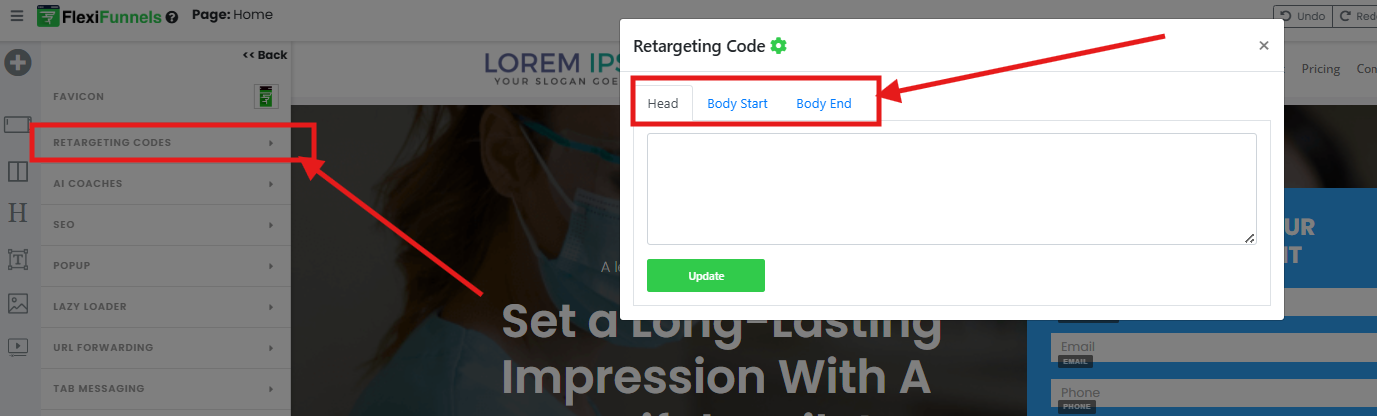
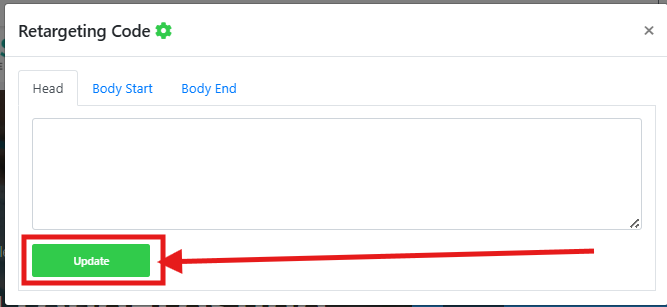
You'll see three fields. The big question everyone has is which one do I use? Here's the simple rule:
- Head — this is the right answer for almost everything. Meta/Facebook Pixel, Google Analytics (GA4), the Google tag, TikTok Pixel, LinkedIn Insight Tag — when a platform says "paste this in the
<head>of your site," it goes here. When in doubt, use Head. - Body Start — only for code the platform specifically says belongs right after the opening
<body>tag. The most common example is the Google Tag Manager<noscript>snippet (see the GTM note below). - Body End — for code the platform says should load last, after the page content.
➡️ Paste your code into the matching field(s).
⚠️ Paste the WHOLE snippet, exactly as given. Copy the entire block from your platform — including the opening and closing
<script>…</script>tags — and don't edit or retype any of it. One missing character and the pixel won't fire.
? Google Tag Manager has two parts. GTM gives you a
<script>block and a<noscript>block. Put the<script>part in Head, and the<noscript>part in Body Start. Both are needed.
Step 5 — Save, Then Publish
- Click “Update” to save the code into your page settings.
- Publish (or re-publish) the page.
⚠️ "Update" saves it — but the code only runs on the published, live page. It does not fire in the editor or the editor preview. If your page was already live, you must re-publish for the new code to take effect. Then test on the real page URL.
How to check it's actually working (do this before assuming it's broken)
Don't guess — verify. These free tools tell you in seconds whether your pixel is firing on the live page:
- Meta/Facebook Pixel → install the Meta Pixel Helper Chrome extension, open your live page, and click the icon. A green check means it's firing.
- Google (GA4 / Google Ads / GTM) → use Google Tag Assistant (tagassistant.google.com) and enter your live page URL.
If the tool shows your pixel on the live page, it's working — even if the platform's own dashboard takes a few hours to show data.
Important: this code is added per page
In FlexiFunnels, the retargeting code you add here applies to this one landing page only. If you want the same pixel on every page of your funnel:
- Add it to each page individually (repeat Steps 3–5), or
- Use the General Code option to insert your pixel across all pages of the funnel at once — see How to Add General Code in FlexiFunnels (For All Pages in One Go).
? For Membership projects and their Thank You pages, retargeting is added in a different place — see How to Add Retargeting Codes in Membership and Tracking Code in Membership Thank You Page.
Common Situations & Quick Fixes
Try these first — most "my pixel isn't working" issues are fixed here in a minute.
“I added the code but my pixel isn't firing.”
Walk through this in order:
- Did you click Update and Publish (or re-publish) the page?
- Are you checking the live page URL, not the editor preview?
- Did you paste the entire snippet, including the
<script>…</script>tags, with nothing edited? - Is it in the right field (Head for most pixels)?
- Confirm with Meta Pixel Helper or Google Tag Assistant on the live page.
“It works on this page but not on my other pages.”
Retargeting code added in page settings is per page. Add it to each page, or use General Code to cover the whole funnel at once (linked above).
“My Google Tag Manager isn't tracking.”
GTM has two parts. The <script> goes in Head and the <noscript> goes in Body Start. Missing the <noscript> part is the usual cause.
“Pixel Helper shows the pixel firing, but my ad platform shows no data yet.”
That's normal. The pixel is working; ad/analytics dashboards often take a few hours to populate. Give it time before worrying.
“I pasted the code but it shows an error or breaks my page.”
You may have an incomplete copy (missing a closing tag) or pasted into the wrong field. Re-copy the full snippet from the platform and paste it fresh into Head.
“I need the code on just one specific element, not the whole page.”
That's a different tool — use the Custom Code element instead. See Custom Code Element Settings. (Remember: custom code also only renders on the published page, not in the editor.)
Quick Recap
- Projects → open your project.
- Edit the landing page.
- Top gear ⚙️ → Retargeting.
- Paste the full snippet — Head for almost everything (GTM
<noscript>→ Body Start). - Update, then Publish/re-publish.
- Verify on the live page with Pixel Helper / Tag Assistant.
Related articles
- Retargeting / Tracking Code Settings in a Landing Page
- How to set up Facebook Conversion API (CAPI) in FlexiFunnels
- How to Add General Code in FlexiFunnels (For All Pages in One Go)
- Custom Code Element Settings
Still need help?
If you've published, tested the live URL, and confirmed with Pixel Helper / Tag Assistant and your code still isn't firing, we're glad to help. Please submit a ticket and include:
- The live page URL
- Which platform the code is from (Meta, Google, GTM, etc.)
- Which field you pasted it into (Head / Body Start / Body End)
- A screenshot of Pixel Helper / Tag Assistant showing the result on your live page
That detail lets us pinpoint the issue on the first reply instead of going back and forth.
Was this article helpful?
That’s Great!
Thank you for your feedback
Sorry! We couldn't be helpful
Thank you for your feedback
Feedback sent
We appreciate your effort and will try to fix the article