What Is Row Wrapping?
Row Wrapping controls how columns behave when they don't fit on the screen.
Think of it like arranging boxes on a shelf:
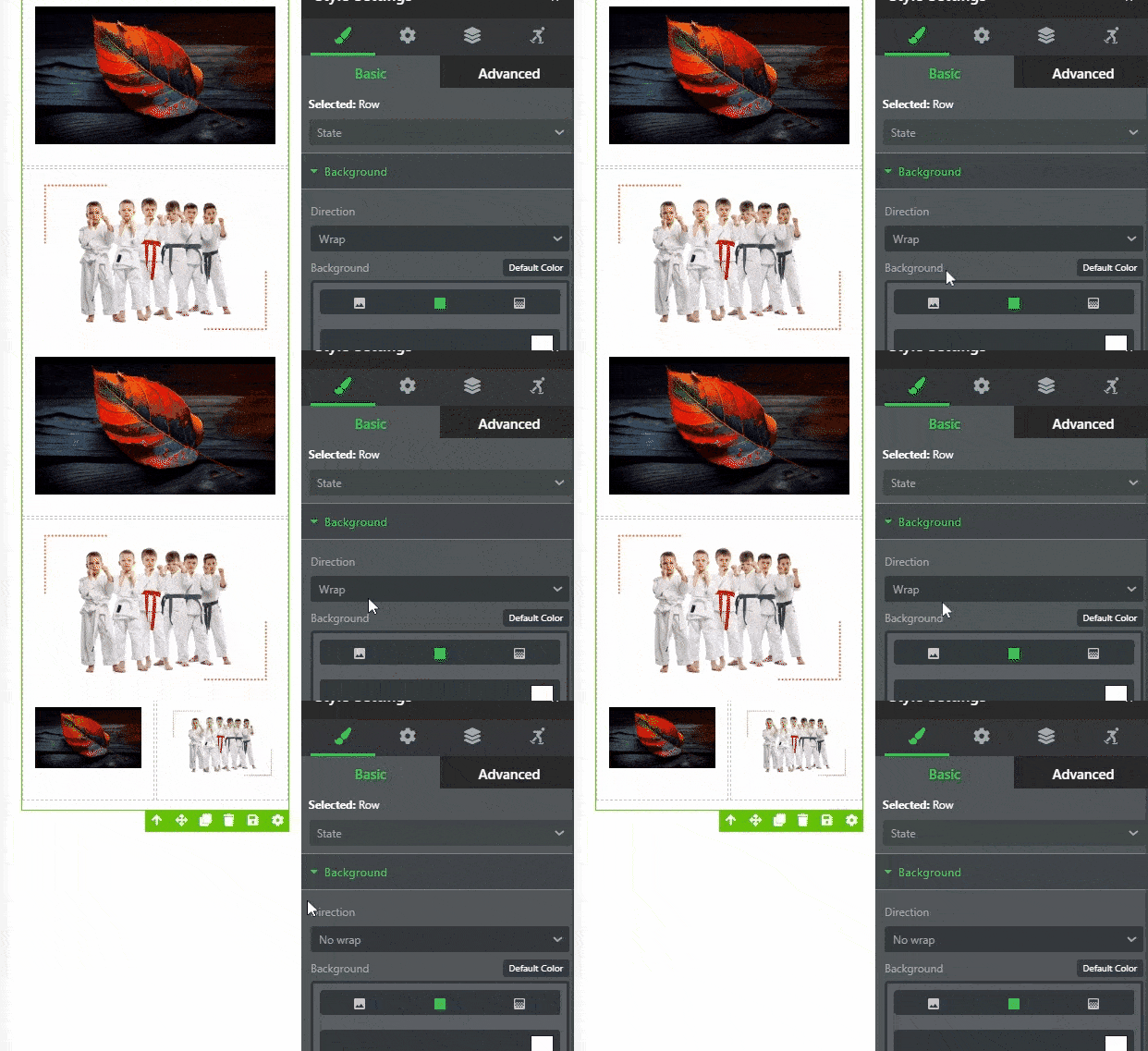
- Wrap → Boxes flow to the next shelf when they don't fit
- No Wrap → Boxes stay on one shelf even if they overflow
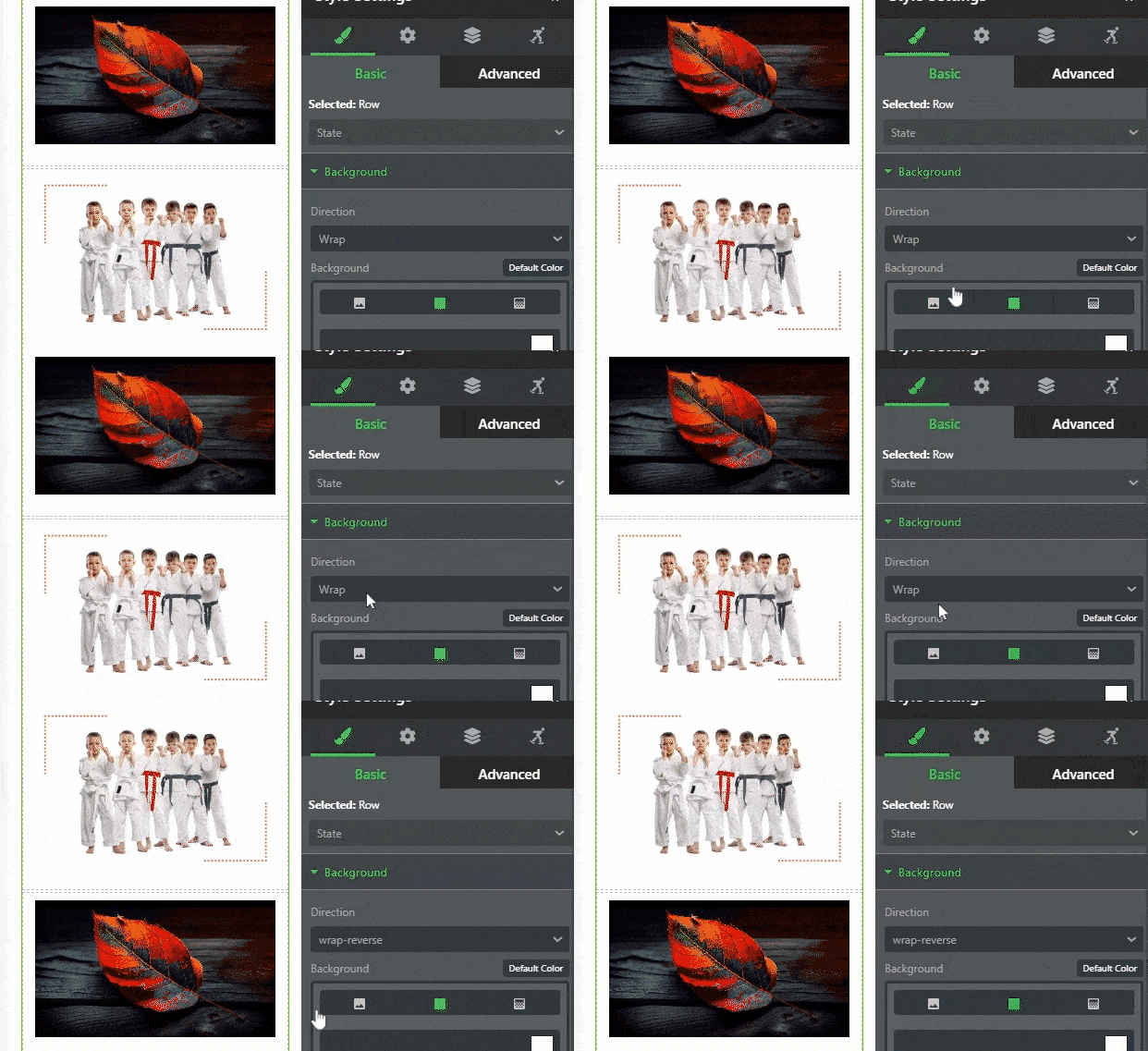
- Reverse Wrap → Boxes flow to next shelf AND reverse their order
Why Wrapping Matters
Mobile responsiveness: ✓ Content stays readable on phones
✓ Columns adjust automatically
✓ Prevents cut-off content
✓ Better user experience
Desktop to mobile: ✓ 3 columns on desktop → 1 column on mobile
✓ 2 columns on desktop → 1 column on mobile
✓ Content reflows based on screen size
Step-by-Step: Change Row Wrapping
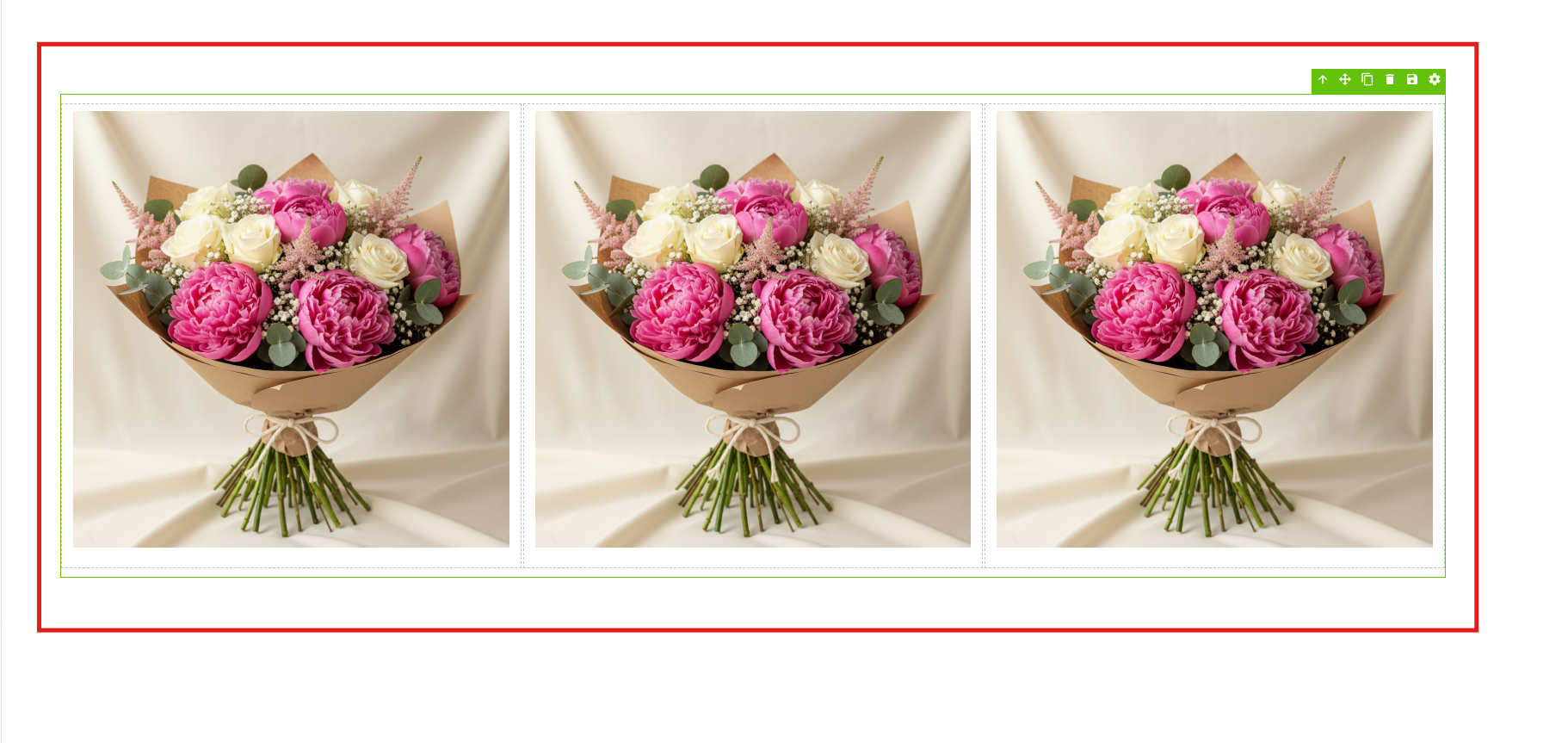
Step 1: Create a Row with Multiple Columns
- In your page editor, add a Section
- Inside the section, add a Row with 2+ columns
- Add content to each column
- Example: 3-column layout with images and text
Step 2: Select the Row
- Click directly on the row itself (not the content inside)
- The row highlights/borders appear
- You know it's selected when the entire row container is selected
Tip: If you select a single column or element instead, click outside, then click on the row container itself.
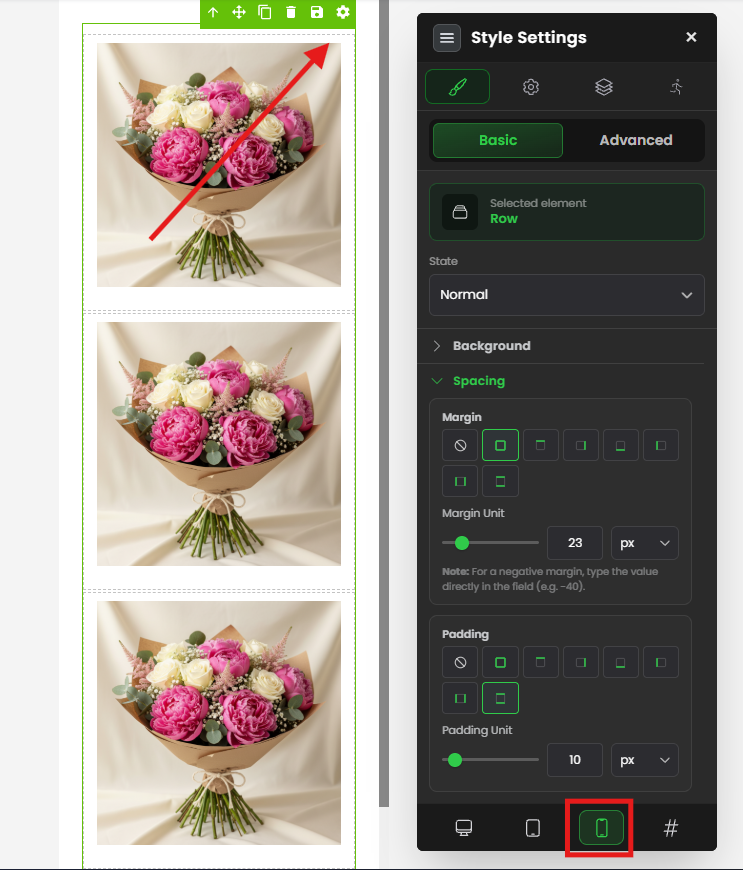
Step 3: Open Row Settings
- With row selected, look for a gear icon ⚙️ or "Settings" button
- Click it
- Settings panel opens on the right side
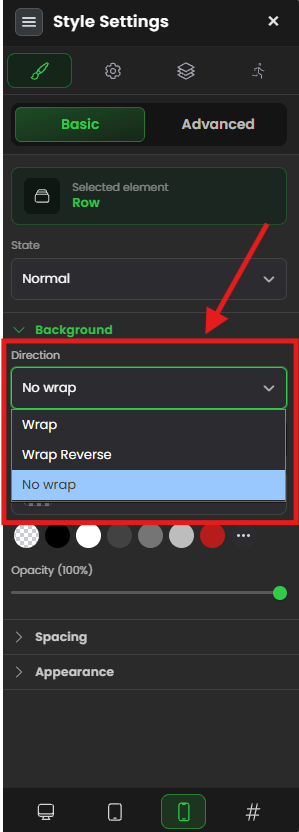
Step 4: Look for Style Settings
- In the settings panel, find the "Style" or "Styling" section/tab
- Click it to expand style options
Step 5: Switch to Mobile Mode
- Look for a "Mobile" option or mode toggle in the settings
- Click it to view mobile-specific settings
- The view changes to show mobile layout options
Why? Wrap/no-wrap/reverse-wrap are typically for mobile responsiveness. Desktop usually keeps columns side-by-side.
Step 6: Find Flex Direction or Wrap Options
- In mobile mode settings, look for:
- "Wrap" / "Flex Wrap" / "Direction"
- "Row Direction" / "Column Direction"
- "Flex Direction" settings
- You should see 3 options:
- Wrap
- No Wrap
- Reverse Wrap
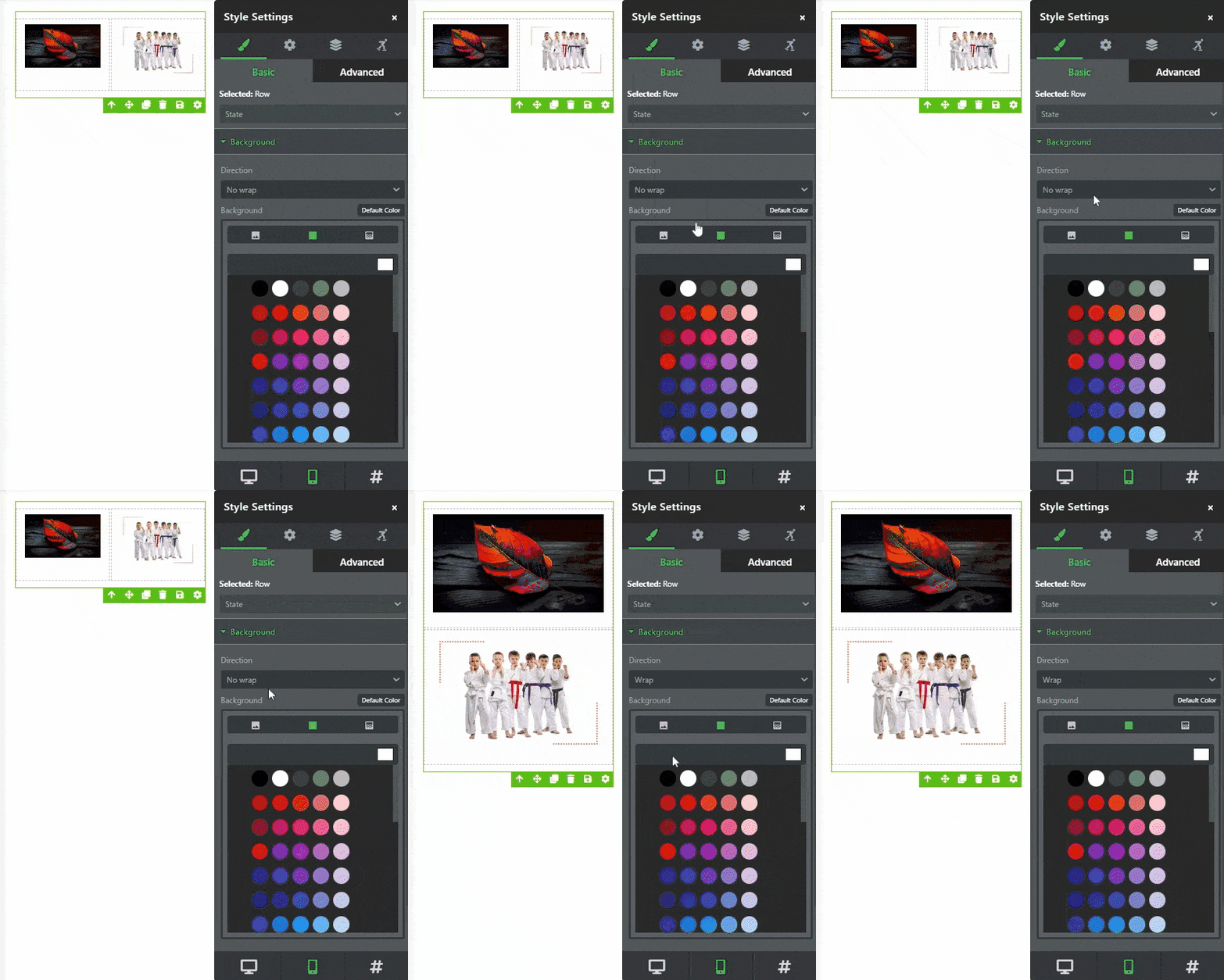
Step 7: Select Your Option
- Click the option that matches your needs
- Default is usually "Wrap" (recommended)
Step 8: Adjust Column Widths (If Needed)
For No Wrap option only:
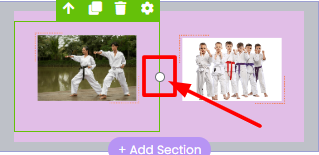
- You'll see small dots on column dividers
- Click and drag a dot to resize columns
- This shrinks columns so they all fit on one line
- Example: Shrink each column from 33% to 20% width
Note: Usually you won't need to resize because "Wrap" handles this automatically.
Step 9: Save/Publish
- Click "Save" or just click outside the settings
- Changes apply
- Publish your page to see live
✓ Wrapping option is now set!
Common Situations & Quick Fixes
Situation 1: "I Set Wrap, But Columns Don't Stack on Mobile"
What's happening: Mobile layout isn't stacking as expected.
Diagnostic steps:
- Verify you're in mobile mode settings
- Did you open mobile-specific settings?
- Not all settings areas have mobile mode
- Make sure you're editing mobile settings
- Check wrap option is selected
- Is "Wrap" actually selected?
- Sometimes it doesn't visually highlight
- Click it again to confirm
- Check page is published
- Test on published page (not editor preview)
- Editor preview may not show mobile behavior
- Publish and visit live URL
- Test on actual mobile device
- Don't just resize browser
- Test on phone or tablet
- Mobile browsers sometimes behave differently
- Clear browser cache
- Clear cookies/cache
- Open in incognito/private mode
- Test again
Situation 2: "No Wrap Is Selected, But Content Still Wraps"
What's happening: You chose "No Wrap," but columns still stack on mobile.
Diagnostic steps:
- Verify No Wrap is selected
- Double-check the setting
- Is it actually "No Wrap"?
- Check column widths
- Columns might still be too wide to fit
- Use the dot to resize smaller
- Make sure total width fits on screen
- Test on actual mobile
- Preview might differ from actual mobile behavior
- Test on real phone
Situation 3: "Reverse Wrap Is Confusing, When Should I Use It?"
What's happening: You're unsure when reverse wrap is needed.
Answer: Most of the time, you don't need it.
Use reverse wrap only if: ✓ Visual order needs to change on mobile
✓ Image should move to bottom on mobile
✓ Specific design pattern requires it
Most layouts: Use regular Wrap
Situation 4: "My Columns Look Different on Desktop vs Mobile"
What's happening: Desktop layout is 3 columns, mobile is 1, and text sizes are different.
This is normal! Multiple things can cause this:
- Row wrapping (what we're setting)
- Column width settings (responsive width)
- Font size adjustments (smaller on mobile)
- Padding/margin adjustments (different spacing)
All combined: Create responsive layouts
Was this article helpful?
That’s Great!
Thank you for your feedback
Sorry! We couldn't be helpful
Thank you for your feedback
Feedback sent
We appreciate your effort and will try to fix the article