The List Group element lets you build a clean, styled list — like a benefits list with checkmark icons ("✓ Lifetime access ✓ 30-day guarantee ✓ Free updates") or a numbered set of steps. Lists like these are everywhere on sales and landing pages because they make your key points easy to scan. This guide covers the two list formats and all the styling options.
Note on adding it first: Like any element, the List Group needs a row with a column to sit in. Drag it in from Components → Elements, then open its settings. To edit the wording, double-click a line and type; add more items as you build the list. (For managing individual lines, see How to use the List item element inside FlexiFunnels.)
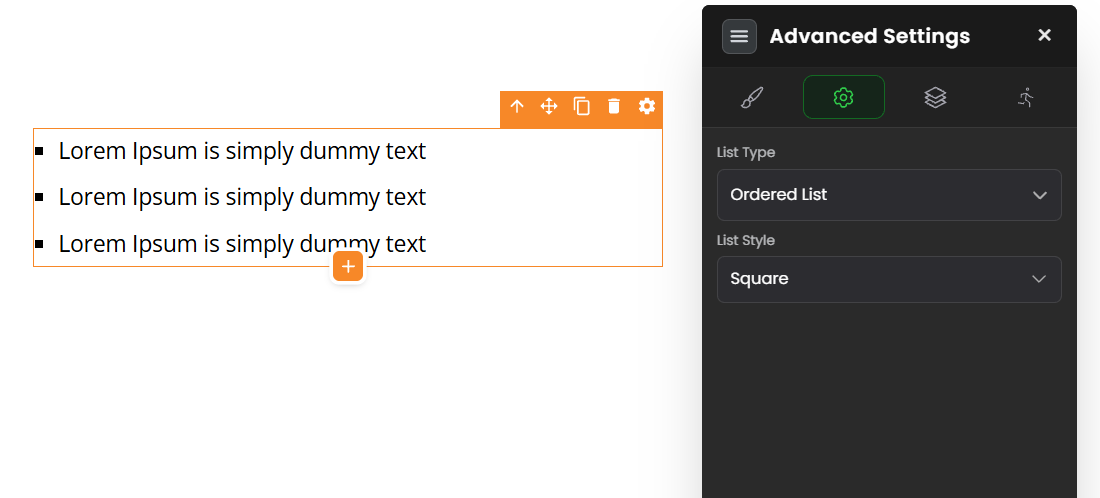
Advanced Settings — choose your list format
This is the first and most important choice. In the List Group's Advanced Settings, set the list format to either an Icon List or an Ordered List:
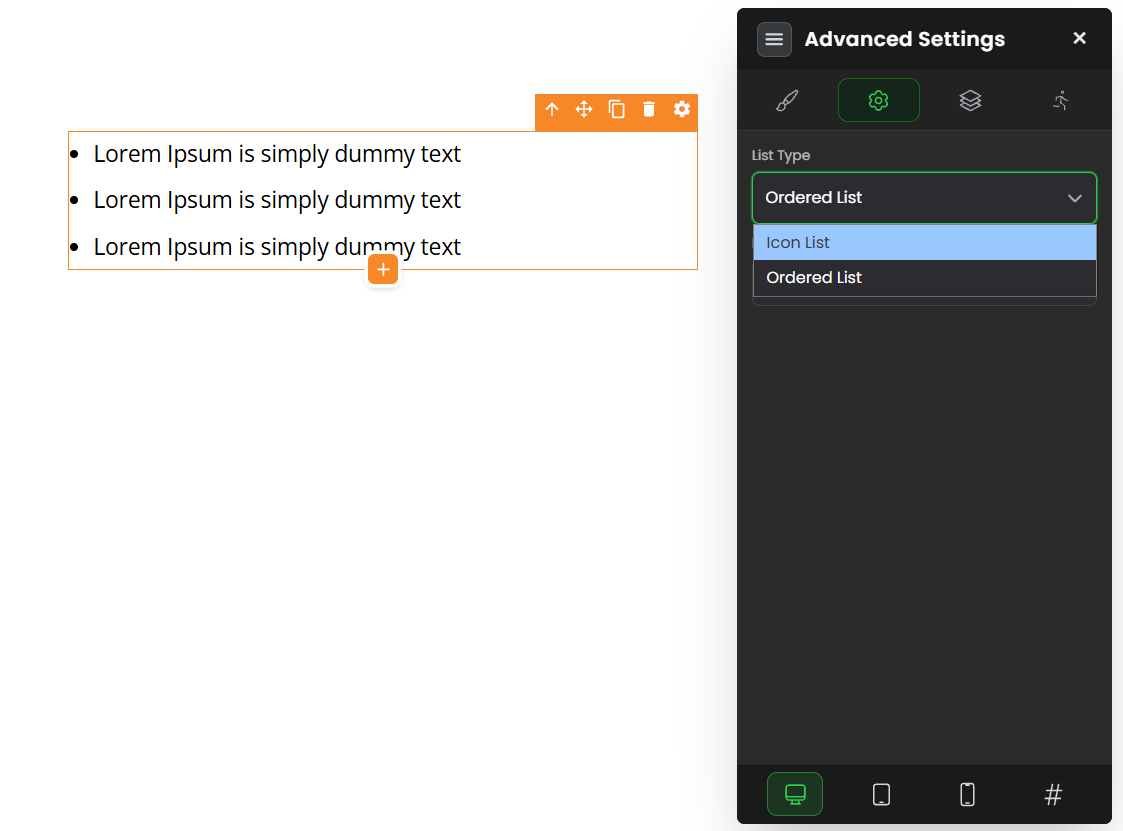
Icon List
Each item begins with an icon (a checkmark, star, arrow, etc.). This is the best choice for benefit and feature lists, where a row of green ticks instantly signals "here's what you get."
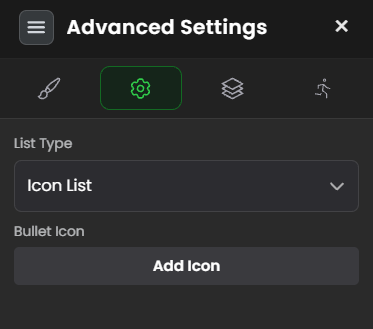
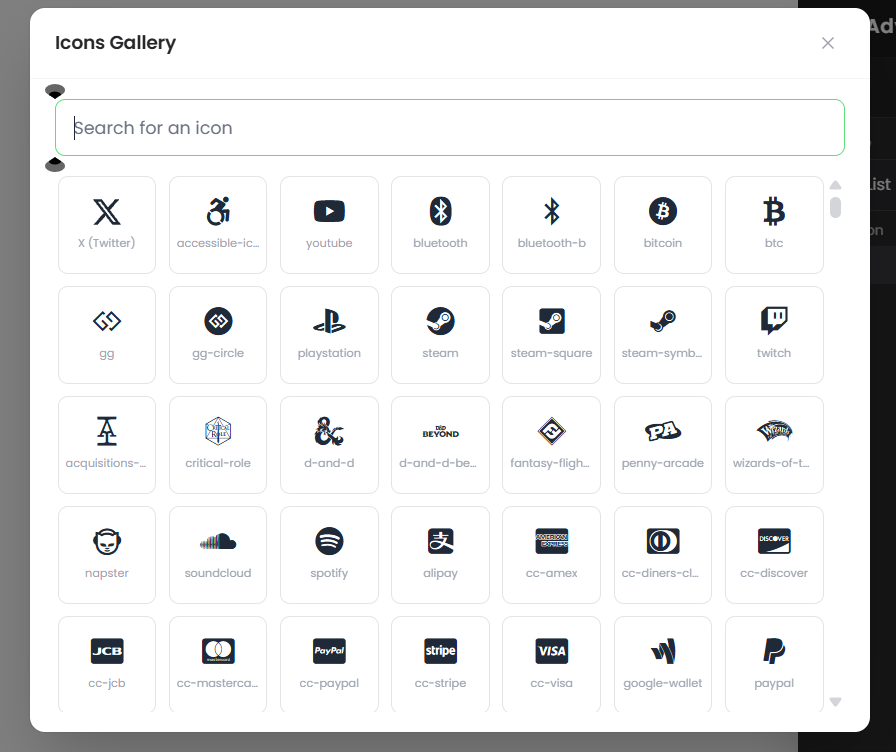
Click the Click Me button to open the icon picker and choose which icon appears before each item.
Ordered List
Each item is marked with a number, bullet, or letter. This is the best choice for steps or ranked items, where order matters.
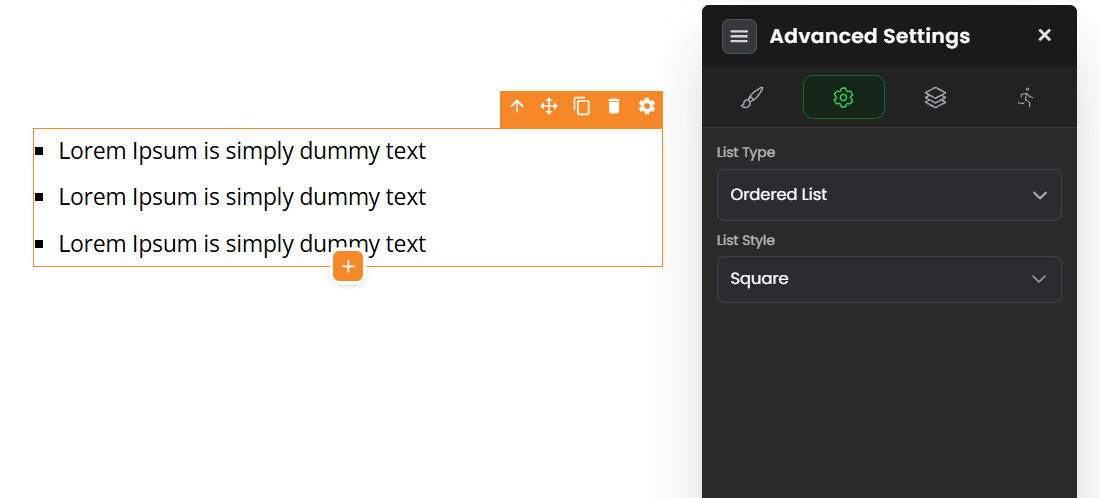
For an ordered list you can set:
- List Style — the marker type: number, bullets, circle, ABC (letters), and more.
- List Style Position — whether the marker sits Outside the text block (the marker hangs in the margin and wrapped lines stay neatly aligned) or Inside (the marker sits inline with the text). Outside usually looks tidier for longer items.
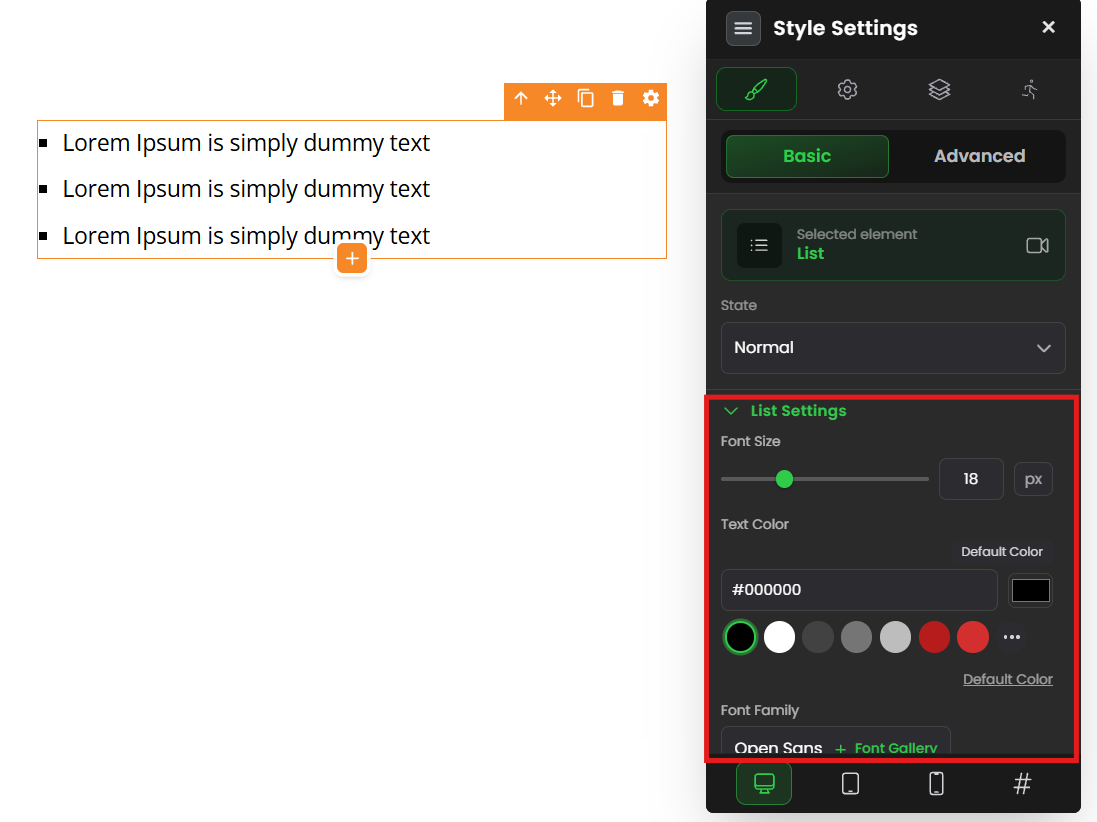
List Settings — styling the icons and text
Icon options (for Icon Lists)
- Icon Size — set it to "Same as text size" (the icon scales with your text — usually the cleanest look) or Custom Size.
- Custom Size — if you chose Custom, set the exact icon size here.
- Icon Distance — the gap between the icon and the text beside it. Adjust it with the green round slider so the icon isn't crammed against the words.
- Icon Color — the color of the icons (e.g. green ticks), from the color palette.
Text options
Font Size — the size of the list text.
Text Color — the color of the words in the list.
Font Family — the font style.
Font Weight — thickness (bold, normal, light).
Letter Spacing — the horizontal space between individual letters.
Line Spacing — the vertical space between lines (useful if multi-line items feel cramped together).
Capitalization — force the text to uppercase, lowercase, or Capitalized.
Common situations & quick fixes
"The List Group element won't drop onto the page." It needs a row with a column to sit in. If your section is empty, add a row first (Plus icon → Components → Rows), then drop the list into a column.
"My list shows numbers/bullets but I want checkmark icons (or vice versa)." The format is set in Advanced Settings. Switch between Icon List and Ordered List there — that's what controls whether each item starts with an icon or a number/bullet.
"I'm on Icon List but no icon is showing." Click the Click Me button and select an icon from the picker. Until you pick one, there's nothing to display before each item.
"The icon is jammed up against the text (or too far from it)." Use the Icon Distance slider (the green round button) to set the gap between the icon and the words.
"My icons look too big or too small next to the text." Set Icon Size to "Same as text size" so they scale with the text, or use Custom Size to dial in an exact size.
"My numbered list looks mis-indented when items wrap to a second line." Try setting List Style Position to Outside — it keeps the marker in the margin so wrapped lines align neatly under the text.
"My list lines feel cramped together." Increase Line Spacing to add vertical room between items, making the list easier to read.
"How do I add more items to the list?" Double-click into the list to edit it and add your lines as you type. For managing individual list items, see How to use the List item element inside FlexiFunnels.
"My changes aren't showing on the live page." Edits need to be saved and published before visitors see them. After editing, save and re-publish if the page is already live.
Still stuck?
If a list won't add, format, or style the way you expect after trying the steps above, submit a ticket and tell us which page you're editing and what you're seeing — a screenshot of your list settings helps us sort it out quickly.
Was this article helpful?
That’s Great!
Thank you for your feedback
Sorry! We couldn't be helpful
Thank you for your feedback
Feedback sent
We appreciate your effort and will try to fix the article