Icons are small symbols — a tick mark, a star, a phone, a social media logo — that add visual interest and meaning to your page. They're great for feature lists (a checkmark beside each benefit), social links, contact buttons, or just breaking up text with a recognizable little image. This guide shows you how to add one and set what it does when clicked.
Note on adding it first: Like any element, the Icon needs a row with a column to sit in. If your section is empty, add a row first, then drop the icon into a column.
Step-by-Step Guide on How to Add Icons to Your Landing Page.
Step 1 — Add the Icon element
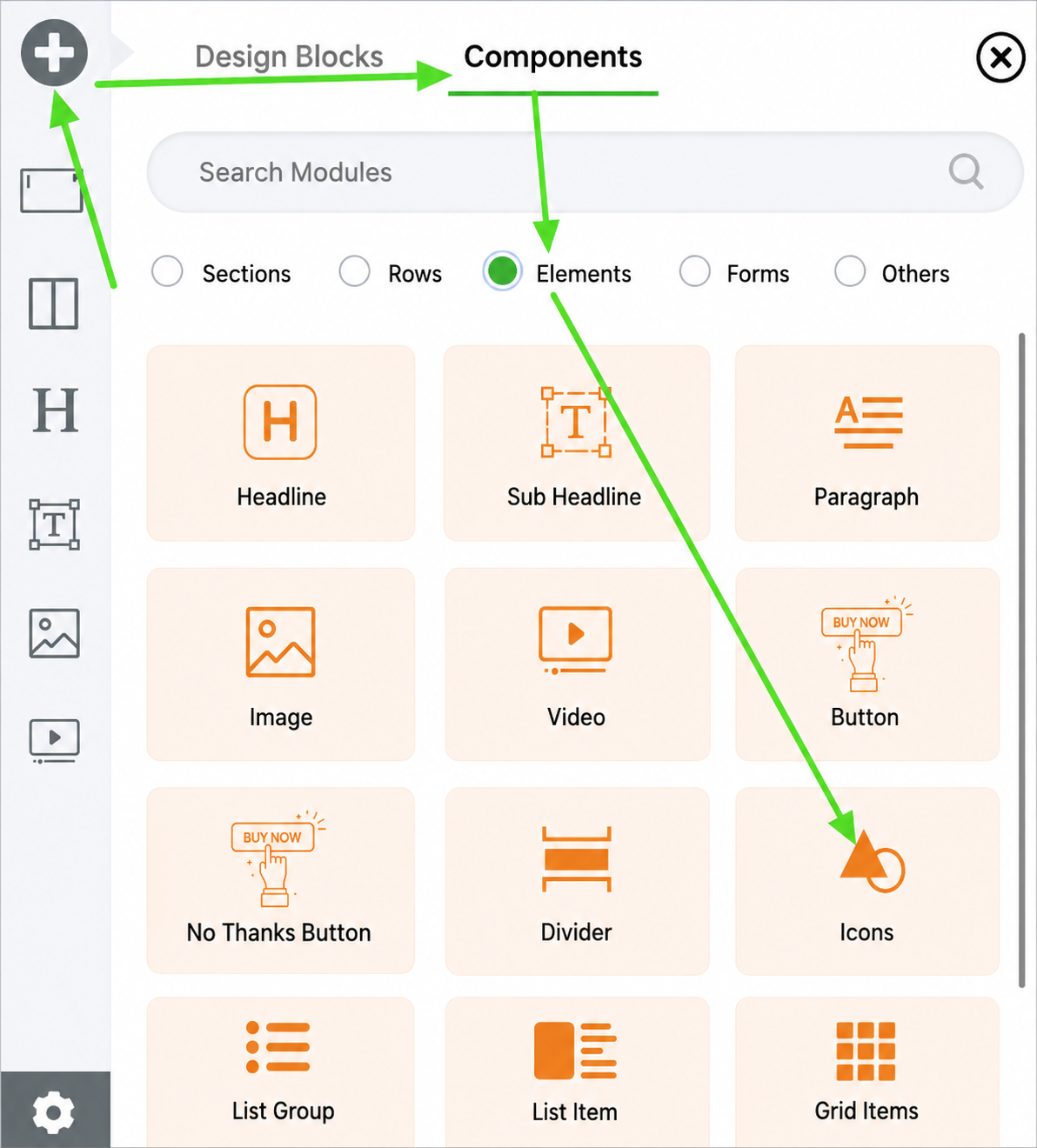
In the editor, select the Icon element from Components and drag it into a column on your page. Then click its settings (gear) icon to open the Style Settings.
Step 2 — Choose your icon
Click Select Icons to open the icon picker and choose the symbol you want. There's a large library, so you can find icons for most things — social platforms, arrows, checkmarks, hearts, and more.
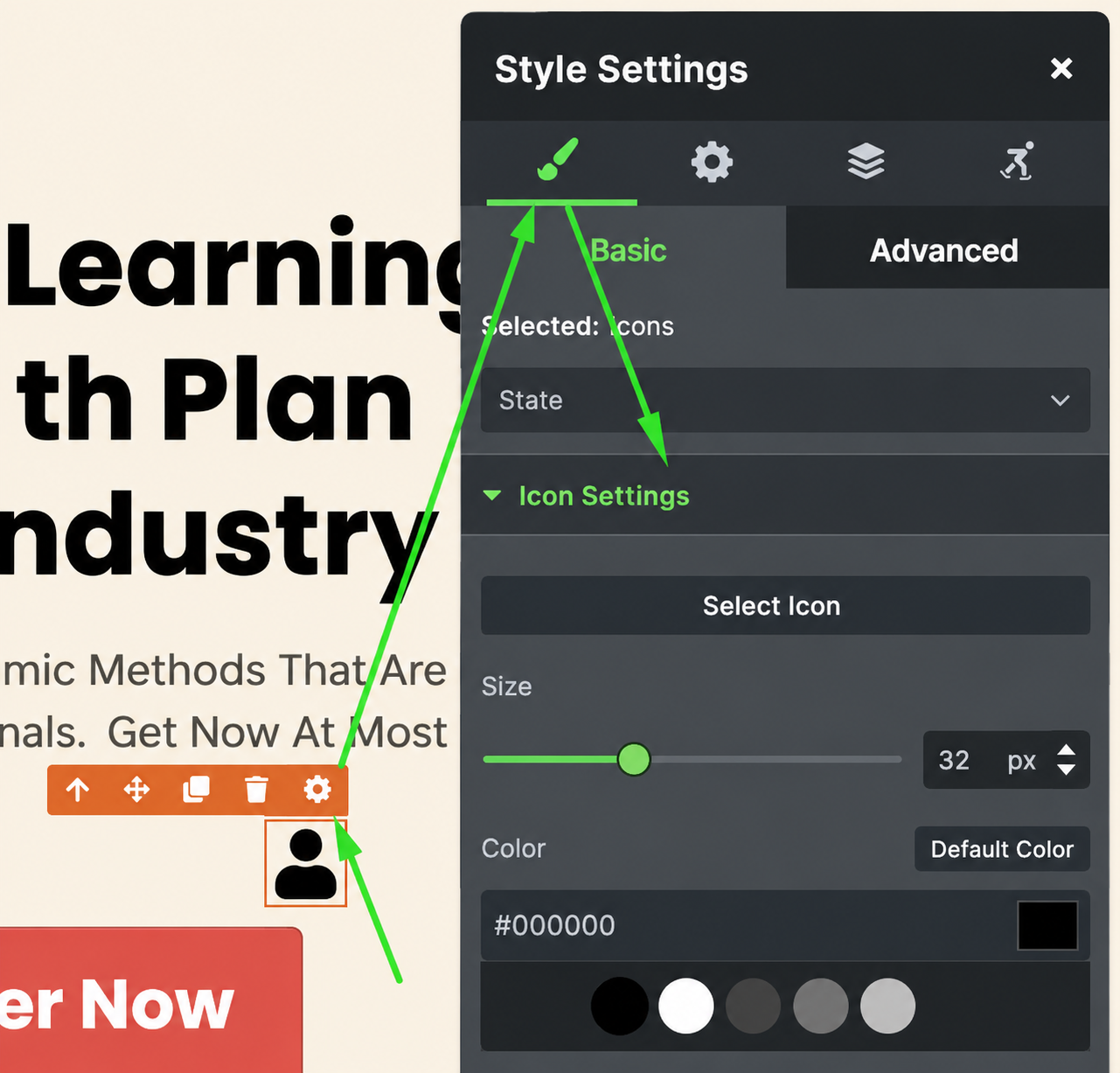
Click on Select Icons to change the icon.
Step 3 — Size and color it
Icon Size — drag the slider to make the icon bigger or smaller.
Color — pick the icon's color from the color palette (or a hex code) so it matches your brand.
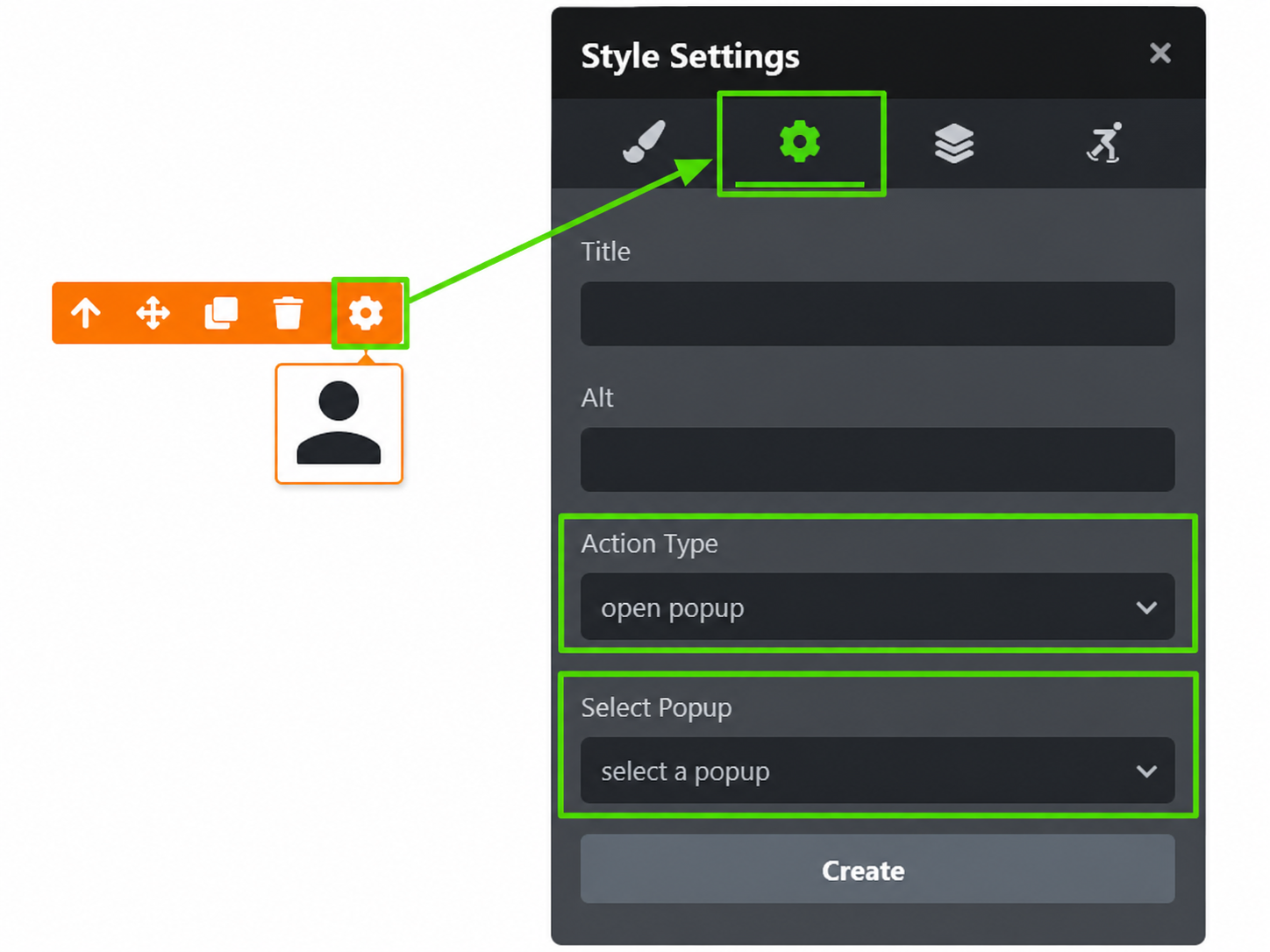
Action Type — what happens when someone clicks the icon
You can make an icon clickable, or leave it purely decorative. There are four options:
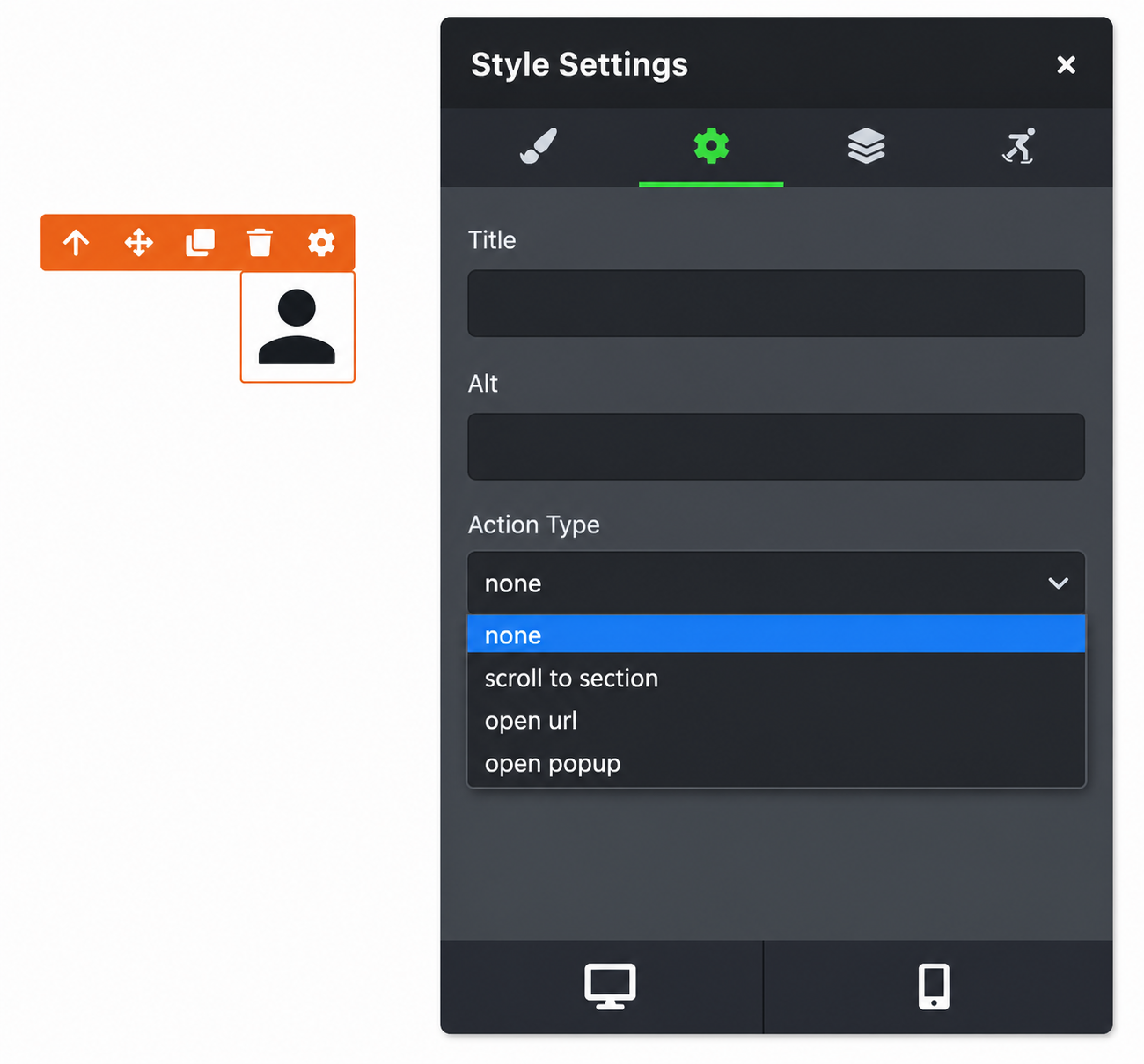
None — nothing happens on click. Use this for purely decorative icons (like checkmarks in a feature list). (This is also why a "clickable" icon sometimes does nothing — it's set to None.)
Open URL — sends the visitor to a web address when they click (e.g. an Instagram icon that opens your Instagram page). Enter the full URL, starting with https://.
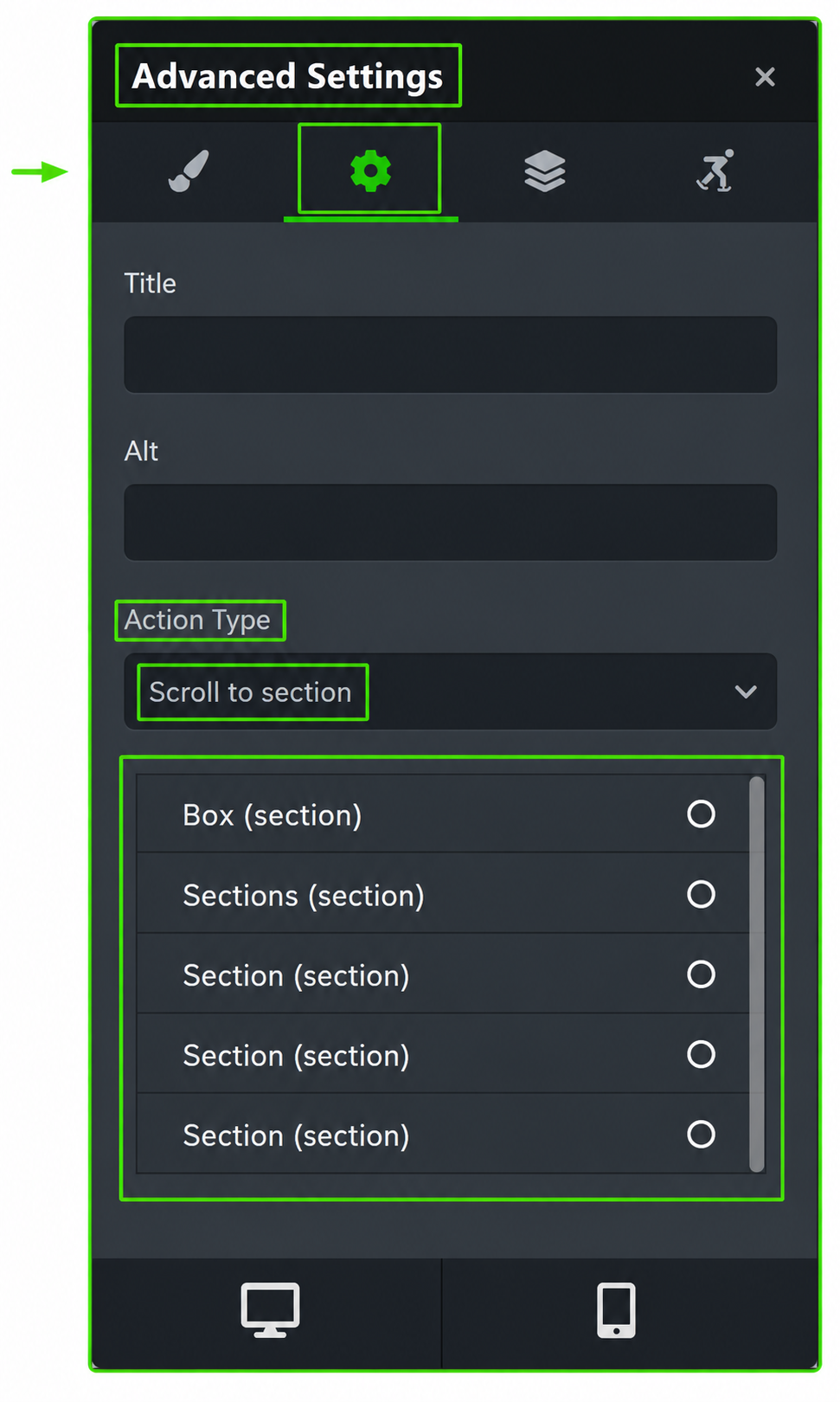
Scroll to Section — instead of leaving the page, smoothly scrolls the visitor to another section on the same page. You select which section.
Open Popup — shows a popup when the icon is clicked. The popup must be created in the editor first.
Common situations & quick fixes
"The Icon element won't drop onto the page." It needs a row with a column to sit in. If your section is empty, add a row first (Plus icon → Components → Rows), then drop the icon into a column.
"I can't find the icon I want." Click Select Icons to open the full picker and browse or search the library — there are far more options than the default icon shows.
"I click the icon but nothing happens." Check the Action Type. If it's set to None, the icon isn't clickable. Set it to Open URL, Scroll to Section, or Open Popup depending on what you want it to do.
"Scroll to Section isn't working." The section you're scrolling to must exist on the same page and be selected correctly in the Action settings.
"Open Popup does nothing." The popup must be built first before you can link to it. Create your popup, then select it in the icon's Action settings.
"My icon is too big or too small." Use the Icon Size slider to scale it up or down.
"I can barely see my icon." The icon color is probably too close to the background color. Pick a contrasting color so it stands out.
"I want social media icons that stay on the side of the screen as visitors scroll." That's a separate feature — see How to Add Sticky Social Media Icons in FlexiFunnels.
"My changes aren't showing on the live page." Edits need to be saved and published before visitors see them. After editing, save and re-publish if the page is already live.
Still stuck?
If an icon won't add, display, or click through the way you expect after trying the steps above, submit a ticket and tell us which page you're editing and what's happening — a screenshot of your icon settings helps us sort it out quickly.
Was this article helpful?
That’s Great!
Thank you for your feedback
Sorry! We couldn't be helpful
Thank you for your feedback
Feedback sent
We appreciate your effort and will try to fix the article