Charge customers automatically every week, month or year — or for a fixed number of payments — using Cashfree or Razorpay.
Before You Start
- Currency must be INR — Cashfree and Razorpay subscriptions work in INR only
- Recurring amount: ₹15,000 maximum per billing cycle
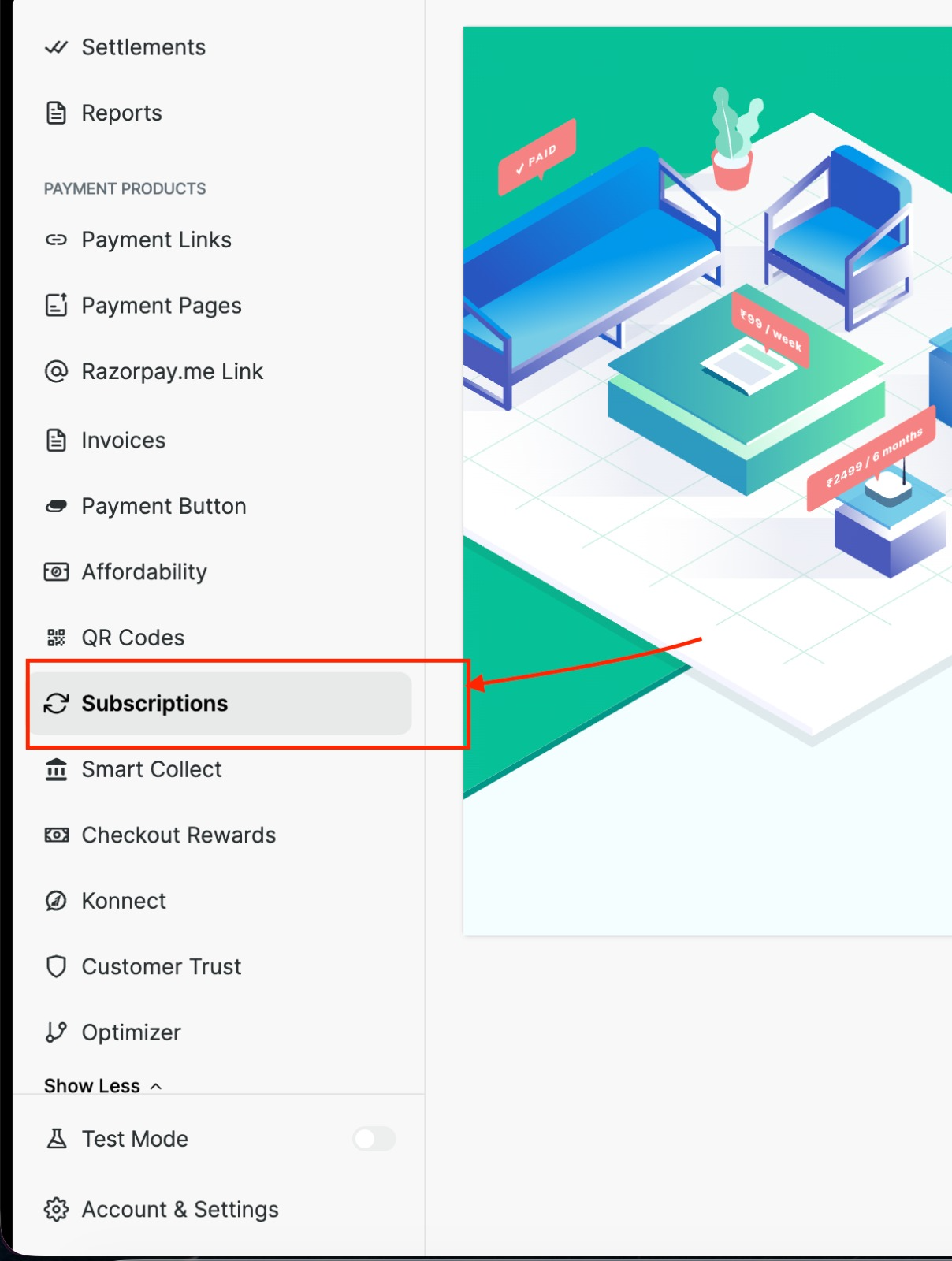
- Razorpay: the Subscription feature must be enabled in your Razorpay account (see Step 10)
- Webhook enabled on your provider — mandatory (see Step 11)
Using Stripe, PayPal or Paddle? See How to Use Subscription Payments in FlexiFunnels.
Set It Up in 12 Steps
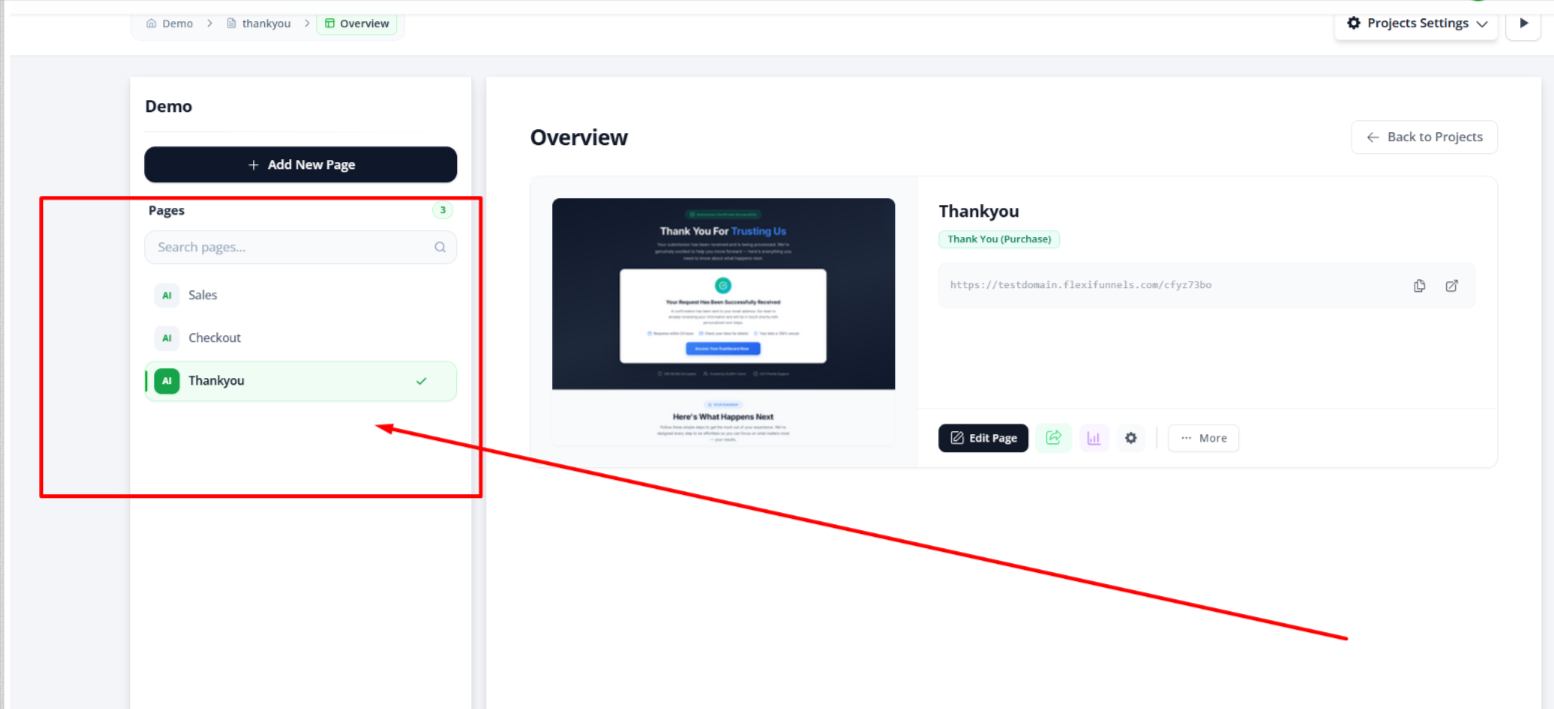
1 Create your project
- Projects → open or create a project
- Add the pages your product will use: Sales, Checkout and Thank You
2 Create a product
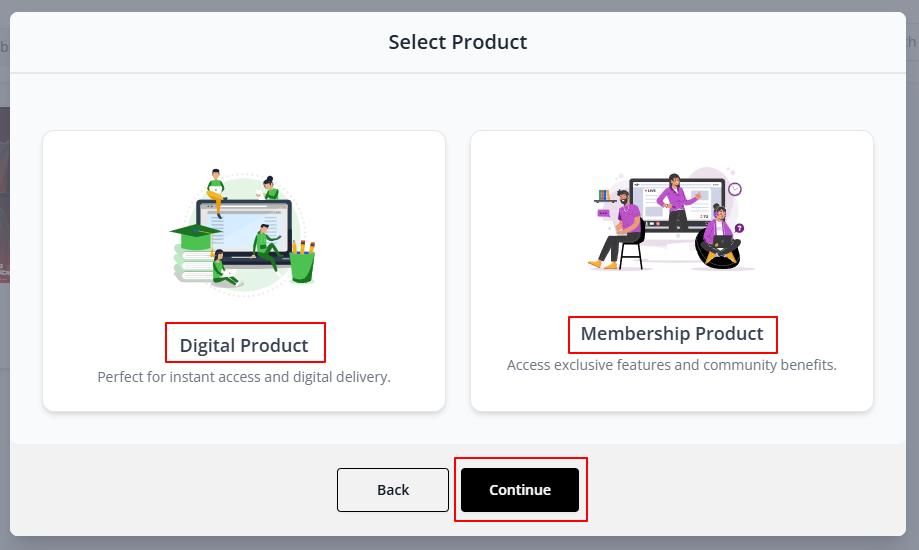
- Products → My Products → Create Product
- Pick Digital Product or Membership Product

3 General settings
- Add a Product Title
- Currency: select INR (it must be INR)
- Click Continue
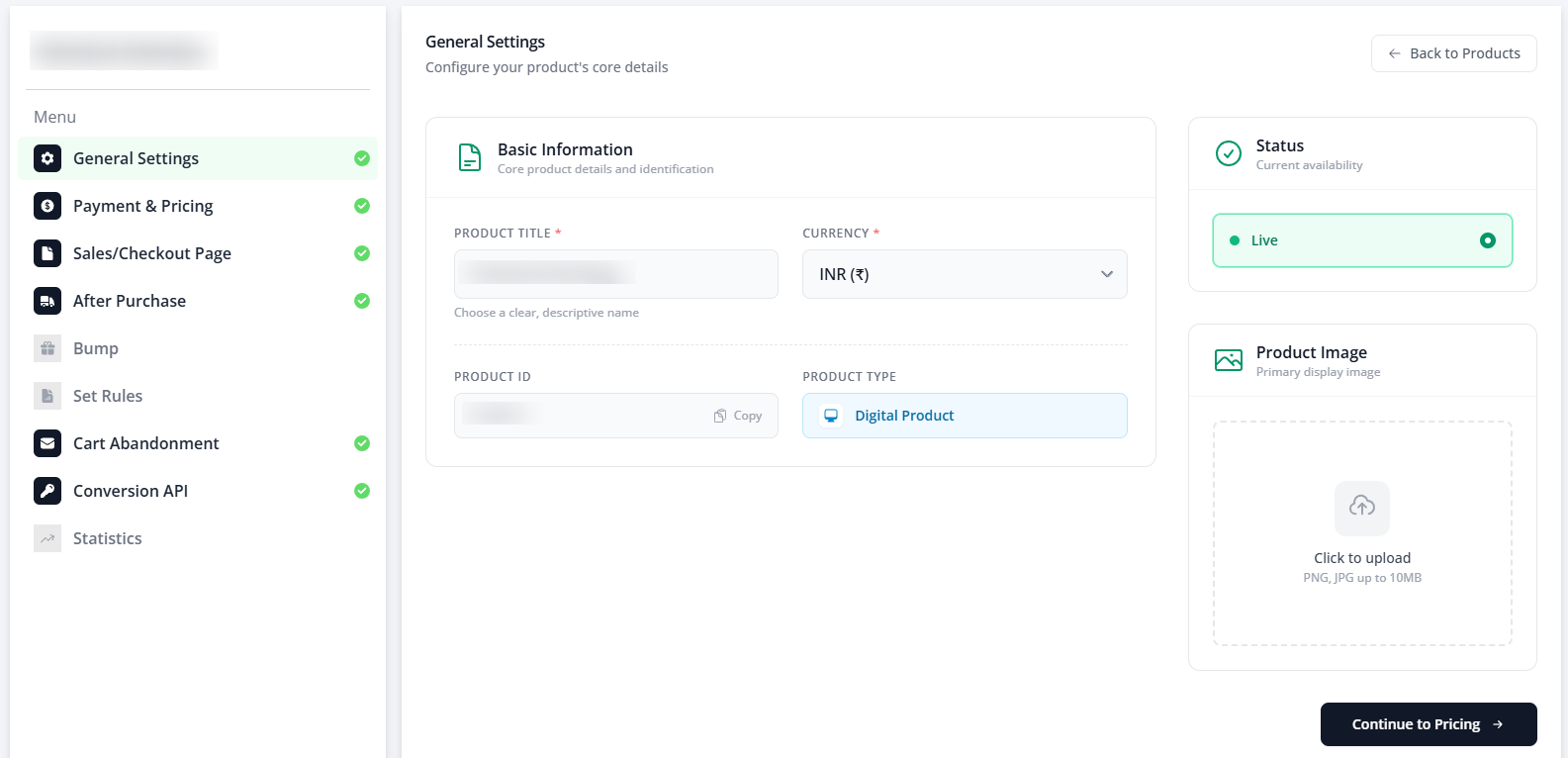
⚠️Currency locks after your first price. Choose INR now.
4 Turn on your payment provider
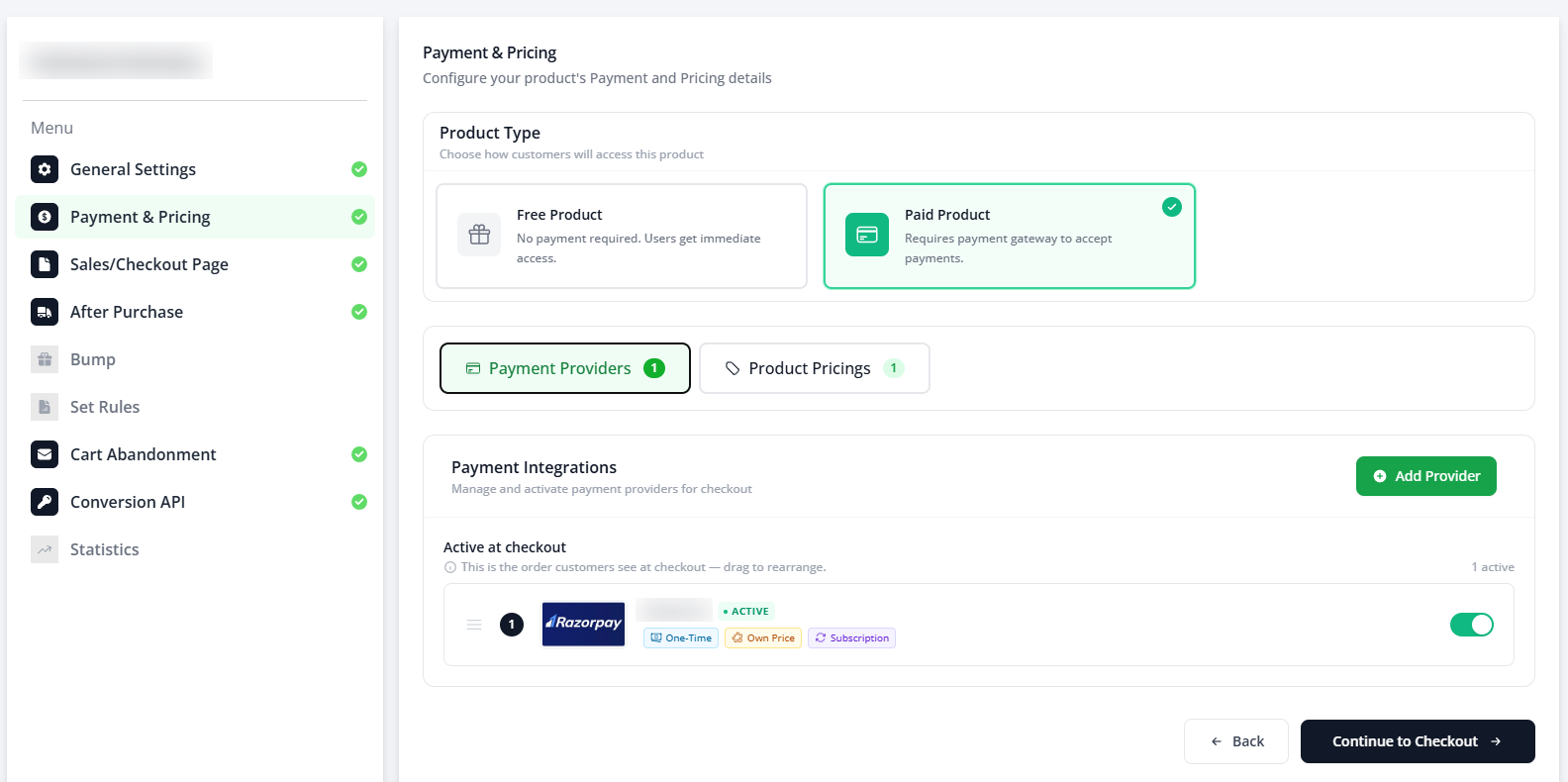
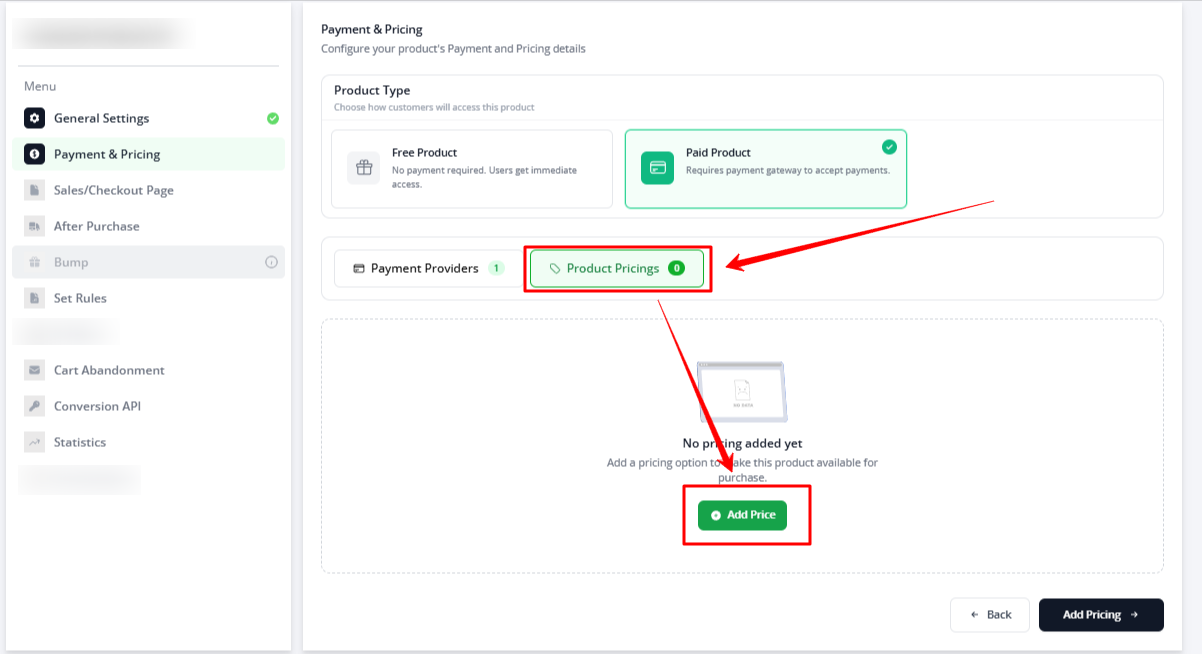
- Payment & Pricing → choose Paid Product
- Payment Providers → switch on Cashfree or Razorpay (use Add Provider if it isn’t connected yet)
5 Choose Subscription pricing
- Product Pricings → Add New Pricing
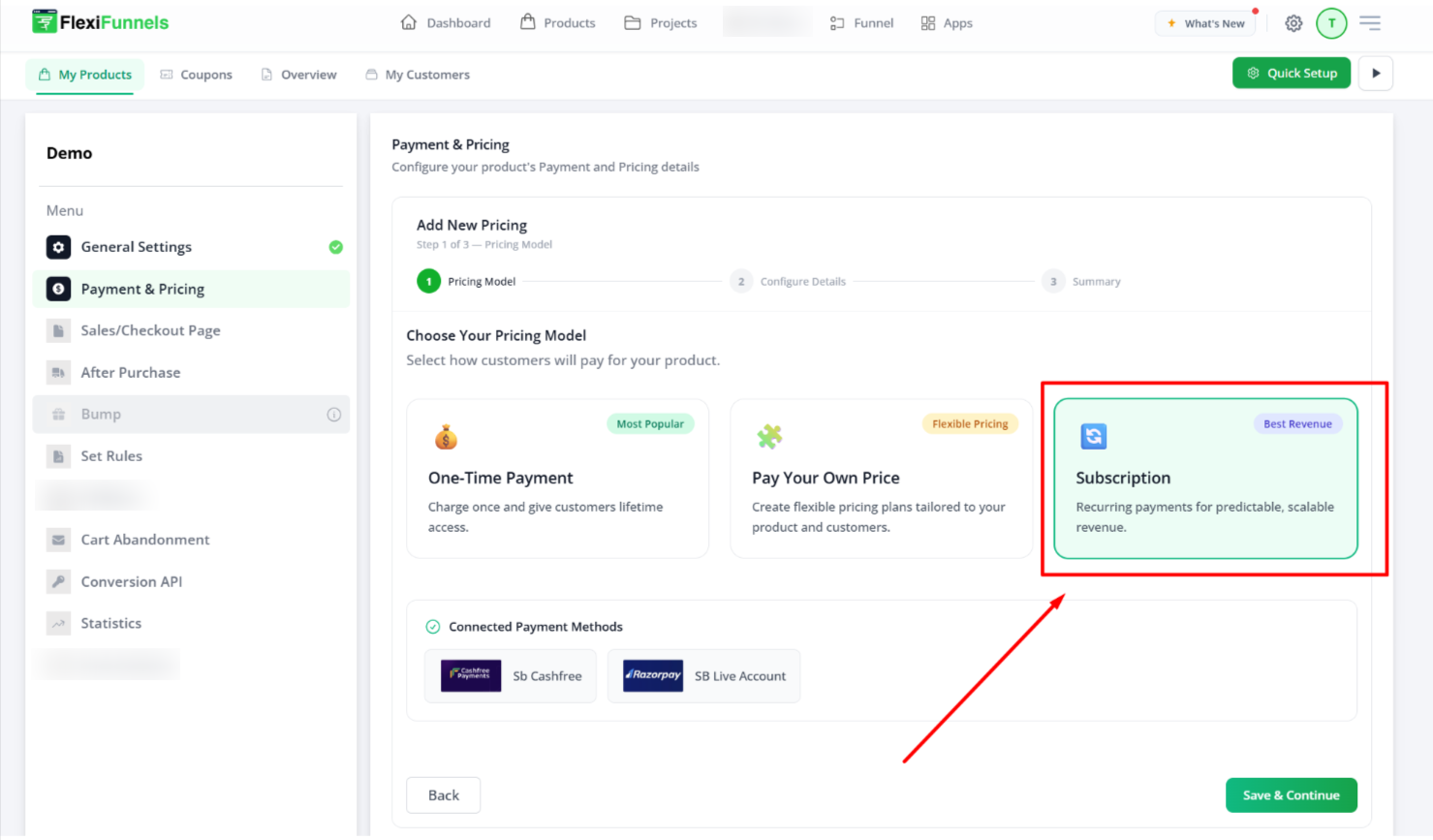
- Step 1 of 3: select Subscription (not One-Time Payment) → Save & Continue
6 Fill in the subscription details
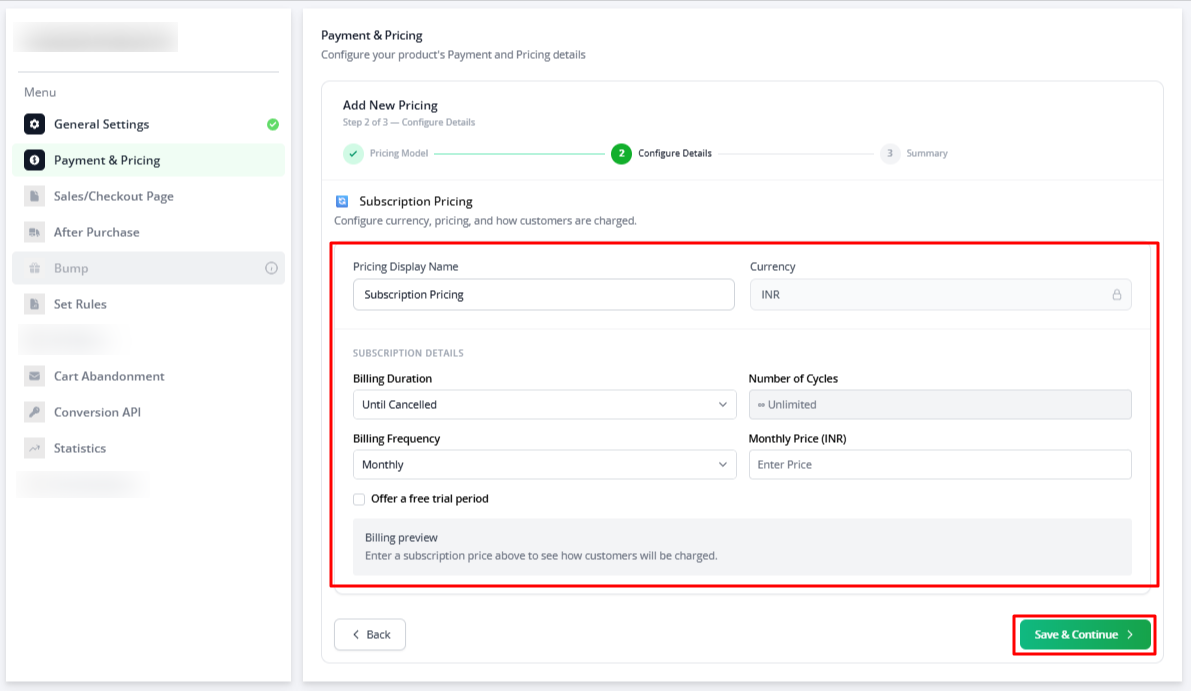
- Currency — set to INR automatically
- Billing duration:
• Until Cancelled (most common) — billing continues until the customer cancels
• Fixed Number of Cycles — billing stops after a set number of payments - Billing frequency — how often to charge: Weekly · Monthly · Quarterly · 6 Months · Yearly
- Price — the amount charged each cycle (max ₹15,000)
?Razorpay UPI Autopay: Razorpay takes a small refundable check charge (up to ₹5) to verify the payment mandate. If you add an order bump, the bump amount is collected at purchase instead of the ₹5.

7 Optional extras
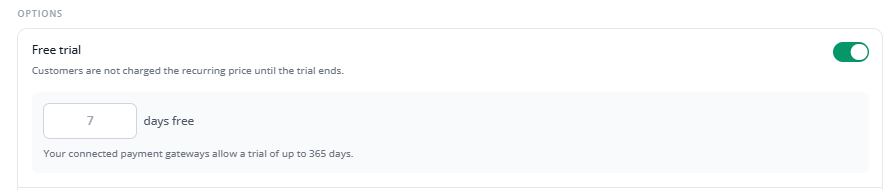
? Free trial
- Switch on Free trial → enter the number of days (up to 365)
- The customer is not charged until the trial ends
 ?️ Upfront fee
- Switch on Upfront fee → enter the amount
- A one-time charge at purchase, on top of the recurring price

⚠️The upfront fee is charged even during a free trial. Tell customers on your sales page.
? Tax on this plan (GST)
- Switch on Tax on this plan → read the pop-up → I agree, enable tax
- Choose Price excludes GST or Price includes GST
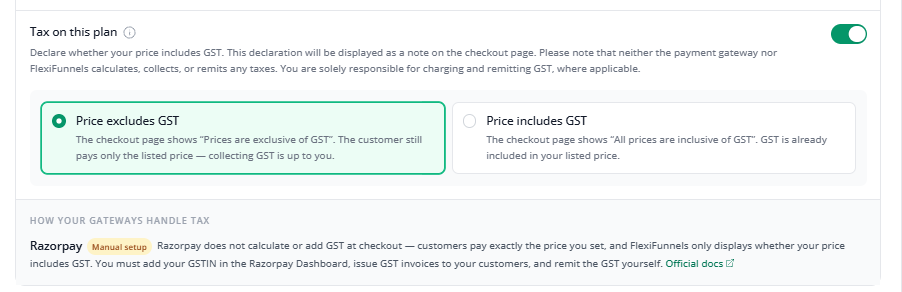
⚠️Razorpay: manual setup. It does not add GST at checkout. Add your GSTIN in Razorpay, issue GST invoices and pay the GST yourself. You are responsible for collecting and paying tax.
? Save
- Save & Continue → check the summary → Finish Setup
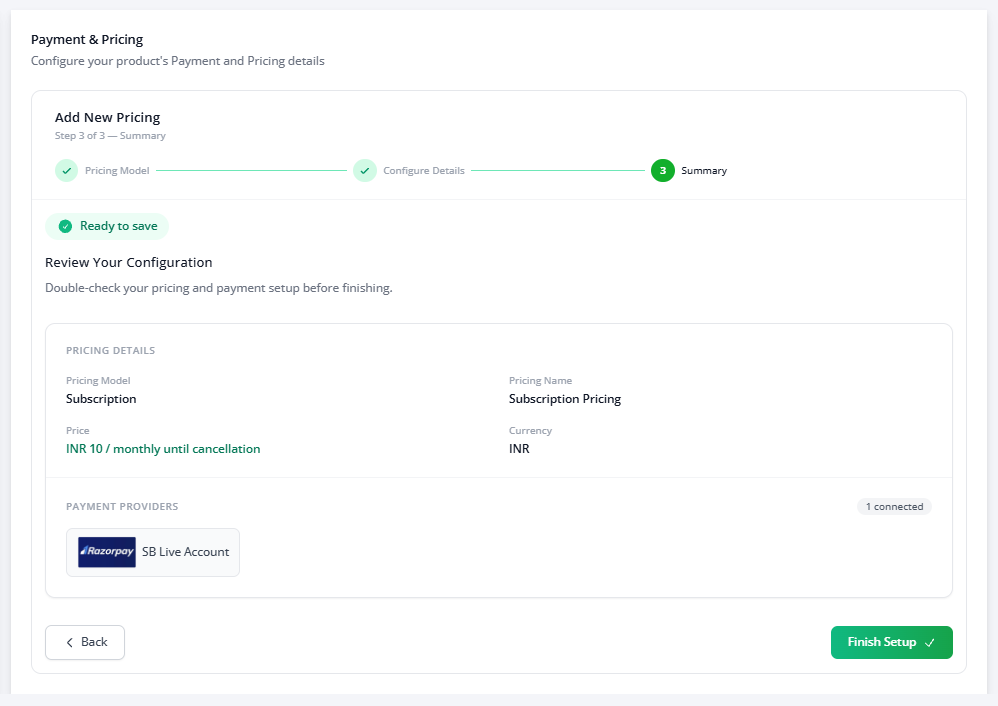
8 Connect pages and finish product settings
- Sales/Checkout Page tab: pick the Project and page for the Sales Page and the Checkout Page
- After Purchase: add your Support Email/URL and Digital Asset
- Check any other settings you need: Bump offers, Set Rules and more
- Review everything once
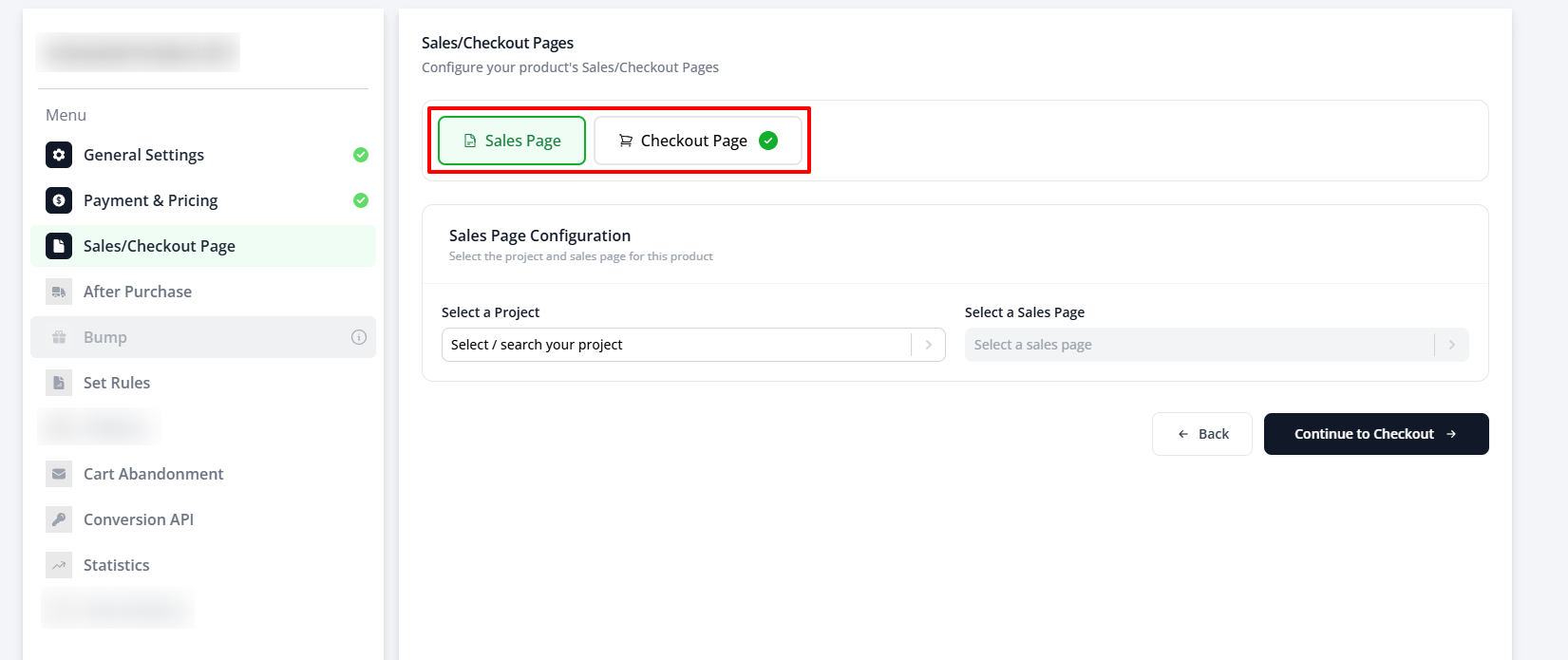
9 Wire the button and add the Order Form
Sales Page
- Add a button (for example, “Subscribe Now”)
- Button action → Go to Next Step in Product (or Purchase Product)
- Select your subscription product
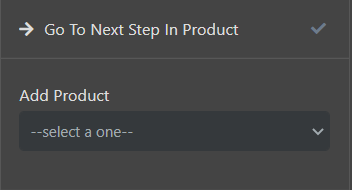 Checkout Page
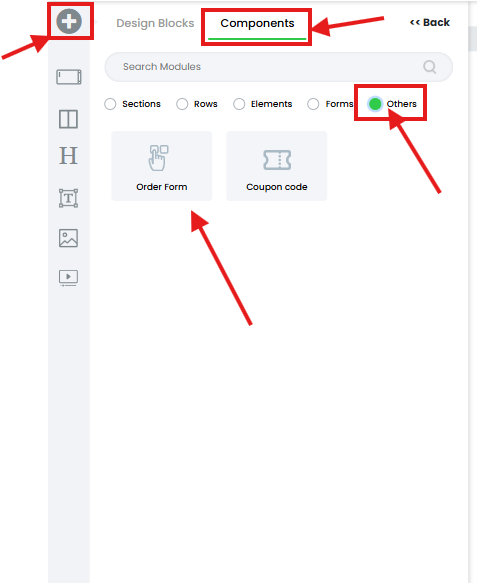
- Add an Order Form element (Components → Others). Customers enter their payment details here.
10 Publish all pages
- Publish the Sales, Checkout and Thank You pages
- Only published pages work — not the editor preview
⚠️Razorpay: make sure the Subscription feature is enabled in your Razorpay account. If it isn’t, contact Razorpay Support through their support portal to request activation.
11 Enable the webhook (mandatory)
- Open your payment provider’s integration settings
- Credentials tab: make sure the integration is enabled
- Webhook tab: Status shows “Not connected”
- Click Connect webhook
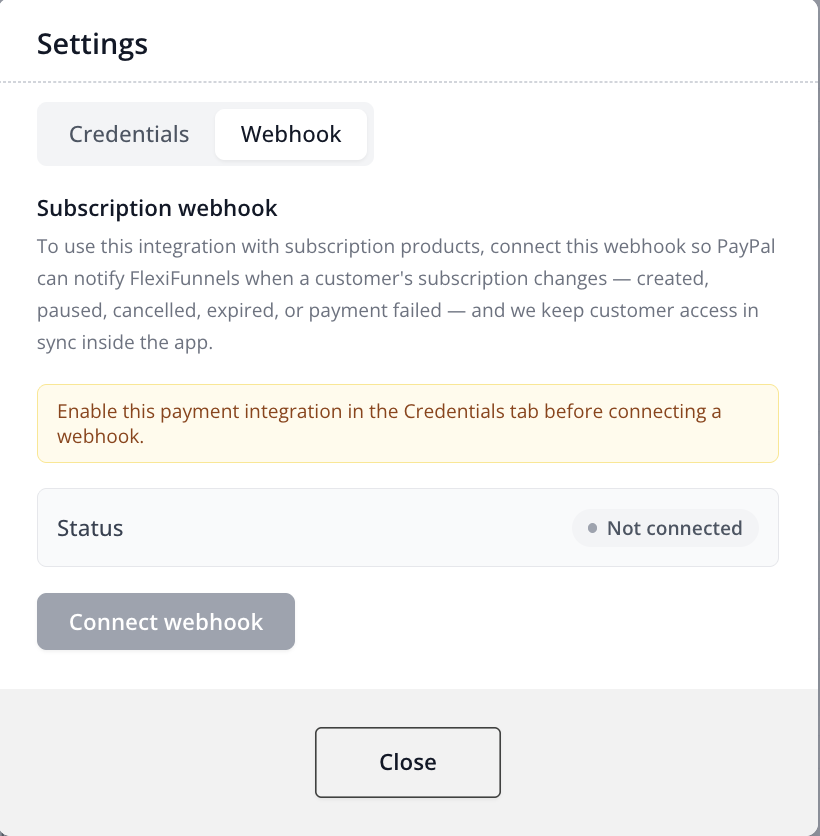
Done: Status shows connected. The webhook is mandatory to capture subscription payments. Do it for every provider you use.
12 Test before going live
- Do a test purchase with your gateway’s test credentials
- Check: button opens checkout · trial / fee / tax show · Thank You page appears
⚠️Do not use a real card for testing.
See Your Subscriptions
- Go to Products → My Customers → Subscriptions

| Detail | What it shows |
|---|---|
| Customer | Name and email |
| Product | Which subscription they bought |
| Subscription ID | Unique ID from the payment processor |
| Status | Active / Pending / Cancelled / Refunded |
| Amount | Price per billing cycle |
| Billing Cycle | Weekly / Monthly / Yearly |
| Next Billing Date | When they are charged next |
| Created Date | When the subscription started |
| Cancelled Date | When they cancelled (if they did) |
Manage one subscription
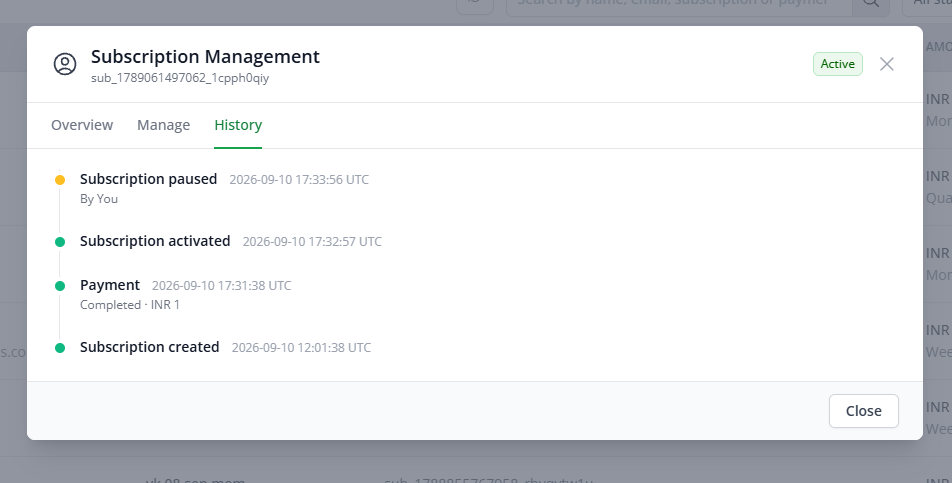
- Click the gear icon on a row → Manage tab
- Pause / Resume · Extend billing · Cancel · Retry payment · Comp a month · Refund (full or partial)
⚠️Cashfree: cancelling is instant and cannot be undone · a pause made by the customer can only be resumed by the customer · an extended billing date must be at least 1 day ahead (UPI AutoPay).
Quick Fixes
| Problem | Fix |
|---|---|
| Payment setup fails | Currency is INR · amount is ₹15,000 or less · (Razorpay) Subscription feature is enabled · webhook is connected |
| Statuses don’t update | Webhook Status must show connected (Step 11) |
| Sales Page button doesn’t open checkout | Action is “Go to Next Step in Product” or “Purchase Product” · product selected · all pages published |
| Can’t change currency | It locks after the first price. Set INR in General Settings first |
| Trial or price change not showing | Republish the Checkout Page · hard-refresh the browser |
Was this article helpful?
That’s Great!
Thank you for your feedback
Sorry! We couldn't be helpful
Thank you for your feedback
Feedback sent
We appreciate your effort and will try to fix the article