What You're Building
You're creating a complete professional website that qualifies for payment gateway approval.
Think of it like getting a business license—before you can accept payments, authorities need to verify you're a legitimate business.
The complete setup includes:
- Professional website
- Business pages (policies, contact info)
- Payment gateway account
- KYC verification
- Integration with FlexiFunnels
Why This Process Matters
Payment Processing:
✓ Accept online payments
✓ Sell products/services
✓ Collect subscriptions
Trust & Legitimacy:
✓ Professional appearance
✓ Legal compliance
✓ Customer confidence
Business Requirements:
✓ Legal protection
✓ Payment processor approval
✓ Regulatory compliance
Understanding Payment Gateways
What Is a Payment Gateway?
Payment Gateway = Service that processes online payments
Examples:
- Razorpay
- Cashfree
- Instamojo
- Stripe
- PayPal
Why you need one:
- Accept credit/debit cards
- Process UPI payments
- Enable digital transactions
- Safe payment processing
Complete Step-by-Step Process
PHASE 1: DOMAIN & WEBSITE SETUP
Step 1: Purchase a Domain
What Is a Domain?
Domain = Your website address (e.g., yourbusiness.com)
Choosing a domain:
- Align with your business
- Easy to remember
- Professional sounding
- Related to your niche
How to Purchase
- Choose domain registrar:
- GoDaddy
- Namecheap
- Bluehost
- Google Domains
- Local registrars
- Search for domain
- Search your preferred name
- Check availability
- Look for alternatives if taken
- Purchase domain
- Register for 1+ years
- Add privacy protection (optional)
- Complete payment
- Save login credentials
- Note registrar name
- Save username/password
- You'll need this to connect to FlexiFunnels
✓ Domain is now yours!
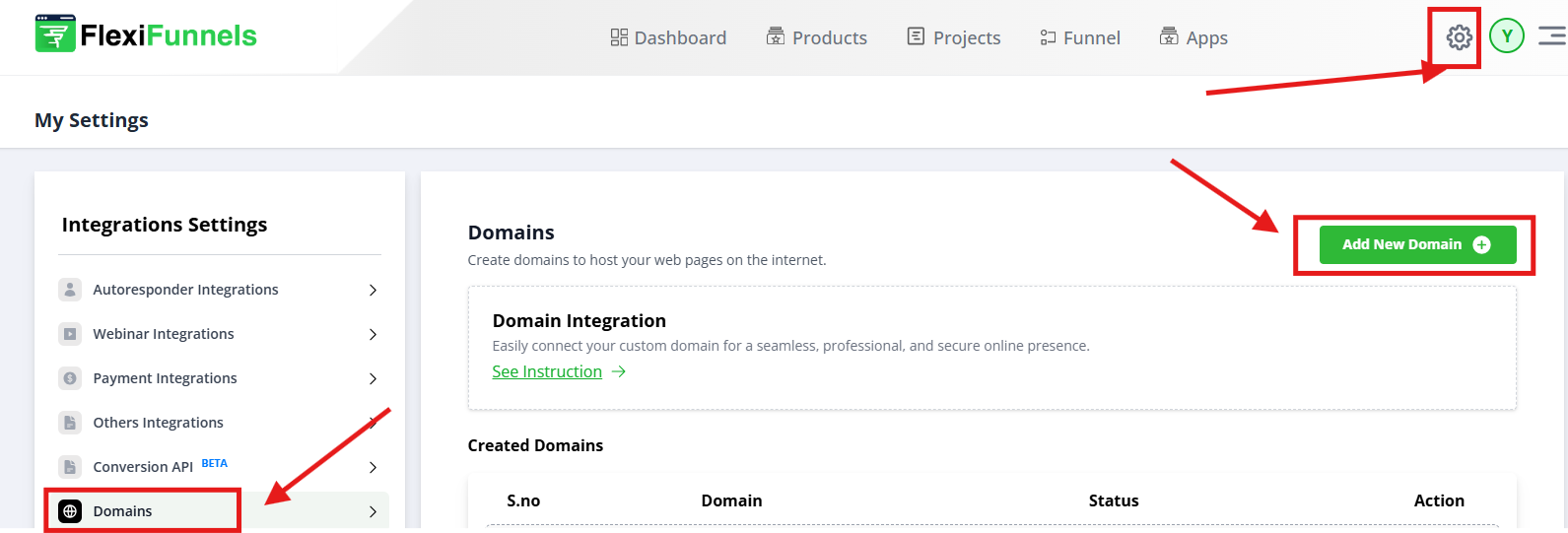
Connection Steps
- Log into FlexiFunnels
- Go to dashboard
- Find domain/settings area
- Add your domain
- Look for "Add Domain" or "Connect Domain"
- Enter your domain name
- Follow verification steps
- DNS verification
- FlexiFunnels provides DNS records
- Go to domain registrar
- Add DNS records provided
- Wait for propagation (5-30 minutes)
- Verify connection
- Return to FlexiFunnels
- Click "Verify"
- Domain is now connected
✓ Domain connected to FlexiFunnels!
Step 3: Create Your Website
Website Structure
Essential pages your website needs:
| Page | Purpose |
|---|---|
| Homepage | Introduction, navigation, value proposition |
| Contact Us | Email, phone, contact form |
| Privacy Policy | How you handle user data |
| Refund Policy | Return/refund terms |
| Terms & Conditions | Legal terms for using your site |
| Disclaimer | Legal disclaimers/limitations |
Building Your Homepage
Homepage should include:
- Your business name/logo
- Clear value proposition
- Navigation to other pages
- Contact information
- Call-to-action
Steps:
- In FlexiFunnels, create new page
- Use professional template
- Add your branding
- Add navigation links to other pages
- Include contact information
- Publish when complete
Creating Policy Pages
Privacy Policy:
- Explain data collection
- How user data is used
- Security measures
- Contact info for questions
Refund Policy:
- Refund timeframe
- Refund conditions
- How to request refund
- Contact for refunds
Terms & Conditions:
- User responsibilities
- Payment terms
- Usage restrictions
- Liability limitations
Disclaimer:
- What you're not responsible for
- Limitations of service
- Health/safety disclaimers (if applicable)
5. Apply for Payment Gateways
You can now apply for Razorpay, Cashfree, and Instamojo.
Application Process
Visit their signup pages:
Cashfree: Cashfree Signup
Instamojo: Instamojo Signup
Provide accurate business details.
Choose the business category that matches your niche.
Select the option to collect payments on your website.
Content Requirements
For payment gateway approval, include:
✓ Professional descriptions
- What you sell/offer
- Your business niche
- Your expertise
✓ Contact information
- Valid email address
- Indian phone number (if in India)
- Professional email (not Gmail if possible)
✓ Business details
- Business name
- Business type
- Products/services offered
✓ Clear policies
- Professional tone
- Complete and detailed
- Legally compliant
PHASE 2: PAYMENT GATEWAY APPLICATION
Step 4: Choose Payment Gateway
Gateway Comparison
| Gateway | Fees | Best For |
|---|---|---|
| Razorpay | 2-3% | E-commerce, subscriptions |
| Cashfree | 2-2.5% | Online payments, low fees |
| Instamojo | 2.2-3.2% | Creators, small business |
Recommendation:
- Razorpay (most popular)
- Or Cashfree (lower fees)
Step 5: Apply for Gateway Account
Application Process
For Razorpay:
- Visit Razorpay.com
- Click "Sign Up"
- Enter email and password
- Verify email
- Complete account setup
For Cashfree:
- Visit Cashfree.com
- Click "Sign Up" (Seller)
- Enter business details
- Create account
- Start application
For Instamojo:
- Visit Instamojo.com
- Click "Create Account"
- Choose account type
- Fill business information
- Submit application
Information to Provide
Business Details:
- Business name
- Business type/category
- Business address
- Website (your new domain)
- Product/service description
Owner Details:
- Full name
- Email address
- Phone number
- Address
- PAN number (India)
Bank Details:
- Bank name
- Account number
- IFSC code
- Account holder name
Step 6: KYC Verification
What Is KYC?
KYC = "Know Your Customer" - Verification that you're a real business
Gateway verifies:
- Your identity
- Your business legitimacy
- Your address
- Your financial information
Documents Required
Personal Documents:
- PAN card (India)
- Aadhar card
- Passport
- Driver's license
Business Documents:
- Business registration (if registered)
- GST certificate (if registered)
- Shop establishment certificate
- Proprietor deed
Address Proof:
- Utility bill (electricity, water)
- Bank statement
- Rental agreement
- Passport/Aadhar (if current)
Bank Documents:
- Cancelled cheque
- Bank statement (3 months)
- Authorization letter
Submission Process
- Gather documents
- Collect all required docs
- Ensure clarity (good photos/scans)
- Upload to gateway
- Log into payment gateway account
- Go to KYC section
- Upload documents as requested
- Verify information
- Ensure all info matches
- No spelling errors
- Correct document types
- Submit for review
- Click "Submit for Verification"
- Wait for approval (3-7 days typically)
- Approval notification
- Gateway approves/rejects
- May request additional documents
- Follow up if needed
Step 7: Integrate Payment Gateway
Razorpay Integration
Steps:
- Log into FlexiFunnels
- Go to Settings → Payment Gateways
- Select Razorpay
- Copy credentials from Razorpay:
- Key ID
- Key Secret
- Paste in FlexiFunnels
- Test integration
- Activate
Cashfree Integration
Steps:
- Log into FlexiFunnels
- Go to Settings → Payment Gateways
- Select Cashfree
- Get credentials from Cashfree:
- Merchant ID
- API Key
- Paste in FlexiFunnels
- Test integration
- Activate
Instamojo Integration
Steps:
- Log into FlexiFunnels
- Go to Settings → Payment Gateways
- Select Instamojo
- Get credentials from Instamojo:
- Client ID
- Client Secret
- Paste in FlexiFunnels
- Test integration
- Activate
Common Situations & Quick Fixes
Situation 1: "Application Rejected"
What's happening: Payment gateway rejected application.
Reasons might be:
- Incomplete website
- Missing pages/policies
- Contact info missing
- Poor quality documents
- Mismatched information
Steps to fix:
- Complete website
- Add all required pages
- Publish all pages
- Interlink pages
- Improve content
- More detailed descriptions
- Professional tone
- Clear business information
- Check documents
- All documents provided
- Clear and legible
- Matching information
- Reapply
- Address reasons for rejection
- Resubmit application
- Gateway will review again
Situation 2: "KYC Verification Pending for Weeks"
What's happening: KYC taking too long.
Why it might happen:
- High volume of applications
- Missing/unclear documents
- Information mismatch
- Additional verification needed
Steps to take:
- Contact gateway support
- Email support
- Ask about status
- Provide application reference
- Check for requests
- Has gateway requested additional docs?
- Check email and portal
- Respond quickly if needed
- Provide additional documents
- If asked, submit promptly
- High quality documents
- Clear information
- Wait or escalate
- If still pending after 2 weeks
- Contact support again
- Ask to escalate
Situation 3: "Integration Not Working"
What's happening: Gateway integrated but payments not processing.
Diagnostic steps:
- Verify credentials
- Correct Key ID/Secret? (Razorpay)
- Correct Merchant ID? (Cashfree)
- Copy-paste without spaces
- Test payment
- Make test payment
- Check if transaction shows
- Verify both sides (FlexiFunnels + Gateway)
- Check settings
- Is gateway activated?
- Is it selected as primary?
- Correct payment method enabled?
- Contact support
- If still not working
- Provide screenshots
- Include error messages
Was this article helpful?
That’s Great!
Thank you for your feedback
Sorry! We couldn't be helpful
Thank you for your feedback
Feedback sent
We appreciate your effort and will try to fix the article