FlexiFunnels automatically sends the right email at each moment of a subscription — welcome, renewal, failed payment, cancellation and more. Use the default wording, write your own, or turn any email off.
✅ Why use it?Without this, you would have to email every customer who cancels, whose card fails or whose trial is ending — by hand. Now a sensible email goes out the moment each event happens.
Set It Up in 6 Steps
1 Find it
- Product settings → Email
- Open the Subscription Email Sequence tab (the other tab is Cart Abandonment)
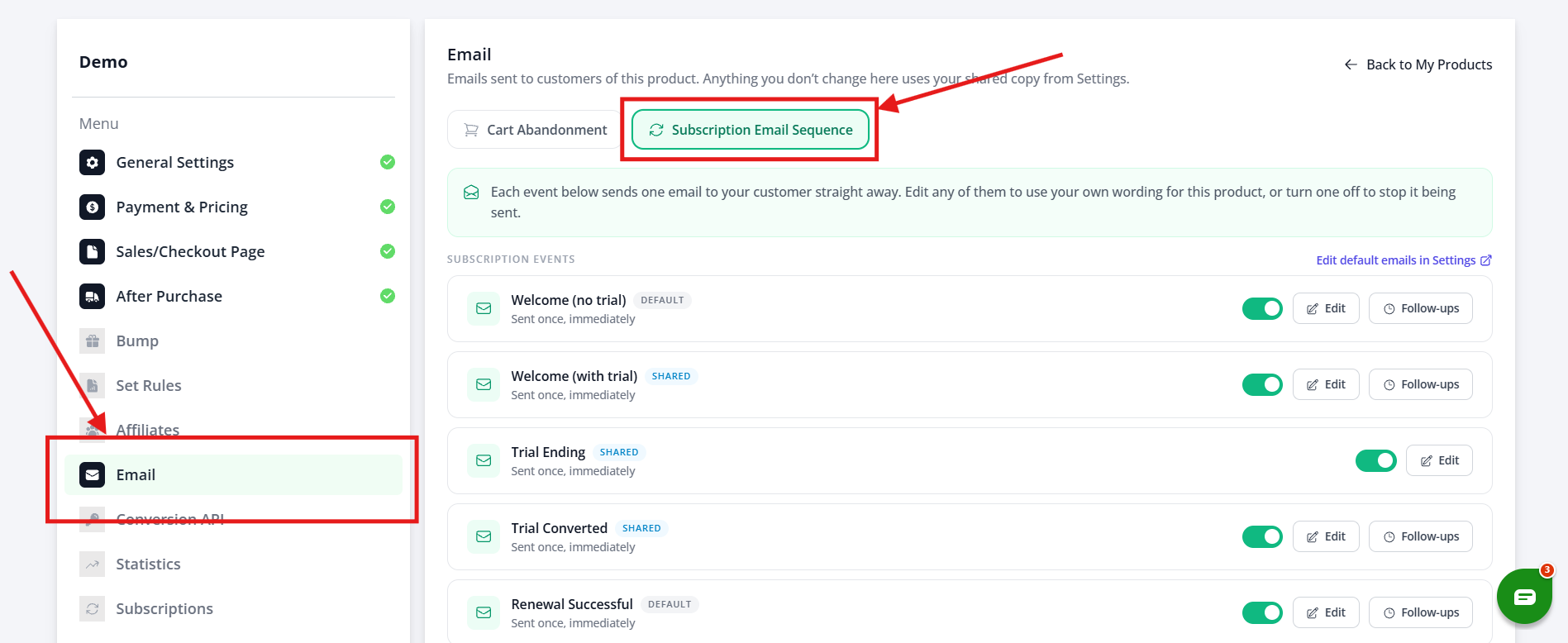
The page note says: “Each event below sends one email to your customer straight away. Edit any of them to use your own wording for this product, or turn one off to stop it being sent.”
2 See the 14 emails
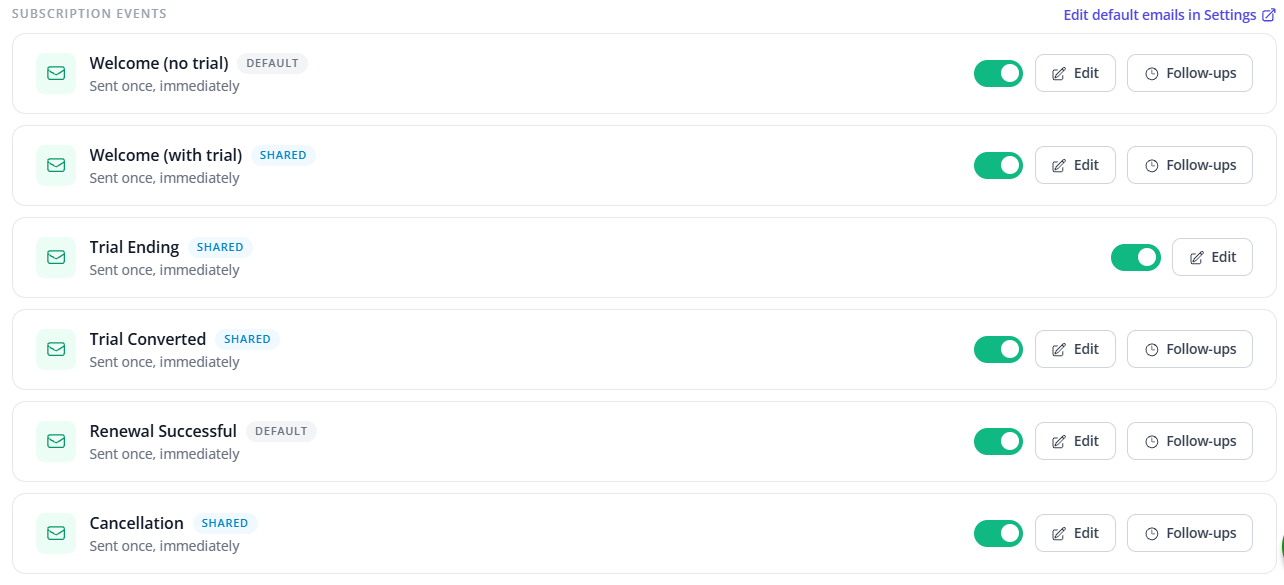
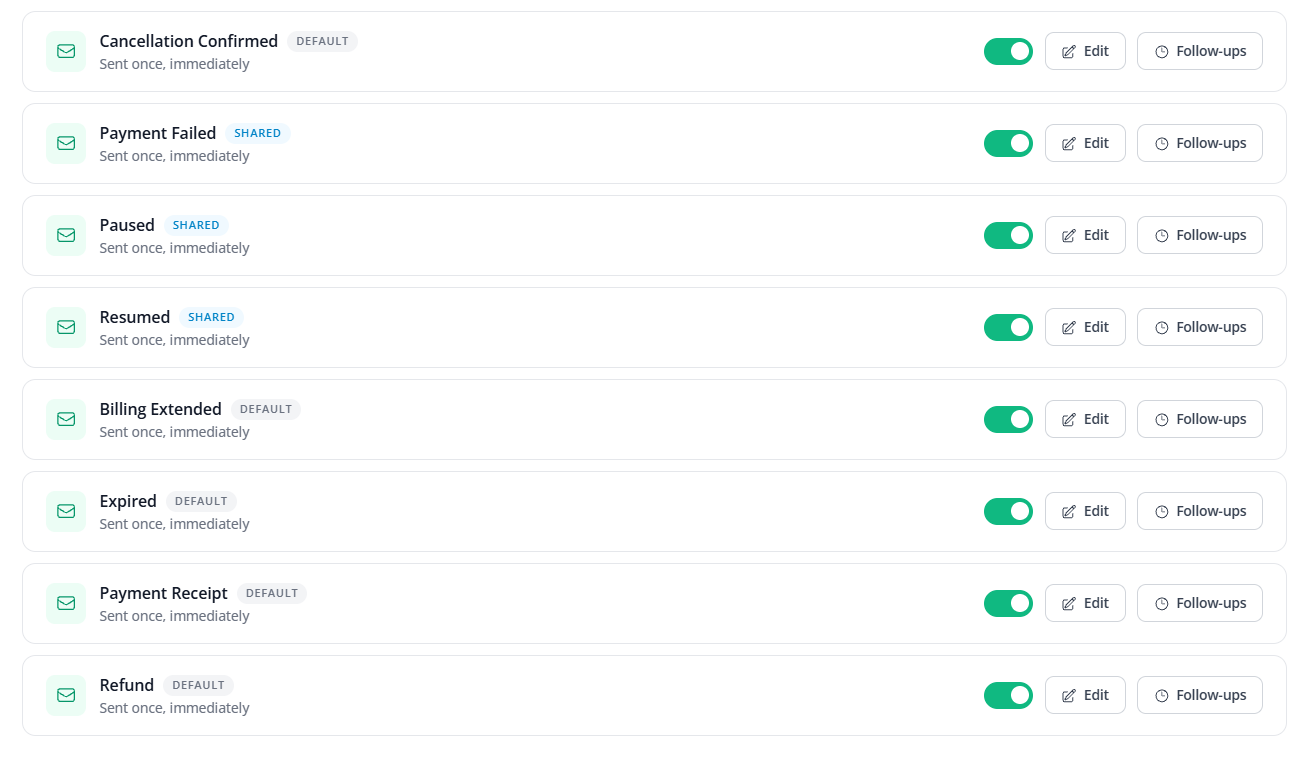
- Each row under SUBSCRIPTION EVENTS is one moment in a subscription
- All are set to “Sent once, immediately”
- Use the toggle on the right to turn an email off for this product — nothing else changes
| Event | Sent when… |
|---|---|
| Welcome (no trial) | A customer subscribes to a plan with no free trial |
| Welcome (with trial) | A customer starts a free trial |
| Trial Ending | A free trial is about to end (no Follow-ups option) |
| Trial Converted | A free trial becomes a paid subscription |
| Renewal Successful | A recurring payment is charged successfully |
| Cancellation | The customer asks to cancel |
| Cancellation Confirmed | The cancellation has been fully processed |
| Payment Failed | A recurring charge is declined |
| Paused | The subscription is put on hold |
| Resumed | A paused subscription starts again |
| Billing Extended | The billing period is extended (for example, a grace period after a failed payment) |
| Expired | The subscription reaches the end of its term |
| Payment Receipt | A successful payment is made (sent as a receipt) |
| Refund | A payment on the subscription is refunded |
3 Understand the badges
The badge next to each event shows where the wording comes from:
| Badge | Meaning |
|---|---|
| DEFAULT | This product uses FlexiFunnels’ original, unedited email |
| SHARED | This product uses your account-wide version, edited in Settings |
| CUSTOMIZED | Shown on the Settings page: the account-wide email has been edited from the original |
Three layers — each overrides the one below it only if you edit it:
- FlexiFunnels’ built-in default — used everywhere until you change something
- Your account-wide version — edited once in Settings → Email → Subscription Product Email; shows as SHARED on product pages
- A product-specific version — edited on this product’s Email page
?Editing one product never changes another product. Editing the account-wide version changes every product that has no version of its own.
4 Edit an email
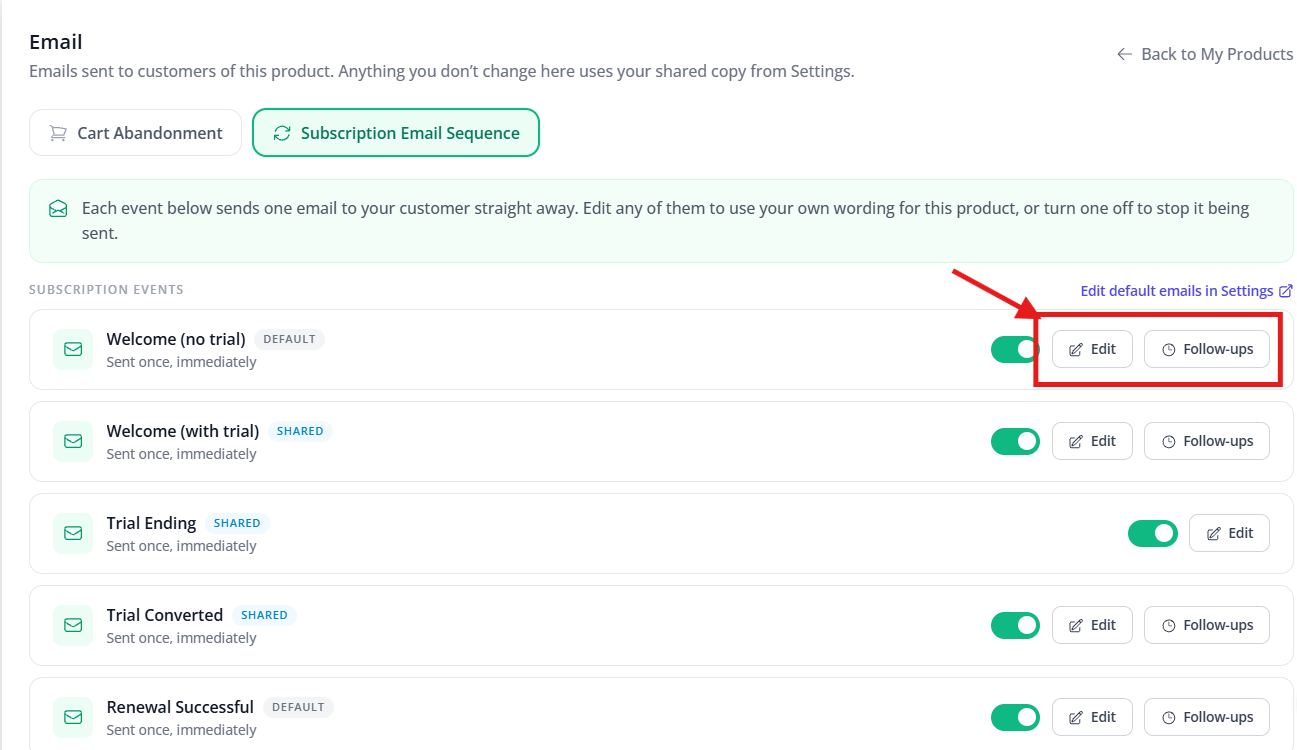
- Click Edit on any row (the window says “Saving here applies to this product only”)
- Subject — pre-filled, for example “Welcome to
{{product_name}}— your subscription is active” - Body — rich text editor (bold, italic, underline, strikethrough, font size, text colour, lists, alignment, links, images, expand, HTML view) with a live preview
- Merge tags — placeholders that fill in the customer’s real details
- Click Save (or Cancel to discard)
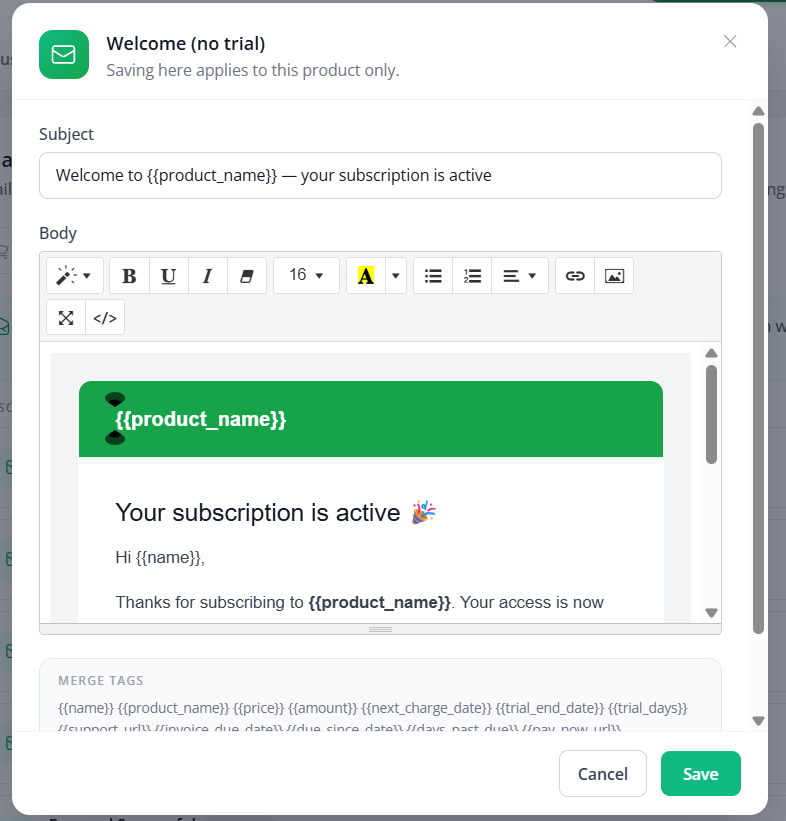
Merge tags you can use:
?Use tags that fit the email. For example,
{{trial_end_date}} suits a trial email, and {{days_past_due}} suits a payment-failed email.5 Add follow-up emails (optional)
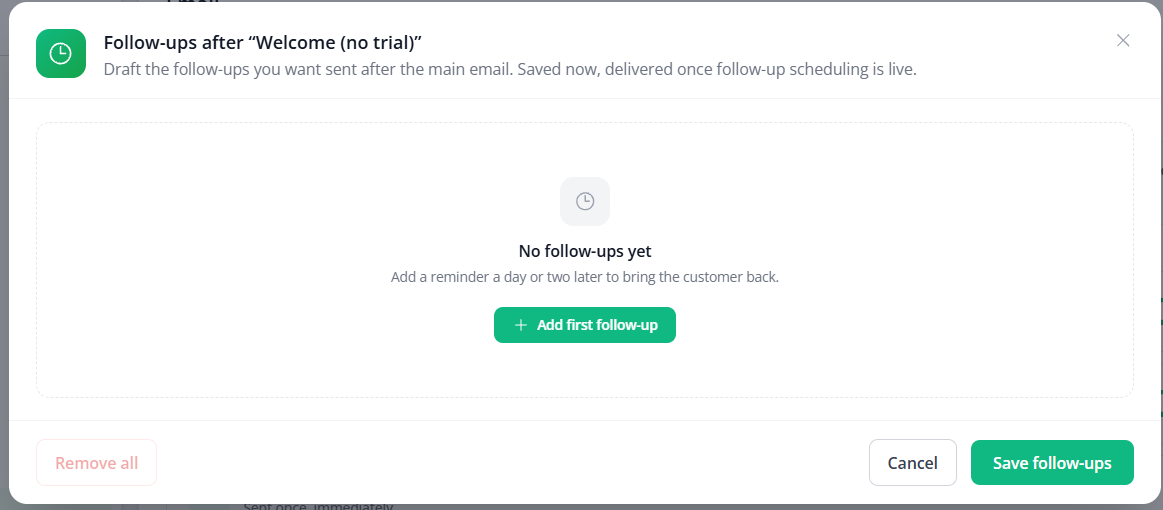
- Click Follow-ups on a row — every event has it except Trial Ending
- Click + Add first follow-up (later: + Add follow-up)
- Send on (a number) · Unit (for example, days) · Timing (After this email is sent)
- Write the Subject and Body
- Remove deletes one step · Remove all (bottom left, red) clears every step
- Click Save follow-ups
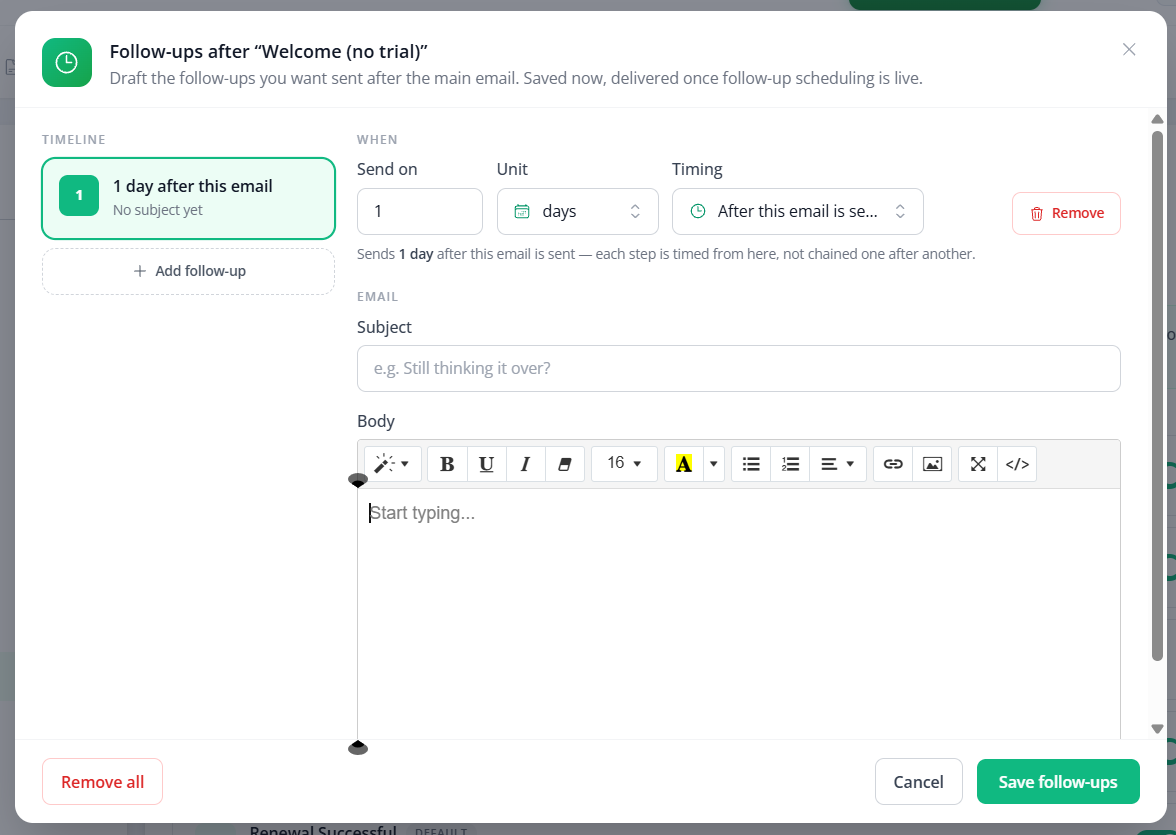
⚠️Timing is not chained. Every follow-up counts from the original event email, not from the previous follow-up. A second follow-up set to “3 days” sends 3 days after the event email — not 3 days after the first follow-up.
⚠️Follow-ups are saved as drafts for now. The window says: “Saved now, delivered once follow-up scheduling is live.” Build your sequence today; the emails send once delivery is turned on.
6 Edit the account-wide defaults
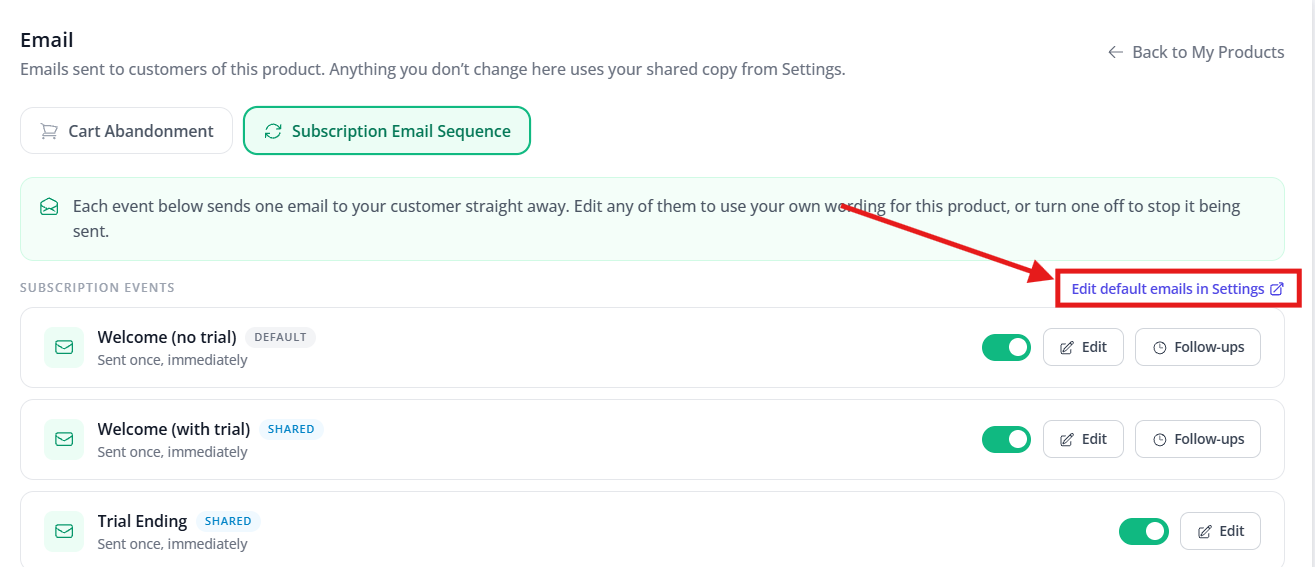
- On the product’s Email page, click Edit default emails in Settings (top right)
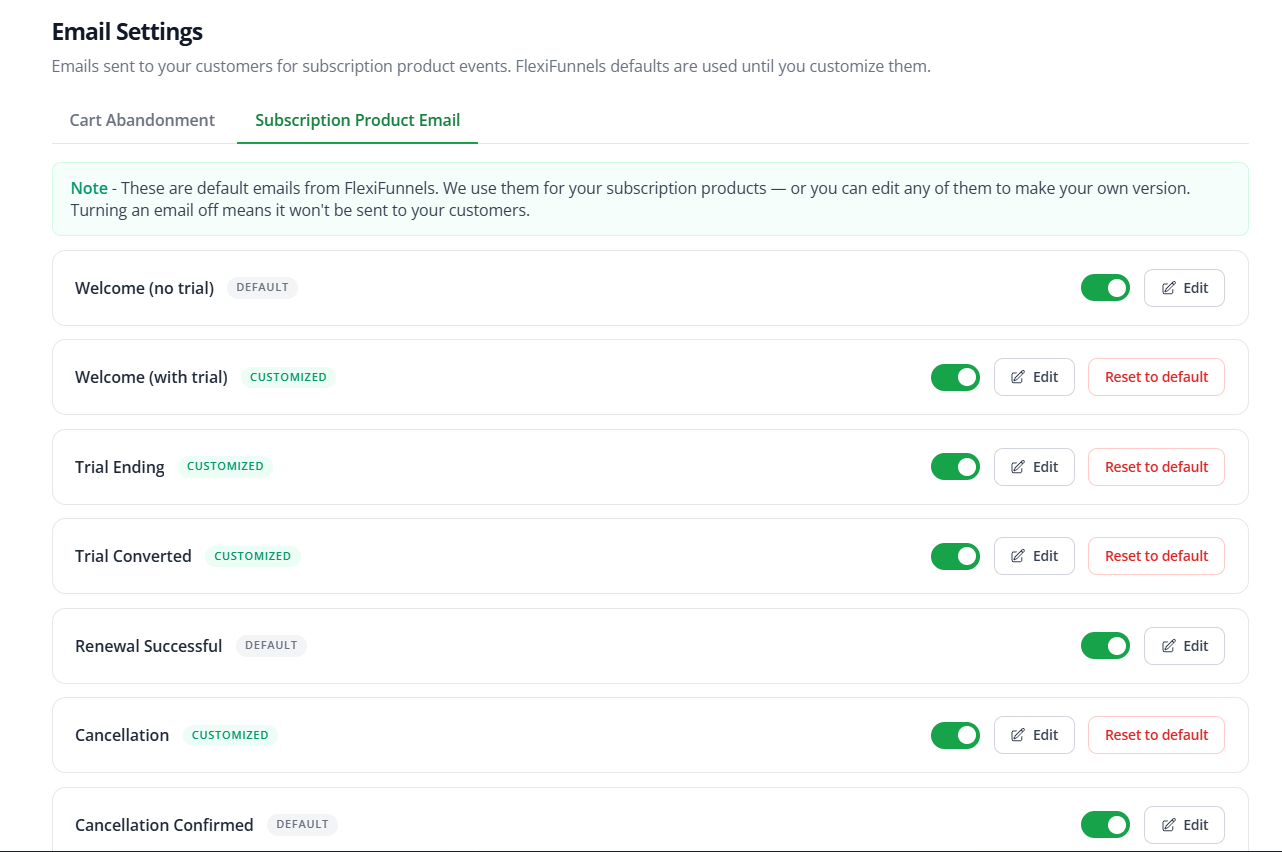
- You land on Settings → Email Settings → Subscription Product Email
- Edit any email, or turn one off — it is then not sent to customers
- An edited email shows CUSTOMIZED and a Reset to default button, which brings back the original wording
?Change it for every product (like your company name or support email) → edit it here in Settings.
Change it for one product (like a course-specific welcome) → edit it on that product’s Email page.
Change it for one product (like a course-specific welcome) → edit it on that product’s Email page.
Ideas
| Goal | How |
|---|---|
| Same tone on every product | Write your brand voice once in Settings. Every product shows SHARED and uses it |
| One flagship product with its own voice | Edit Welcome (no trial) on that product’s Email page only |
| Win back failed payments | On Payment Failed, add a follow-up “1 day after this email” reminding the customer to update their card |
| Skip an email you don’t want | Switch the toggle off (for example, Billing Extended) |
| Undo an experiment | On the Settings page, click Reset to default next to the email |
Quick Fixes
| Problem | Fix |
|---|---|
| I edited one product, but another still has the old wording | Expected — a product edit affects only that product. To change all products, edit in Settings → Email Settings → Subscription Product Email |
| My follow-ups aren’t sending | Expected for now — follow-ups are saved as drafts until follow-up delivery is live |
| No Follow-ups button on one event | Trial Ending has Edit only. Every other event has Follow-ups |
| I want a follow-up to arrive after the previous follow-up | Timing counts from the original email. To land 5 days after a follow-up sent on day 1, set Send on to 6 days |
| SHARED vs. CUSTOMIZED? | Same email, two views: SHARED (product page) = this product uses the account-wide version · CUSTOMIZED (Settings page) = that account-wide version was edited |
| Go back to the original wording | Settings → Email Settings → click Reset to default next to a CUSTOMIZED event |
Was this article helpful?
That’s Great!
Thank you for your feedback
Sorry! We couldn't be helpful
Thank you for your feedback
Feedback sent
We appreciate your effort and will try to fix the article