Overview
The Thank You Page is displayed immediately after a customer successfully purchases your Membership Product. This page confirms the purchase and provides members with the information they need to access their Membership Area.
You can fully customize the page to match your brand by editing the design, text, images, and layout. However, some default dynamic fields are essential for displaying the member's login credentials and should not be removed.
Before You Begin
Before editing your Thank You Page, ensure that:
- Your Membership Project has been created.
- The Membership Product is connected to the Membership Project.
- The Thank You Page already exists under your Membership Project's default pages.
- You understand which default elements are required for members to receive their login information.
Steps to Customize the Thank You Page
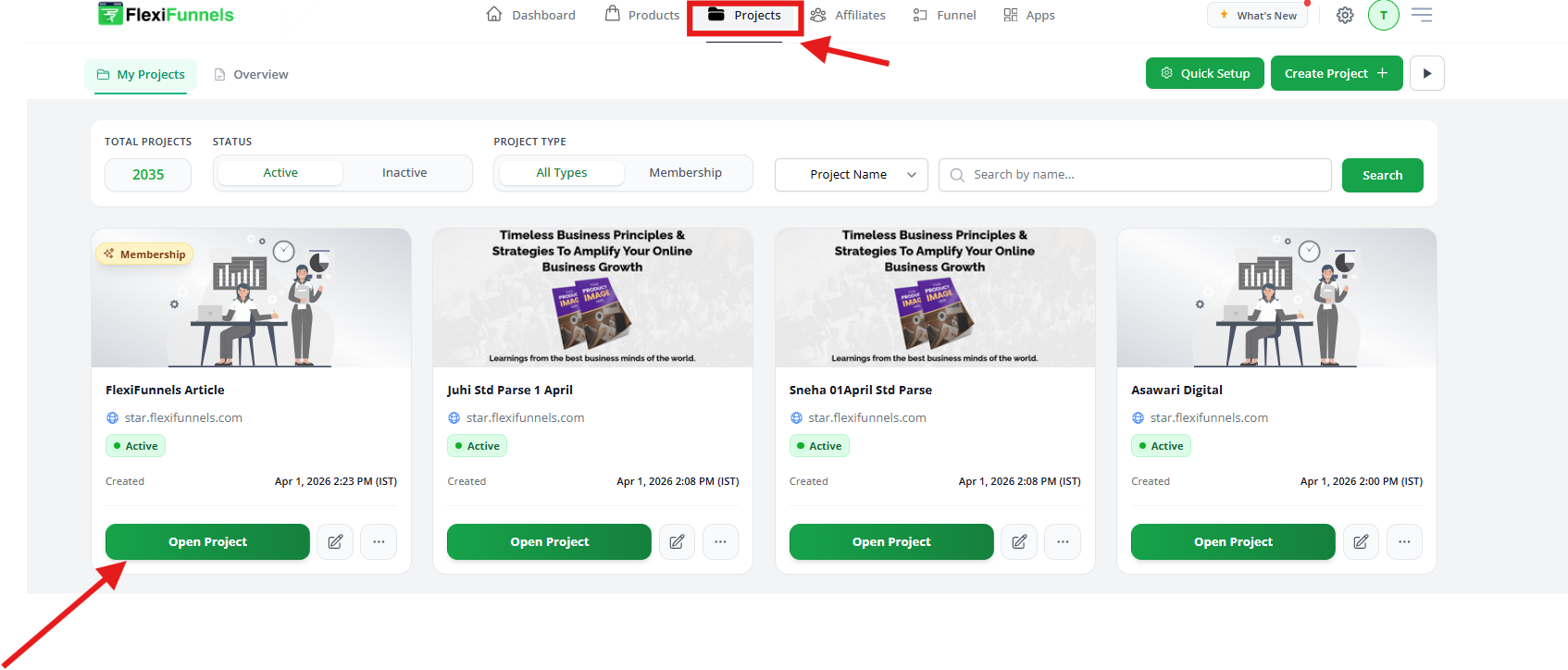
Step 1: Open Your Membership Project
- Log in to your FlexiFunnels account.
- From the dashboard, open the Membership project you want to edit.
- In the left sidebar, you will see all pages listed under the Membership section.
Step 2: Find the Thank You Page
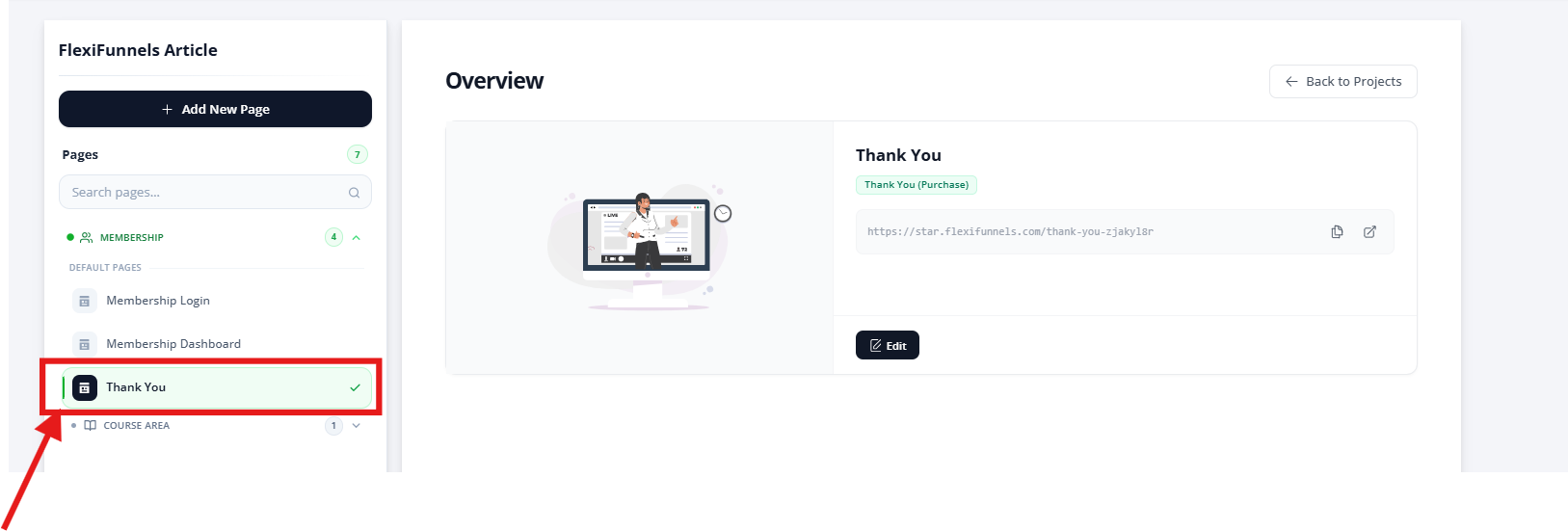
- In the left panel, locate Default Pages.
- Click on the Thank You page.
- On the right side, you will see:
- Page preview
- Live page URL
- Edit button
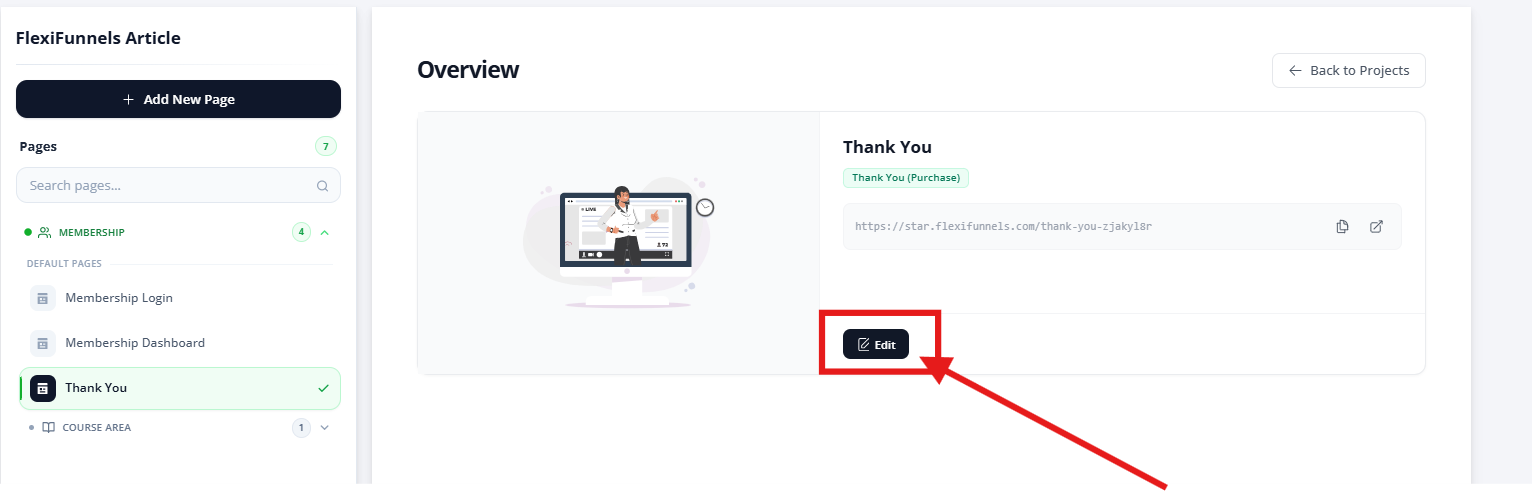
- Click the Edit button.
- The Thank You page will open inside the FlexiFunnels page builder, where you can start editing the design and content.
Step 4: Check the Default Credential Blocks
The Thank You page already contains three important blocks that show login details to members:
- Access URL – Displays the membership login link (
{{url}}) - Username – Displays the member’s email (
{{email}}) - Password – Displays the auto-generated password (
{{password}})
⚠️ Important:
Do not delete or change these dynamic variables, or members will not receive their login credentials.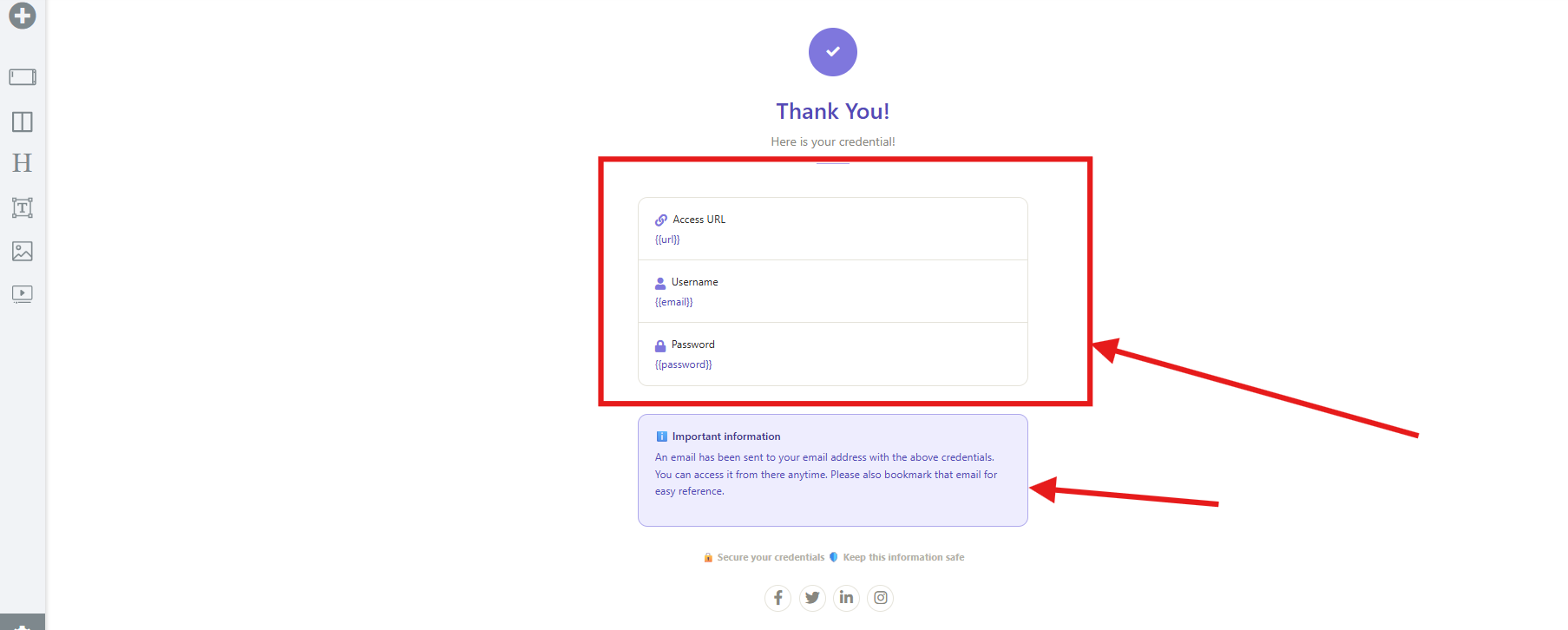
Step 5: Review the Important Information Section
Below the login details, there is an information box telling users that:
- Their credentials have been emailed to them
- They should save or bookmark the email
You can edit the wording in this section, but keep the message clear and helpful.
Common Scenarios
My customers aren't seeing their login credentials.
Check the following:
- Have the dynamic variables (
{{url}},{{email}}, and{{password}}) been removed or modified? - Was the Thank You Page saved after editing?
- Has the Membership Product been configured correctly?
I accidentally deleted the credential blocks.
If the dynamic variables were removed, customers may no longer see their Membership login information on the Thank You Page.
Restore the original variables before publishing the page again.
Can I change the design of the Thank You Page?
Yes.
You can freely customize the layout, branding, colors, images, text, and other design elements, as long as the required dynamic credential fields remain intact.
Can I add videos, buttons, or additional instructions?
Absolutely.
Many creators use the Thank You Page to:
- Welcome new members.
- Share onboarding instructions.
- Embed a welcome video.
- Link to a community or support group.
- Provide next steps after purchase.
Just be sure not to remove the essential login credential variables.
Best Practices
- Keep the Thank You Page simple and easy to understand.
- Highlight the login credentials so they are easy to find.
- Include clear instructions for accessing the Membership Area.
- Add your branding for a professional appearance.
- Test the Thank You Page using a test purchase before launching your Membership Product.
Before Contacting Support
Before reaching out to our support team, please verify the following:
- ✅ The Thank You Page has been saved after editing.
- ✅ The dynamic variables (
{{url}},{{email}}, and{{password}}) are still present. - ✅ The Membership Product is connected correctly.
- ✅ You've tested the purchase flow using a test order.
- ✅ You're viewing the published version of the Thank You Page.
If the issue still persists, please provide:
- A screenshot of your Thank You Page editor.
- A screenshot of the live Thank You Page.
- Your Membership Project name.
- A brief description of the issue and the changes made before it occurred.
Was this article helpful?
That’s Great!
Thank you for your feedback
Sorry! We couldn't be helpful
Thank you for your feedback
Feedback sent
We appreciate your effort and will try to fix the article