Adding resources (like PDFs, slides, worksheets, links, etc.) to your membership project helps provide additional value and support to your students alongside the video lessons.
Before You Start
- You're adding resources to a specific lesson, not to the whole module
- Resources appear below the video for students to download or click
- Supported file types: PDF, DOCX, XLSX, PPTX, ZIP, PNG, JPG, MP4 (see size limits below)
Steps to Add a Resource
Step 1: Open Your Membership Project
Log in to your FlexiFunnels dashboard.
Navigate to the Membership Project where you want to add the resource.
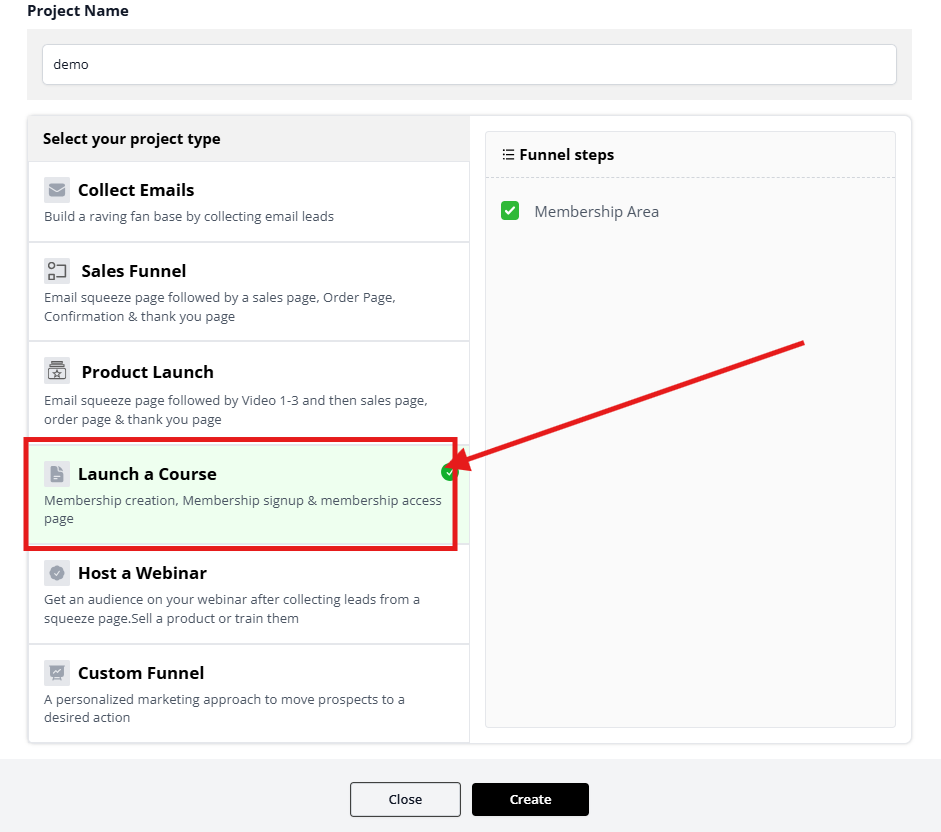
Step 2: Locate the "Add Resource" Option
Inside the project, look for the “Add Resource” option. This is usually available within each lesson or module section.

Step 3: Upload or Link the Resource
Option A: Upload a File from Your Computer
- Click "Add Resource" → "Upload File"
- Select your file (PDF, image, document, ZIP, etc.)
- File size limit: 100 MB (if your file is larger, compress it as a ZIP first)
- Wait for the upload bar to reach 100%
- Name your resource (Example: "Worksheet_Module1_Week2" — NOT "Document.pdf")
- Click "Save"
Option B: Link to an External URL
- Click "Add Resource" → "Add URL"
- Paste the full URL (must start with
https://) - Name your resource (Example: "Google Form - Feedback Survey")
- Click "Save"
Common URL examples:
- Google Drive:
https://drive.google.com/file/d/... - Dropbox:
https://www.dropbox.com/s/... - YouTube:
https://www.youtube.com/watch?v=... - External forms:
https://forms.typeform.com/...
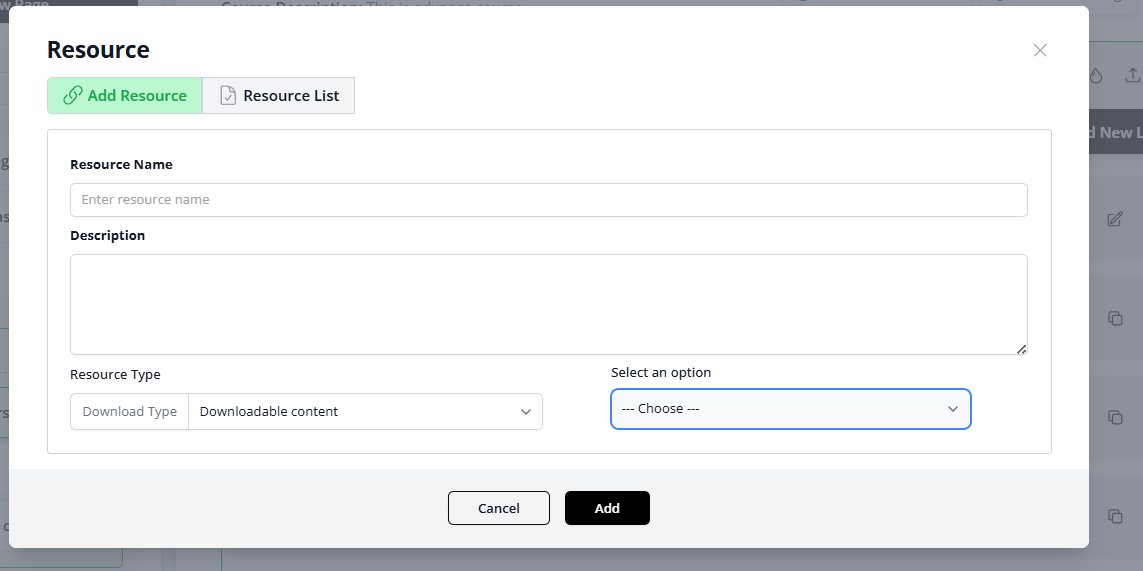
There, you have to choose the resource type as per your need and by selecting an option, add the selection
Step 4: Save and Preview
After uploading or adding the link, click Save.
Preview the lesson to ensure the resource is visible and accessible to students.
Common Issues & Fixes
| Problem | Why It Happens | Fix |
|---|---|---|
| File upload fails or hangs | File is too large (over 5 MB) | Compress your file or upload as ZIP instead |
| "Unsupported file type" error | You're trying to upload .exe, .app, or other restricted files | Convert to PDF or ask support which formats are allowed |
| URL link is broken | The external link changed or was deleted | Test the URL in a new browser tab—if it doesn't work there, update or remove it |
Pro Tips
✓ Naming matters: Use clear names like "Worksheet_Week3.pdf" instead of "Document1.pdf"—students need to know what they're downloading.
✓ Test before publishing: Always preview as a student to make sure the resource is accessible.
✓ File organization: If you're adding many resources, keep them in order (numbered, dated, or by module).
✓ External links: If linking to Google Drive or Dropbox, make sure sharing permissions are set to "Anyone with the link can view" (or FlexiFunnels won't be able to access it).
✓ Backup important files: If you link to external URLs, download a backup copy—if that service goes down, your resource disappears.
✓ Resource limits: There's no hard limit on how many resources per lesson, but keep it under 10 to avoid overwhelming students.
Was this article helpful?
That’s Great!
Thank you for your feedback
Sorry! We couldn't be helpful
Thank you for your feedback
Feedback sent
We appreciate your effort and will try to fix the article