What This Feature Does
URL Settings let you customize the web address (slug) for your membership, and gives you quick access to the two key URLs you'll need to share: the dashboard URL (where logged-in students land) and the login URL (where students sign in if not already logged in).
Before You Start
- Changing your slug changes your membership's URL — if you've already shared the old URL anywhere (emails, sales pages, bookmarks), those links may break
- Slugs typically only allow letters, numbers, and hyphens (no spaces or special characters)
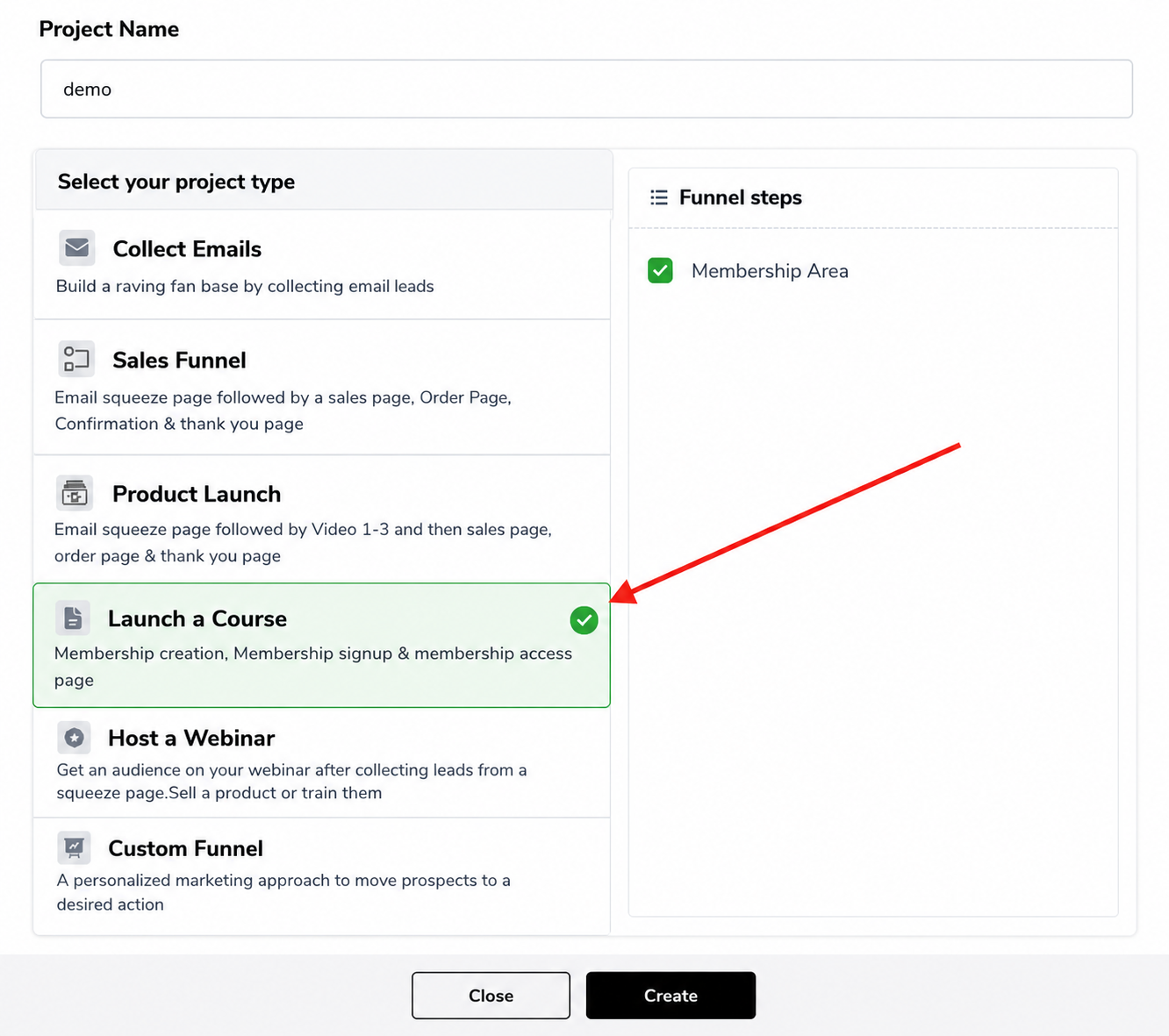
Step 1: Go to Your Membership Project
Log in to your FlexiFunnels dashboard.
- Click on the Membership you want to configure.
Step 2: Open Membership Settings
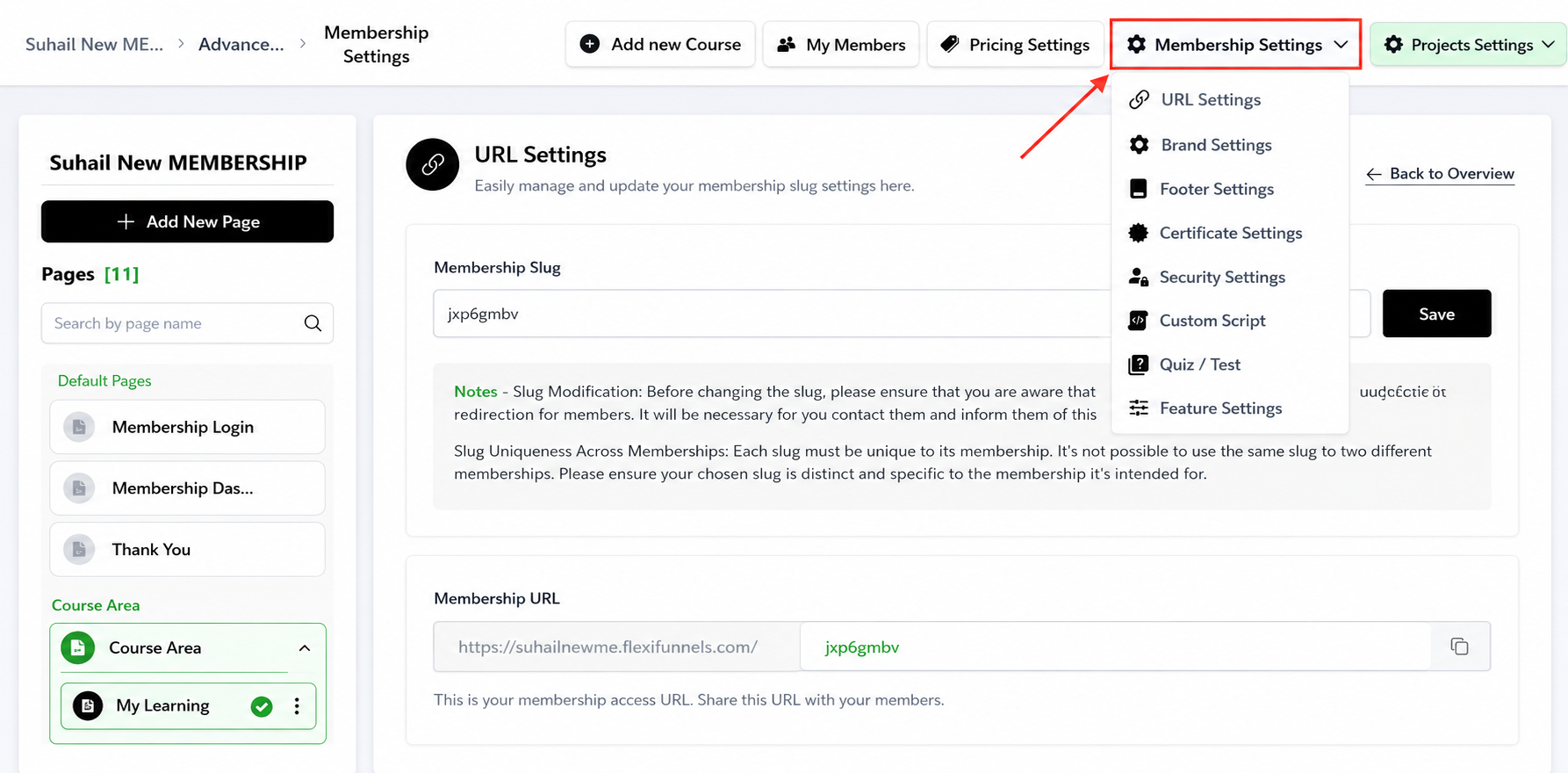
Inside the Membership Project, look for the “Membership Settings” option in the side menu.
Click to open it.
Step 3: Click on "URL Settings"
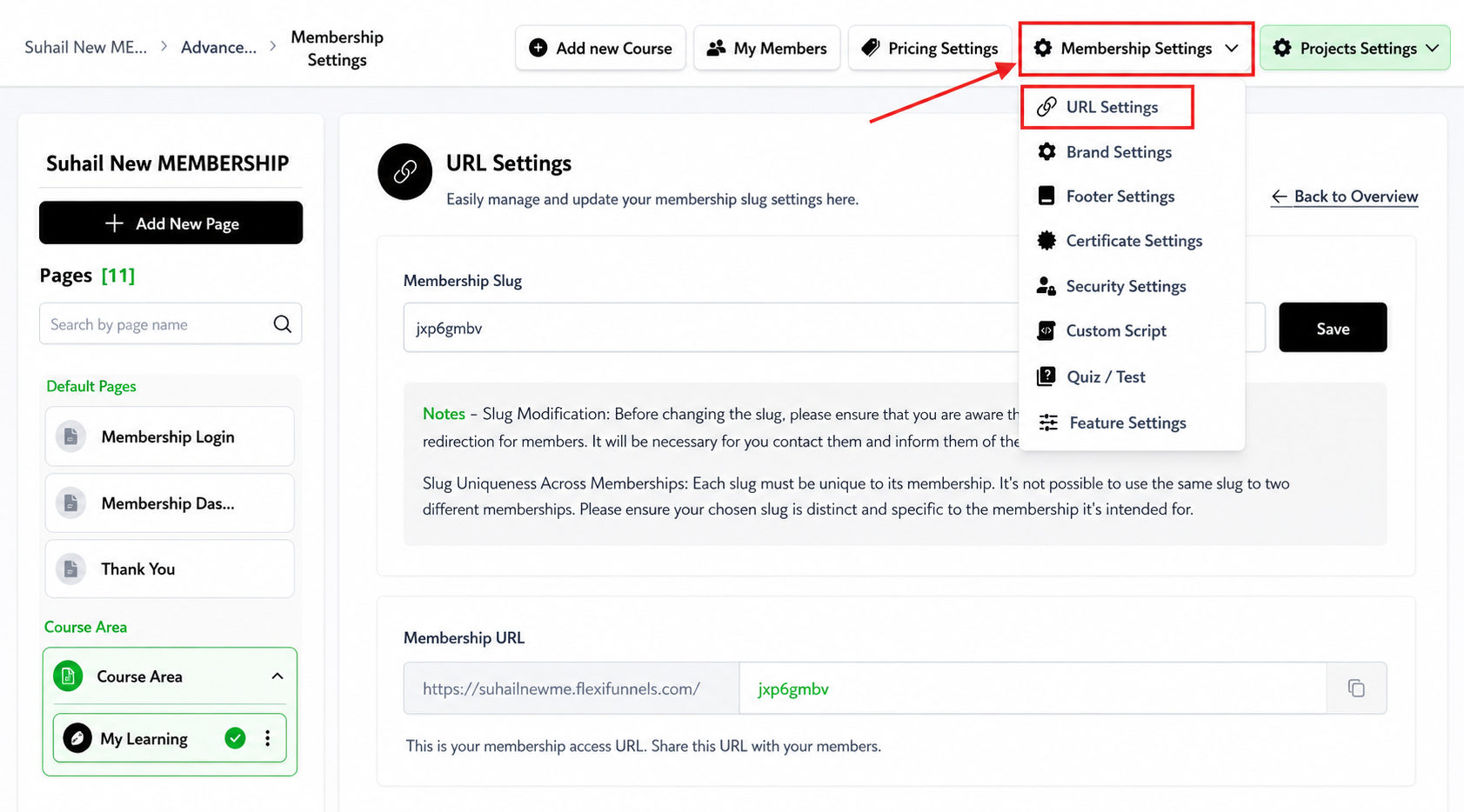
Under Membership Settings, you'll see the option for “URL Settings”.
Click on it to proceed.
Step 4: Configure the URLs
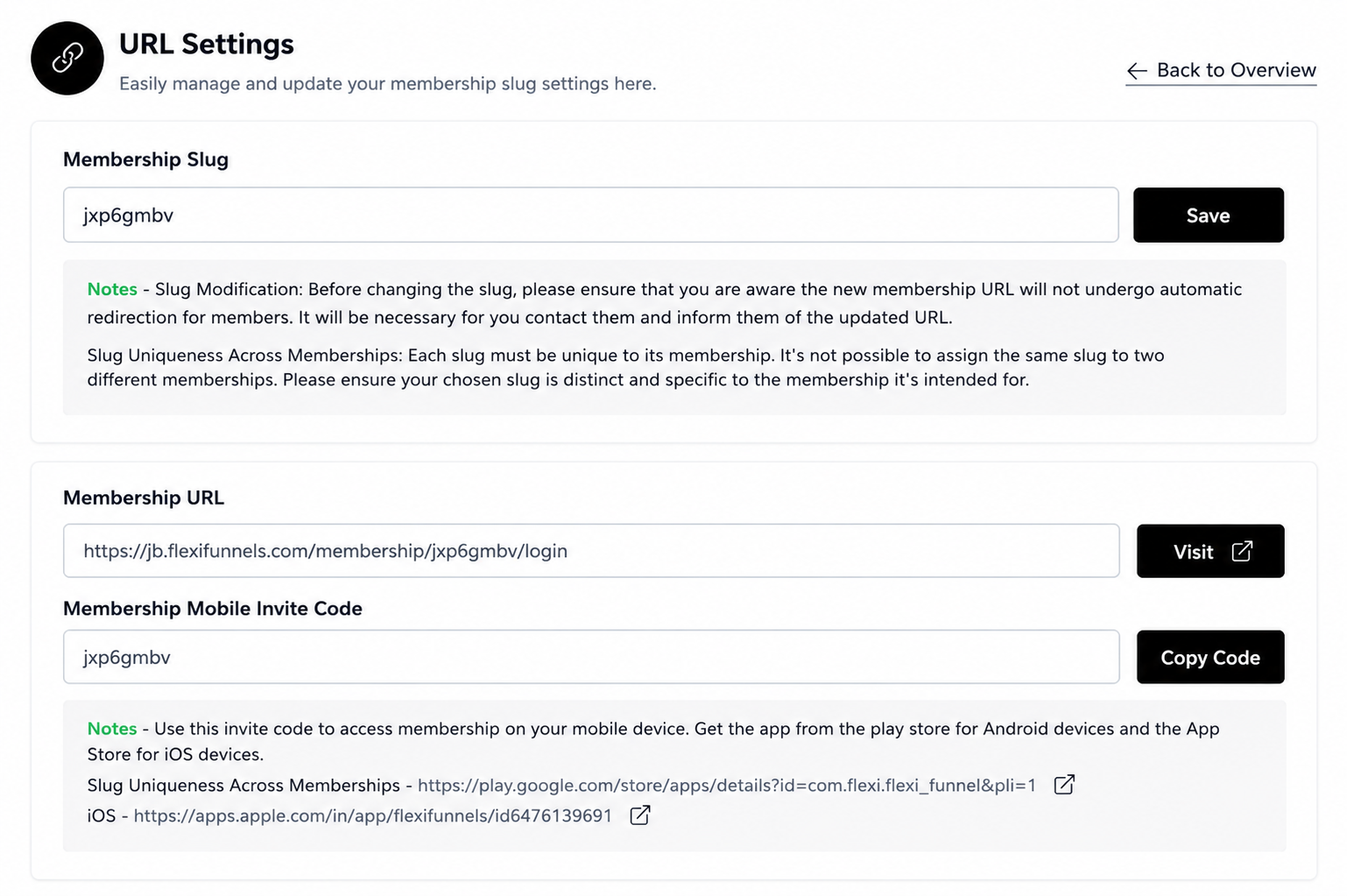
Here, you can:
Edit the Slug: Customize the URL slug (e.g., change
yourdomain.com/membership-courseto something else).Copy Membership Dashboard URL: This is the login/dashboard URL that you’ll share with your students so they can access their content.
Access the Membership Login URL: A direct login page for your members if they’re not already signed in.
When to Use Which URL
| URL Type | Use Case |
|---|---|
| Dashboard URL | Share this in welcome emails, course platforms, or bookmarks — it's the main link students use repeatedly |
| Login URL | Use this if a student is logged out and needs a direct path to sign back in (e.g., in a "trouble logging in?" support email) |
Common Issues & Fixes
| Problem | Likely Cause | Fix |
|---|---|---|
| Old links stop working after a slug change | The slug was changed, breaking previously shared URLs | Resend the updated Dashboard URL to existing students, or avoid changing the slug after launch |
| Slug won't save / shows an error | Used spaces, special characters, or the slug is already taken | Use only letters, numbers, and hyphens; try a different slug if it's a duplicate |
| Students land on login page instead of their content | They were sent the Login URL instead of the Dashboard URL | Share the Dashboard URL going forward for a smoother experience |
| Dashboard URL shows an error or blank page | Slug change didn't save properly, or project isn't published | Confirm Save was clicked; check the membership project's publish status |
Was this article helpful?
That’s Great!
Thank you for your feedback
Sorry! We couldn't be helpful
Thank you for your feedback
Feedback sent
We appreciate your effort and will try to fix the article