A Hello Bar is a slim strip across the very top (or bottom) of your page that carries a short message and a button — for example, "? New course just launched — Enrol now." It's a simple, high-visibility way to push one important announcement or call-to-action without taking up room in your main page.
This version of the Hello Bar holds text and a button (no countdown). If you want a bar with a built-in countdown timer for urgency, use the Hello Bar with Timer instead — see Hello Bar with Timer.
This guide shows you how to add the bar, style its text and button, set the button's link, check it on mobile, and publish.
Prefer to watch? Here's the full video walkthrough:
A couple of things to know first
- It's a section type. The Hello Bar is added the same way as any section — from the Components panel — and comes pre-built with text and a button inside, so you mostly style and link it rather than build it from scratch.
- "Sticky" means it stays on screen. A sticky bar doesn't scroll away with the page — it stays pinned in place (top or bottom) as the visitor scrolls, so your message is always in view.
Step 1 — Add the Hello Bar
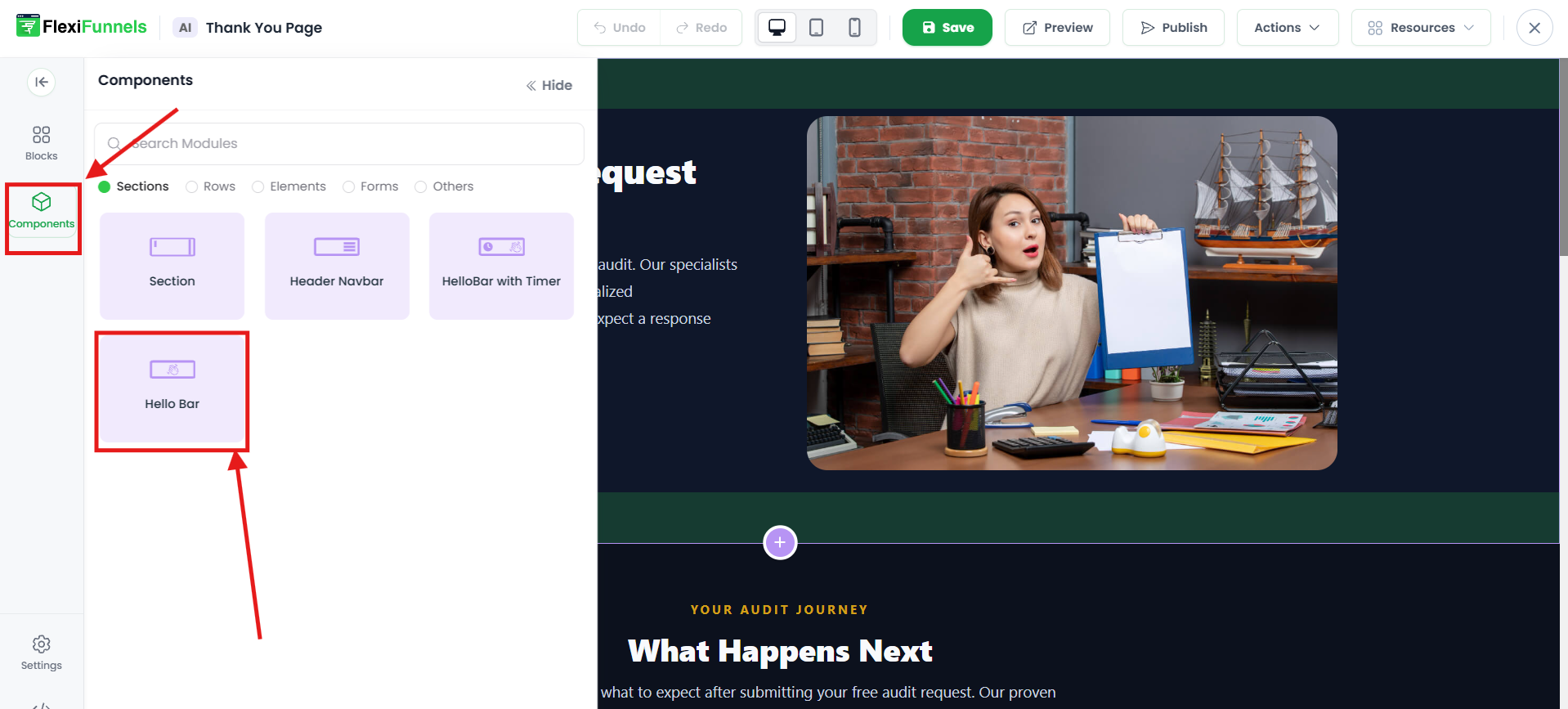
In the editor, open the Components → Sections, then drag and drop the Hello Bar onto your page.
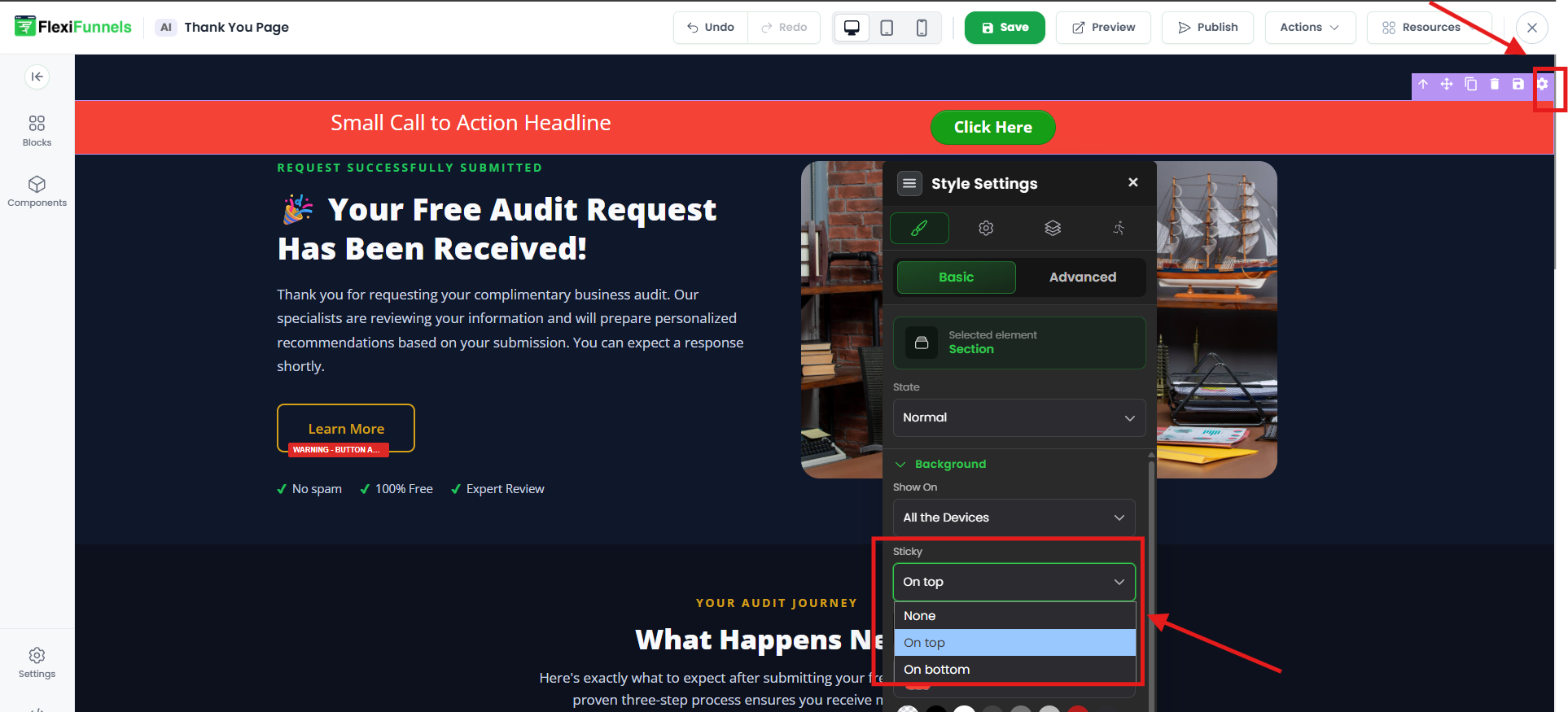
By default the bar is sticky on top. To move it to the bottom of the screen instead, change the Sticky dropdown from top to bottom.
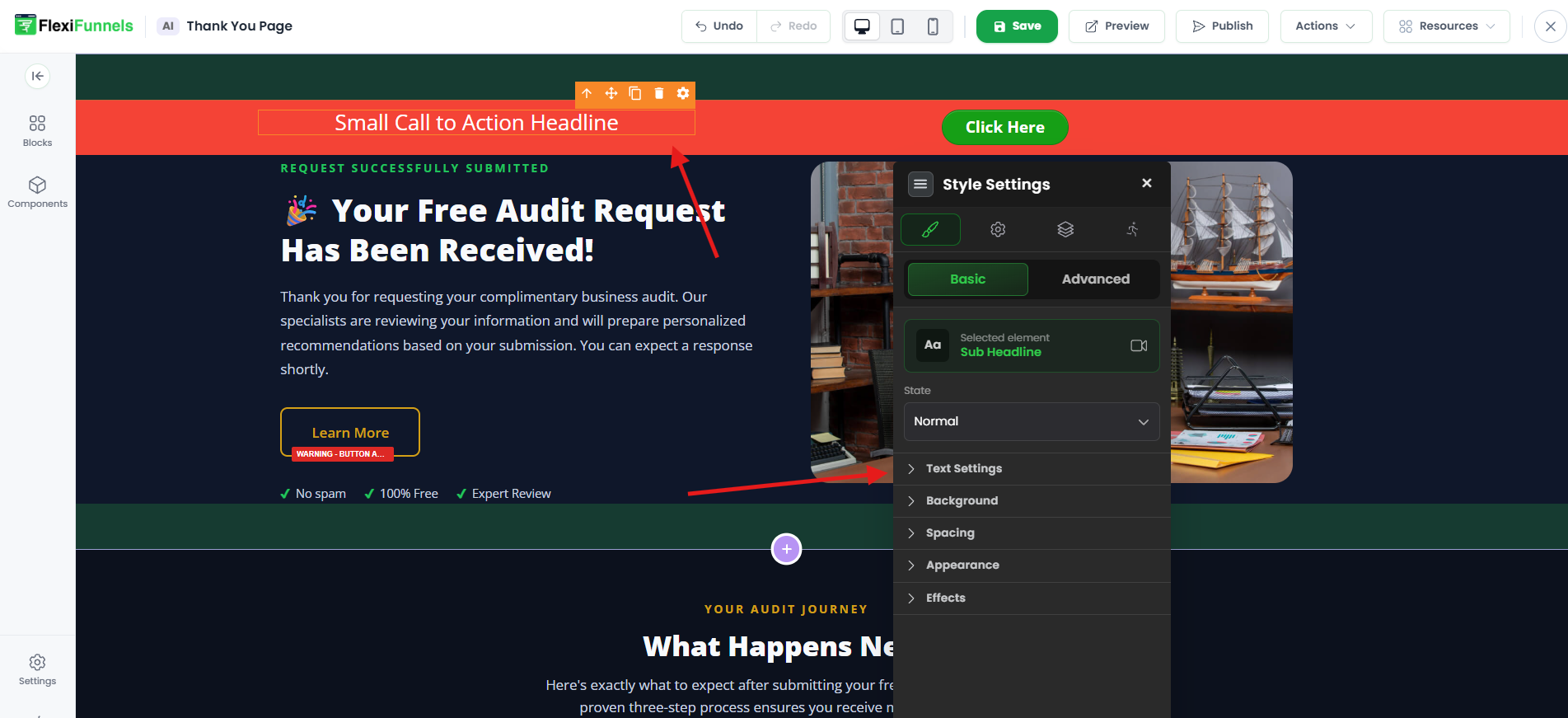
The bar has two parts you can style
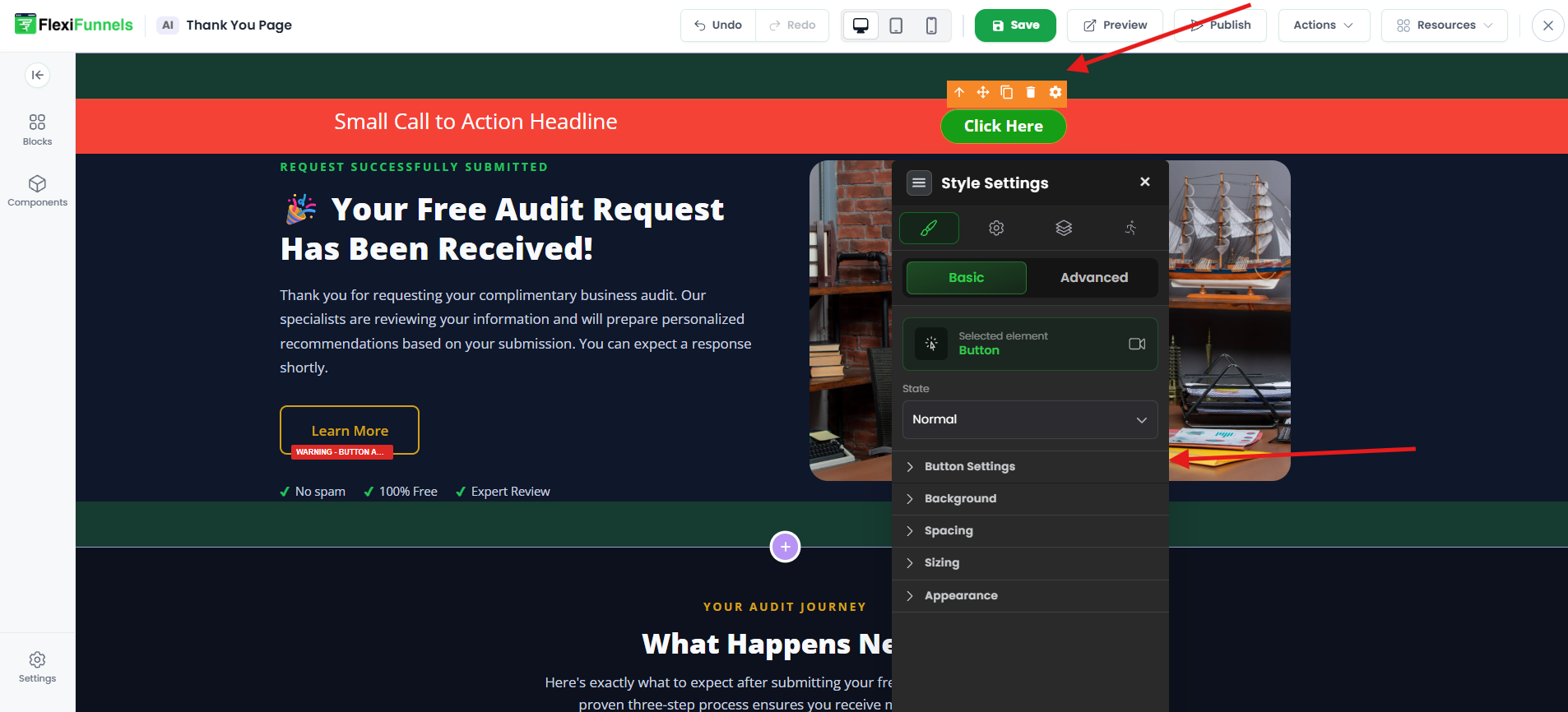
The text and the button each have their own style settings. To open them, click the part you want, then click its Settings (gear) icon; the Style Settings panel opens for that part.
Step 2 — Style the text
Click the text, open its Settings, and adjust the wording's size, font, color, and so on to match your message.
Step 3 — Style the button
Click the button, open its Settings, and change its color, size, label text, and shape.
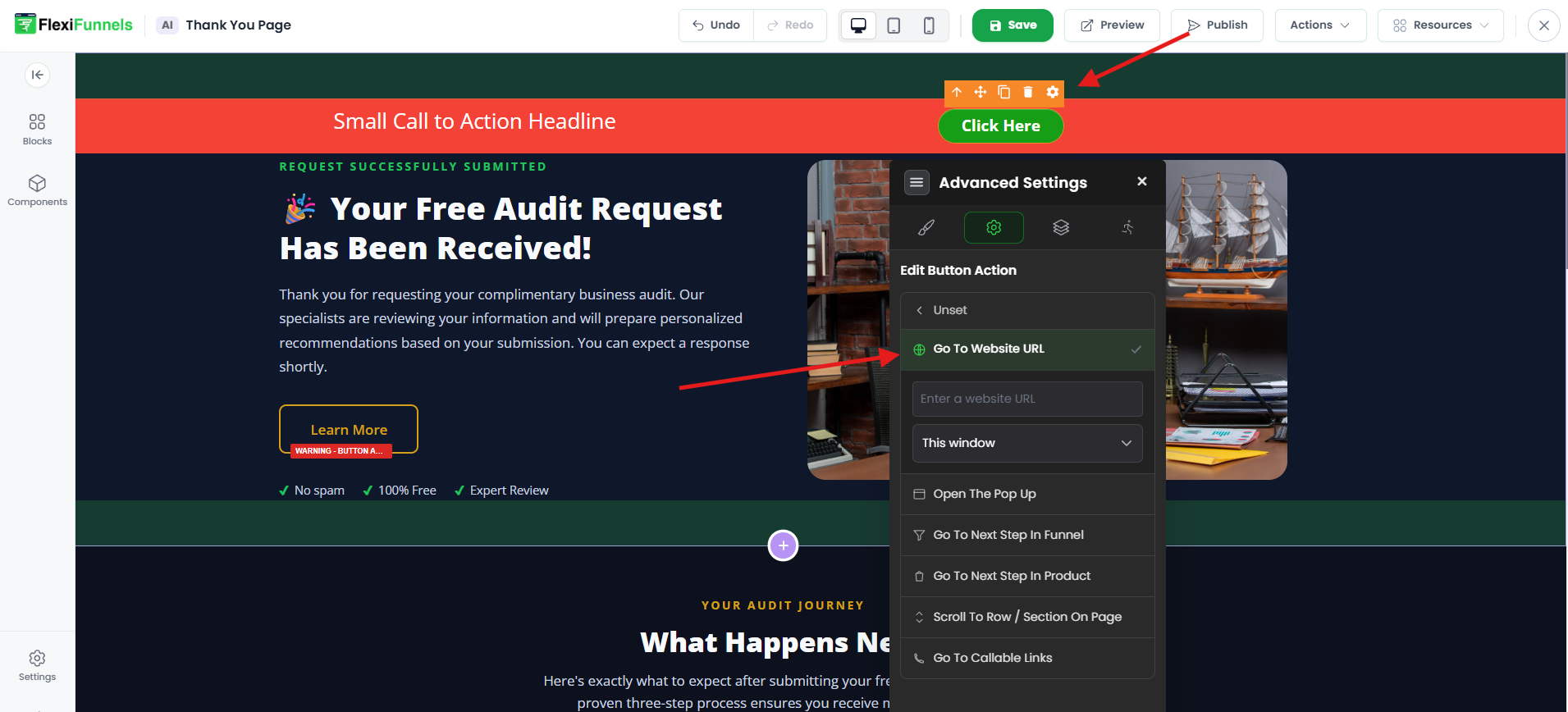
Step 4 — Set the button's action / CTA (Advanced)
A button only does something once you give it a destination. Under the button's Advanced settings, set its CTA — where the visitor goes when they click (your offer, signup, or checkout page). A button with no action assigned won't take anyone anywhere.
Step 5 — Check it on mobile
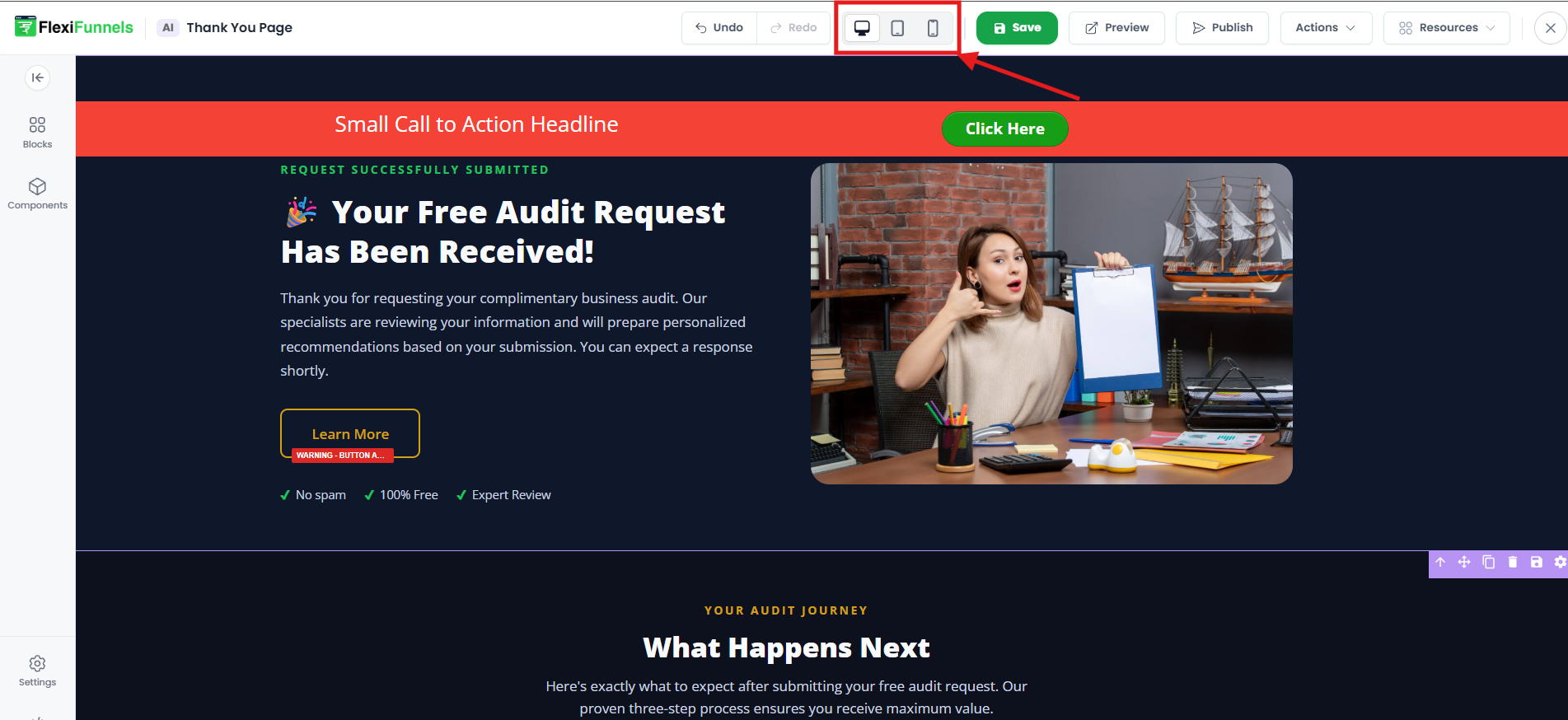
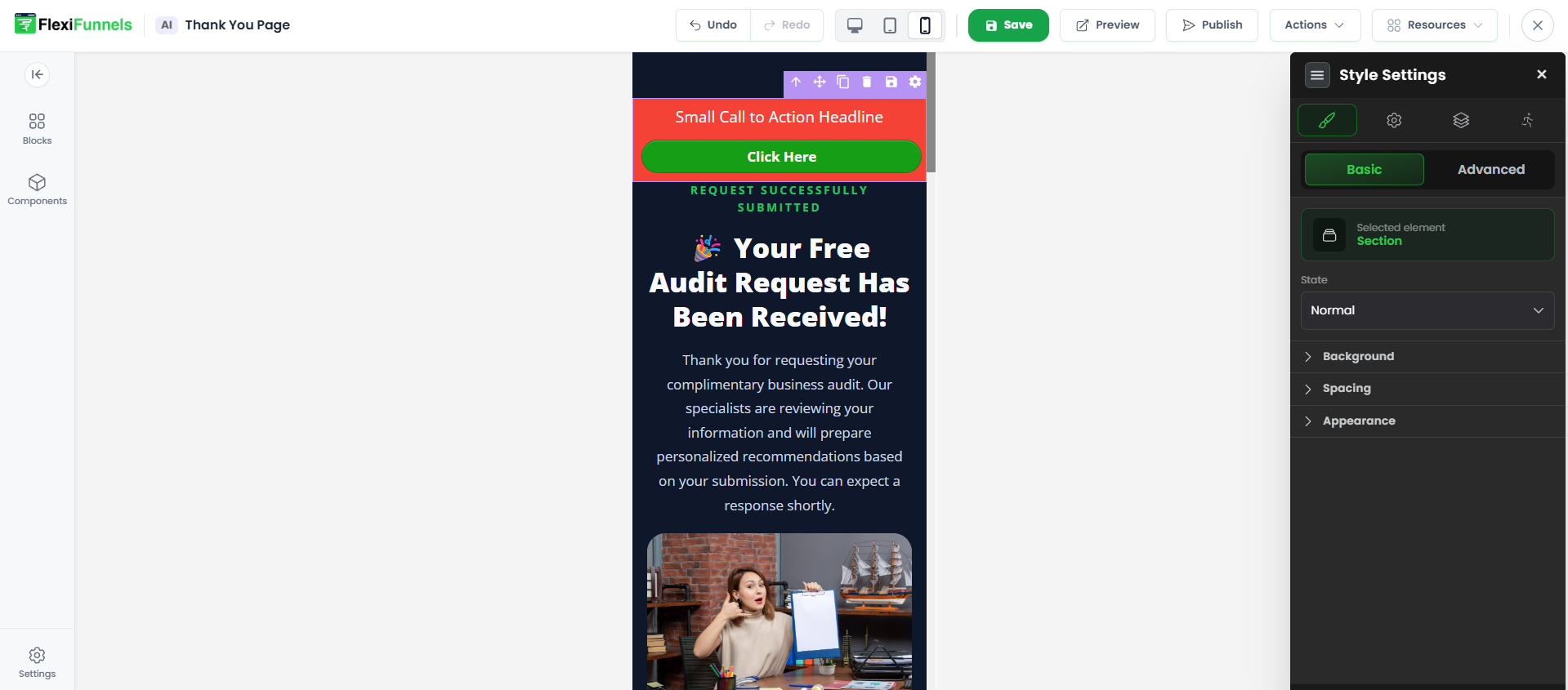
Click the mobile icon in the top bar of the editor to preview how the bar looks on phones.
Step 6 — Fix any alignment issues
The Hello Bar is mobile-responsive by default, so in most cases there's nothing to adjust — it adapts to the screen on its own. Only if you have a specific design need, tweak the style properties of the text or button until it sits the way you want.
Step 7 — Publish
Publish the page. Once live, the bar appears like this on desktop and mobile:


Common situations & quick fixes
"The bar scrolls away instead of staying on screen." That means it isn't sticky. Select the section and check the Sticky dropdown is set to top (or bottom). Sticky is what keeps the bar pinned as visitors scroll.
"My button doesn't go anywhere when clicked." Open the button's Advanced settings and set its CTA (the link/action). A styled button with no action assigned does nothing — this is the most common reason a Hello Bar button "doesn't work."
"The bar overlaps my header/navbar at the top." If two things are both sticky at the top, they can stack on each other. Move one to the bottom (Sticky dropdown), or adjust layering with the Z-index option in Style Settings → Advanced (the higher Z-index sits on top).
"My text is getting cut off or looks cramped on mobile." The bar is mobile-responsive by default, but very long text can still feel tight on small screens. Switch to Mobile View (Step 5) and shorten the copy or reduce the text size there — you can adjust mobile separately without changing the desktop look.
"I want a countdown in my bar, not just text." This Hello Bar doesn't include a timer. Use the Hello Bar with Timer section instead for a built-in countdown — see Hello Bar with Timer.
"My changes aren't showing on the live page." Edits need to be saved and published before visitors see them. After editing, publish (or re-publish if the page is already live).
Still stuck?
If the bar or its button won't behave as expected after trying the steps above, submit a ticket and tell us which page you're editing and what you're seeing — a screenshot of your button's Advanced settings helps us sort it out quickly.
Was this article helpful?
That’s Great!
Thank you for your feedback
Sorry! We couldn't be helpful
Thank you for your feedback
Feedback sent
We appreciate your effort and will try to fix the article