What Are Built-in Blocks?
Built-in Blocks are pre-designed, ready-to-use page sections that FlexiFunnels provides.
Think of them like IKEA furniture—they arrive fully assembled, styled, and ready to customize. No design work needed.
Examples:
- Hero section (headline + image + button)
- Features section (3 features with icons)
- Testimonials section (customer quotes)
- Pricing table (product plans)
- FAQ accordion (collapsing Q&A)
- Contact form section (form + text)
- Footer (links + copyright)
You pick a block, add it to your page, customize the text/colors, and you're done.
Why Use Built-in Blocks?
Speed: Build a professional page in 15 minutes (vs. 2 hours designing from scratch)
Professional design: Blocks are designed by professionals—you get quality instantly
No design skills needed: You don't need to be a designer
Consistency: All blocks follow FlexiFunnels' design standards
Proven layouts: Blocks are tested for conversions
When to Use Built-in Blocks
✓ You need a page fast
✓ You want professional design
✓ You're not a designer
✓ You want to customize text only (not layout)
✓ You like the pre-made layout for your use case
Don't use built-in blocks if:
✗ You need a completely custom layout
✗ You want to control every pixel
✗ The block is only 20% of what you want
Step-by-Step: Add a Built-in Block
Step 1: Open the Landing Page Editor
- Go to your project
- Click on the page you want to edit
- Click "Edit Page"
The editor opens
Step 2: Click the Plus Button
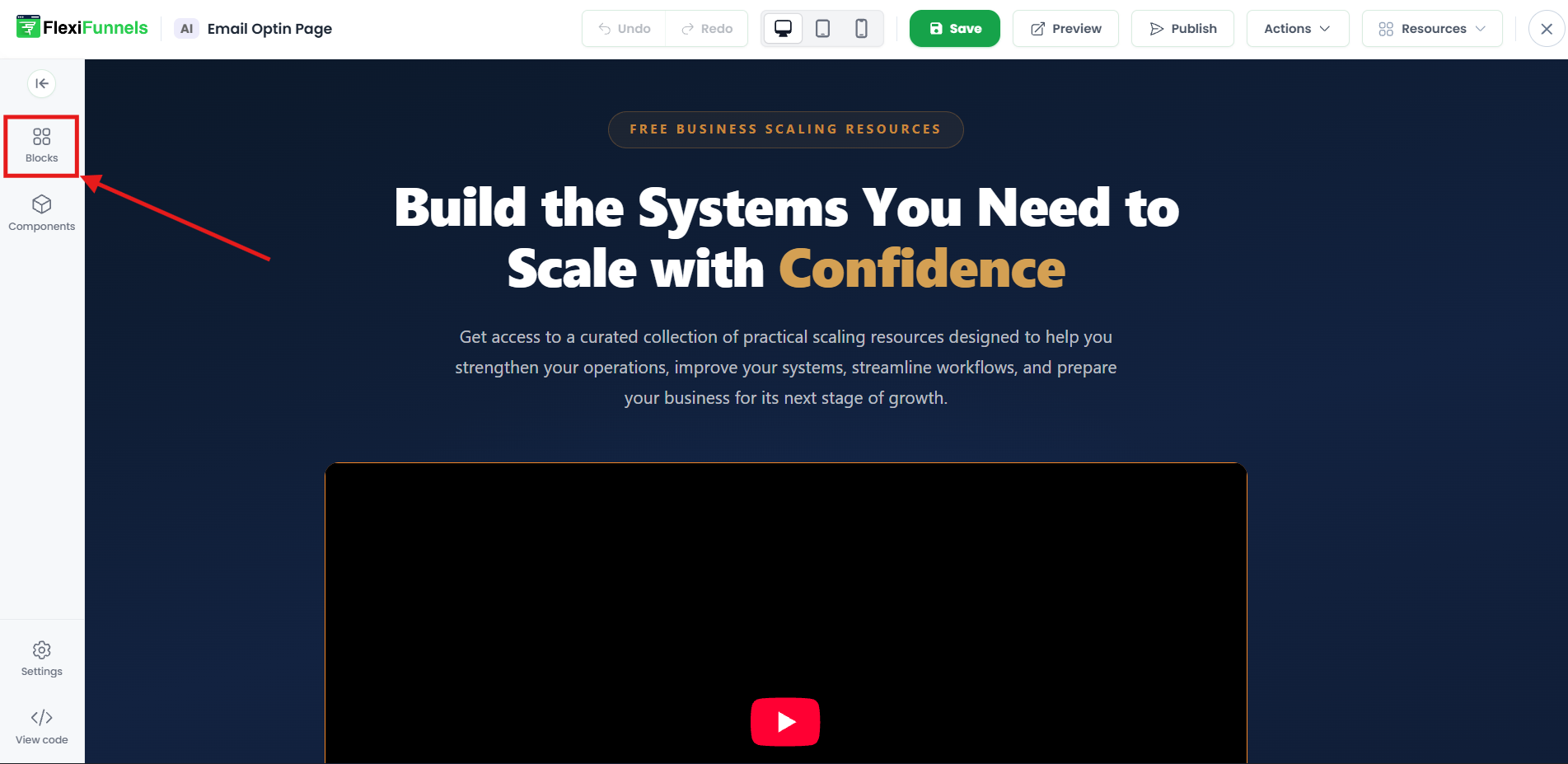
- Look at the left sidebar
- Find the "Blocks" button at the top
- Click it
A menu appears with "Design Blocks" and "Components" options.
Step 3: Go to Built-in Blocks
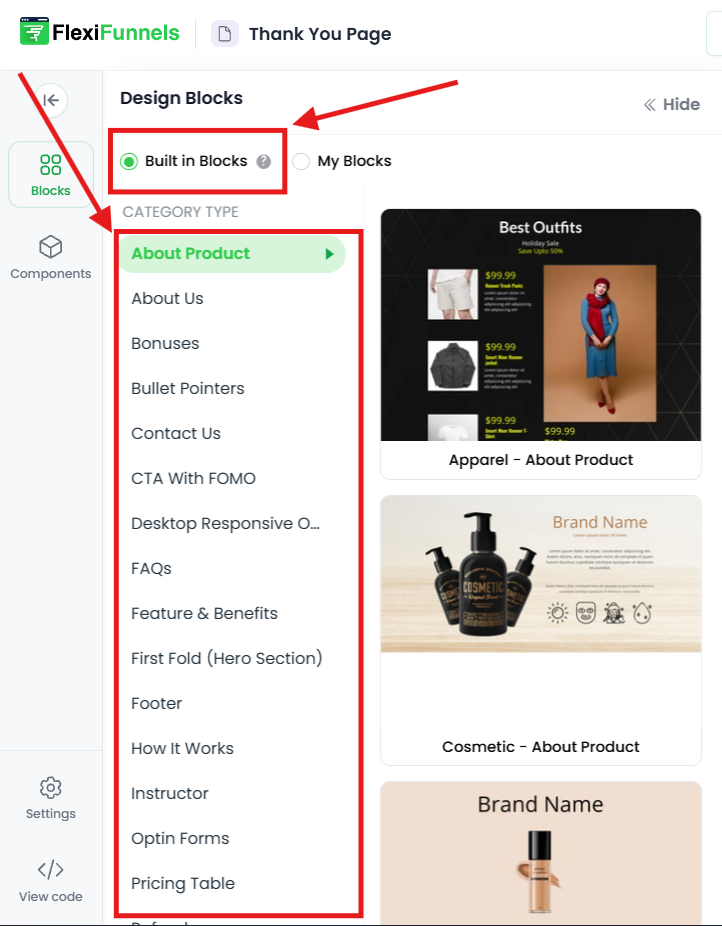
- Click "Blocks"
- Then click "Built-in Blocks"
You'll see categories of available blocks.
Step 4: Browse or Search
- Browse categories (Heroes, Features, Testimonials, etc.)
- OR use the search bar to find a specific block type
- Look for a block that matches your needs
Step 5: Click to Preview
- Hover over a block to see a preview
- Click on it to see more details
- Read the description to confirm it's what you want
Step 6: Add to Page
- Click "Add to Page" or "Use This Block"
- The block appears on your page (usually at the bottom)
- It's fully styled and ready to customize
Step 7: Customize
- Click on any text to edit it
- Click on colors to change them
- Click on images to replace them
- Customize fonts, spacing, button text, etc.
Step 8: Add More Blocks
- Repeat steps 1-7 to add more blocks
- Stack them to build a complete page
- Order them logically (header → features → testimonials → pricing → CTA → footer)
Step 9: Publish
- Click the "Publish" button
- Your page is now live
✓ Done!
Common Situations & Quick Fixes
Situation 1: "I Added a Block but the Text Is Wrong"
What's happening: The block has placeholder text.
Fix:
- Click the text
- Delete it
- Type your own text
- Click outside to save
Situation 2: "I Don't Like the Block Layout"
What's happening: The block structure doesn't work for you.
Options:
- Try a different block — Remove this one, add a different one
- Delete and use Components — Delete the block, build it custom with Components
- Adjust spacing — Maybe it just needs more/less spacing
Situation 3: "The Block Doesn't Match My Brand Colors"
What's happening: Block uses default colors, you need your brand colors.
Fix:
- Click any colored element (button, background, etc.)
- Color picker appears
- Enter your brand color code (hex:
#FF5733) - Click outside to apply
- Repeat for all elements
Situation 4: "Can I Move a Block to a Different Location?"
What's happening: You added a block in the wrong order.
Fix:
- Click the block to select it
- Look for "Move" option or arrow icons
- Click up/down arrows to move it
- Or: Delete it and add it again in the right place
Situation 5: "The Block Is Missing a Section I Need"
What's happening: The block doesn't have all the content you want.
Options:
- Find a different block — Maybe another block has what you need
- Add a custom section — After the block, add a Components section
- Use Components instead — Build it custom without the block
Was this article helpful?
That’s Great!
Thank you for your feedback
Sorry! We couldn't be helpful
Thank you for your feedback
Feedback sent
We appreciate your effort and will try to fix the article