The button is the most important element on most pages — it's what visitors actually click to buy, sign up, book, or get in touch. So a button really has two jobs to get right: what it does when clicked (its action) and how it looks (its styling). This guide covers both.
Prefer to watch? Here's the video walkthrough:
Note on adding the button first: Like any element, the Button needs a row with a column to sit in. Drag it in from Components → Elements, then open its settings.
Most important thing to know: a button does nothing on click until you give it an action. Setting the action (below) is the step people most often forget — a beautiful button that goes nowhere is the #1 button support issue.
Part 1 — Button Actions (what happens on click)
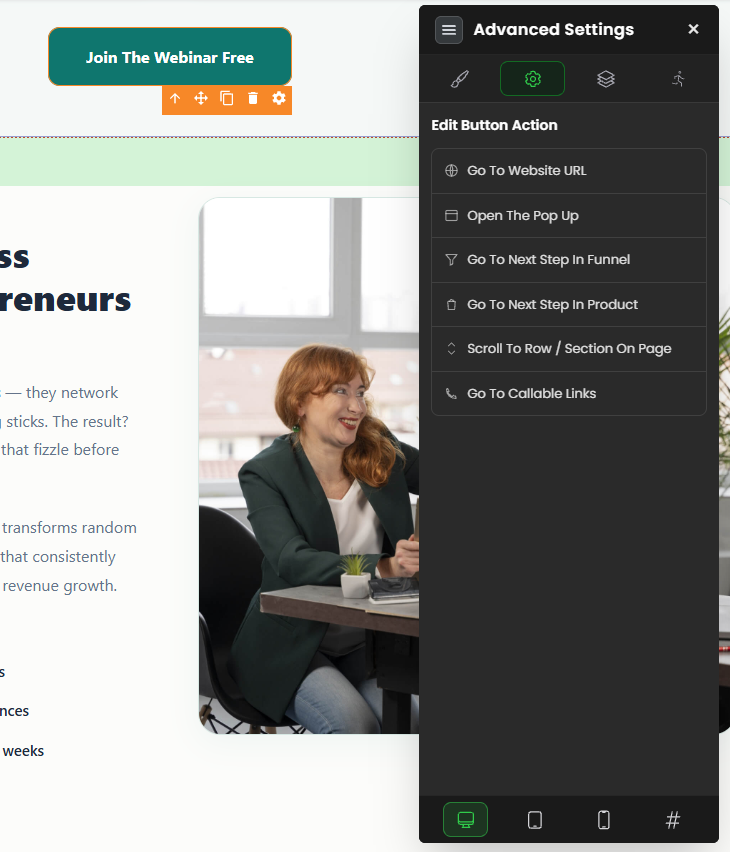
Found in the button's Advanced Settings, these define where the visitor goes when they click. Pick the one that matches your goal:
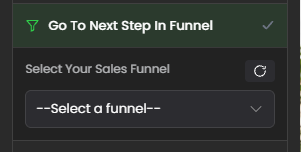
Go to Next Step in Funnel
Sends the visitor to the next step you've set up in your funnel logic — use this for normal funnel navigation (e.g. opt-in → sales page). The funnel flow has to be configured first. Learn Funnel Logic setup: click here.
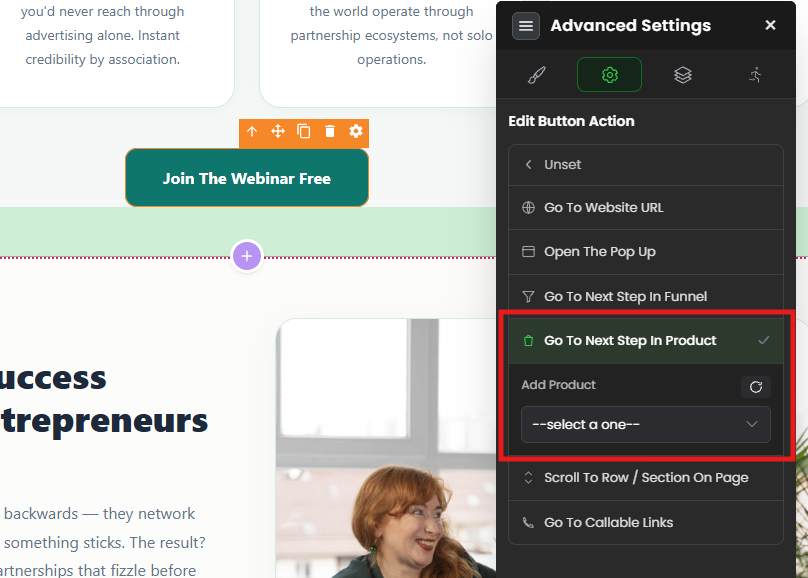
Go to Next Step in Product
Use this when your funnel includes a product with multiple steps (like Order → Upsell → Thank You). It moves the visitor to the next step in that product flow. The product must be created first. Learn how to create a product: click here.
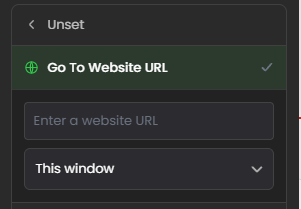
Go to Website URL
Sends the visitor to any web address — your own page or an external site. You can open it in the Same Window (replaces the current page — fine for your own site) or a New Window (opens a new tab — best for external links so visitors don't lose your page).
Open a Popup
Shows a popup you've built in the editor. Select an existing popup from the dropdown, or click Create to build a new one. The popup needs to exist before the button can open it.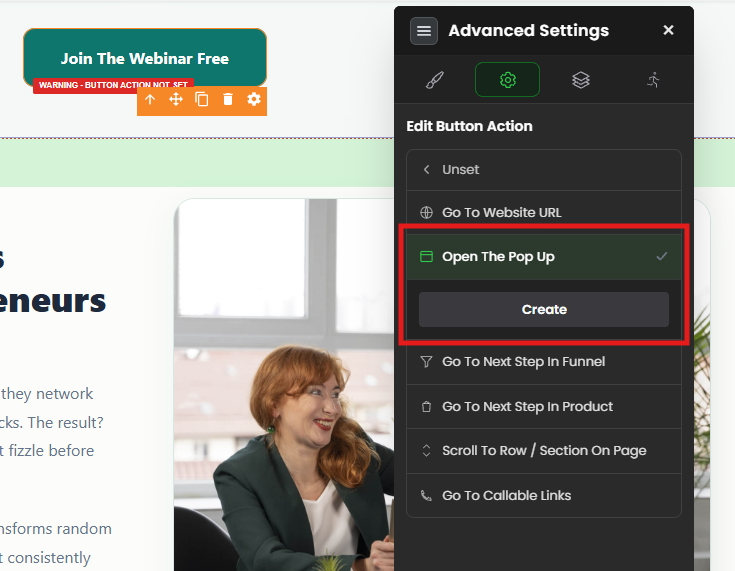
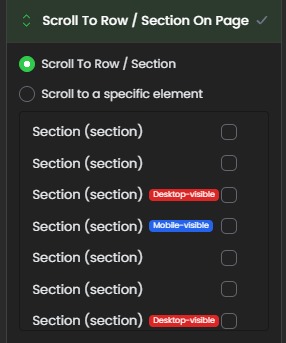
Scroll to Row / Section
Instead of leaving the page, this smoothly scrolls the visitor to a specific section or row on the same page — great for a "See pricing" or "Get started" button that jumps down to the right spot.
Go to Callable Links
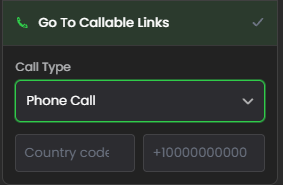
Turns the button into a one-tap way for visitors to contact you directly. Choose the platform and enter your details:
Phone Call — enter your number with the country code so it dials correctly.
Email — opens the visitor's email app with your address pre-filled.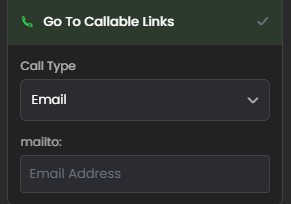
Skype 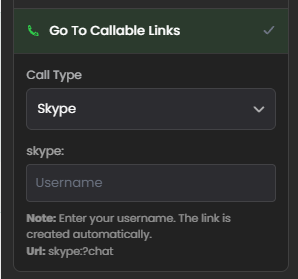
Messenger 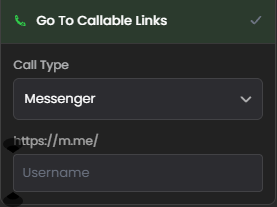
Telegram 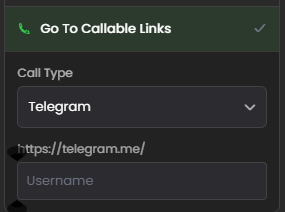
WhatsApp — enter your full international number (country code, digits only, no spaces or symbols) so the chat opens correctly.
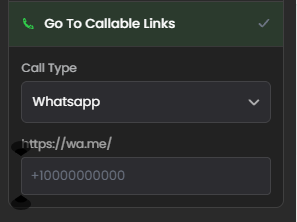
This is a great way to create instant communication channels straight from your page.
Part 2 — Style Settings (how the button looks)
These control the button's appearance so it matches your brand and stands out enough to get clicked.
Button Settings
You can update the following: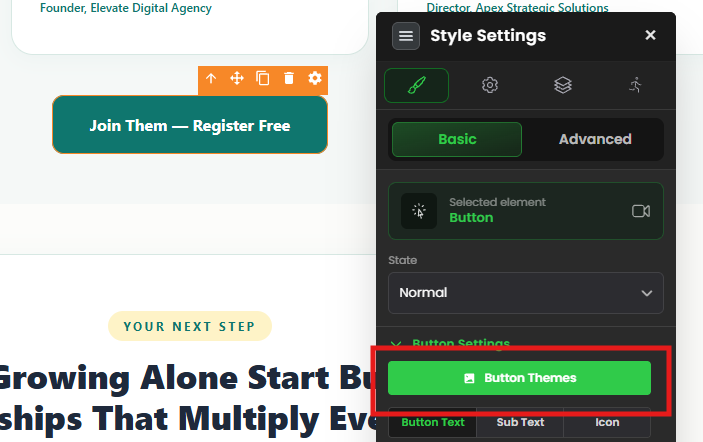
- Button Text — the main words on the button (make it action-oriented, e.g. "Get Instant Access").
- Subtext — optional smaller line below the main text (e.g. "30-day money-back guarantee").
- Font Family — the font style.
- Font Weight — thickness (normal, bold, light).
- Text Size — bigger or smaller text.
- Text Align — left, center, or right.
- Text Color — the color of the button text.
Button Themes
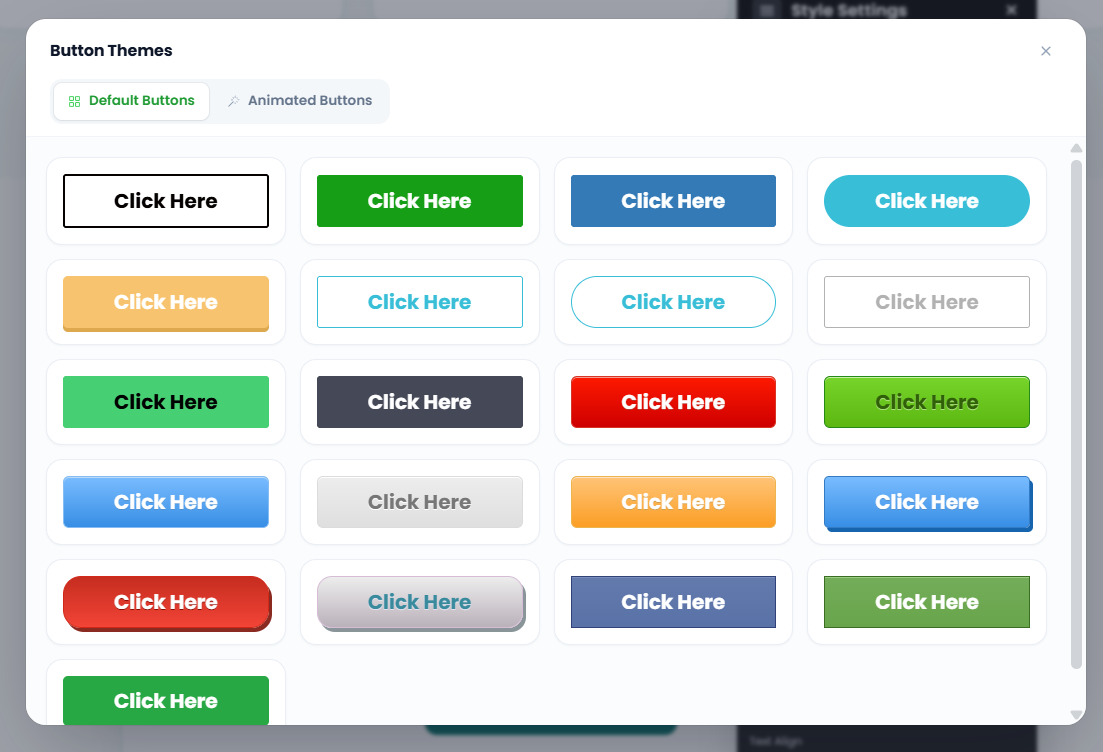
Don't want to style from scratch? Click the Click Me button in the themes section to choose from 20+ ready-made button designs — a fast way to get a polished look in one click.
Add Icon to Button
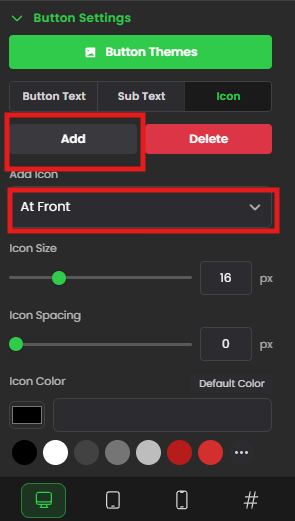
Add an icon to make the button more eye-catching (e.g. a cart icon for "Buy Now", a WhatsApp icon for a chat button). Choose its position:
- At Front — icon before the text.
- At Back — icon after the text.
You can also customize:
Icon Size – Scale the icon up or down.
Icon Color – Match it with your brand.
Icon Type – Choose from available icons by clicking “Click Me”.
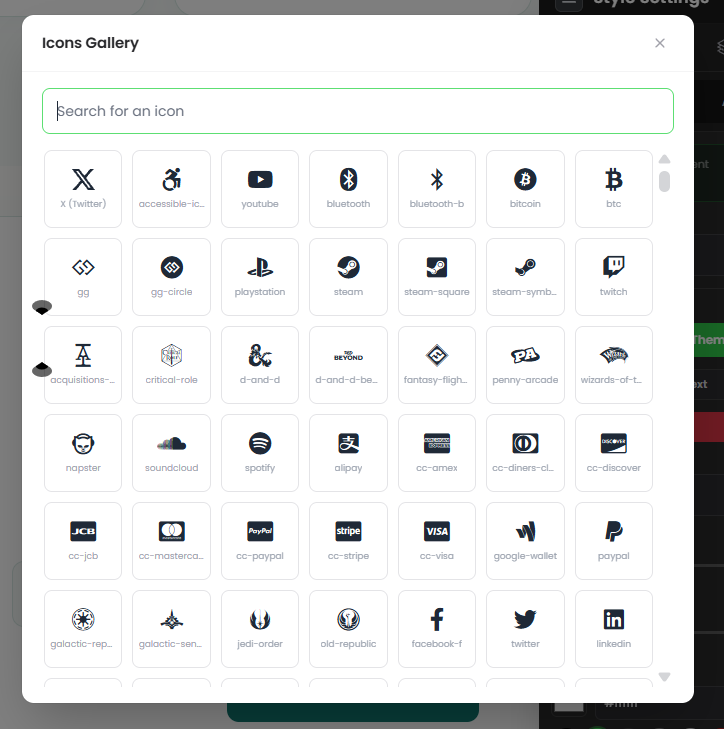
A preview screen will appear for you to choose your preferred icon.
You have successfully added the Button Element to your Landing Page!!
Common situations & quick fixes
"My button does nothing when clicked." It almost certainly has no action set. Open the button's Advanced Settings and choose an action (Website URL, Next Step in Funnel, Popup, etc.). This is the most common reason a button "doesn't work."
"'Go to Next Step in Funnel' / 'in Product' isn't going anywhere." These actions rely on your funnel logic or product steps being set up first. Configure the funnel flow (or the product's Order → Upsell → Thank You steps) using the linked guides above, then the button has somewhere to send people.
"Clicking my button sends visitors away and they lose my page." For external links, set Go to Website URL to open in a New Window so your page stays open in the original tab. Use Same Window only for links within your own site.
"The popup dropdown is empty." You need to create the popup first. Build it in the editor (or click Create in the popup action), then select it in the button's settings.
"Scroll to Section isn't working." The section or row you're scrolling to must exist on the same page and be selected correctly in the action. If it's still not jumping, check the section's CSS ID (see Title & CSS Info of a Component in Editor).
"My WhatsApp or Phone button doesn't open a chat/dialer." This is almost always a number-format issue. Enter the full international number with country code and digits only — no spaces, dashes, brackets, or a leading "0". For example, an Indian number should look like 91XXXXXXXXXX.
"My Email button does nothing." It opens the visitor's default email app. If they're on a device with no email app set up, nothing visible happens — that's expected behavior, not a fault.
"I want a good-looking button fast." Use Button Themes — click "Click Me" and pick from the 20+ premade designs, then tweak the color and text.
"My icon isn't showing." Make sure you selected an Icon Type via the "Click Me" picker — choosing a position (front/back) alone won't display an icon until one is selected.
"My changes aren't showing on the live page." Edits need to be saved and published before visitors see them. After editing, save and re-publish if the page is already live.
Still stuck?
If a button won't click through or style the way you expect after trying the steps above, submit a ticket and tell us which page you're editing, which action you've selected, and what's happening — a screenshot of your button's Advanced Settings helps us pinpoint it fast.
Was this article helpful?
That’s Great!
Thank you for your feedback
Sorry! We couldn't be helpful
Thank you for your feedback
Feedback sent
We appreciate your effort and will try to fix the article