Overview
FlexiFunnels lets you control how long a student keeps access to a course bundle by applying a bundle-level restriction. Instead of setting access rules on individual courses, you set a single access duration (in days, months, or years) at the bundle level. Once the duration ends, access expires automatically, and the student sees a custom expiry message you define.
Use this when you want to sell time-limited access to a group of courses — for example, "6 months of access" or "1 year membership."
Steps
1. Open the bundle for editing. Go to your bundles section and either create one using Add New Bundle or locate an existing bundle and click the Edit option.
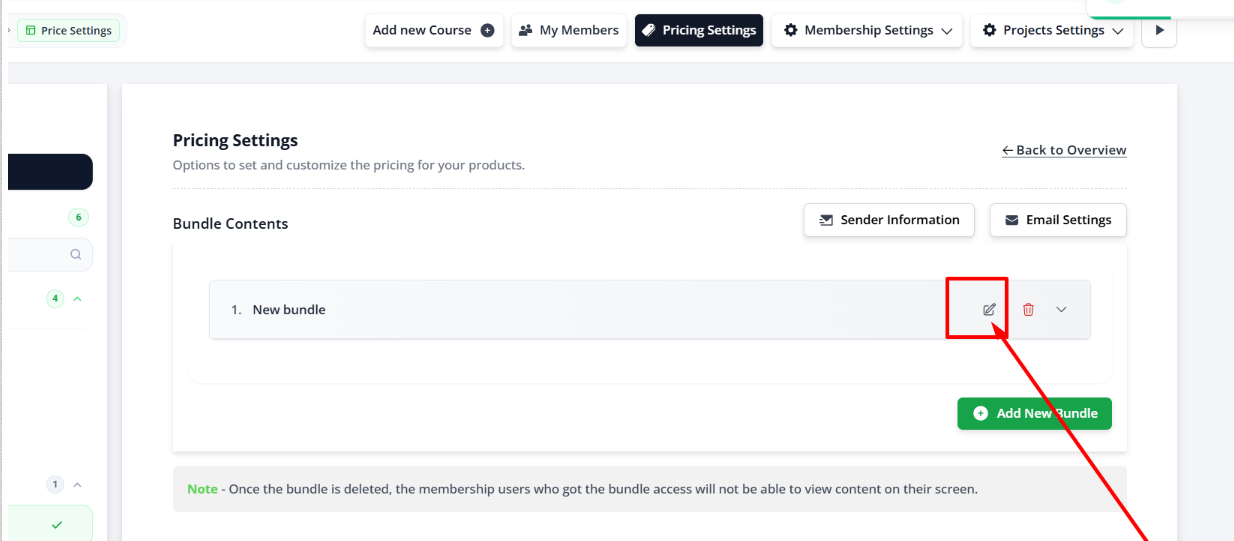
2. Open the bundle settings pop-up. A pop-up will appear for editing the bundle settings. This is where all bundle-level restrictions are configured.
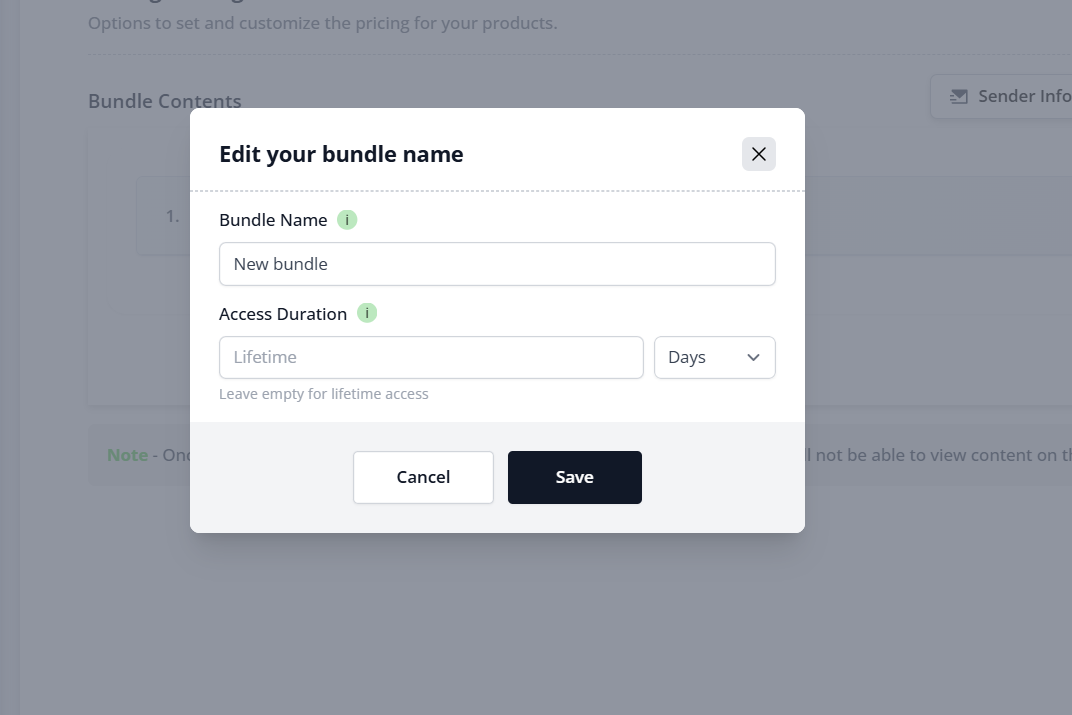
3. Set the access duration. Choose the duration type — Day, Month, or Year — then enter the value (for example, select Month and enter 6 for six months of access).
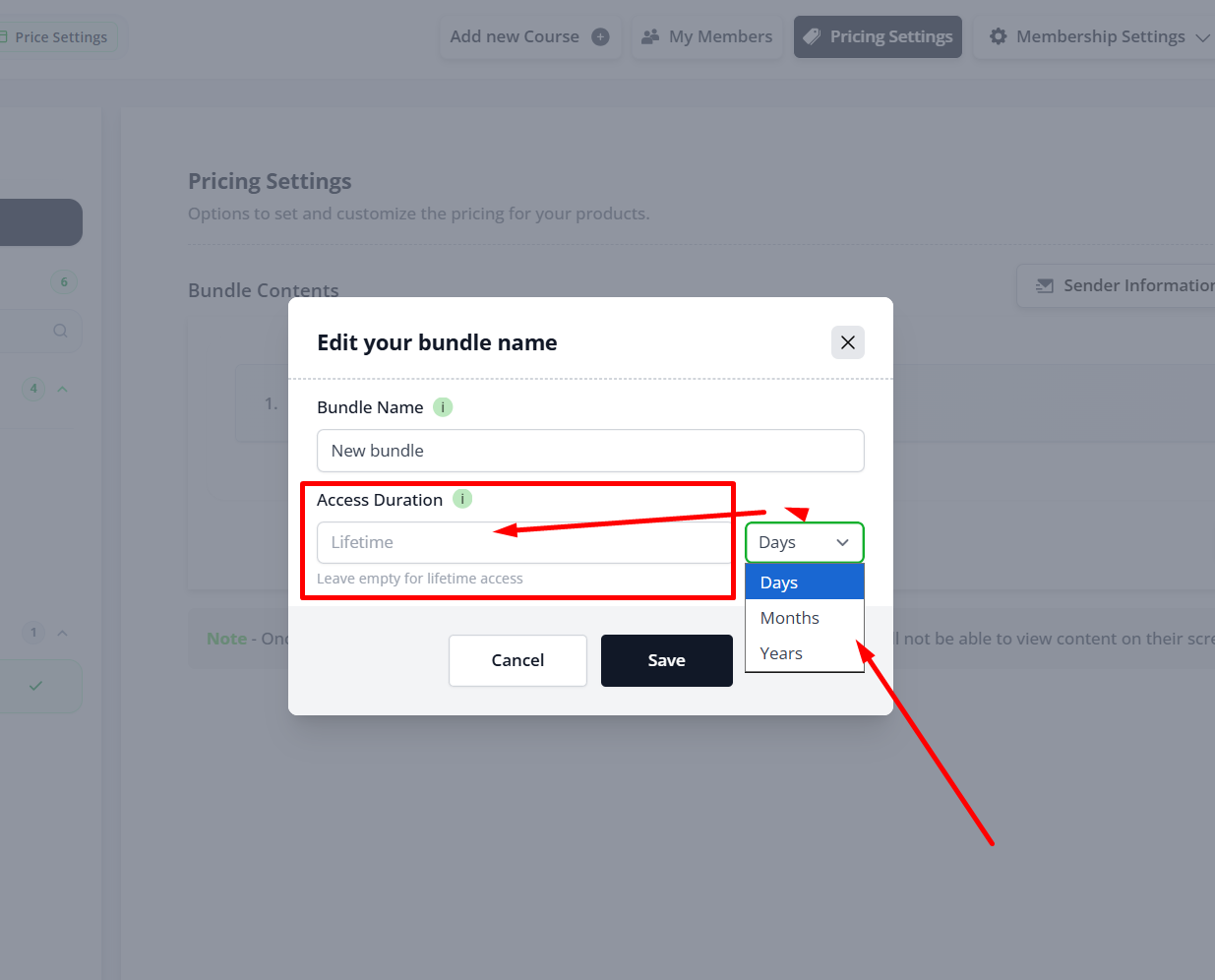
4. Add an expiry message. Once a duration is added, an option to add an expiry message appears. This is the message students will see after their access ends.
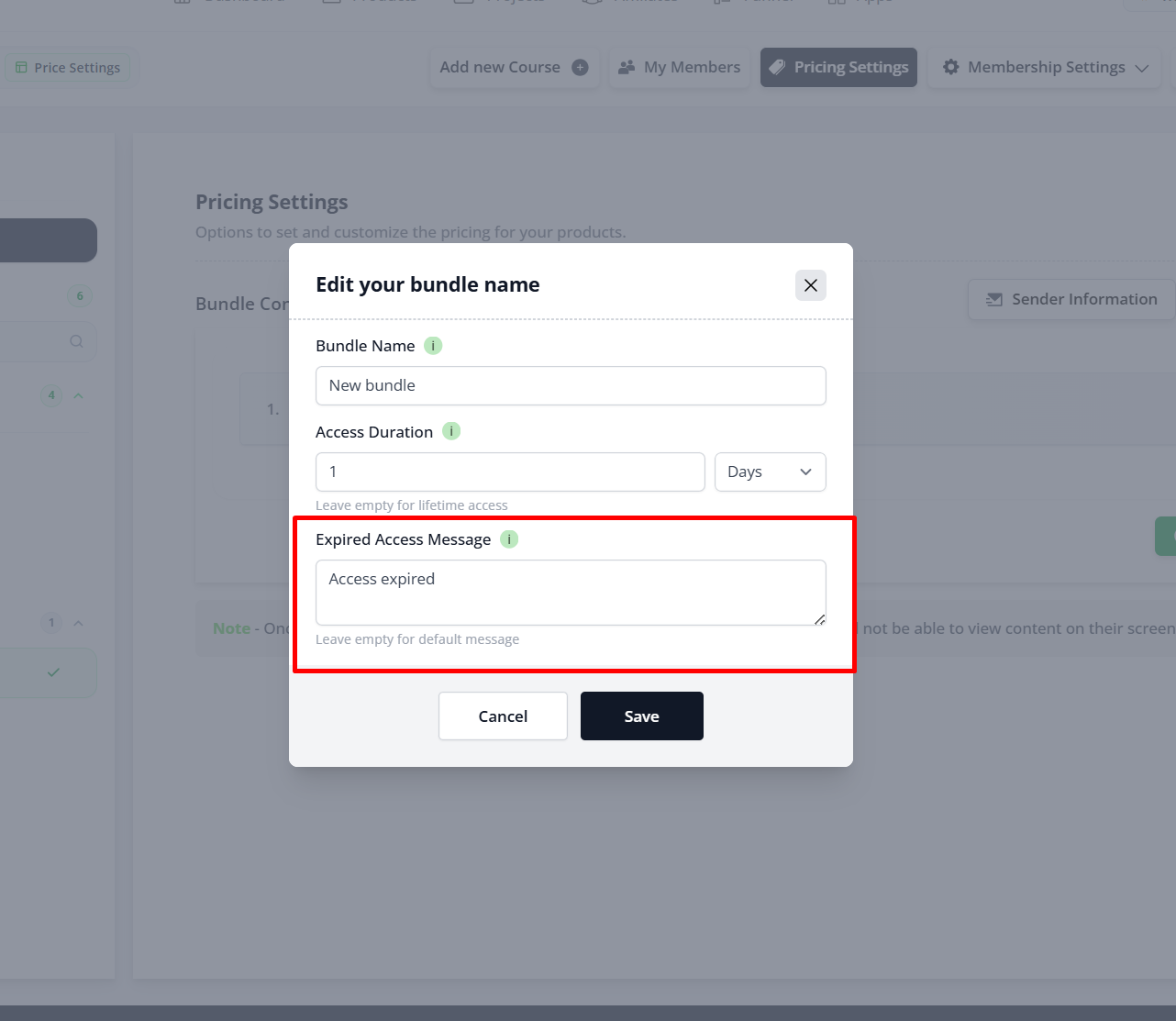
5. Save your settings. Enter your expiry message, then click Save to apply the restriction to the bundle.
Notes
- The access duration starts from the moment the student is granted access to the bundle, not from the date you set it up.
- Keep the expiry message clear and action-oriented — for example, tell students how to renew or where to repurchase access.
- Restrictions set at the bundle level apply to all courses inside that bundle.
Common Scenarios
I changed the duration, but existing students still have the old expiry date.
Access duration is typically calculated when a student is granted access to the bundle.
If students already had access before the change, their existing access period may remain unchanged depending on how their access was assigned.
My students lost access earlier than expected.
Verify the following:
- The correct duration type (Day, Month, or Year) was selected.
- The duration value is correct.
- The student wasn't granted access earlier than expected.
Only one course should expire, not the entire bundle.
Bundle-level restrictions are not suitable for this scenario.
If you need different expiry periods for individual courses, configure restrictions at the course level instead of the bundle level.
My expiry message isn't showing.
Check the following:
- An expiry message has been entered.
- The bundle settings were saved.
- The student's access has actually expired.
Best Practices
- Use bundle-level restrictions when all courses should expire together.
- Keep expiry messages clear and include renewal instructions.
- Double-check the duration type before saving (Days, Months, or Years).
- Test the access flow using a test account before launching your Membership Product.
Before Contacting Support
Before reaching out to our support team, please verify the following:
- ✅ The bundle has been saved after configuring the restriction.
- ✅ The correct duration type (Day, Month, or Year) has been selected.
- ✅ The duration value is accurate.
- ✅ An expiry message has been added.
- ✅ The bundle is linked to the correct Membership Product.
- ✅ The student's access period has actually expired.
- ✅ You tested the setup using a test purchase or test member account.
If the issue still persists, please provide:
- A screenshot of your Bundle Settings.
- The configured access duration.
- The expiry message you've entered.
- The Membership Product linked to the bundle.
- The affected student's email address (if applicable).
- A brief description of the issue and the steps you've already tried.
Was this article helpful?
That’s Great!
Thank you for your feedback
Sorry! We couldn't be helpful
Thank you for your feedback
Feedback sent
We appreciate your effort and will try to fix the article