The quantity feature lets customers buy multiple units of your product in a single checkout. Instead of customers buying one item and checking out, they can select how many they want (1, 2, 5, 10, etc.) and pay for all of them at once.
This guide shows you how to enable the quantity feature so customers can purchase in bulk and you capture more revenue per transaction.
Why Quantity Matters
Without quantity feature: Customers can only buy one unit per checkout. If they need 5, they make 5 separate purchases (friction, higher abandon rates, worse experience).
With quantity feature: Customers select the quantity they want, pay once, done. Easier for them, more revenue per transaction for you.
Real numbers: enabling bulk purchases can increase average order value (AOV) by 20–50% depending on your product.
Common Use Cases
Use Case 1: Corporate / B2B Sales
- Product: Business software license ($99/seat)
- Quantity needed: Companies buy 10–50 seats
- Without feature: Customer has to checkout 50 times (impossible)
- With feature: Customer selects quantity "50," pays once
Use Case 2: Wholesale/Reseller
- Product: Physical product ($5/unit)
- Quantity needed: Resellers buy 100+ units
- Bulk pricing: Set quantity breakpoints (buy 50+ = 10% discount)
- Result: Higher AOV, fewer transactions
Use Case 3: Course Bundle
- Product: Team training course ($97/person)
- Quantity needed: Companies train 5–20 people
- Quantity feature: Team lead selects "12 people," pays $97 × 12 = $1,164 once
- Result: $1,164 per transaction instead of multiple $97 sales
Use Case 4: Event Tickets
- Product: Conference ticket ($199)
- Quantity needed: Attendees register in groups
- Quantity feature: Select "4 tickets," pay once
- Result: Streamlined group registration
Two Quantity Options Explained
FlexiFunnels offers two quantity modes:
Option 1: Allow Only One Purchase at a Time
Customers can only buy 1 unit per checkout.
When to use:
- Digital downloads (ebook, template, software) — one purchase covers one person
- Service packages — one package per person
- Courses — one enrollment per person
- When you want to keep individual transactions small
Result: Customer buys 1, checks out, done.
Option 2: Allow Multiple Purchases at Once
Customers can select any quantity (1, 2, 5, 10, 50, 100+) and buy them all in one checkout.
When to use:
- Bulk sales (licenses, wholesale, volume orders)
- B2B/corporate (multiple seats, multiple users)
- Team purchases (training, group tickets)
- When you want to enable large transaction sizes
Result: Customer selects quantity, price multiplies accordingly, checks out once.
Quick Video Guide:
Step-by-Step: Enable the Quantity Feature
Step 1 — Create Your Product Pages (If Not Already Done)
Before enabling quantity, ensure your product has:
- Sales Page (describes the product, why customers need it)
- Checkout Page (where they enter info and pay)
- Thank You Page (post-purchase confirmation)
If you haven't created these, see Creating Product In FlexiFunnels To Sell.
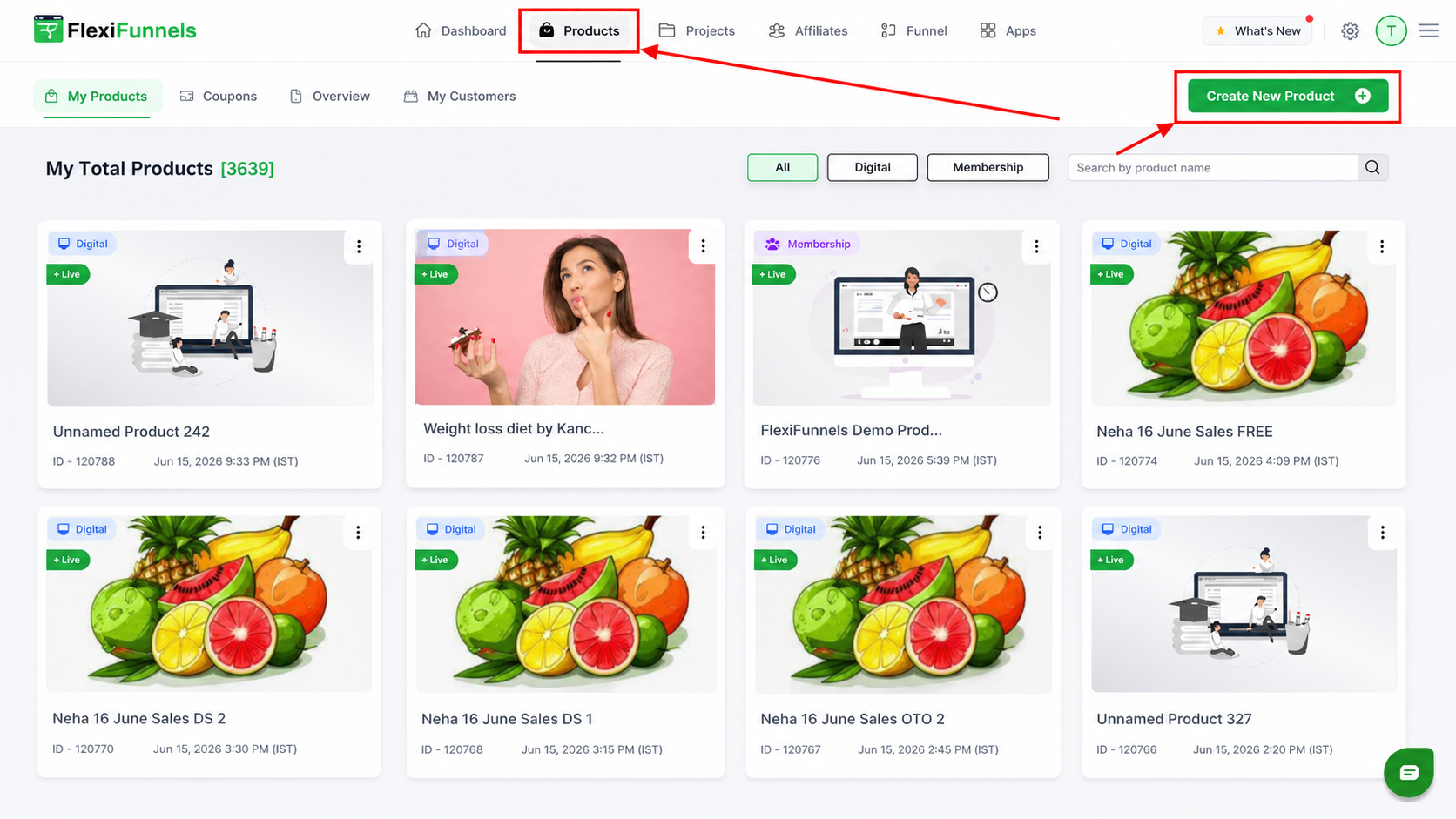
Step 2 — Go to the Product Tab
Log into FlexiFunnels and navigate to Products in your dashboard.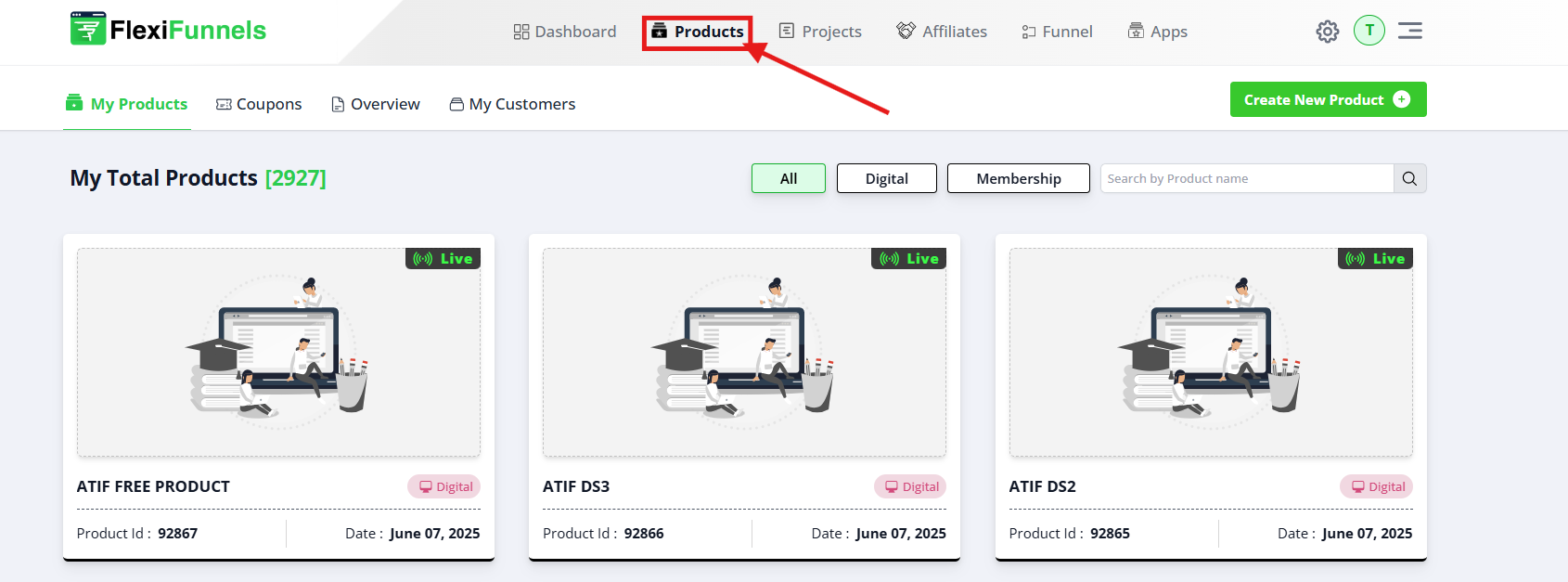
Step 3 — Open Product Settings
Click on the product you want to enable quantity for.
Step 4 — Navigate to Price Settings
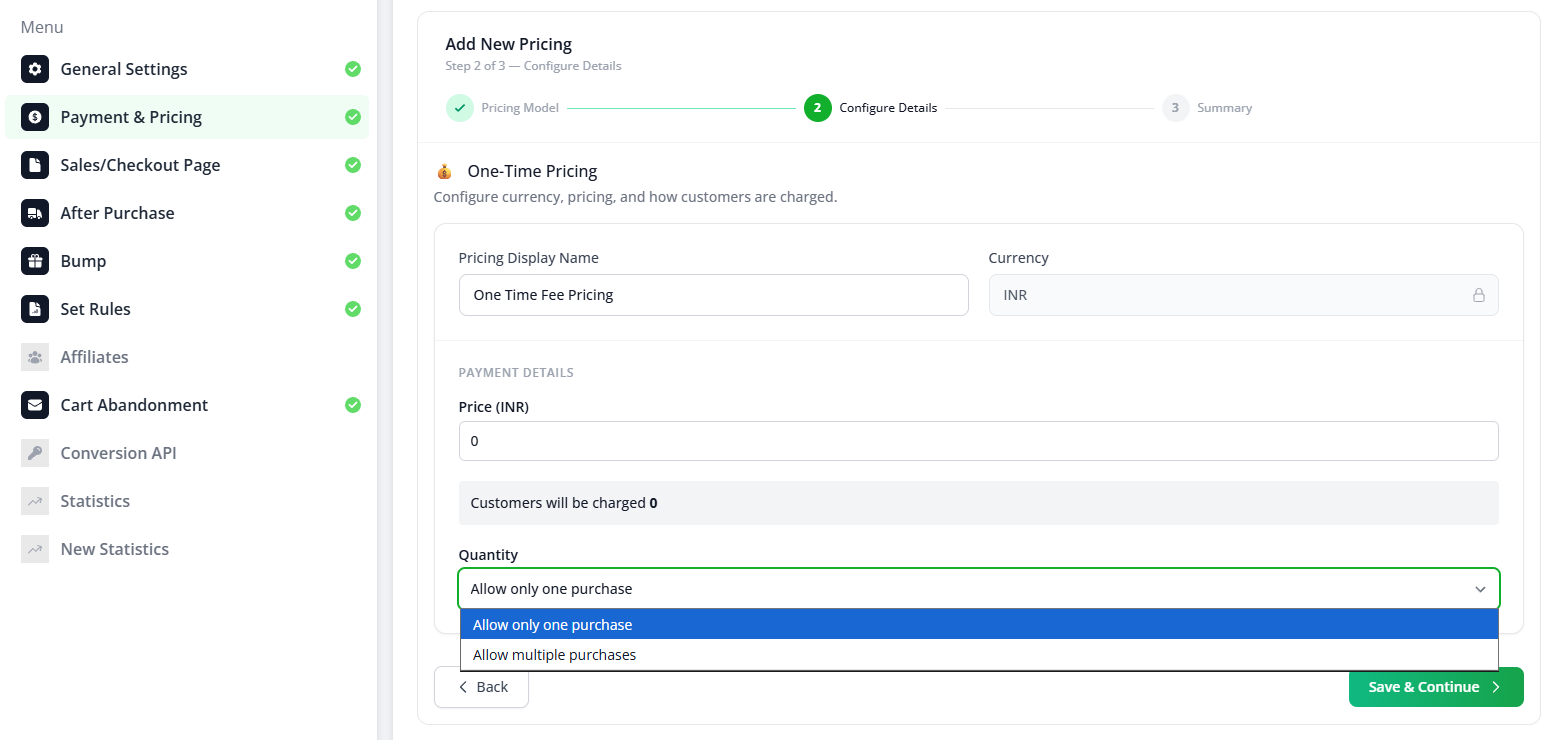
In the product settings, click the "Price" tab.
Set the unit price for your product (e.g., $49, $97, $199).
After you enter the price and click Next, you'll see the Quantity Settings section.
Step 5 — Choose Your Quantity Option
In the Quantity Settings, you'll see two radio button options:
Option A: "Allow only one purchase at a time"
- Select this if customers should buy only 1 unit per checkout
- Quantity selector will NOT appear on the checkout page
Option B: "Allow multiple purchases at once"
- Select this if customers can select any quantity
- A quantity selector (dropdown or input field) will appear on the checkout page
- Customers can choose 1, 2, 5, 10, 100, or whatever they need
Choose the option that matches your business model.
Step 6 — Save Your Changes
Click the "Save" button to apply the quantity settings.
Step 7 — Test the Quantity Feature
To verify the feature is working:
- Open your checkout page on the published URL (not the editor preview)
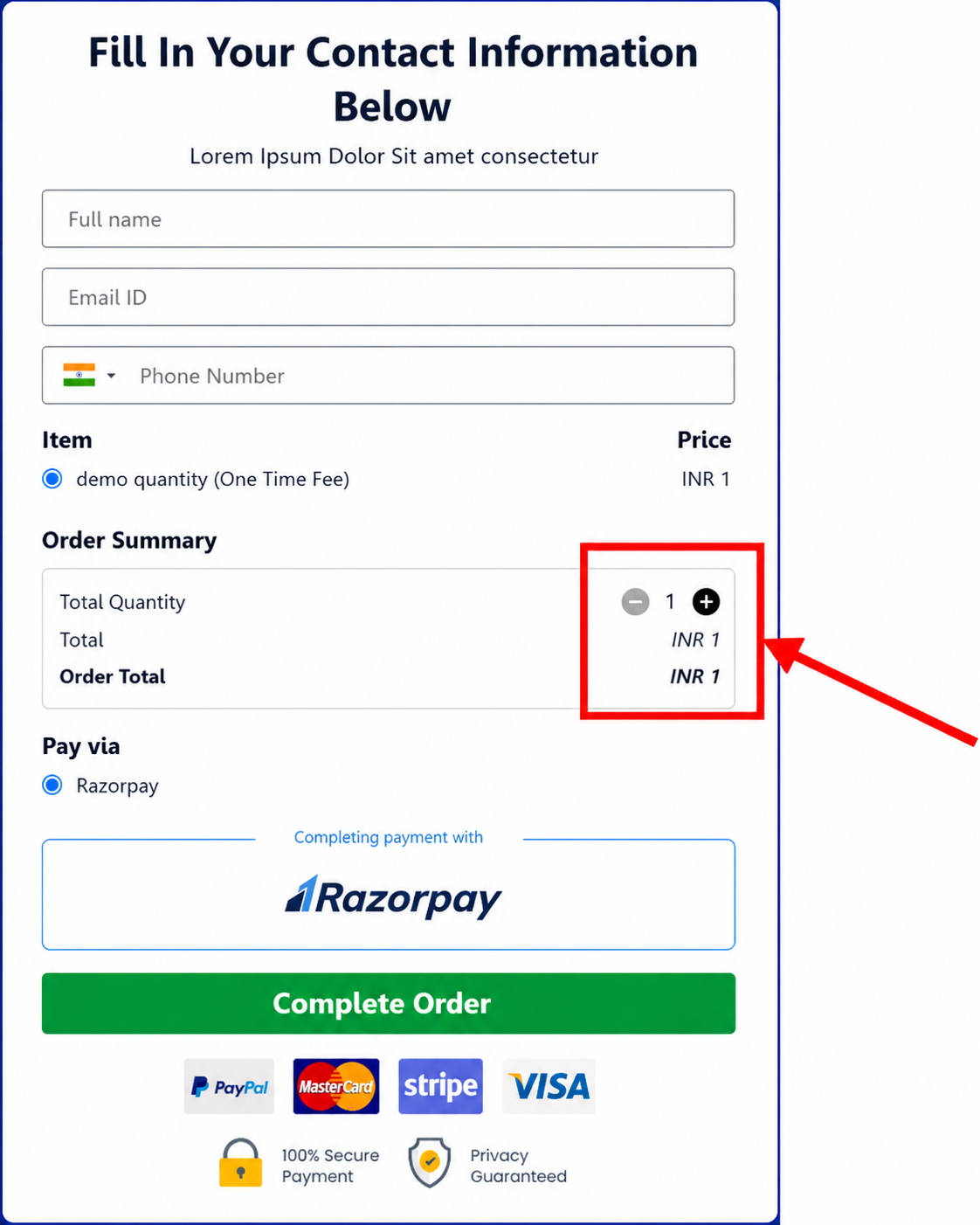
- Look for the quantity selector — it should be visible if you selected "Allow multiple purchases"
- Try selecting different quantities (1, 2, 5, 10)
- Verify the price updates — it should multiply by the quantity you select
- Proceed through checkout to ensure the order processes correctly with the selected quantity
⚠️ Test on the live page, not the editor. Quantity features may not display in the editor preview.
Best Practices
- Set appropriate quantity limits. If you allow "unlimited," a customer might accidentally select 1,000 units. Consider a reasonable max (e.g., 100).
- Display the multiplied price clearly. Customers should instantly see "5 × $97 = $485" so there's no surprise at checkout.
- Use quantity for bulk/wholesale only. If you're selling to individual consumers, "Allow only one" usually converts better (simpler experience).
- Consider quantity-based discounts. If you enable bulk quantities, tiered pricing (buy 10+ get 10% off) encourages larger orders.
- Test with real quantities. In your test checkout, try selecting high quantities (50, 100) to make sure pricing works correctly.
Common Situations & Quick Fixes
"I enabled the quantity feature but the selector doesn't appear on the checkout page."
- Did you publish the checkout page after saving the quantity settings? (Changes don't go live until published.)
- Are you testing on the live page (published URL), not the editor preview?
- Did you select "Allow multiple purchases at once" (not "Allow only one purchase")?
- Hard refresh your browser (Ctrl+F5 / Cmd+Shift+R) to clear the cache.
"The quantity selector appears, but the price doesn't update when I change the quantity."
- The checkout page might not be fully published. Re-publish it.
- There might be a caching issue. Hard refresh (Ctrl+F5) and test again.
- Check if your payment processor (Stripe, Razorpay, etc.) is configured to accept quantity-based pricing. Some payment gateways require specific setup.
"I want to set a minimum and maximum quantity (e.g., customers must buy at least 5, no more than 100)."
The standard quantity feature allows selection from 1–unlimited. To set limits:
- Option 1: Document the limits in your sales page text ("Bulk orders: 5–100 units")
- Option 2: Use custom validation via webhooks or rules
- Option 3: Contact support for advanced quantity configuration
"I want different prices for different quantities (e.g., buy 1–9 = $10, buy 10+ = $8)."
This requires tiered/volume pricing, which may need additional setup. See Price Settings In Products or contact support for volume discount implementation.
"A customer selected 50 units but I can't fulfill it."
The quantity feature accepts whatever the customer enters. If you need to control the maximum, set a documented limit on your sales page or use validation. Example: "Bulk orders: up to 100 units. For larger orders, contact [email]."
"The quantity feature was working, now it's gone."
- Check if the setting was accidentally changed to "Allow only one purchase." Switch it back to "Allow multiple purchases."
- Confirm the product hasn't been archived or deleted.
- Hard refresh and test again.
Quantity Feature + Other Settings
The quantity feature works alongside other product settings:
| Setting | Interaction | Notes |
|---|---|---|
| After Purchase Settings | Works together | Whatever they order (1 or 100), After Purchase rules trigger (email, membership access, etc.) |
| Bump Offers | Independent | Bump shows separately; quantity applies to main product + separately to bump |
| Cart Abandonment | Works together | If they abandon after selecting quantity, abandoned rule fires with their quantity selection |
| Rules/Webhooks | Works together | Data sent includes their selected quantity |
| Digital Assets | Works together | If they buy 5 copies, they get 5 access links or 1 shared link (depends on your setup) |
Was this article helpful?
That’s Great!
Thank you for your feedback
Sorry! We couldn't be helpful
Thank you for your feedback
Feedback sent
We appreciate your effort and will try to fix the article