What This Feature Does
The footer appears at the bottom of every page in your membership area. It's where you add legally important content (privacy policy, terms) plus branding elements (social links, copyright). Getting this right isn't just cosmetic — a missing privacy policy or terms section is a real legal exposure for a paid course business.
Before You Start
- Have your actual Privacy Policy and Terms & Conditions text ready — don't write these live in the editor. If you don't have these documents yet, get them sorted (there are free generators, or a lawyer if you're serious) before touching this section.
- Have your social media URLs ready (Facebook, Instagram, LinkedIn, etc.)
Step 1: Open Footer Settings
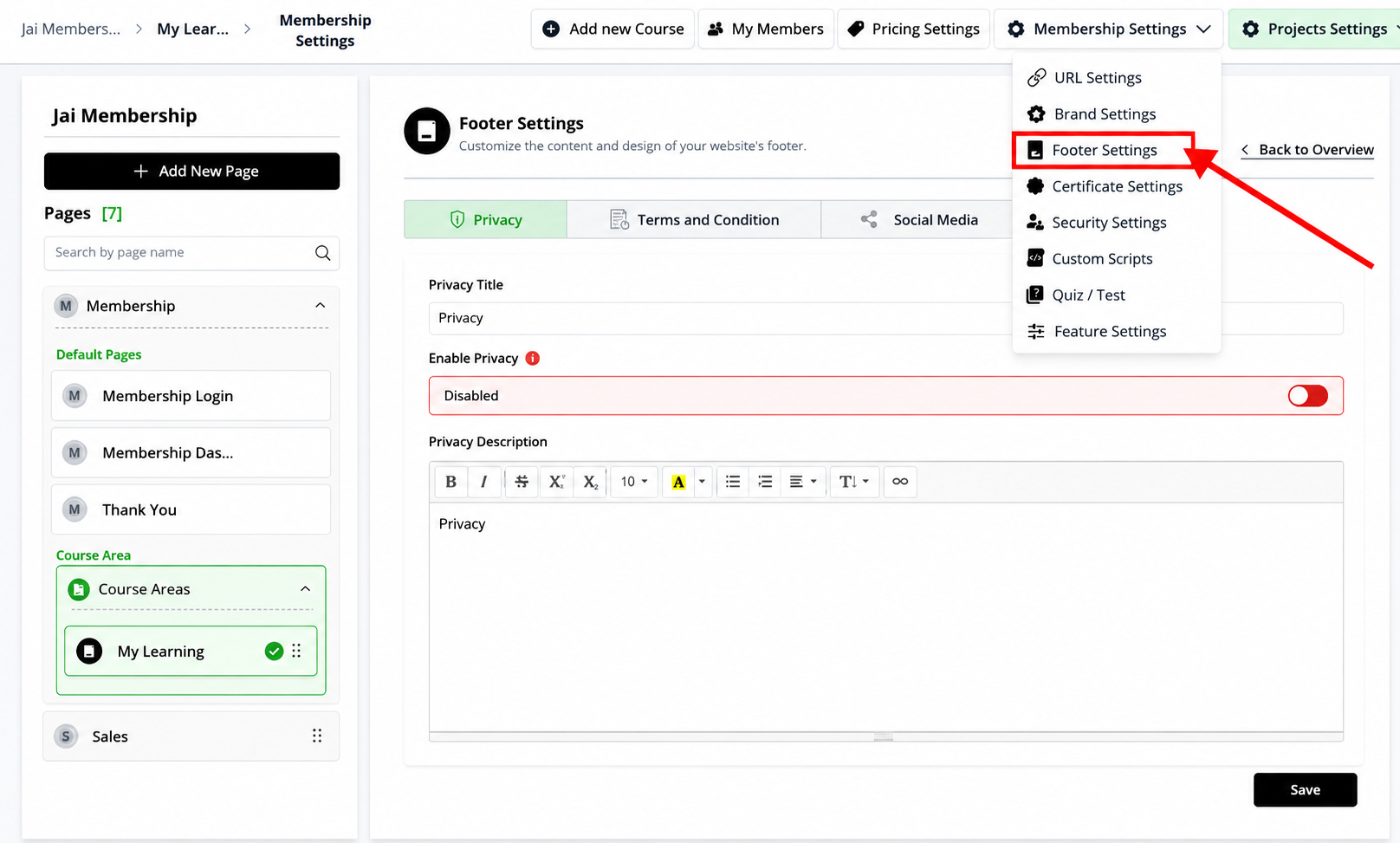
Step 2: Set Up Privacy Policy
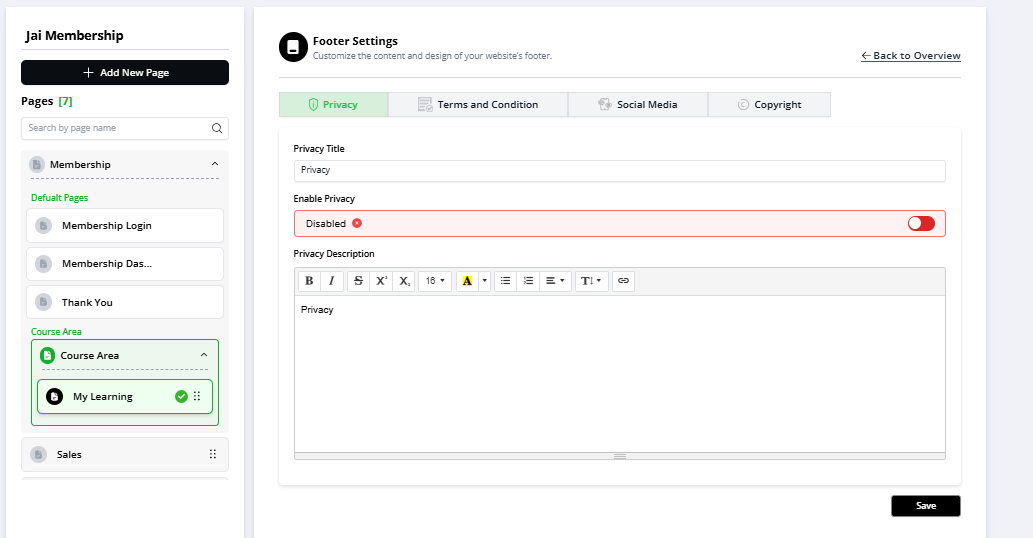
- Click the "Privacy" tab
- Privacy Title — the heading shown in the footer (e.g., "Privacy Policy")
- Enable Privacy — toggle ON to make this section visible; if OFF, no privacy link appears in your footer at all, even if you've written content
- Privacy Description— paste or write your actual privacy policy text
- Use the formatting toolbar (bold, italic, links, etc.) to structure it
- If your full policy lives elsewhere, add a link here instead of pasting the whole thing
Step 3: Set Up Terms and Conditions
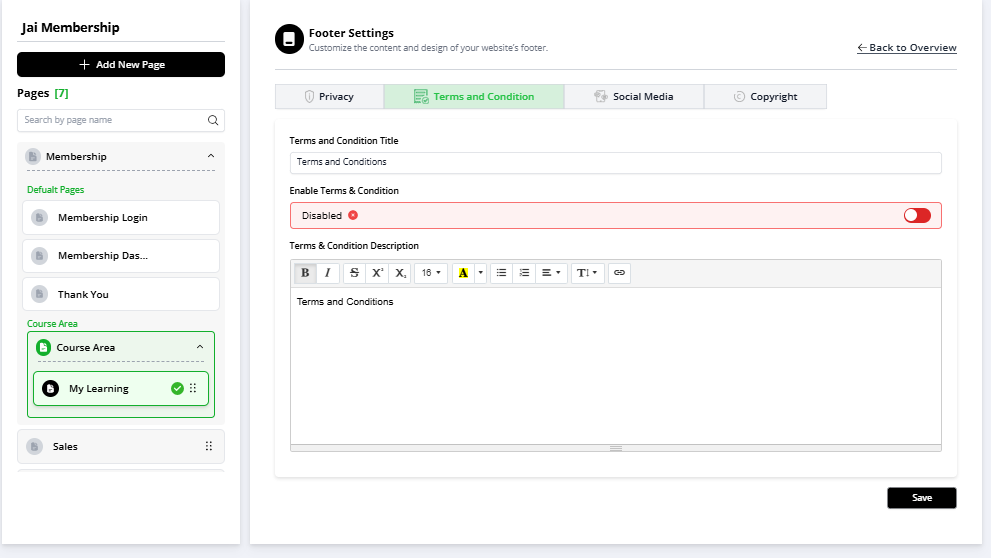
Same structure as Privacy:
- Click the "Terms and Conditions" tab
- Add a title
- Toggle Enable ON
- Add your terms content (or a link to the full version)
Step 4: Add Social Media Links
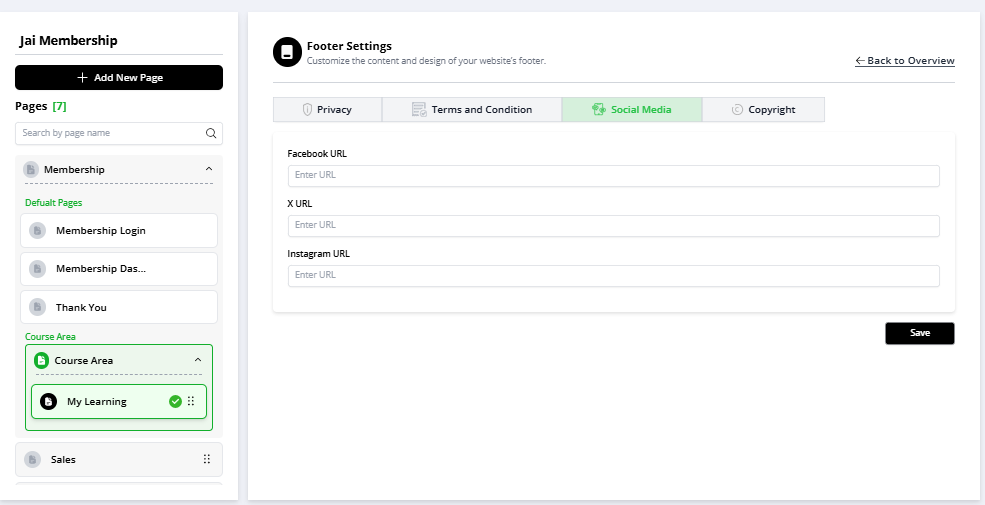
- Click the "Social Media" tab
- Add URLs for each platform you want shown (Facebook, Instagram, LinkedIn, etc.)
- Only the platforms you fill in and enable will show icons — leave others blank if you don't use them
- Toggle each one ON to display it
Step 5: Customize Copyright Text
- Click the "Copyright" tab
- Edit the text shown, e.g.:
© 2026 Jai Learning. All rights reserved. - Update the year manually — this doesn't auto-update, so if you set it once and forget it, your footer will show an outdated year indefinitely
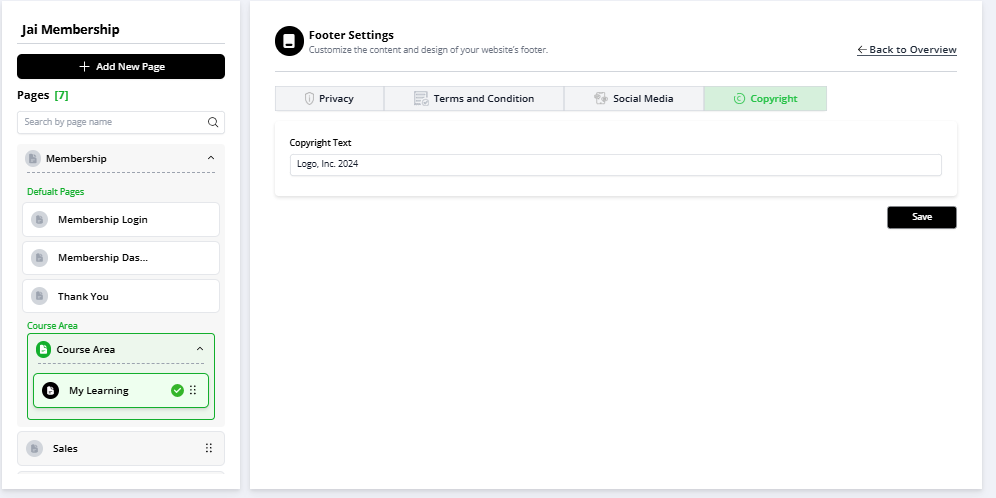
Step 6: Save
- Click Save at the bottom-right
- Refresh your membership area (or check in incognito) to confirm everything displays correctly
Common Issues & Fixes
| Problem | Likely Cause | Fix |
|---|---|---|
| Privacy/Terms section not showing in footer | "Enable" toggle wasn't turned ON | Go back to the tab and confirm the toggle is ON, then Save |
| Social icons not appearing | URL field left blank, or toggle not enabled | Add the URL and enable the toggle for that platform |
| Footer looks unchanged after editing | Save wasn't clicked, or cached page is showing | Re-click Save; hard refresh or check incognito |
| Copyright year is outdated | Text was set once and never updated | Manually edit the year each year — there's no auto-update |
Was this article helpful?
That’s Great!
Thank you for your feedback
Sorry! We couldn't be helpful
Thank you for your feedback
Feedback sent
We appreciate your effort and will try to fix the article