Flexi Viral is a referral and contest system built into FlexiFunnels — the same idea Google Pay, PhonePe, and Dropbox use to grow. People join your contest, share their personal link with friends, earn points for every friend who joins, and unlock rewards. The result: your audience brings you new leads for free.
This guide takes you from opening Flexi Viral to launching your first contest, step by step.
How it works (in one minute)
Think of it as a simple loop:
- A person joins your contest through your page.
- They get a personal share link.
- Every time a friend joins using that link, they earn points.
- When they hit enough points, they unlock a reward or prize.
- Those friends now want to share too — and the loop keeps going.
A few words you'll see a lot:
- Contest — one campaign you run (e.g. "Diwali Giveaway").
- Entry — an action a participant does to earn points (sharing, following you on Instagram, answering a question, etc.).
- Points — what participants collect by completing entries.
- Reward / Prize — what they get for reaching a points goal.
- Badge — a smaller, instant reward for hitting smaller point goals.
- Widget — the little Flexi Viral box that shows up on your page.
- Slug — the last part of your contest's web link (the bit after the
/).
Before you start
- You're logged in to your FlexiFunnels account.
- You have a page or funnel ready (or you can make one) where the contest will live.
- You've thought about one reward to give away and how people earn it.
Step 1 - Set Up Your Rewards
Step 2 - Contest Setup
Step 2.1 - Widget Setup & Page Publish
Step 3 - Other Important Settings
Steps to add Flexi Viral in FlexiFunnels:
1. Open Flexi Viral
Inside your FlexiFunnels dashboard, go to the Apps section.
Click on Flexi Viral.
You’ll be redirected to:
https://flexiviral.flexifunnels.com/dashboard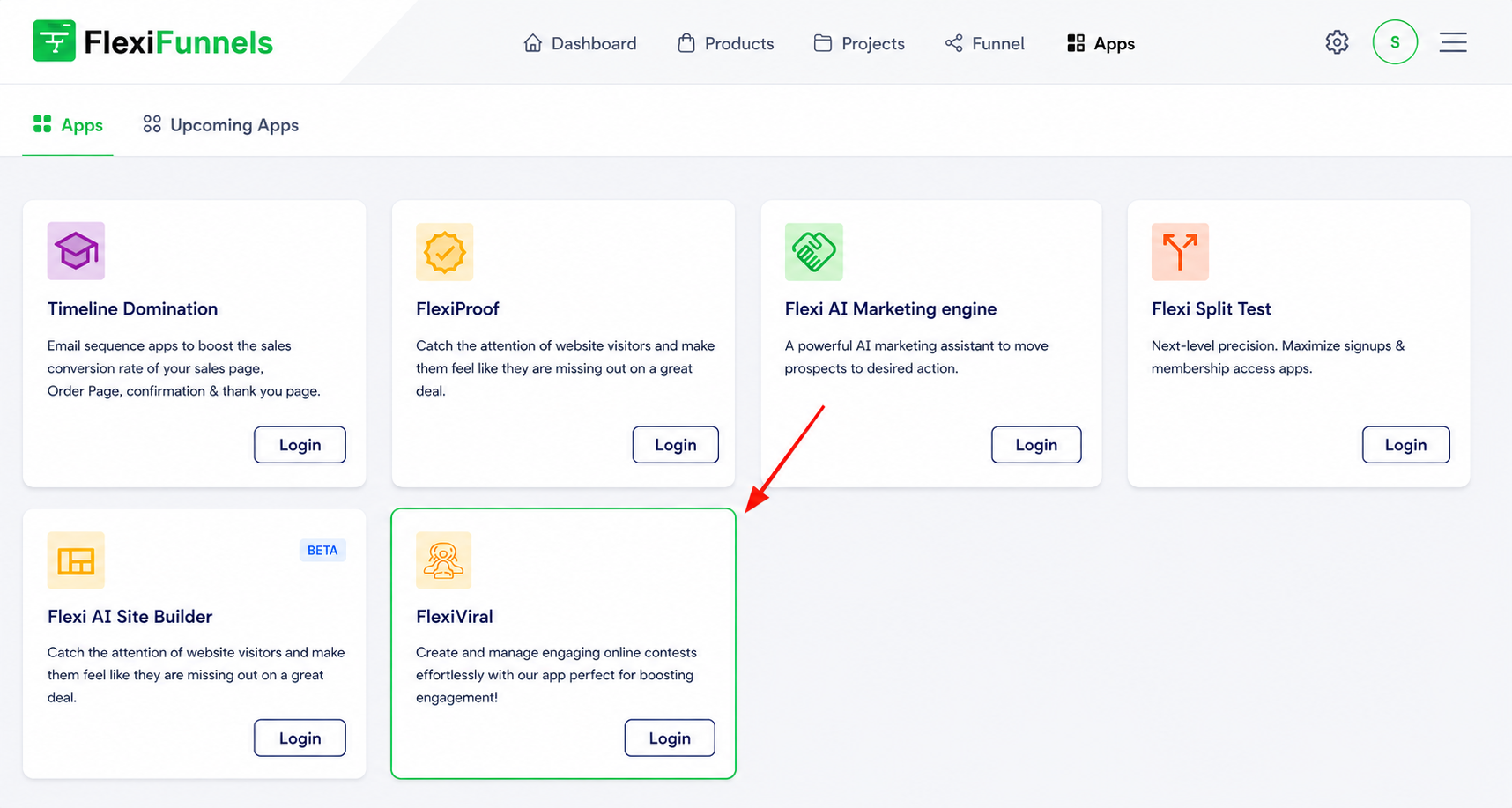
2. Flexi Viral Dashboard Overview
The dashboard has 5 main options:
- Dashboard — a quick overview of your contests, rewards, and participants.
- My Contest — where you build and manage contests.
- Reward/Prize Library — where you create and store rewards and prizes.
- Statistics — your campaign numbers and analytics.
- Participants — everyone who joined, their referrals, and a download option.

3. Setting Up a Contest
Go to My Contest → Create New Contest. You’ll see 4 main steps:
Step 1: Contest Setup
Contest Duration: Set start date & end date.
Time Zone: Choose “Asia/Kolkata” or your relevant time zone.
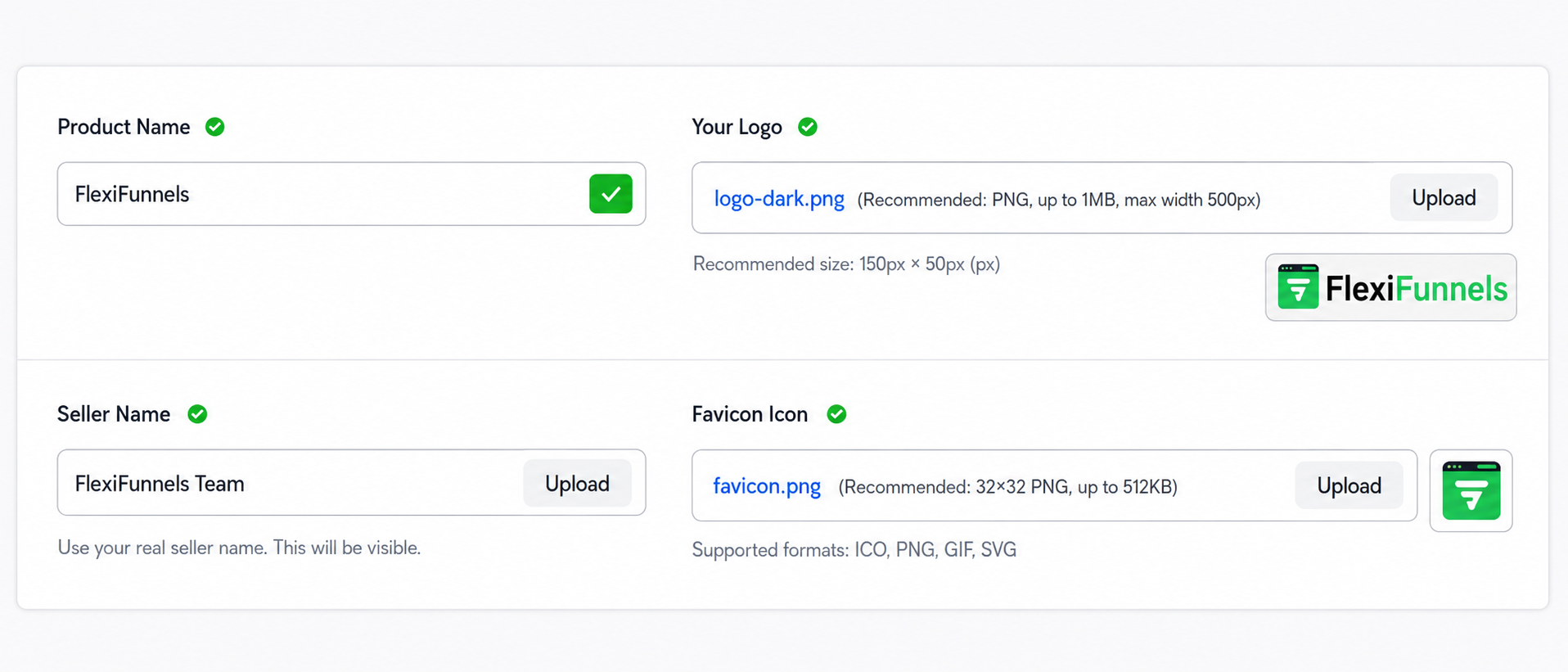
Branding: Primary color, logo, image, favicon, background.

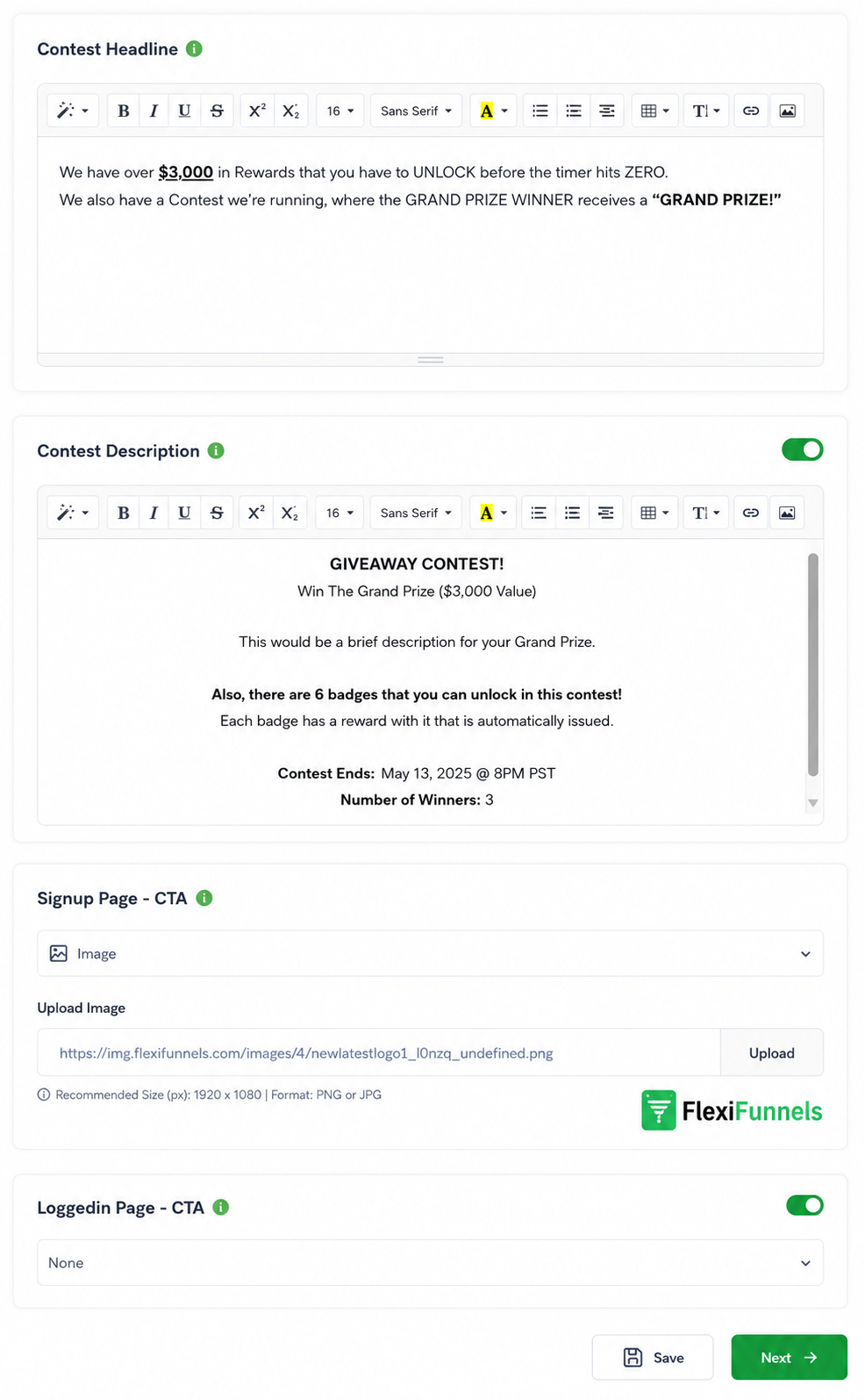
Content: Contest description, headline, CTAs for signup & logged-in pages.
Step 2: Entry Settings
This is how people earn points. Add the actions (entries) you want to offer:
- Answer a Question
- Follow on Instagram
- Visit your Facebook Page
- Watch / Subscribe on YouTube
- Visit / Follow on X (Twitter)
- Viral Share
- Bonus Entry
- Custom Entry
⚠️ Don't skip "Viral Share." This is the entry that gives each person their referral link. Without it, friends can't be referred and your contest won't actually go viral. If referrals matter to you (they usually do), this one is mandatory.
? Tip: For each entry, paste the correct link (e.g. your real Instagram URL) and set its Entry Worth — the number of points that action is worth.
Step 3: Prize Setup
Prizes are set up in two parts — first you create the prize, then you attach it to your contest.
Part A — Create the prize in the Library
- Go to Reward/Prize Library on the dashboard.
- Click Create New.

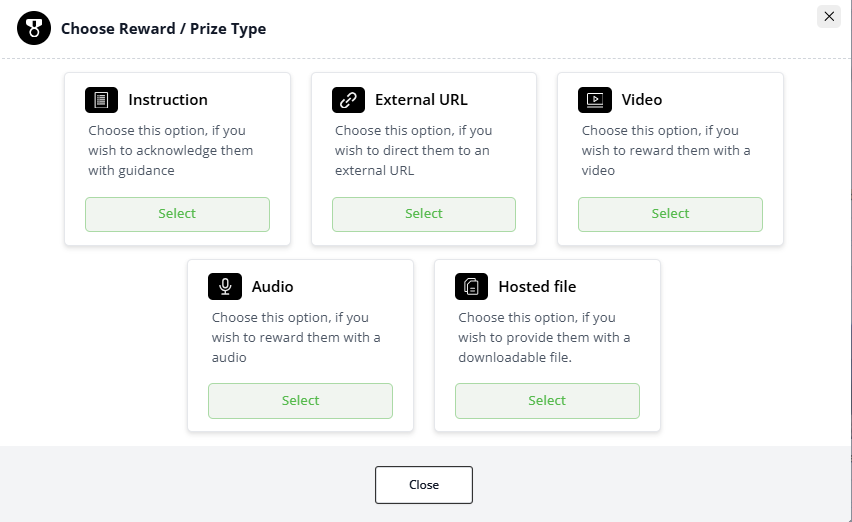
- Choose a reward type: Instruction, External URL, Video, Audio, or Hosted File.
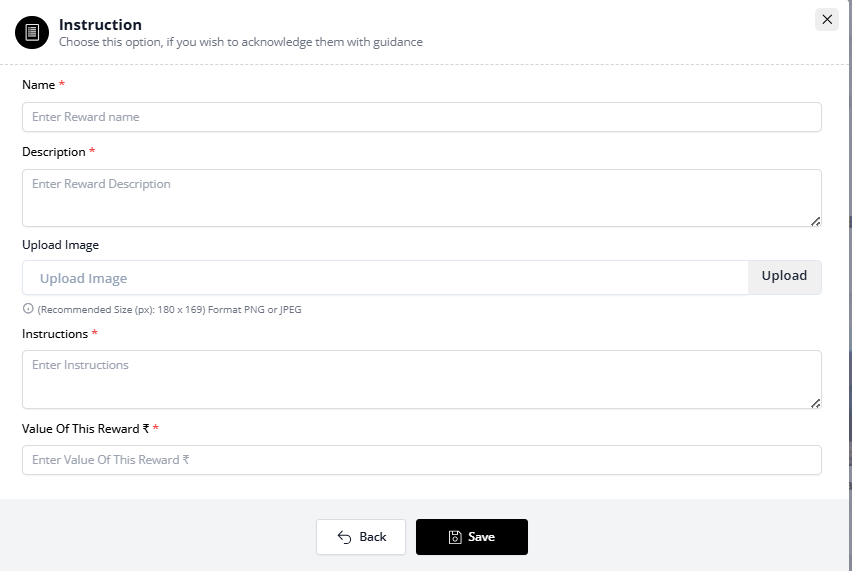
- Fill in the common fields: Name, Description, Upload Image, and Value (₹).
Part B — Attach the prize to your contest
Back in Contest Setup → Prize Setup, choose:
- Minimum Points Required — how many points unlock this prize.
- Prize That Is Issued — pick the prize you just made in the Library.
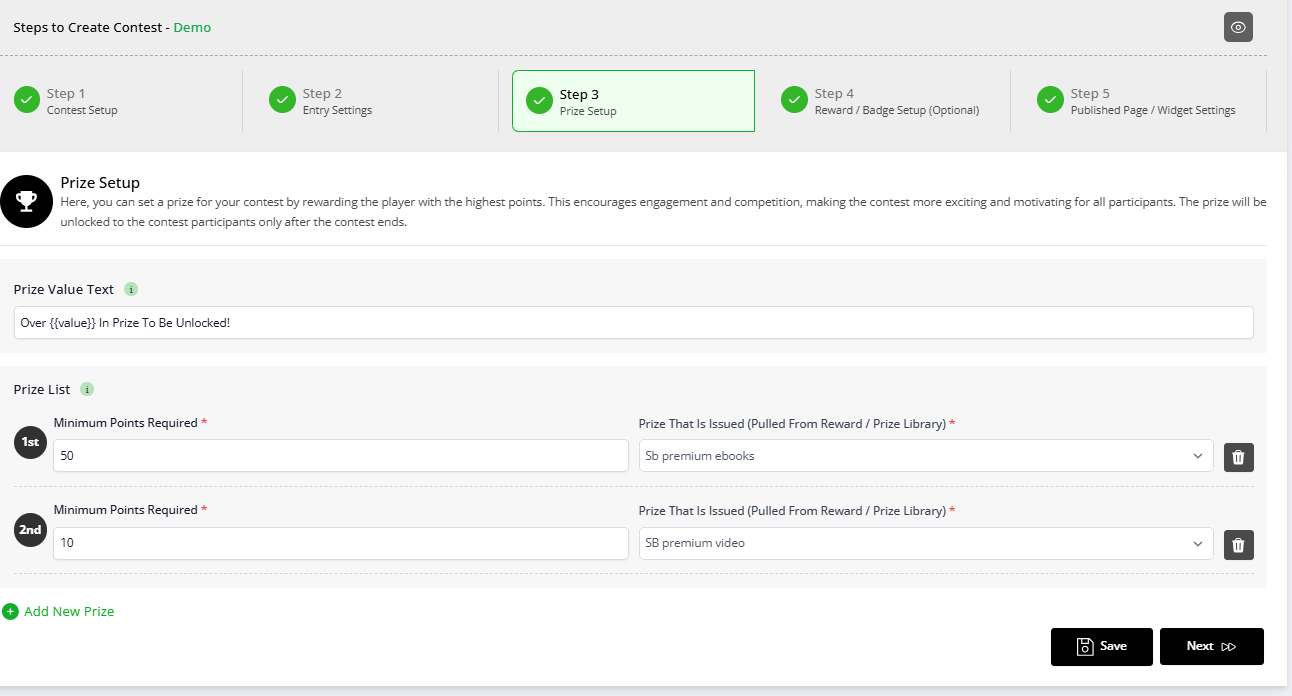
You can add multiple prizes at different points levels (up to 6 per contest).
Step 4: Badge Setup (Optional)
Badges are instant mini-rewards for smaller goals — great for keeping people motivated early.
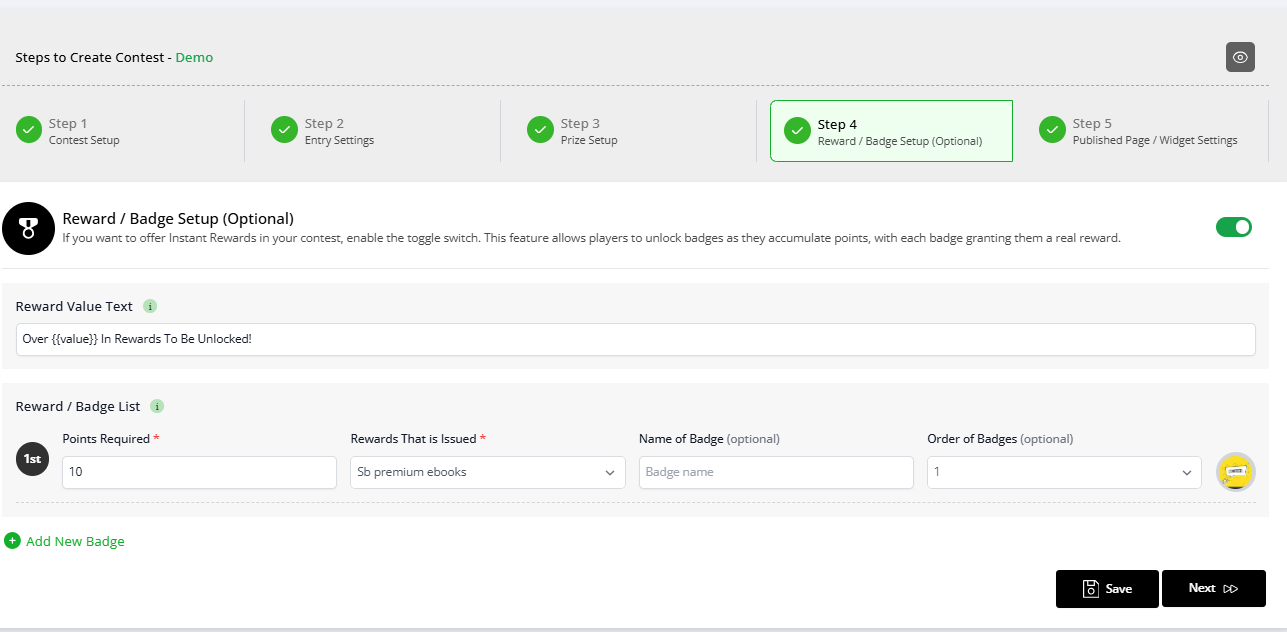
- Turn on the Instant Rewards toggle.
- Set the Points Required, the reward, badge name, display order, and upload a badge image.
- Add more badges if you like.
Step 5: Publish & Widget Settings
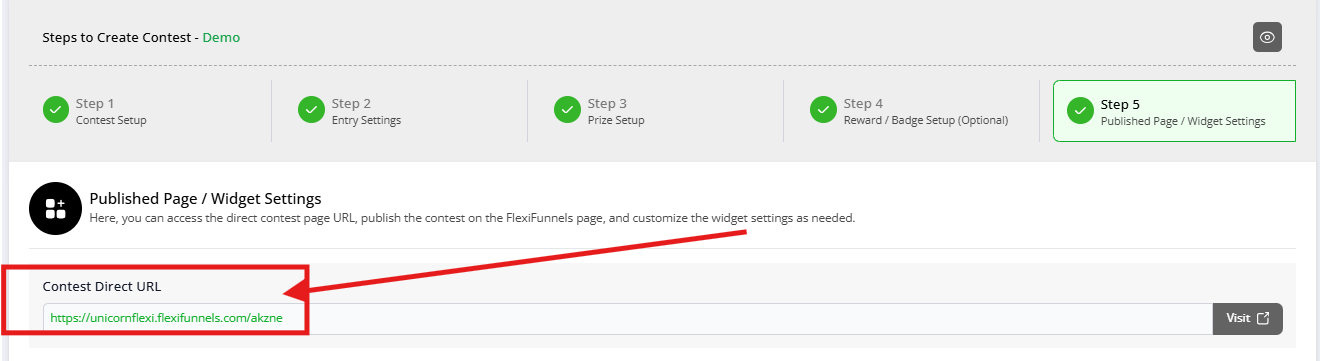
Now you put the contest in front of people. You have two ways:
Option 1 — Share the direct link
Use the Contest Direct URL to share your contest anywhere — WhatsApp, email, social media.
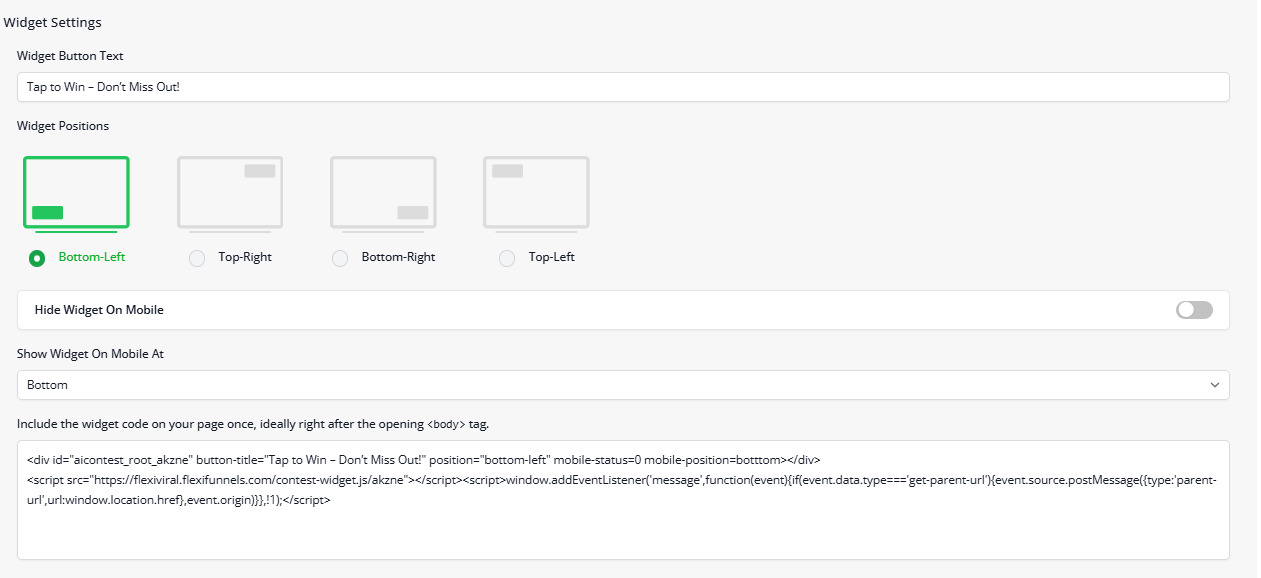
Option 2 — Add the widget to your page
- Pick a widget position (Bottom-Left, Top-Right, etc.).
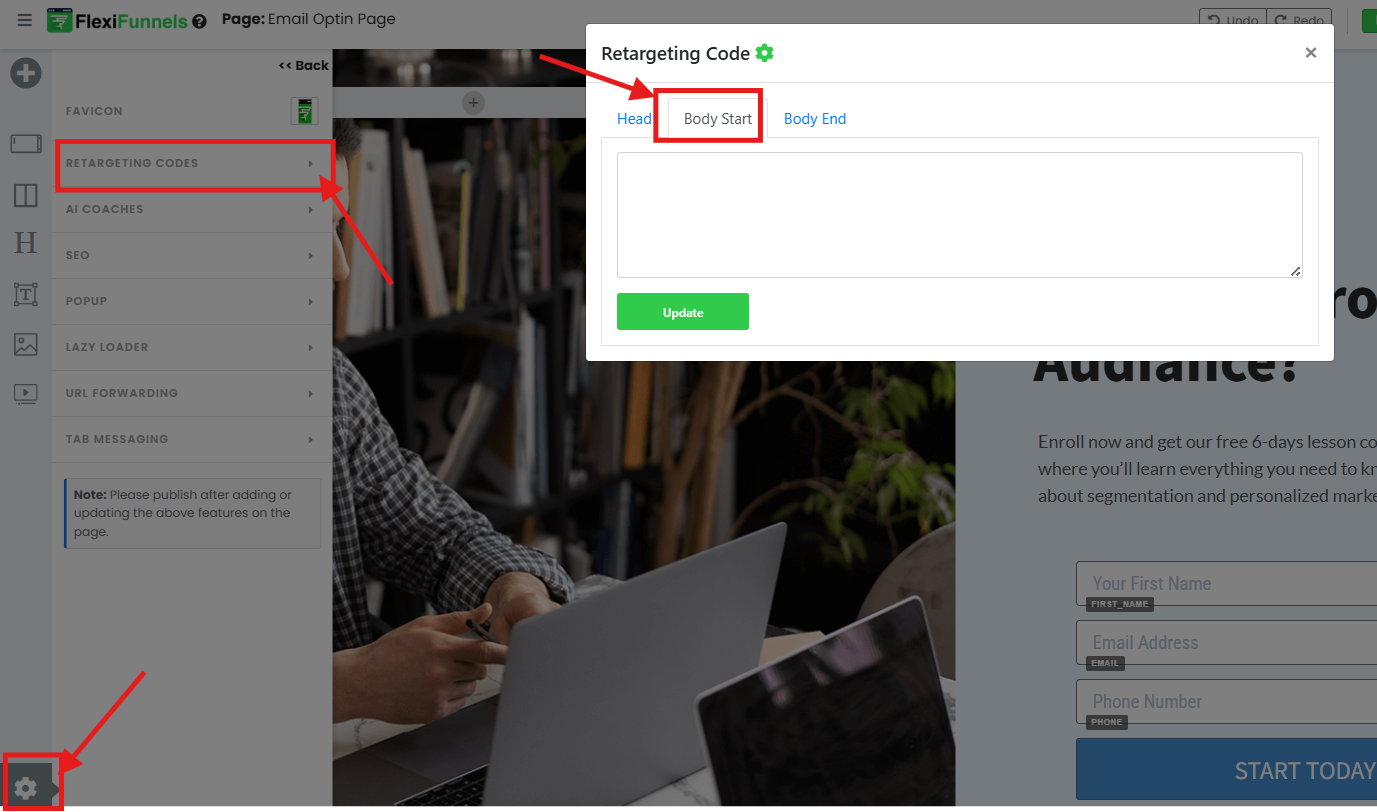
- Copy the Widget Code.
- Paste it into your page's retargeting code area, in the Body (start) box. (In the page editor: gear icon ⚙️ → Retargeting.)
Connecting it to a FlexiFunnels page
- Choose your project and landing page.
- Add the Flexi Viral element in the editor.
- On your opt-in form / thank-you page, open the redirect URL settings and turn on Pass Custom Parameters
⚠️ This step is easy to miss and important. "Pass Custom Parameters" is what carries the referral info from one page to the next. If it's off, your referral tracking won't work even when everything else is set up correctly.
Watch the integration video:
4. Viewing Statistics
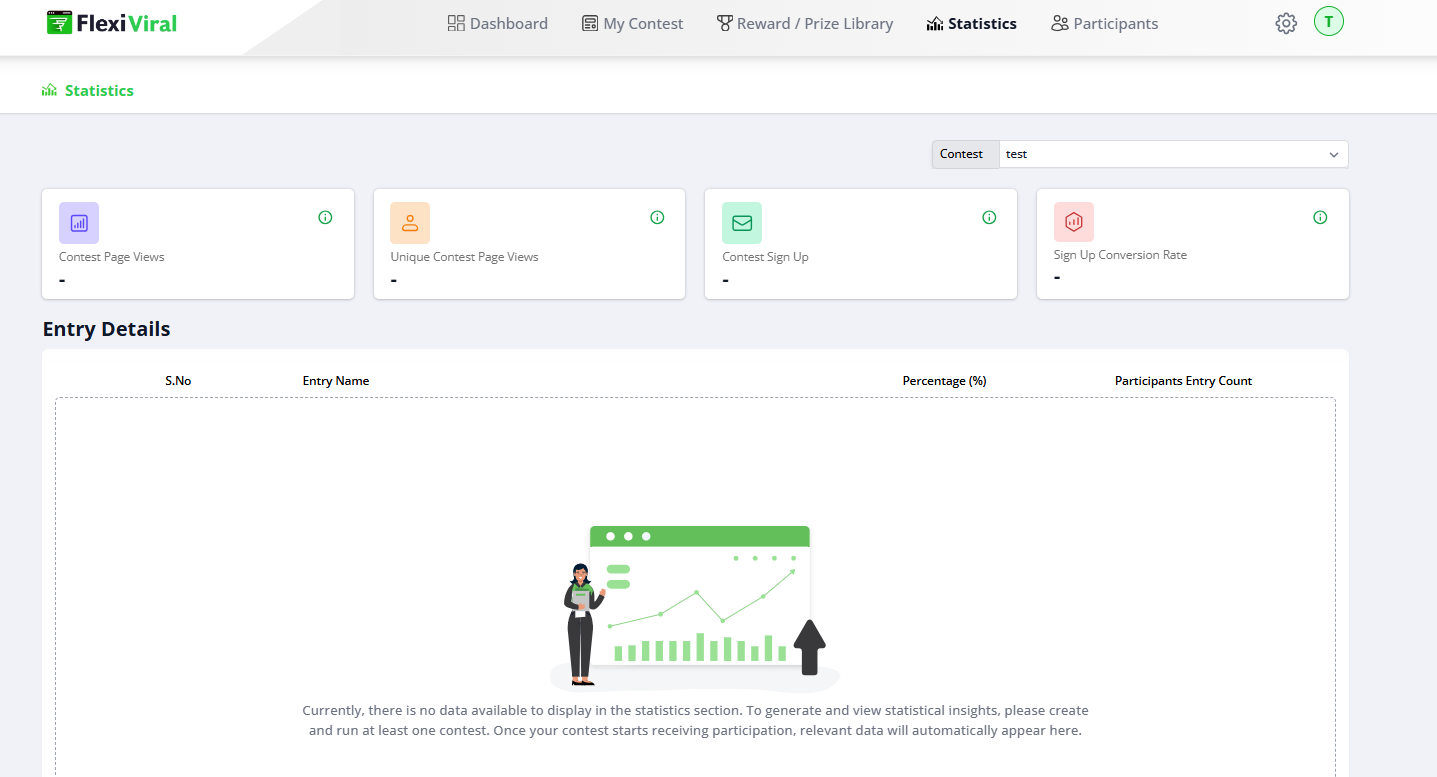
Go to Statistics to track:
Open Statistics to track how your contest is doing:
- Page Views & Unique Views
- Sign-ups & Conversion Rate
- Entry Completion %
- A breakdown of participant activity
5. Managing Participants
The Participants tab shows you everyone who joined:
- Name, email, phone number
- Entries, points, and referrals
- IP address and device details
- A CSV export button to download the full list

6. Additional Contest Settings
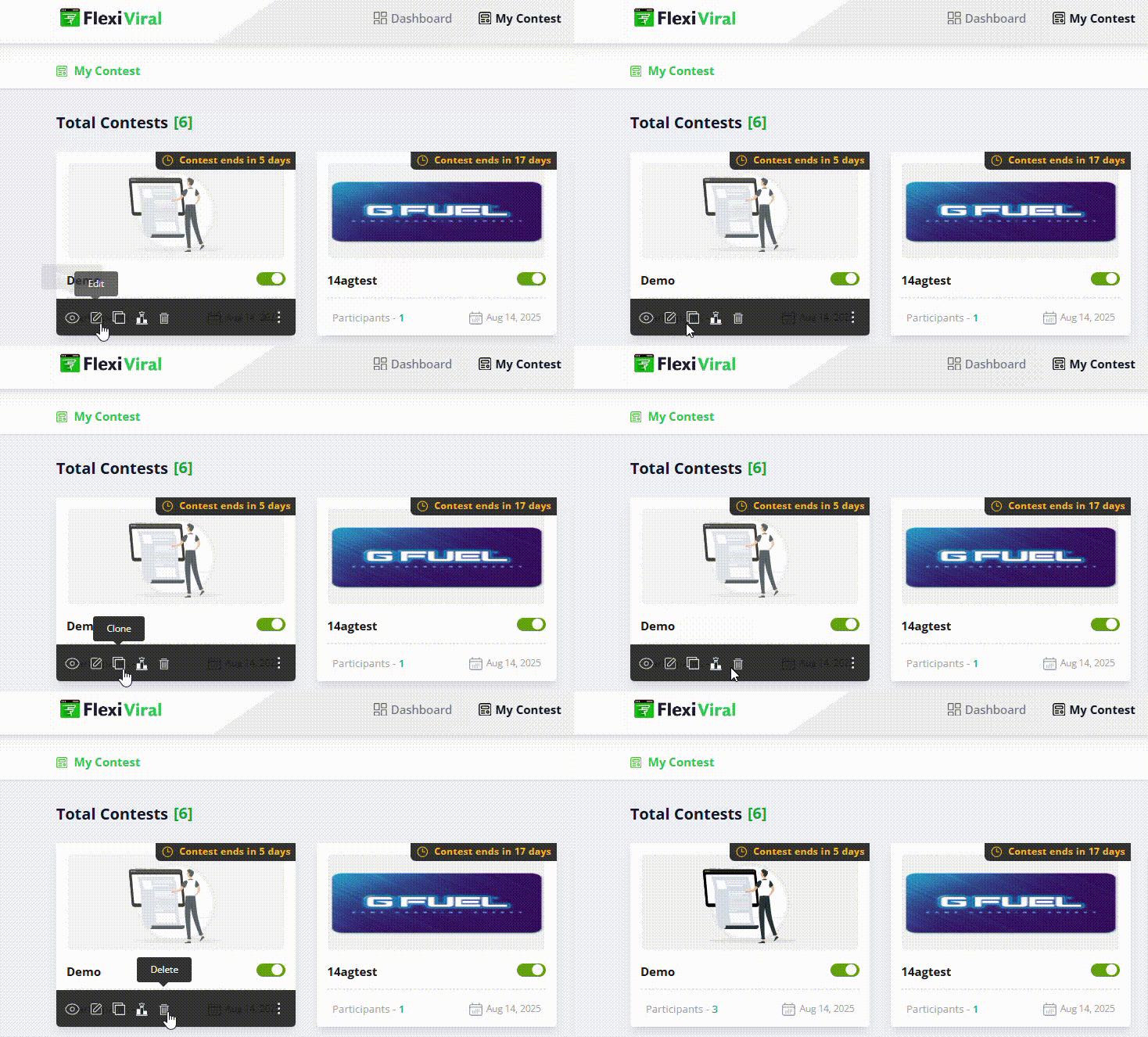
In My Contest, just place your cursor over any contest. You can Preview, Edit, Clone, or Delete it, plus:
Leaderboard — a public top-10 ranking that encourages people to compete and share more.
 Other settings option: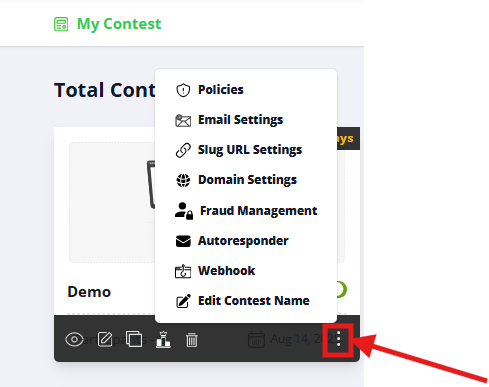
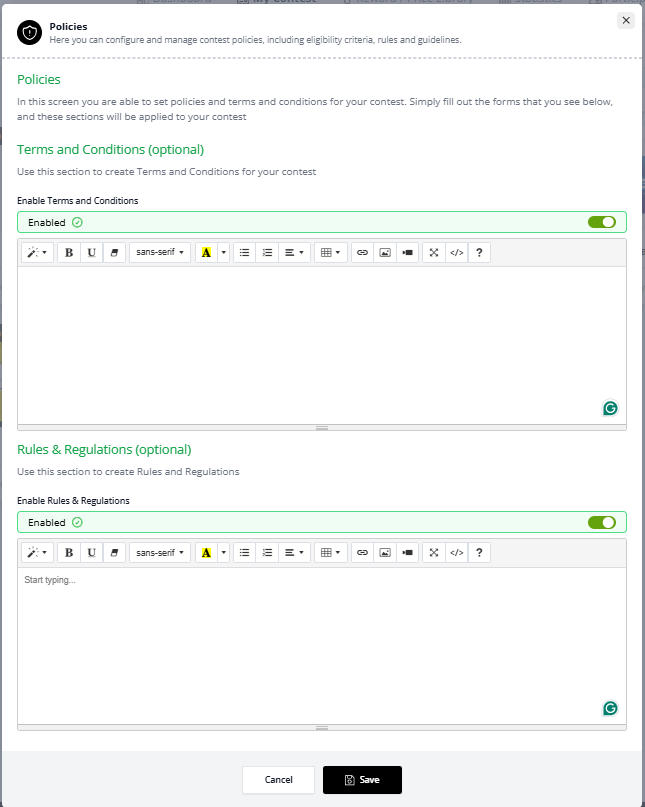
Policies – Update contest terms & rules
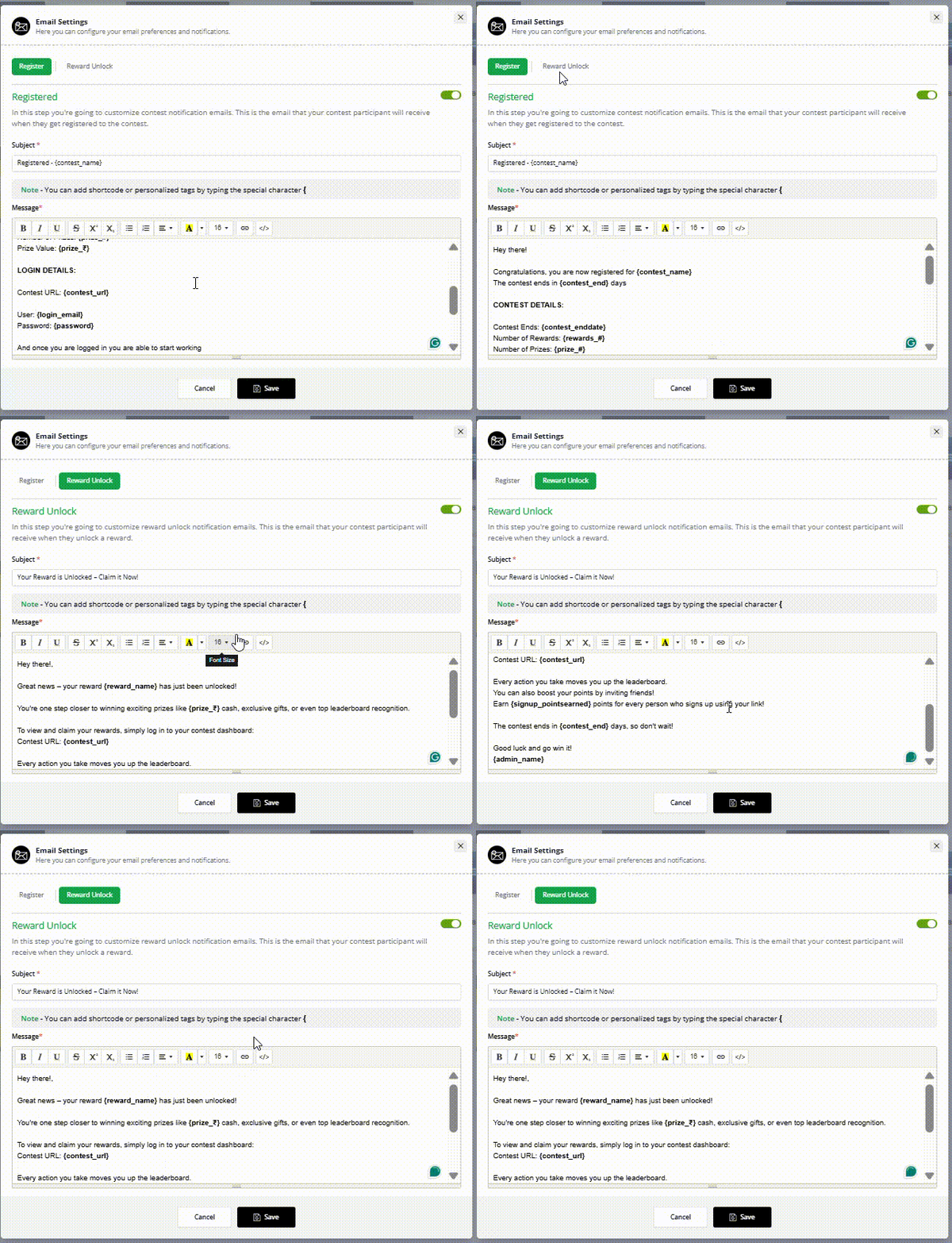
Email Settings — email templates for registration and reward unlocks.
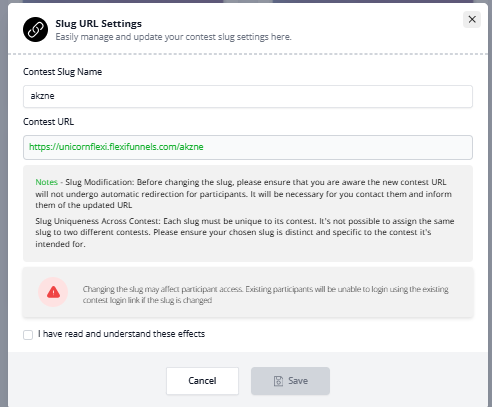
Slug URL Settings – Change contest slug (changing may break old links)
⚠️ Be careful changing the slug:
- The old link will not automatically redirect. If people already have the old link, you must contact them with the new one.
- Each slug must be unique — you can't use the same slug on two contests.
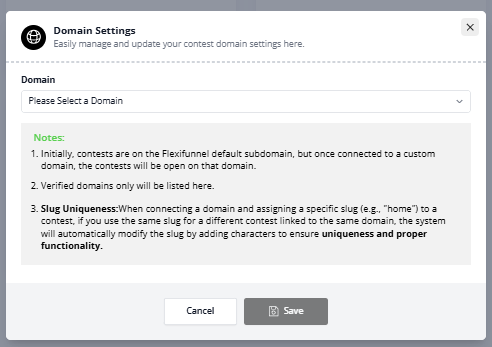
Domain Settings – Use a custom domain
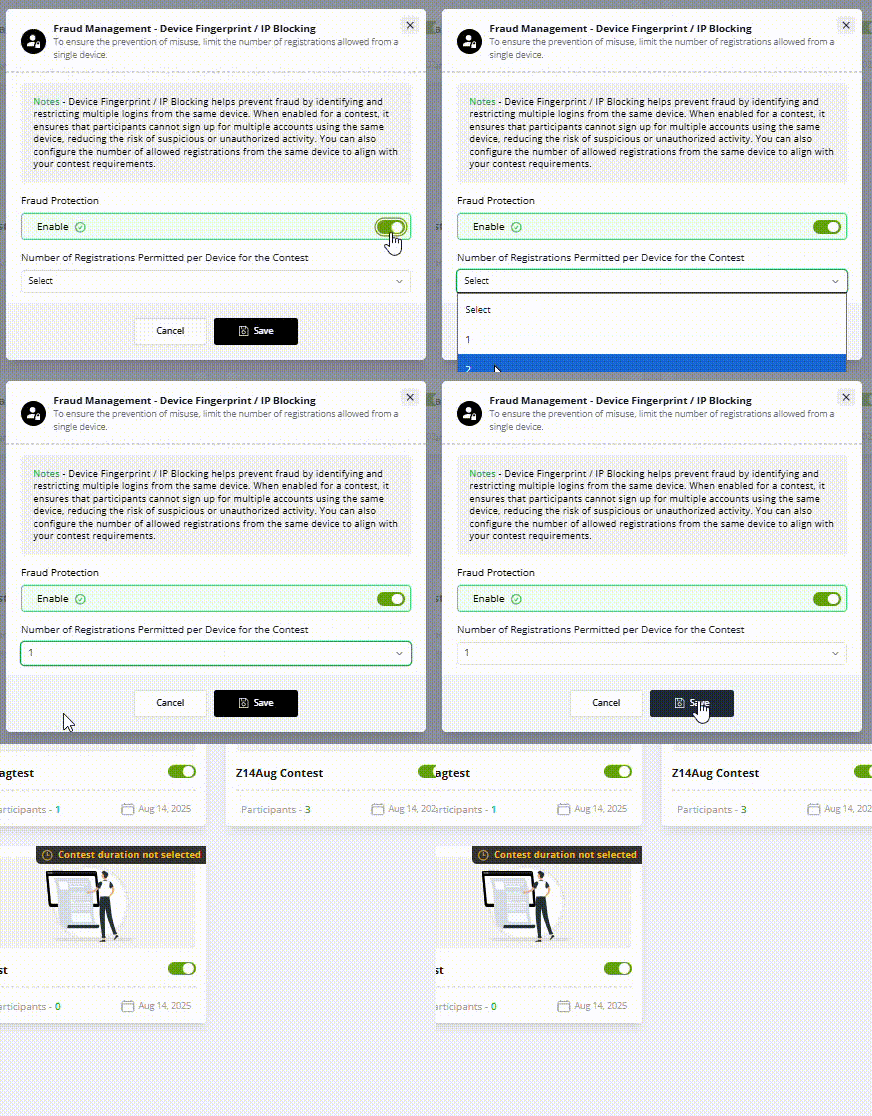
Fraud Management – Limit number of registrations per device (1, 2, or 3)
Autoresponder – Add participants to an email list automatically
Please select the appropriate autoresponder or webinar, along with the preferred list. Participants will be automatically added to the chosen list upon registering for the contest.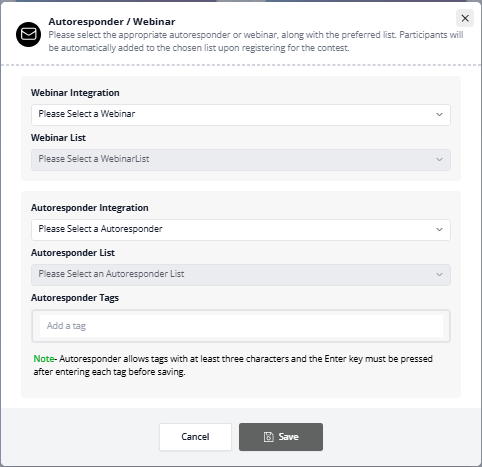
Webhook – Send participant data to external apps
Paste the webhook URL below where you want to receive automated POST requests. When an opt-in action occurs in this contest, we will send an HTTP POST request to the specified webhook URL.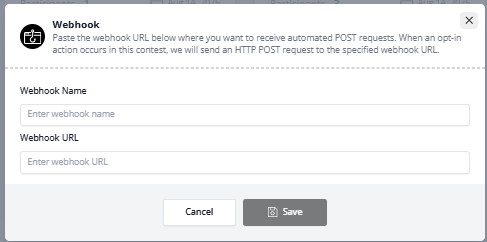
Edit Contest Name – Update title anytime
10. Tips & limits
- You can add a maximum of 6 rewards/prizes per contest.
- Finalize your slug/URL early so you never have to break links people already have.
- The leaderboard shows the public top 10; the full list is always in the Participants tab.
Some entry points may need a page refresh before they show up.
Common situations & quick fixes
Before contacting support, run through these — they solve the most common Flexi Viral issues.
The widget isn't showing on my page. Check three things: (1) the widget code is pasted into Body (start) under your page's Retargeting settings, (2) you saved and published the page after pasting it, and (3) you've selected a widget position. Refresh the live page (not the editor) to see it.
Referrals aren't being tracked / nobody's earning referral points. This is almost always one of two things. First, make sure you added the Viral Share entry in Step 2 — without it, there are no referral links. Second, make sure Pass Custom Parameters is turned on in your opt-in/thank-you page redirect settings. Both must be in place for referral tracking to work.
Participants aren't being added to my email list. Open the contest's Autoresponder setting and confirm you selected both the correct autoresponder and the correct list. If either is blank, no one gets added.
A prize isn't unlocking for participants. Check that the prize is attached to the contest (Contest Setup → Prize Setup), not just created in the Library. Also confirm the participant has actually reached the Minimum Points Required for that prize.
Points or entries aren't updating right away. Some entries need a page refresh to show. Ask the participant to reload the contest page before assuming something's broken.
I can't add a 7th prize. That's expected — there's a 6-prize limit per contest. Remove one you don't need, or run a second contest.
My old contest link stopped working. If the slug was changed, the old link won't redirect automatically. Share the new link with anyone who had the old one.
My contest isn't live when I expected. Double-check the start/end dates and especially the time zone in Step 1 — a wrong time zone is the usual reason a contest opens or closes at the "wrong" time.
My custom domain isn't working. Custom domains rely on correct DNS settings, which can take time to update after you add them. Give it a little time, then recheck the Domain Settings.
Was this article helpful?
That’s Great!
Thank you for your feedback
Sorry! We couldn't be helpful
Thank you for your feedback
Feedback sent
We appreciate your effort and will try to fix the article