Connect Claude or ChatGPT to FlexiMembership. Then find members, add them, give them access and look after their accounts by chatting.
A member is a person with a login ?. A product is what opens the door for them.
Sensitive actionsMany member actions send email or change who can get in. Check the person, the product and the result in every preview. Then ask the AI to show the member again.
| Action | What it does |
|---|---|
| Add a member | Emails their sign-in details. An invoice email goes too, unless you say no. |
| Give access | Emails an access notice. An invoice email goes too, unless you say no. |
| Renew or move a subscription | Can create members and move them. A past date cuts access at once. No undo. |
| Make a member inactive | They cannot sign in. Their data stays. |
| Turn on the device lock | Limits a member to their registered devices. |
| Ban a member | They cannot post or comment. Their access stays. |
| Send an email | Sends a standard welcome or reset notice. |
Before You Start
- Connect FlexiMembership to Claude (a Connector) or ChatGPT (a Plugin). Make sure it is authorized.
- Know the project and the product you want to give.
- Have each person’s name and email ready.
- Decide how to set passwords: random for each person, or the project’s default password.
- Start each request with “In FlexiMembership”.
Steps
1Find a member and see their access
- Search by name or email. You can also filter by course or bundle.
- Ask for one member. You see their access, their communities and their progress.
- For lessons finished and quiz scores, ask for their progress.
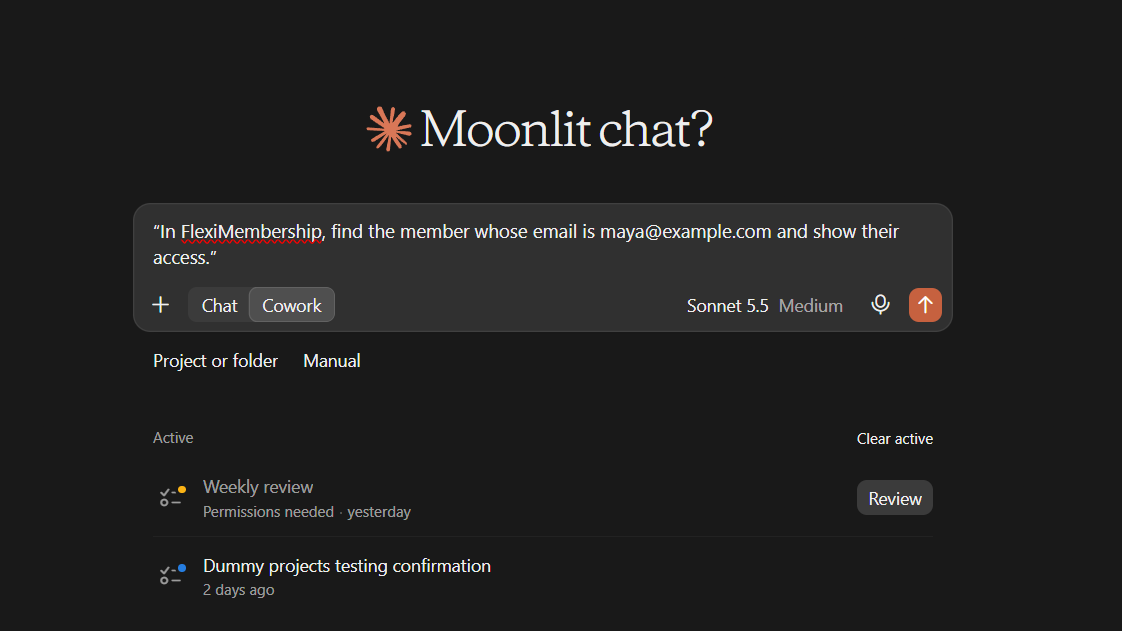
Example prompt“In FlexiMembership, find the member whose email is maya@example.com and show their access.”
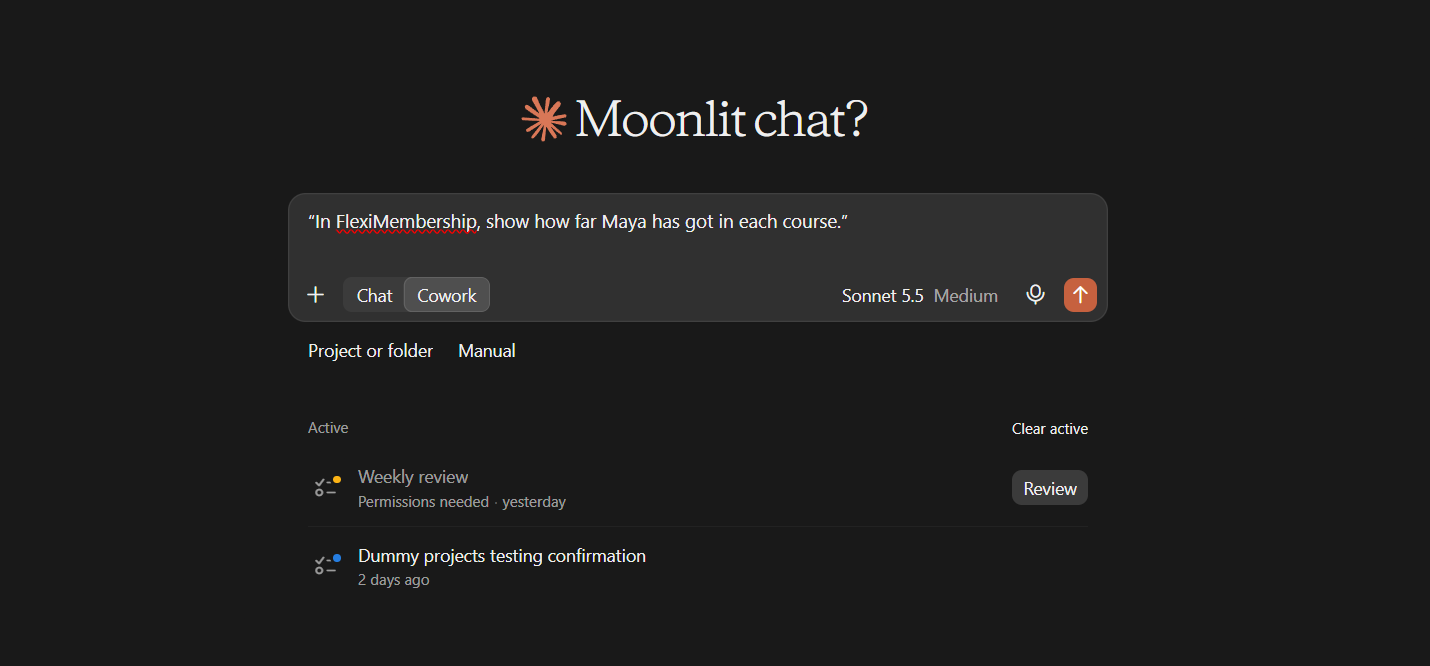
Example prompt“In FlexiMembership, show how far Maya has got in each course.”
- The member list also shows the products you can hand out.
2Add one member
- Give the name, the email and at least one product.
- Say if the password is random or the default.
- Read the preview. Confirm it.
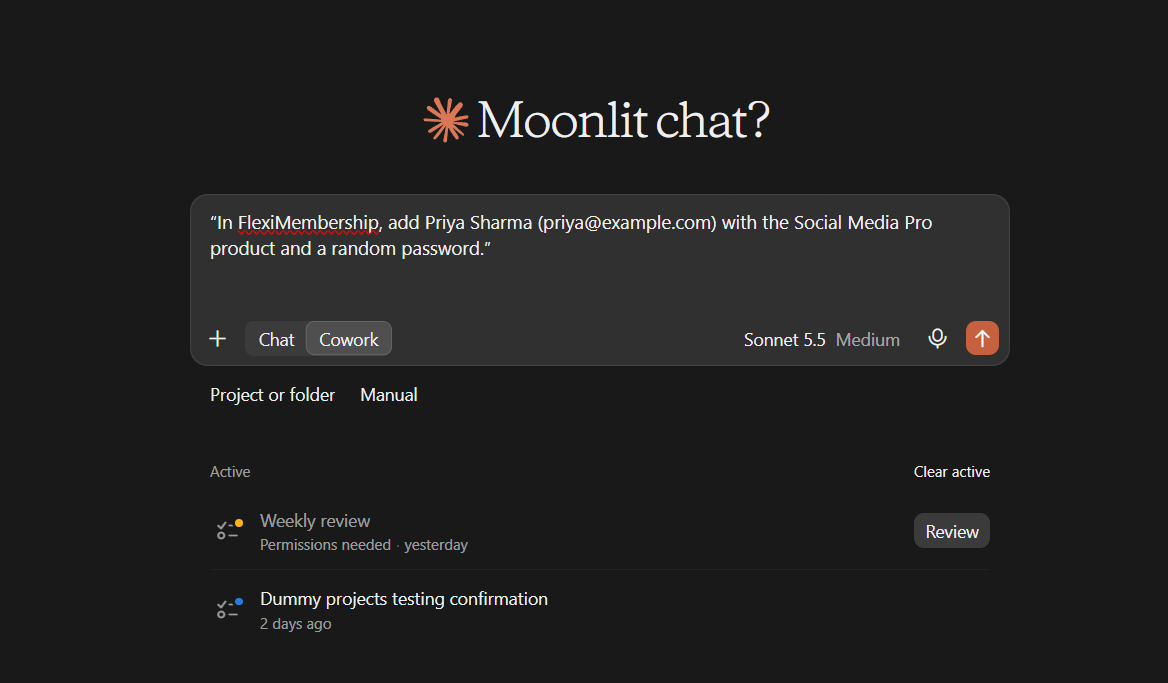
Example prompt“In FlexiMembership, add Priya Sharma (priya@example.com) with the Social Media Pro product and a random password.”
Be careful: emailThe person is always emailed their sign-in details. The AI refuses if the email is already a member, if your plan’s member limit is reached, or if protected-video seats run out.
3Add many members
- Give up to 100 names and emails and one set of products.
- Each person gets their own result: added, already a member, skipped or failed.
- One failure does not stop the others.
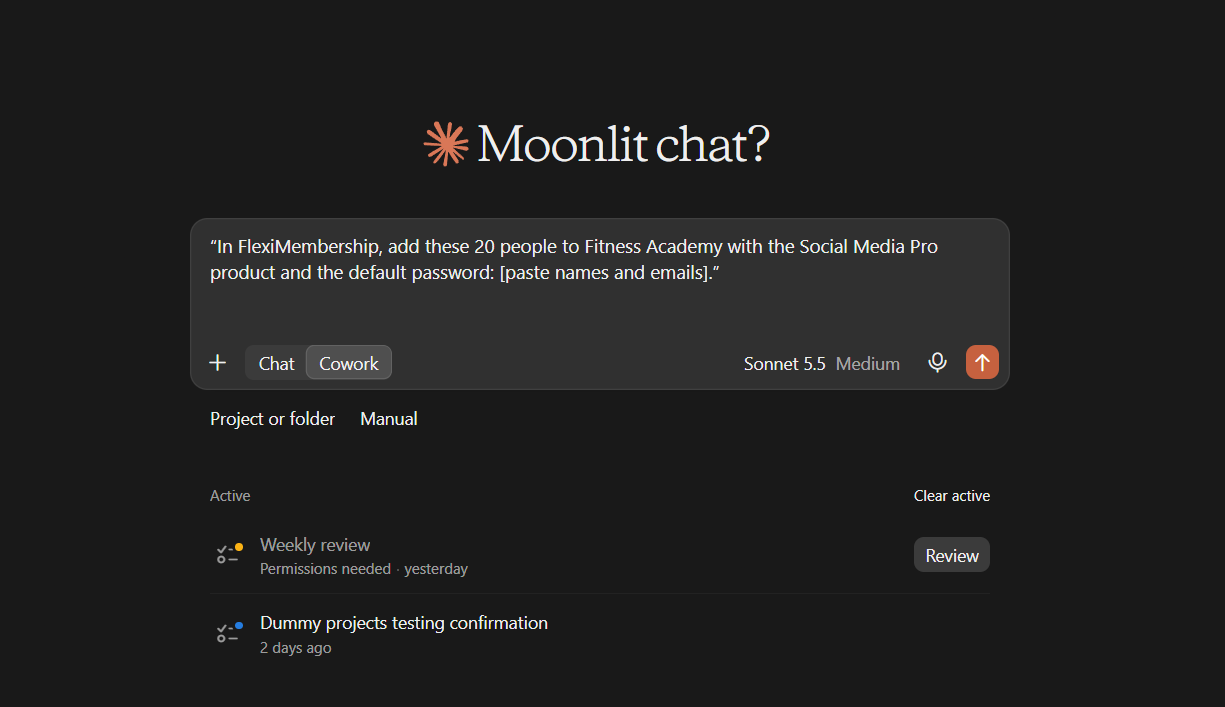
Example prompt“In FlexiMembership, add these 20 people to Fitness Academy with the Social Media Pro product and the default password: [paste names and emails].”
Be careful: bulkEvery new person is emailed. Start with two or three names if you are not sure.
4Edit a member and switch them off or on
- You can change a name, an email (their login), a phone number or a location.
- An inactive member cannot sign in. Their access and progress stay.
- You can change up to 100 members’ status at once. No email is sent.
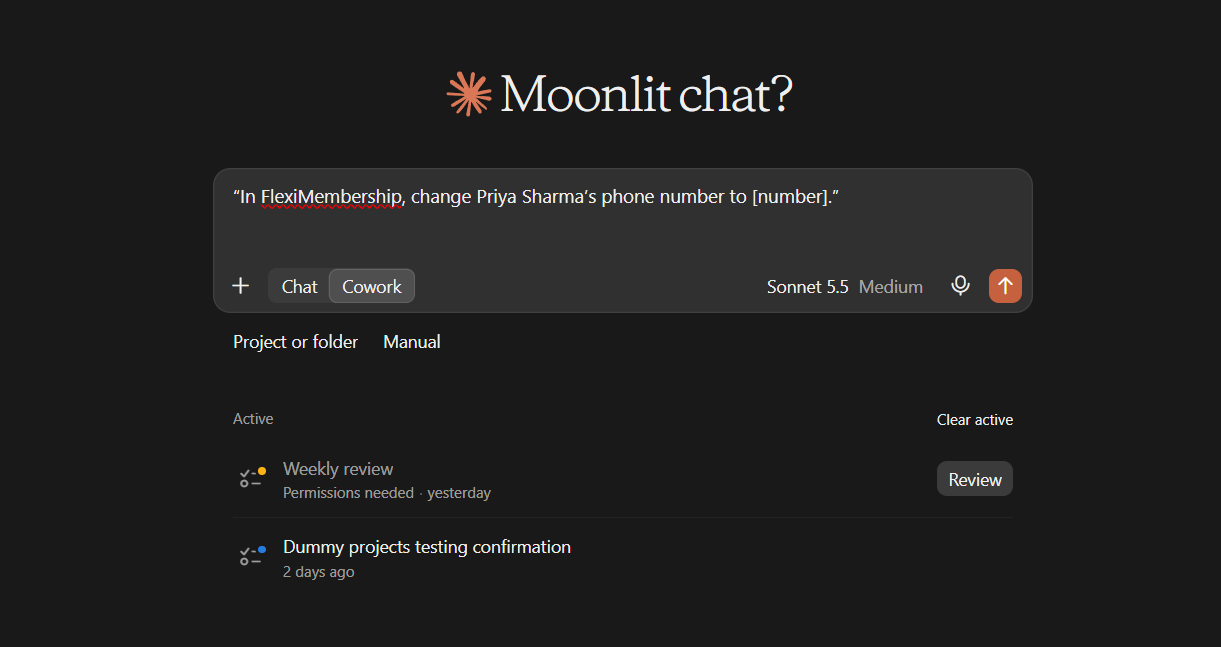
Example prompt“In FlexiMembership, change Priya Sharma’s phone number to [number].”
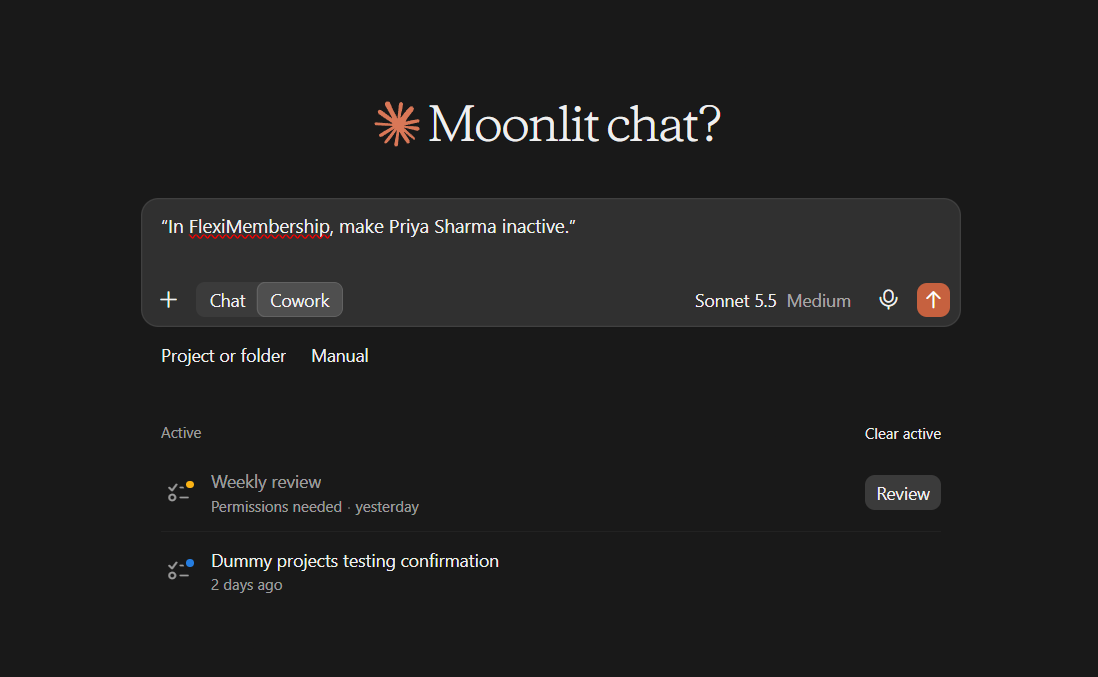
Example prompt“In FlexiMembership, make Priya Sharma inactive.”
- The account owner cannot be made inactive.
- A member blocked for too many devices cannot be turned on again here.
Be careful: passwordsPasswords cannot be changed through the AI. Use the FlexiMembership dashboard.
5Give access to members who already exist
- Name the member and the product. A product opens its courses or its community.
- You can give up to 100 members the same product.
- It only adds access. Nothing is taken away.
- Someone who was removed from that product’s community is let back in.
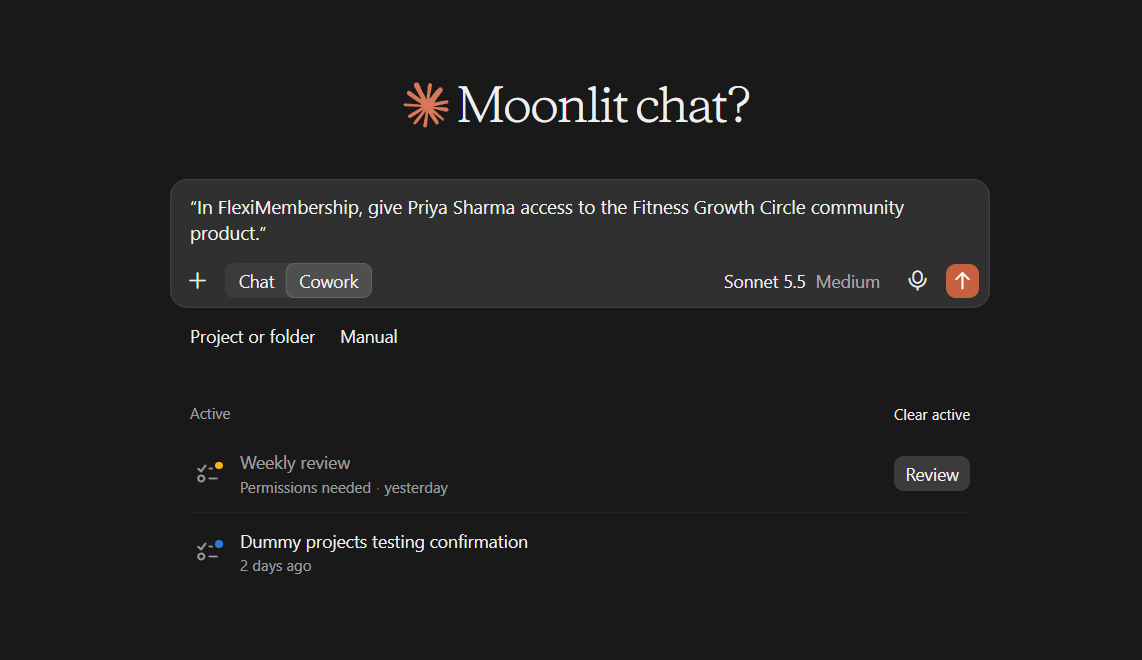
Example prompt“In FlexiMembership, give Priya Sharma access to the Fitness Growth Circle community product.”
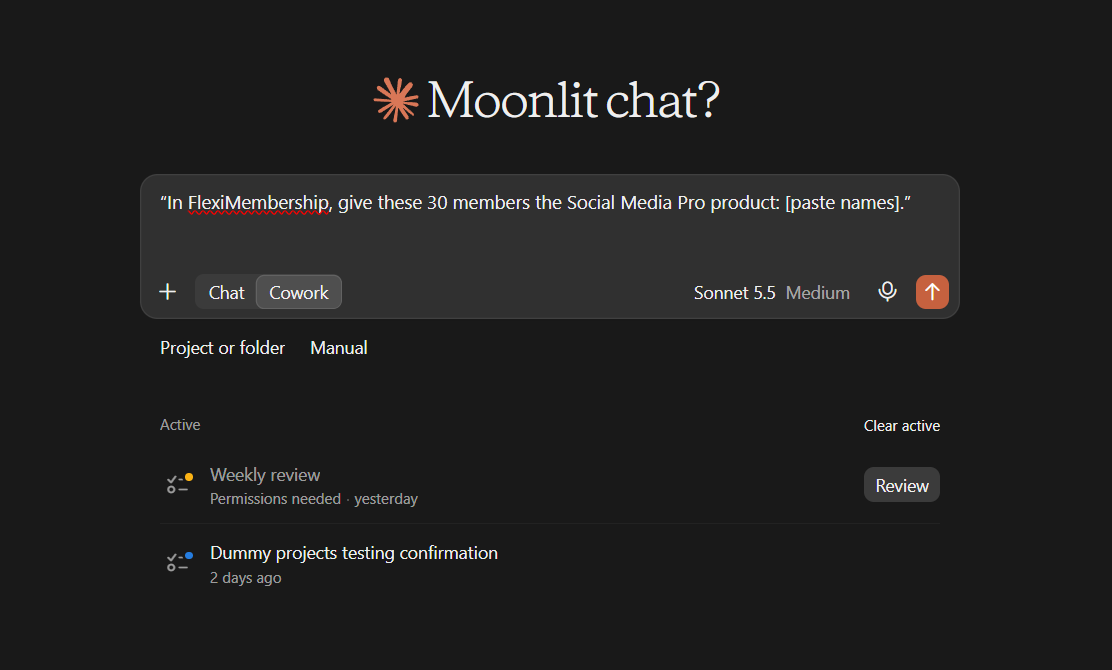
Example prompt“In FlexiMembership, give these 30 members the Social Media Pro product: [paste names].”
Be careful: accessEach person gets an access email. An invoice email goes too, unless you say no. Expired or switched-off access is not reopened. Use a renewal for that.
6Renew or extend a subscription
- Give each person’s email, the product and a new end date.
- This reopens expired access with the new end date.
- It works only on accounts that have Update Subscriptions turned on.
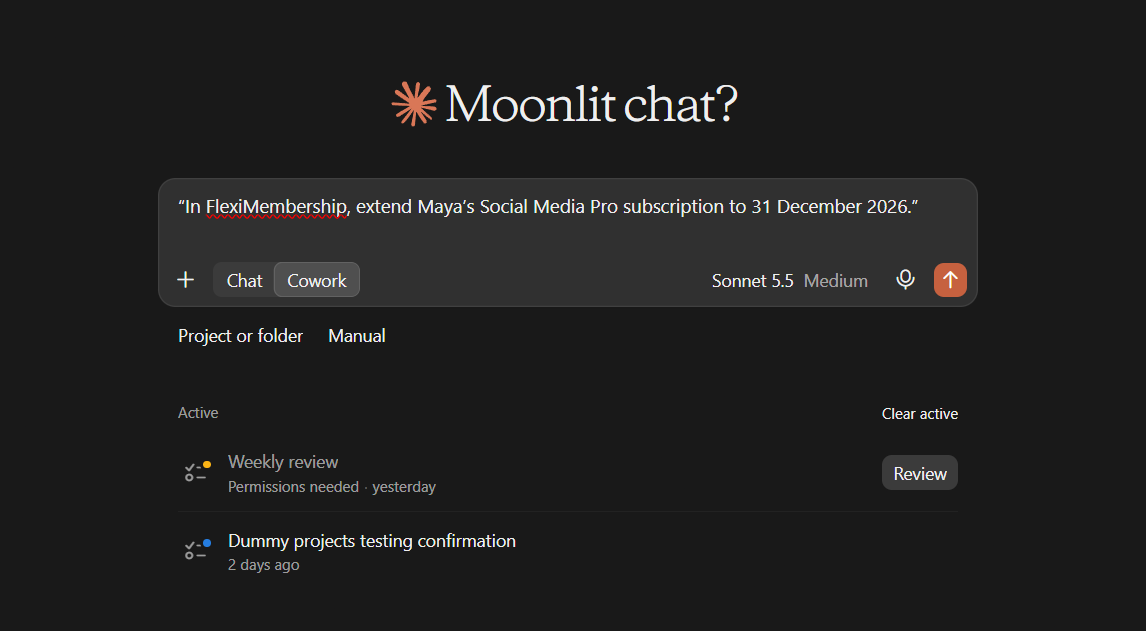
Example prompt“In FlexiMembership, extend Maya’s Social Media Pro subscription to 31 December 2026.”
Be careful: no undoA member with one other access is moved to this product. A person who is not a member yet is created. A date in the past cuts access at once. There is no undo. Read the preview with care.
7Use the device lock or a posting ban
- The device lock limits one member to their registered devices.
- A ban stops posting and commenting in communities and lesson discussions.
- A ban leaves courses, access and old posts as they are. The member is not told.
- You cannot ban the owner, instructors, admins or moderators.
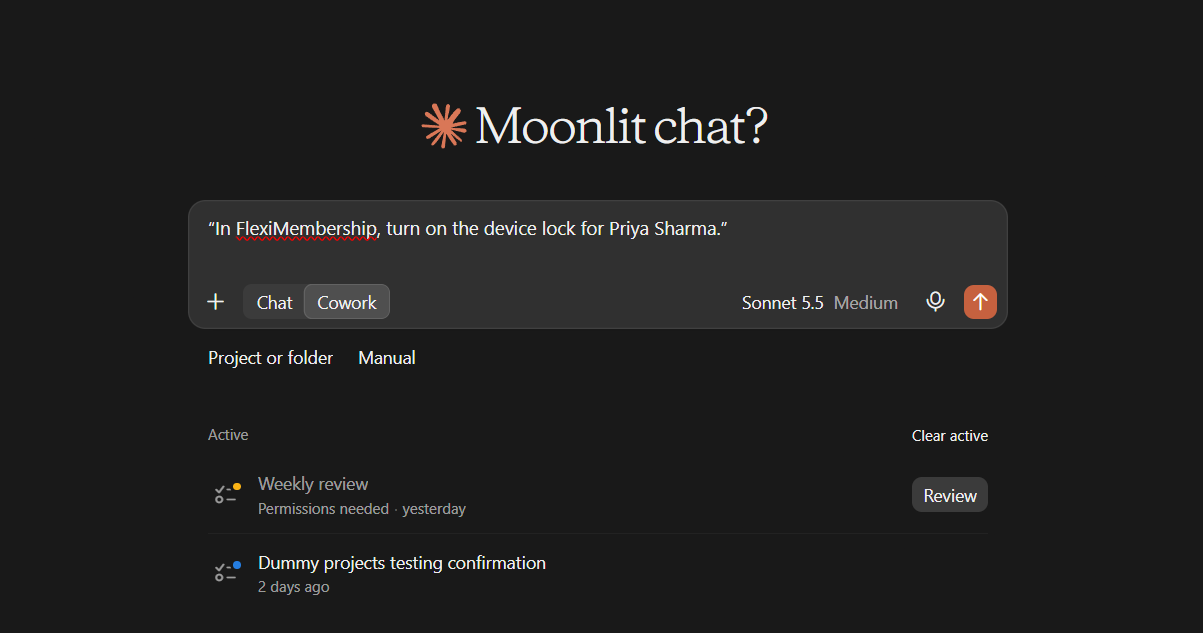
Example prompt“In FlexiMembership, turn on the device lock for Priya Sharma.”
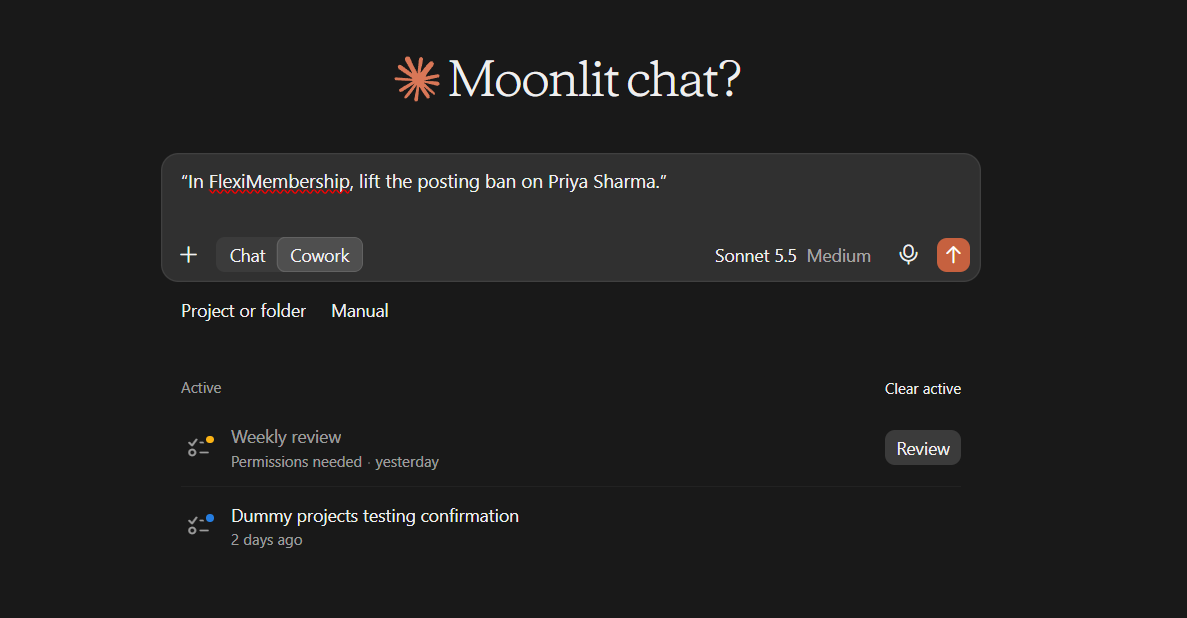
Example prompt“In FlexiMembership, lift the posting ban on Priya Sharma.”
Be careful: banCheck you have the right person before you ban.
8Send a standard email
- You can send one of two emails: welcome or reset.
- You cannot write your own subject or text.
- The reset email only says a reset was asked for. It has no link and changes no password.
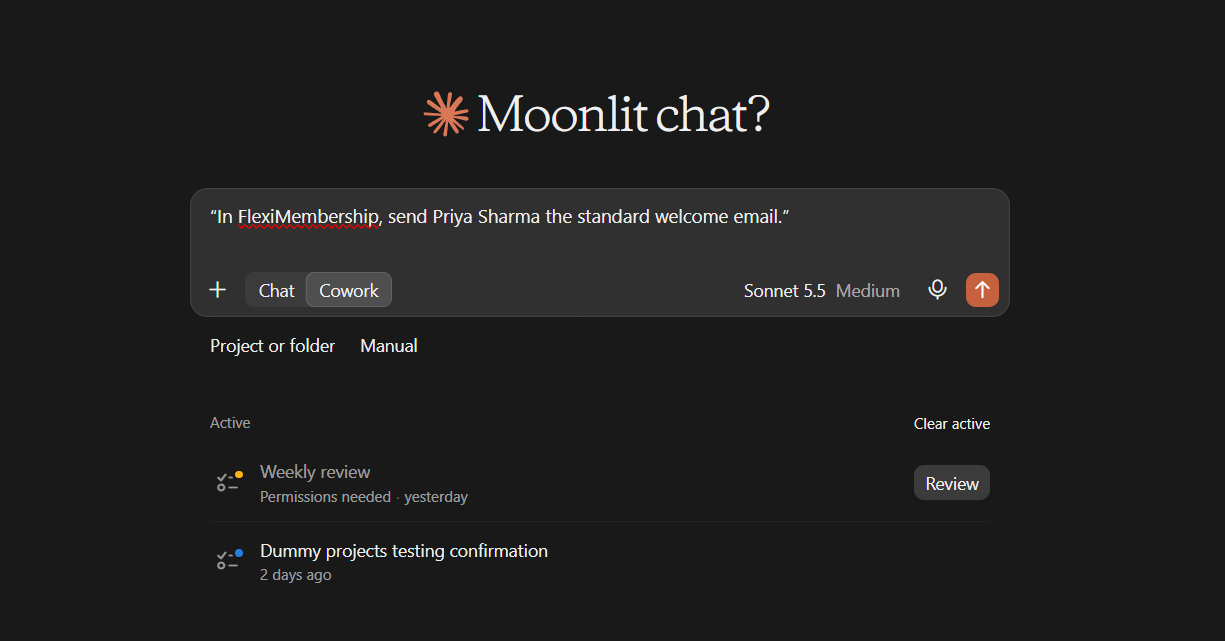
Example prompt“In FlexiMembership, send Priya Sharma the standard welcome email.”
Be careful: emailThe email is sent when you confirm.
Behind the Scenes: MCP Tools Involved
| Task | Related MCP tool(s) |
|---|---|
| Find members | list_members |
| View one member in full | get_member |
| View a member’s course progress | get_member_progress |
| See progress across a whole course | get_course_progress_report |
| Add one member | add_member |
| Add many members | add_members_bulk |
| Edit a member’s details | update_member |
| Switch a member on or off | set_member_status |
| Give a member a product | grant_member_access |
| Give many members a product | grant_member_access_bulk |
| Renew or extend subscriptions | update_member_subscriptions |
| Turn the device lock on or off | set_member_drm |
| Ban or unban a member from posting | set_member_ban |
| Send a welcome or reset email | send_member_email |
| Find a course to filter members by | list_courses |
| Find a bundle to filter members by | list_bundles |
Ready-to-Use Prompts
- “In FlexiMembership, find the member whose email is maya@example.com and show their access.”
- “In FlexiMembership, add Priya Sharma (priya@example.com) with the Social Media Pro product and a random password.”
- “In FlexiMembership, give Priya Sharma access to the Fitness Growth Circle community product.”
- “In FlexiMembership, extend Maya’s Social Media Pro subscription to 31 December 2026.”
- “In FlexiMembership, show how far Maya has got in each course.”
- “In FlexiMembership, make Priya Sharma inactive.”
Tips for Better Results
- Give the full name and exact email. This avoids the wrong person.
- Name the product. Do not say “the course” if a product has another name.
- Say how to set the password when you add someone.
- For a group, start with two or three people.
- Read the preview. It names the people and the community.
- After a change, ask the AI to show the member again.
Quick Fixes
| Problem | Fix |
|---|---|
| The AI says the person is already a member. | Use “give access” instead of “add”. |
| The default password is refused. | The project’s default password may be off. Choose a random password instead. |
| An add is refused. | Your plan’s member limit may be reached, or protected-video seats may be used up. |
| Access did not come back. | Expired or switched-off access is not reopened by a grant. Use a renewal. |
| I cannot turn a member back on. | A member blocked for too many devices is turned on in the dashboard. |
| The AI does not use FlexiMembership. | Check the connector or plugin is connected and authorized. Add “In FlexiMembership” to your prompt. |
Limitations
- The access tools only add access. They cannot remove it.
- Passwords cannot be changed through the AI. Use the dashboard.
- Only the welcome and reset emails can be sent. You cannot write your own.
- The reset email does not reset a password.
- The owner cannot be made inactive or banned.
- Renewals work only on accounts that have Update Subscriptions turned on.
- No undo is described. Read each preview before you confirm.
Was this article helpful?
That’s Great!
Thank you for your feedback
Sorry! We couldn't be helpful
Thank you for your feedback
Feedback sent
We appreciate your effort and will try to fix the article